
When you plug in a USB-C headset or connect Bluetooth headphones to your Galaxy S25 Edge and nothing happens, it kills the experience. Sound might play out of the phone's speakers, audio could cut in and out, or the phone might not detect the headphones at all. Most of these issues are straightforward to fix once you know where to look.
Before working through the fixes, run a quick quick headphone test in your browser. It plays the left and right sides separately, so you can tell right away whether one channel is actually dead.
Force Restart the Phone First
A quick force restart clears out temporary software glitches that mess with audio routing. Press and hold the Volume Down and Side (power) buttons together for about 10 seconds. Let go as soon as the Samsung logo flashes on screen, then test your headphones again.
Check the Basics
Make sure your Bluetooth headphones have enough battery and are in pairing mode if they aren't connecting automatically. For wired USB-C headphones, check that they support two-way audio (some USB-C accessories are charging-only and won't work for sound). Try the headphones with a laptop or another phone to confirm they actually work.
Clean the USB-C Port
Dust and pocket lint in the USB-C port is one of the most common reasons audio goes missing on the Galaxy S25 Edge. Inspect the port on the bottom of the phone carefully. If you see debris, use compressed air or a soft brush to clean it out gently. A dirty port can prevent headphones from connecting or trick the phone into thinking nothing is plugged in.
Unpair and Re-Pair Bluetooth Headphones
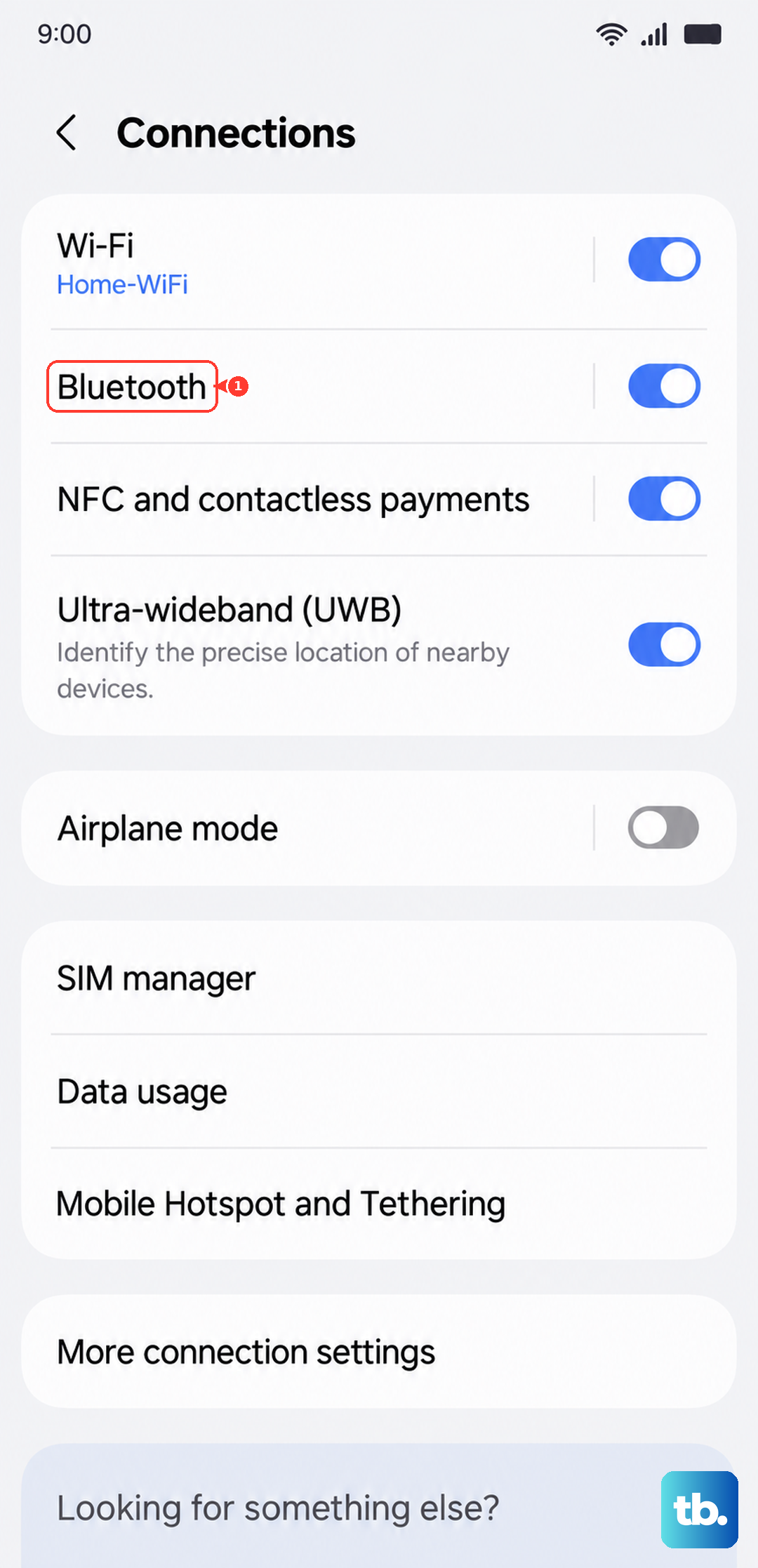
Corrupted pairing data causes all kinds of connection issues. Go to Settings > Connections > Bluetooth, tap the gear icon next to your headphones, and select Unpair. Put the headphones back into pairing mode and tap them under Available devices to reconnect from scratch.
Check the Media Output Source
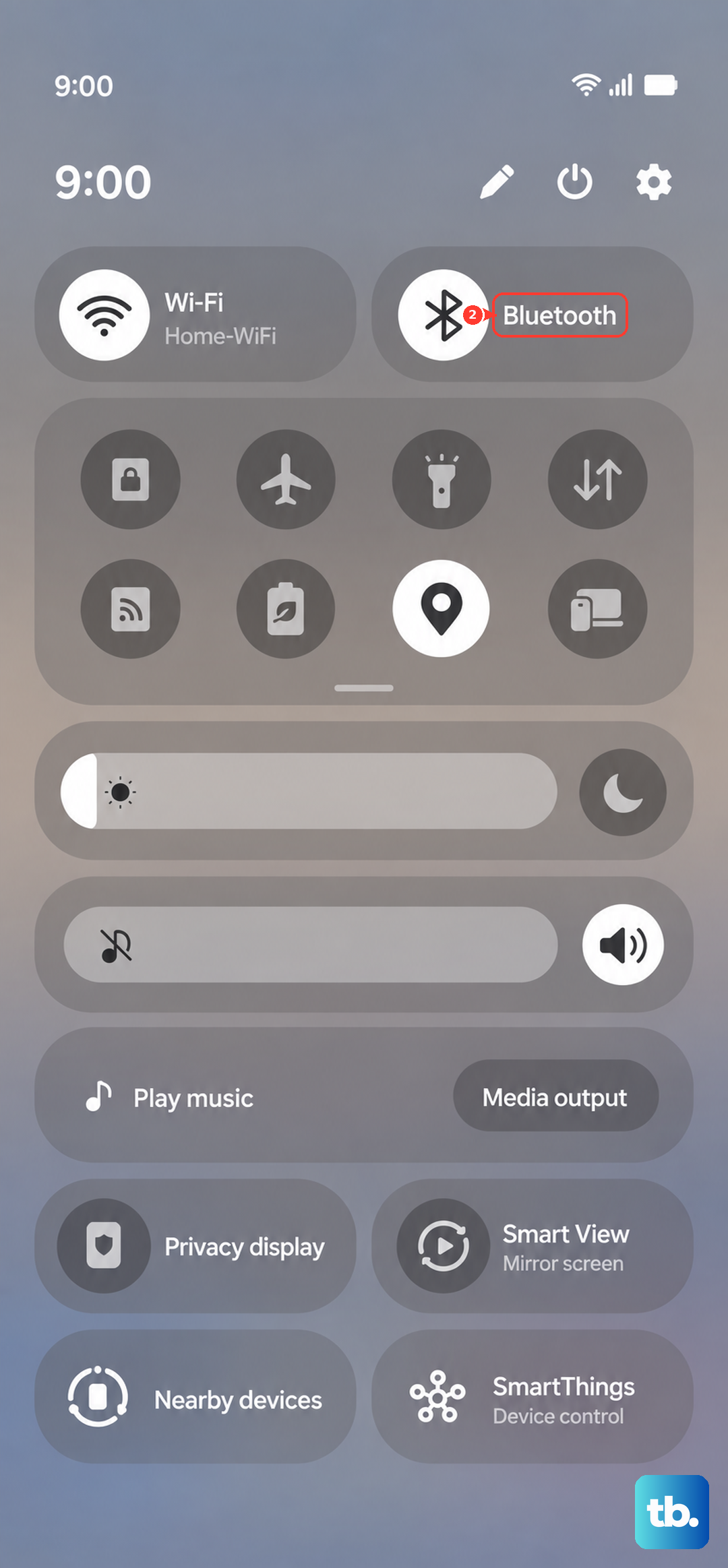
The Galaxy S25 Edge sometimes routes audio to the wrong output without telling you. Swipe down twice to open the full Quick Settings panel. Tap the Media Output button (it shows which device audio is playing through) and switch it to your headphones instead of the phone speakers.
Turn Bluetooth Off and On
Refreshing the Bluetooth radio is fast and often fixes stubborn connection drops. Swipe down and tap the Bluetooth icon in Quick Settings to turn it off. Wait about 15 seconds, then tap it again to turn it back on and reconnect your headphones.
Check Volume Levels Separately
If audio is distorted or extremely quiet, open the volume controls. Press the Volume Up button and tap the arrow on the slider to expand all volume options. Make sure Media Volume is turned up high enough. The S25 Edge keeps separate volume levels for media, ringtones, and notifications, so one could be accidentally muted while the others are loud.
Update the Galaxy S25 Edge Software
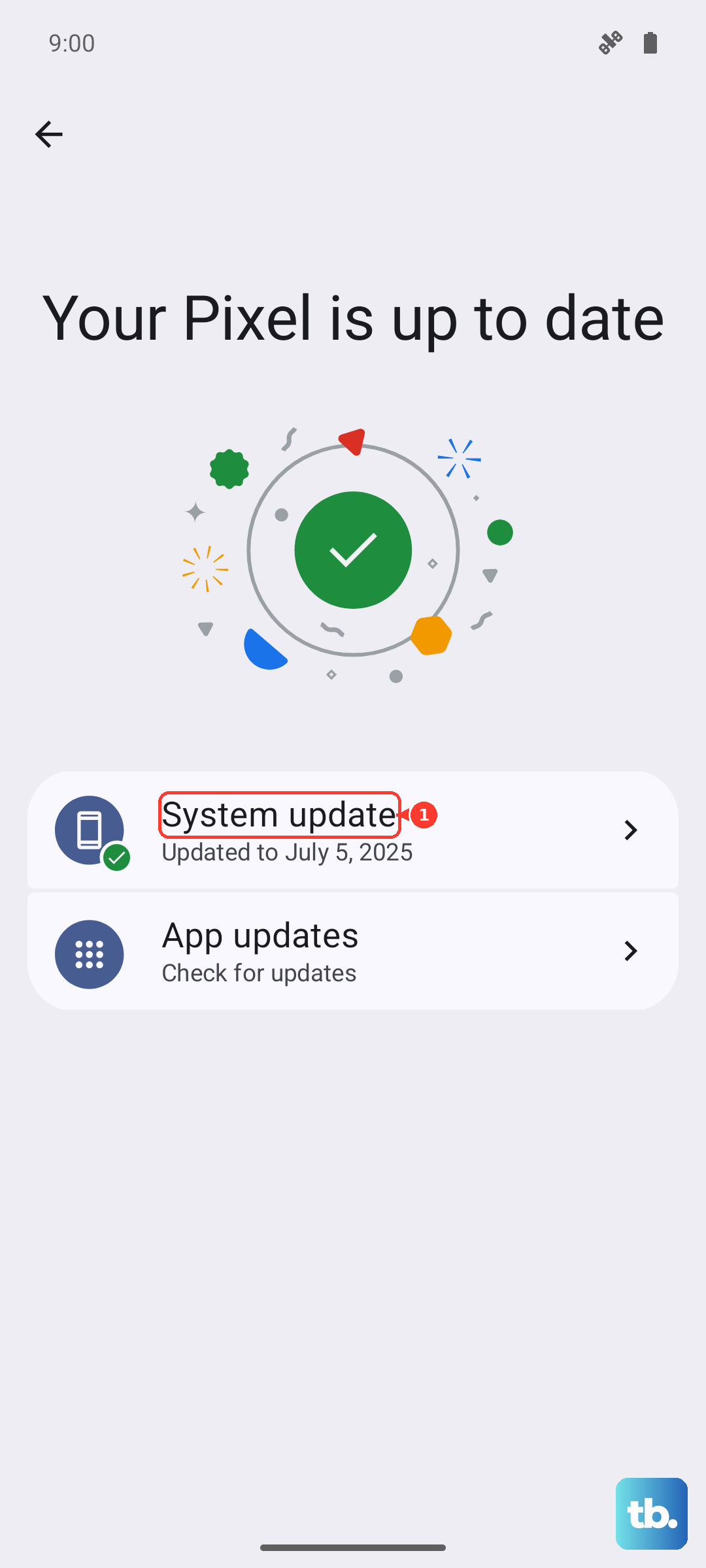
Bluetooth and USB audio bugs are common in early software builds, but Samsung pushes fixes through system updates. Go to Settings > Software Update and tap Download and install. If an update is available, install it and check if your headphones work afterward.
Reset Audio and Connection Settings
When nothing else works, resetting your settings without deleting your data usually fixes persistent audio problems. Go to Settings > General Management > Reset > Reset all settings. This clears out Bluetooth pairings, network settings, and audio configurations. You will need to reconnect your headphones and Wi-Fi networks, but your apps, photos, and personal data remain untouched.