
The flashlight on your Samsung Galaxy S25 Edge is a handy feature, but sometimes it just won't turn on. The icon in the Quick Settings panel might be grayed out, or tapping it does nothing. Here's how to fix it and get that light back.
Check If the Camera App Is Running
The flashlight and the camera flash share the same LED hardware. If the Camera app is open in the background, the system locks the flashlight to prevent interference. Swipe up from the bottom of the screen to open the Recent Apps view, then swipe the Camera app card away. Try the flashlight again, it should work immediately.
Force Restart the Phone
A simple restart clears out software glitches that can leave the flashlight unresponsive. Press and hold the Volume Down and Side (power) buttons together for about 10 seconds. Keep holding until the Samsung logo appears on screen. This is a hard reset and won't erase any of your data. Once the phone boots up, test the flashlight.
Turn Off Battery Saver Mode
Battery Saver mode on the Galaxy S25 Edge can restrict background functions, and some users find the flashlight becomes sluggish or unresponsive while it's active. Swipe down twice to open the full Quick Settings panel and tap the Battery Saver icon to turn it off if it's highlighted. Then try the flashlight again.
Let the Phone Cool Down
The Galaxy S25 Edge is known to generate heat during fast charging or heavy use. When the internal temperature gets too high, Android disables certain hardware features to protect the device, and the LED flash is often one of them. If your phone feels warm, move it to a cooler area and give it 10-15 minutes to cool off. The flashlight will become available again once the temperature drops.
Use Bixby or Google Assistant
Say "Hey Bixby, turn on the flashlight" or "Hey Google, turn on the flashlight". If the voice assistant can activate it but the Quick Settings button doesn't respond, it's usually a UI glitch. Toggle the flashlight off and on again through the assistant to reset the software state. A restart will clear the glitch permanently.
Adjust the Flashlight Brightness
Press and hold the flashlight icon in the Quick Settings panel instead of tapping it. A brightness slider will appear. Drag it all the way to the right. If the flashlight was set to its lowest level, the light can be so dim that it's barely visible in a bright room. This is a common cause of "it's not working" when the hardware is perfectly fine.
Reset System Settings
If the flashlight is still being stubborn, you can reset the system settings without losing your photos, apps, or data. Go to Settings > General management > Reset > Reset all settings. You'll need to re-enter your Wi-Fi passwords and adjust some preferences afterward, but this clears deeper configuration bugs that affect hardware controls.
Install the Latest Software Update
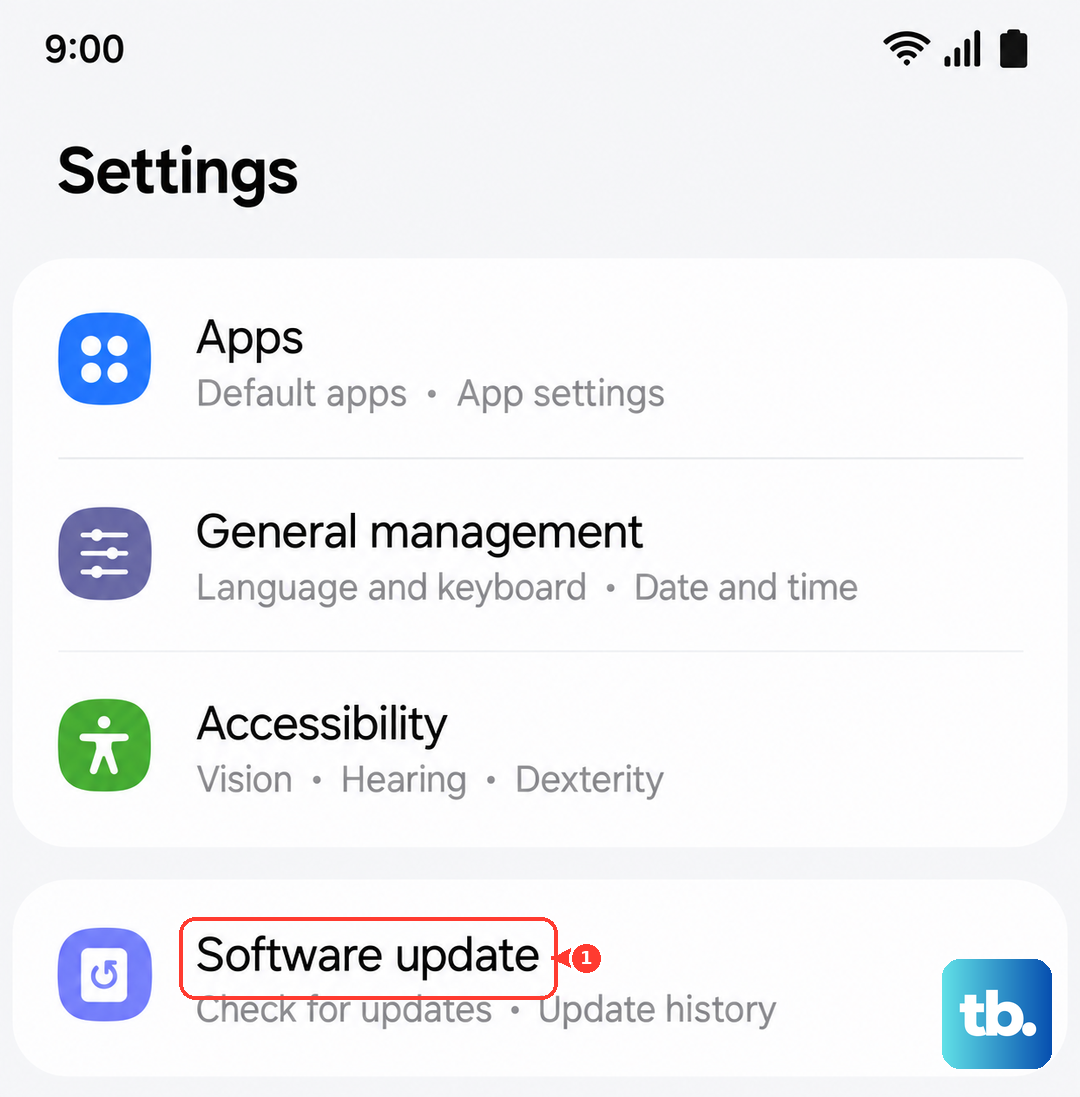
Samsung has shipped software patches that address flashlight and camera stability issues in the past. Go to Settings > Software update > Download and install. If an update is available, install it and restart the phone. The firmware update can fix bugs that keep the flashlight from responding at all.
Test the Camera Flash
Open the Camera app and take a photo with the flash set to On (not Auto). If the camera flash fires normally, the LED hardware is fine and the issue is software-based. If the flash doesn't work in the camera either, the LED module may be damaged. That's a hardware issue that would need a service center to diagnose and replace.