
When the flashlight icon in your Quick Settings panel is grayed out or completely unresponsive, it usually comes down to a software quirk or a safety lock. The Z Fold 7 can sometimes get confused about which app is using the camera hardware. Let's walk through the fixes that actually work on this specific phone.
Check if Something Is Already Using the Camera
The flashlight and the camera share the same LED hardware. If an app is holding the camera open, the system blocks the flashlight to avoid interference. Swipe up from the bottom and hold to open the recent apps screen.
Look for any app that might be using the camera, Instagram, Snapchat, Zoom, or even the default Camera app. Swipe these closed. You can also check for the green camera indicator dot at the top right of the screen. If you see it, something is actively using the camera. Close it out, and the flashlight button should become available.
Adjust the Brightness Using the Long Press
This one fools people all the time. The flashlight might actually be on, but set to the lowest possible brightness. In a well-lit room, it's nearly invisible.
Pull down the Quick Settings panel and do a long press on the flashlight icon. A brightness slider pops up. Drag it all the way to the right to make sure it's not set to minimum.
Force Restart the Phone
If a simple restart doesn't cut it, the Z Fold 7 has a dedicated force restart command. Press and hold the Volume down button and the Side button at the same time for about 10 seconds. Keep holding until the Samsung logo appears on the screen.
This clears the system memory and resets the hardware control state without deleting any of your data. I'd start here if the grayed-out icon happened suddenly and you haven't restarted yet.
Turn Off Battery Saving Mode
Power Saving mode extends battery life by limiting background activity, and in some cases, it restricts hardware features like the flashlight. Go to Settings > Battery > Power saving and make sure it's toggled off. Try the flashlight again once it's disabled.
Let the Z Fold 7 Cool Down
Your Fold 7 has a complex thermal system because of the foldable design. If the phone gets too hot, the system automatically disables power-hungry features like the flashlight LED. If the phone feels warm to the touch, set it down in a cool, shady spot for about 10 minutes. Once the temperature drops, the flashlight will work again normally.
Try a Voice Assistant Instead
Voice assistants can sometimes bypass a stuck UI button. Say "Hey Bixby, turn on the flashlight" or "Hey Google, turn on the flashlight". If the assistant activates the light without a problem, you know it's strictly a Quick Settings panel glitch. A force restart usually clears that up.
Optimize the System with Device Care
One UI has a built-in optimization tool that fixes transient glitches. Open Settings > Device care. Tap the Optimize now button. This closes background apps and clears temporary system files. It can fix the kind of UI hang that causes the flashlight icon to stay grayed out.
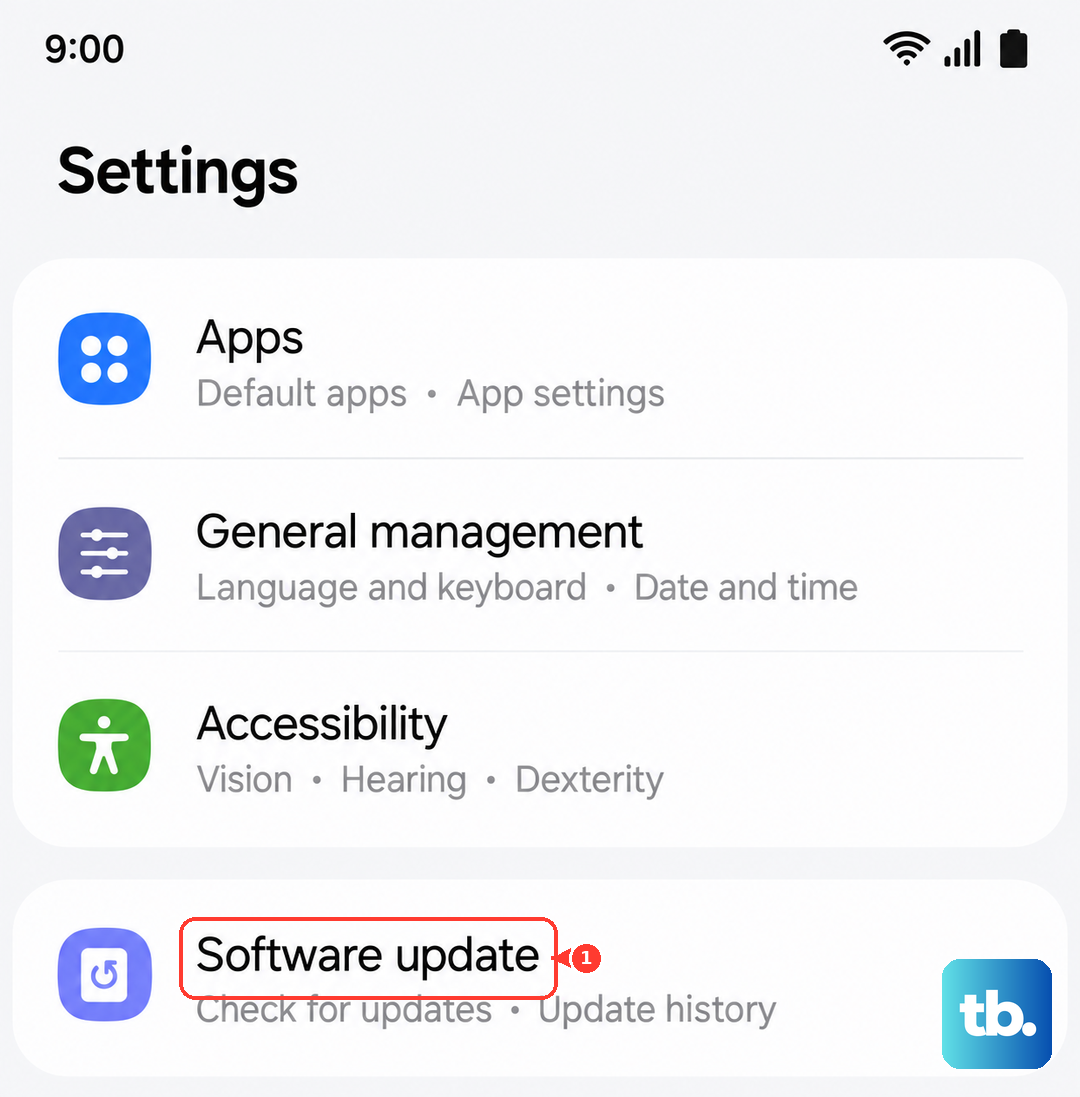
Install Pending Software Updates
Samsung regularly pushes updates to fix bugs in One UI. If the flashlight issue showed up after a recent update, or if you haven't updated in a while, a software patch might be the answer. Go to Settings > Software update and tap Download and install. Install any pending updates and test the flashlight again.
Reset All Settings Without Losing Data
This doesn't delete your photos or accounts, but it clears network settings, home screen layouts, and system configurations. Go to Settings > General Management > Reset > Reset all settings. You'll need to confirm your PIN or password. After the phone restarts, the flashlight should be fully functional again. If the camera flash also doesn't work, the LED itself may need servicing.