
That grayed-out flashlight icon on your Samsung Galaxy S26 is a real nuisance, especially when you need it. The button in the Quick Panel just won't light up. Let's get your torch working again.
Close the Camera App
The flashlight and camera flash use the same LED hardware. If your camera app is open, even in the background, the system reserves the flash and disables the flashlight. Swipe up from the bottom to see your recent apps and swipe the Camera app away to close it. The flashlight button should become available right away.
Force Restart Your Phone
This is the quickest fix for most temporary software glitches on the S26. Press and hold the Volume Down button and the Side/Power button together for about 10 seconds. Let go when you see the Samsung logo appear on the screen. This clears the phone's memory and often resolves a stuck flashlight control.
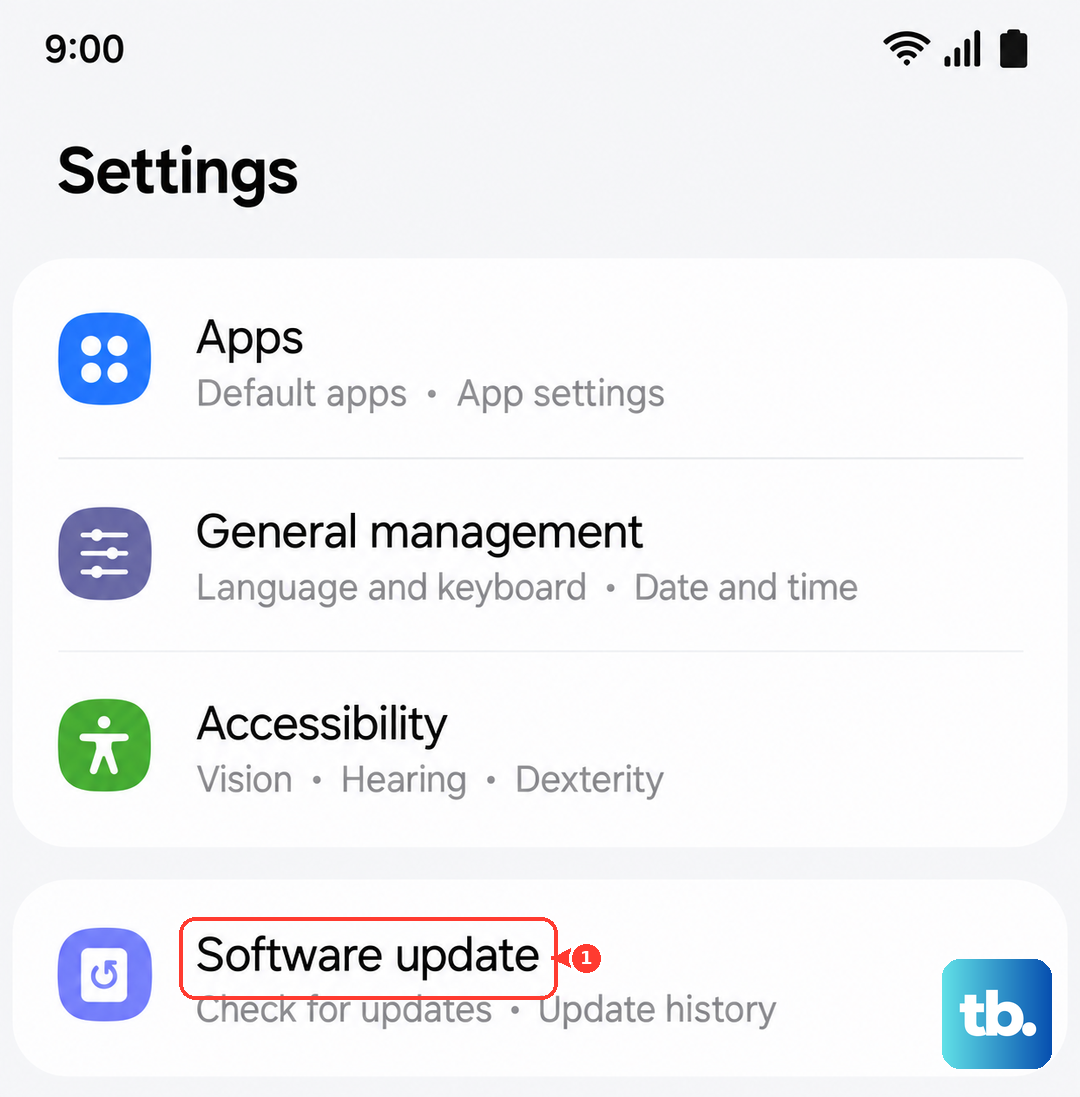
Check for a Software Update
Since the Galaxy S26 runs the brand new One UI 8.5, early software bugs are a real possibility. Samsung frequently pushes updates to fix these kinds of issues. Go to Settings > Software update and tap Download and install. I'd make a habit of checking this weekly for the first few months.
Toggle Power Saving Modes
While standard Power Saving mode shouldn't affect the flashlight, the more aggressive "Maximum power saving" mode might. Go to Settings > Battery. Make sure any power saving mode is turned off, then try the flashlight from your Quick Panel again.
Use Bixby to Control the Flashlight
Say "Hey Bixby, turn on the flashlight" or press and hold the Side key to activate Bixby and give the command. If Bixby can turn it on but your manual button is still grayed out, it confirms a software interface problem. You can try toggling it off with Bixby as well, which sometimes resets the control.
Adjust the Flashlight Brightness Level
You might not have a grayed-out button, but a very dim light. Tap the text label under the flashlight toggle in your Quick Panel to expand it, then use the slider to increase the brightness. If it was accidentally set to the lowest setting, you might not see it in a room with other lights on.
Reset Your Quick Panel Settings
A glitch in the Quick Panel layout or controls could be the culprit. Press and hold any blank area on your home screen, then tap Settings (the gear icon). Go to Notifications > Quick panel and tap Reset. This will restore your toggles to the default layout and can clear up button issues.
Check for Overheating
If your S26 gets too hot, the system will disable certain features to cool down, and the flashlight is often one of the first to go. If the back of your phone feels warm, stop using it, move it to a cooler spot, and give it 10-15 minutes. The flashlight function will return once the temperature drops to a safe level.
Test the Camera Flash
If all else fails, you need to check the hardware. Open your Camera app and take a photo in a dark room, making sure the flash is set to "On" or "Auto". If the flash doesn't fire during the photo, the LED itself may have failed. Since the S26 is a new device, this would be covered under Samsung's warranty, and you should contact their support for service options.