
A black screen on your Samsung Galaxy S25 can make your heart sink, but it's often a temporary glitch rather than a permanent failure. The phone might be frozen, the battery could be completely drained, or a software hiccup may have turned the display off. Let's get it working again.
Force Restart Your Galaxy S25
This is almost always the first step you should take. Press and hold the Volume Down button and the Side button (power key) together for about 10 seconds. Keep holding them even if the screen stays black. You should feel a vibration and then see the Samsung logo appear as the phone reboots. This works even when the touchscreen is completely unresponsive.
Charge Your Phone Properly
A totally flat battery will show nothing but a black screen. Plug your S25 into a wall outlet using the original USB-C cable and a Samsung-approved 25W charger. Give it a solid 30 minutes to charge before trying to turn it on again. If you don't see a charging indicator after that time, try a different cable and power adapter. I'd also check the USB-C port for any lint or debris that could be blocking the connection.
Check for a False Moisture Warning
The Galaxy S25 is known to sometimes show a false "Moisture detected" alert, which can block charging and cause issues. If you suspect this, unplug the phone and use a can of compressed air to gently blow out the USB-C port. Then, leave the phone powered off and unplugged in a dry place for at least 30 minutes to an hour before trying to charge it again.
Adjust the Screen Brightness Blindly
It's possible the screen brightness was accidentally turned all the way down. Try asking Google Assistant by saying, "Hey Google, set brightness to maximum." If that works, you'll know the phone is on. You can also try swiping down from the top of the screen twice to pull down the Quick Settings panel, then feel for the brightness slider to drag it up.
Inspect for Physical Damage
Take a close look at the screen under a bright light. Look for any cracks, deep scratches, or discolored spots. If the phone still vibrates for notifications, makes sounds, or responds to the "Hey Google" command, then the device is functioning but the display hardware itself is likely damaged. This would require a screen replacement.
Check Battery and Charging Settings
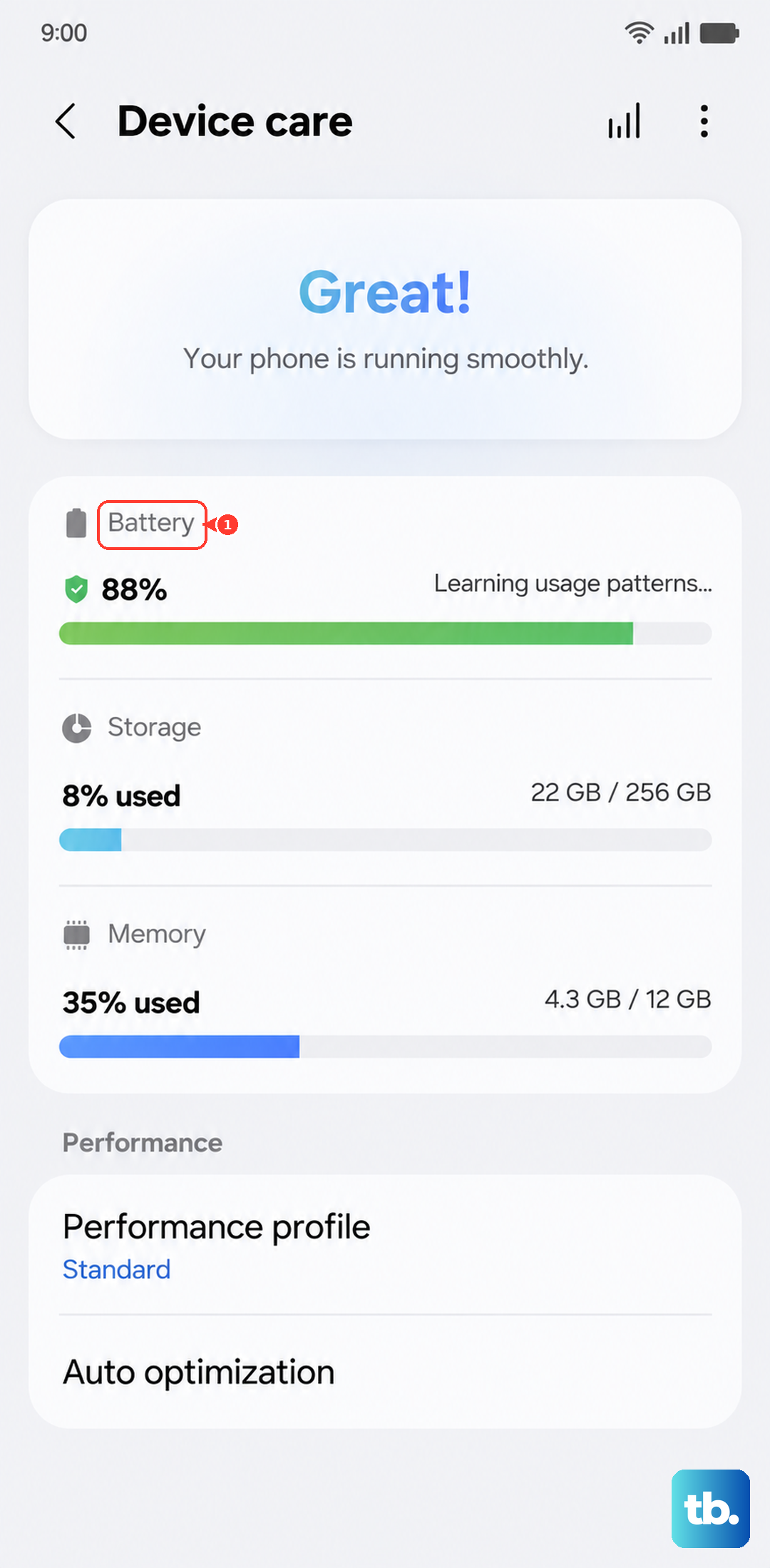
One UI 7's battery optimization features can sometimes interfere. If you can get the screen on, go to Settings > Battery and device care > Battery > More battery settings. Here, look for "Adaptive charging" or "Battery protection" and temporarily disable them. These features can limit charging to 85% or slow it down, which might be mistaken for a problem.
Boot into Safe Mode
If the phone turns on but the screen stays black after the Samsung logo, a recently installed app might be causing a conflict. To boot into Safe Mode, first turn the phone off. Then, press and hold the Side button until you see the Samsung logo. As soon as the logo appears, release the Side button and immediately press and hold the Volume Down button. Hold it until the phone finishes restarting; you'll see "Safe mode" in the bottom corner. If the screen works in Safe Mode, uninstall your most recent apps.
Use Wireless Charging
If you're having port issues, bypass them entirely. Place your Galaxy S25 on a Qi2 or standard Qi wireless charger. The phone supports up to 15W wireless charging. If the screen lights up with a charging symbol, you know the battery and main board are okay and the problem is with the USB-C port or cable. Be aware that wireless charging will stop if the phone overheats, so make sure it's on a cool surface.
Connect to a Computer for Recovery
If the phone is still unresponsive, connect it to a Windows PC or Mac using a USB-C cable. On your computer, open the Samsung Smart Switch application. If Smart Switch detects your device, you may be able to use an emergency recovery option. If not, you might need to use the more advanced Odin tool to flash firmware, which is a complex process best researched with your specific model number.
Enter Download Mode
This is a deeper recovery state for Samsung phones, similar to recovery mode. First, connect your phone to a computer with a USB cable. Then, press and hold both the Volume Up and Volume Down buttons. While holding them, press and hold the Side button. Keep all three buttons held until you see a warning screen (usually blue or green) about installing custom software. You can then use the Volume Down button to cancel and reboot, or proceed with a firmware restore using Odin on your PC.