
It's a common snag with the Galaxy S25. You turn it sideways to watch a video or view a photo, and nothing happens. The screen stays stubbornly in portrait mode, refusing to flip to landscape.
This is almost always a software or settings hiccup rather than a broken phone. The auto-rotate feature relies on a few different systems working together in One UI 7, and sometimes one of them gets out of sync.
Toggle Auto-Rotate from Quick Settings
This is the very first thing to check. It's incredibly easy to accidentally tap the auto-rotate icon in your quick settings panel, locking the screen orientation. Swipe down from the top of your screen twice to open the full quick settings menu.
Look for the icon that says "Portrait" or has a phone with a circular arrow around it. Tap it once. It should change color, often to blue, and the text will likely switch to "Auto rotate." Try turning your phone sideways now to see if it works.
Enable Home Screen Rotation in Settings
By default, the Galaxy S25's home screen and app drawer won't rotate to landscape, even if auto-rotate is on everywhere else. This confuses a lot of people who test rotation from their home screen. If you want the home screen to rotate, you need to dig into the settings.
First, enable Auto rotate from the quick settings panel. Then tap and hold the Auto rotate icon to open the Auto rotate settings, and turn on the Home screen switch. Now, when auto-rotate is enabled, your entire interface should follow the phone's orientation.
Force Restart Your Galaxy S25
A quick reboot can clear out temporary glitches that might be affecting the accelerometer or gyroscope. For the Galaxy S25, press and hold the Volume Down button and the Side key (power button) together for about 10 seconds.
You'll feel a vibration and see the Samsung logo as the phone restarts. This is a soft reset that doesn't delete any of your data or settings. It just gives the system a fresh start, which often resolves sensor-related issues.
Check for App-Specific Rotation Locks
Some apps, especially video players or games, have their own internal rotation settings that override the system. If rotation works in your web browser but not in Netflix, for example, the app itself is likely the culprit.
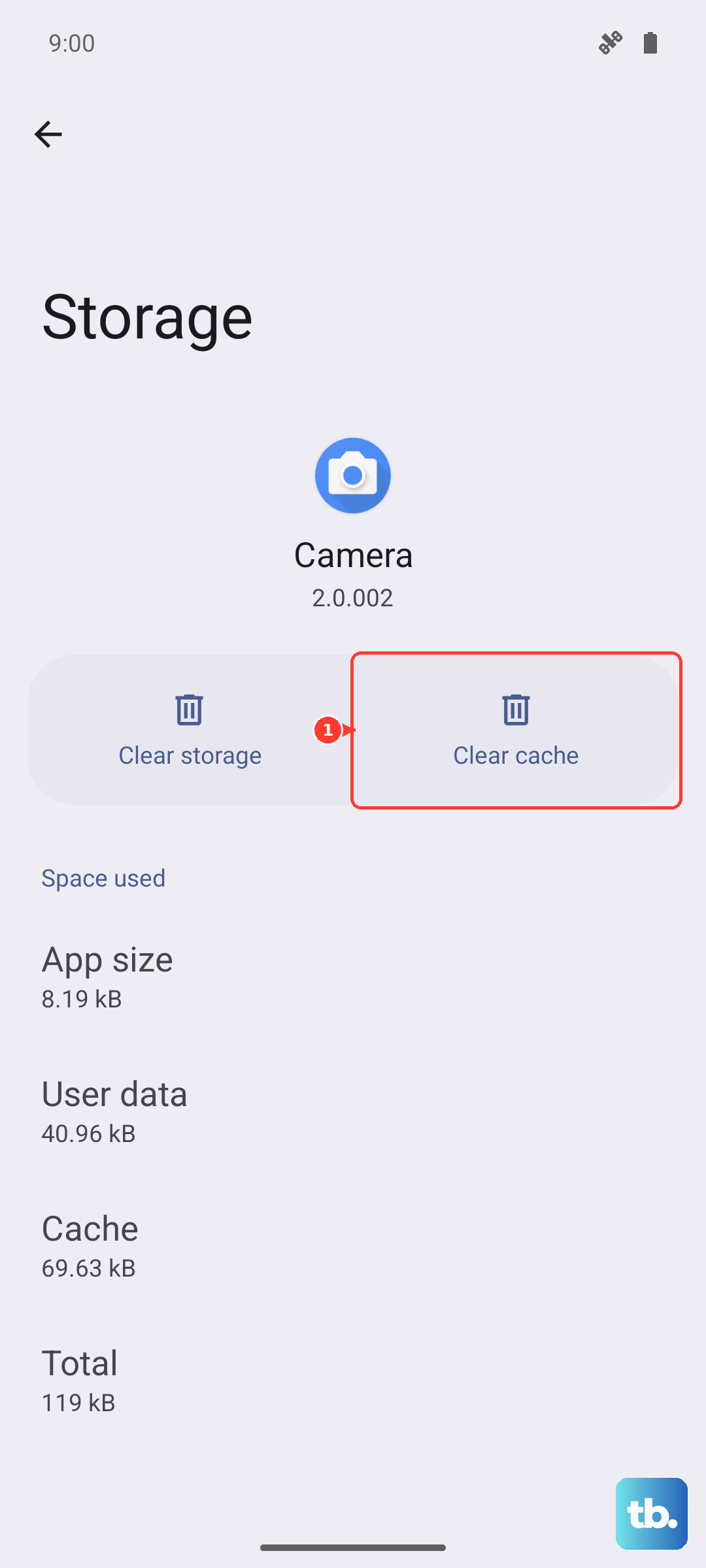
Open the problematic app and look in its own settings menu for a "screen rotation" or "orientation lock" option. Also, if you only notice the problem in one app, try clearing that app's cache. Go to Settings > Apps, select the app, then tap Storage > Clear Cache.
Update Your Phone's Software
Occasionally, a bug in One UI or Android can cause sensor functions to behave oddly. Samsung regularly releases updates that fix these kinds of issues. Making sure your S25 is on the latest software is a crucial step.
Head to Settings > Software update > Download and install. Let the phone check for updates. If one is available, install it. I've seen minor point updates specifically address sensor calibration problems on past Galaxy models.
Test the Sensors with Diagnostic Mode
The Galaxy S25 has a hidden diagnostic menu that lets you test hardware components directly, including the accelerometer and gyroscope responsible for rotation. Open your Phone dialer and enter *#0*#.
This will launch the secret test menu. Tap on "Sensor" from the list. You'll see a screen with various readings. Tilt and rotate your phone. The values for "Accelerometer Sensor" and "Gyro Sensor" should change rapidly as you move the device. If they're stuck at zero or don't respond, there could be a deeper hardware issue.
Check for Interference from Accessibility Settings
Certain accessibility features can lock the screen orientation to assist users. It's worth a quick look to make sure one isn't accidentally enabled. Navigate to Settings > Accessibility.
Scroll through the options and look for anything related to screen rotation or auto-rotate. Also, check under "Interaction controls" or "Advanced settings" within Accessibility. If you find a toggle that seems related, try disabling it to see if rotation returns to normal.
Consider a Cache Partition Wipe
If you're still stuck, a more thorough system reset that doesn't touch your personal data is wiping the cache partition. This clears temporary system files that can sometimes become corrupted. First, power off your Galaxy S25 completely.
Then, connect your Galaxy S25 to a computer with a USB cable (on the S25 this connection is required to reach recovery). Now press and hold the Volume Up button and the Side key together until the Android recovery screen appears, then release both. Use the volume buttons to highlight "Wipe cache partition" and press the Side key to select it. Confirm the action, then select "Reboot system now."