
When your Samsung Galaxy S25 won't download apps, it can bring your day to a standstill. You're trying to get a new app for work or a game for your commute, and it just won't budge. This is a common hiccup with Android phones, and it's almost always something you can fix yourself without too much trouble.
Let's go through the fixes that work specifically for the Galaxy S25 running One UI 7. I'd start with the quick ones at the top and work your way down if needed.
Check Your Connection and Restart
First, make sure your phone is actually online. Pull down the notification shade and look at the icons in the top right. You should see either a solid Wi-Fi symbol or the mobile data bars. If you're on Wi-Fi, try turning it off and using your 5G data instead, just to test.
Sometimes, the system services that handle downloads just get stuck. A quick restart can clear that right up. Press and hold the Volume Down button and the Side button together for about 10 seconds until you see the Samsung logo. This force restarts the phone and is often the fastest fix.
Verify the Date and Time
This one catches people off guard. If your phone's clock is wrong, it can confuse the Google Play servers and block downloads. Go into Settings > General Management > Date and time.
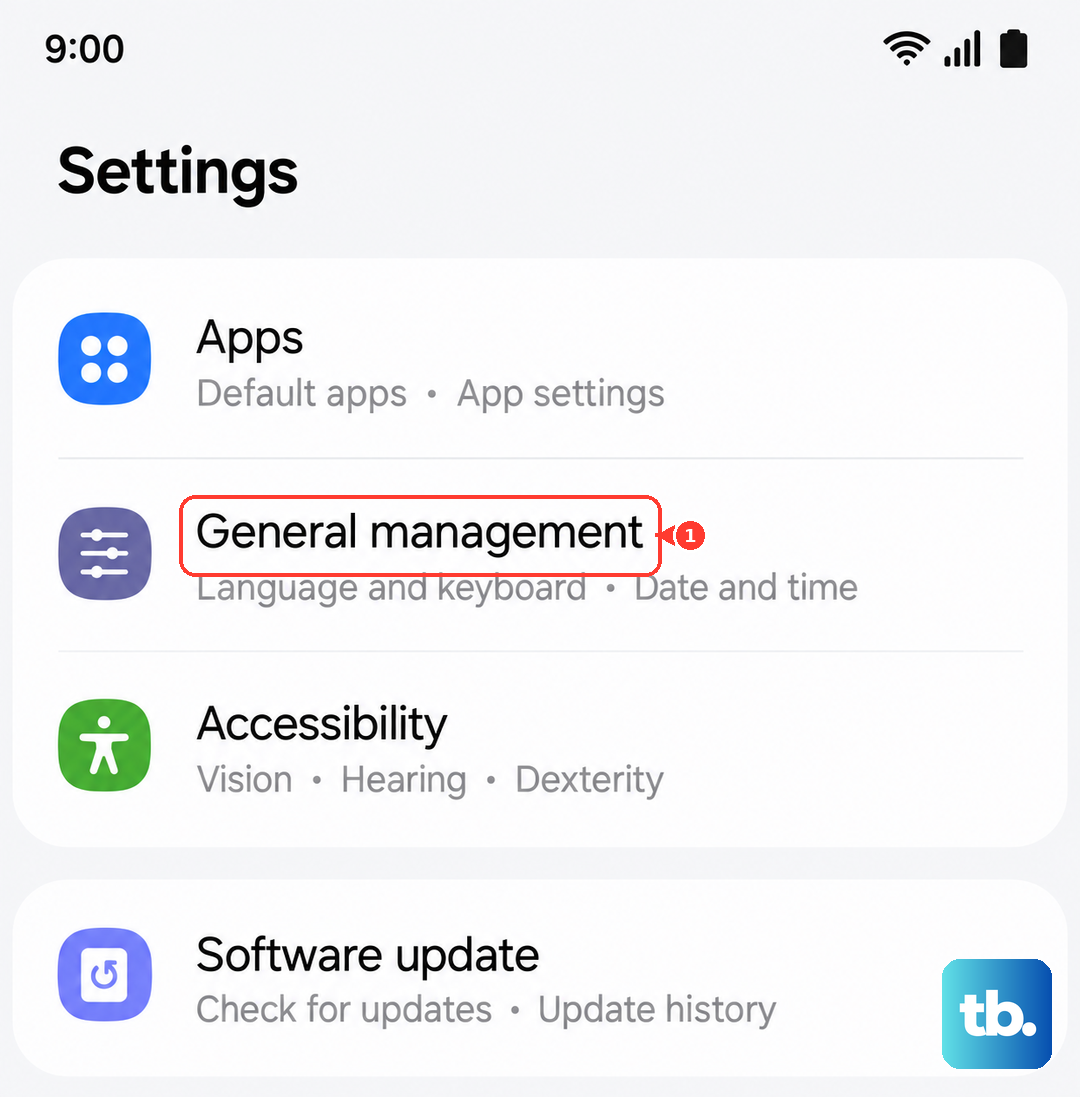
Make sure "Automatic date and time" is switched on. If it's already on and you're still having trouble, try turning it off and back on again. It's a simple sync check that takes two seconds.
Clear the Google Play Store's Cache
The Play Store stores temporary data to run faster, but this cache can get corrupted. Clearing it forces the app to fetch fresh data. Open Settings > Apps, then find and tap on "Google Play Store".
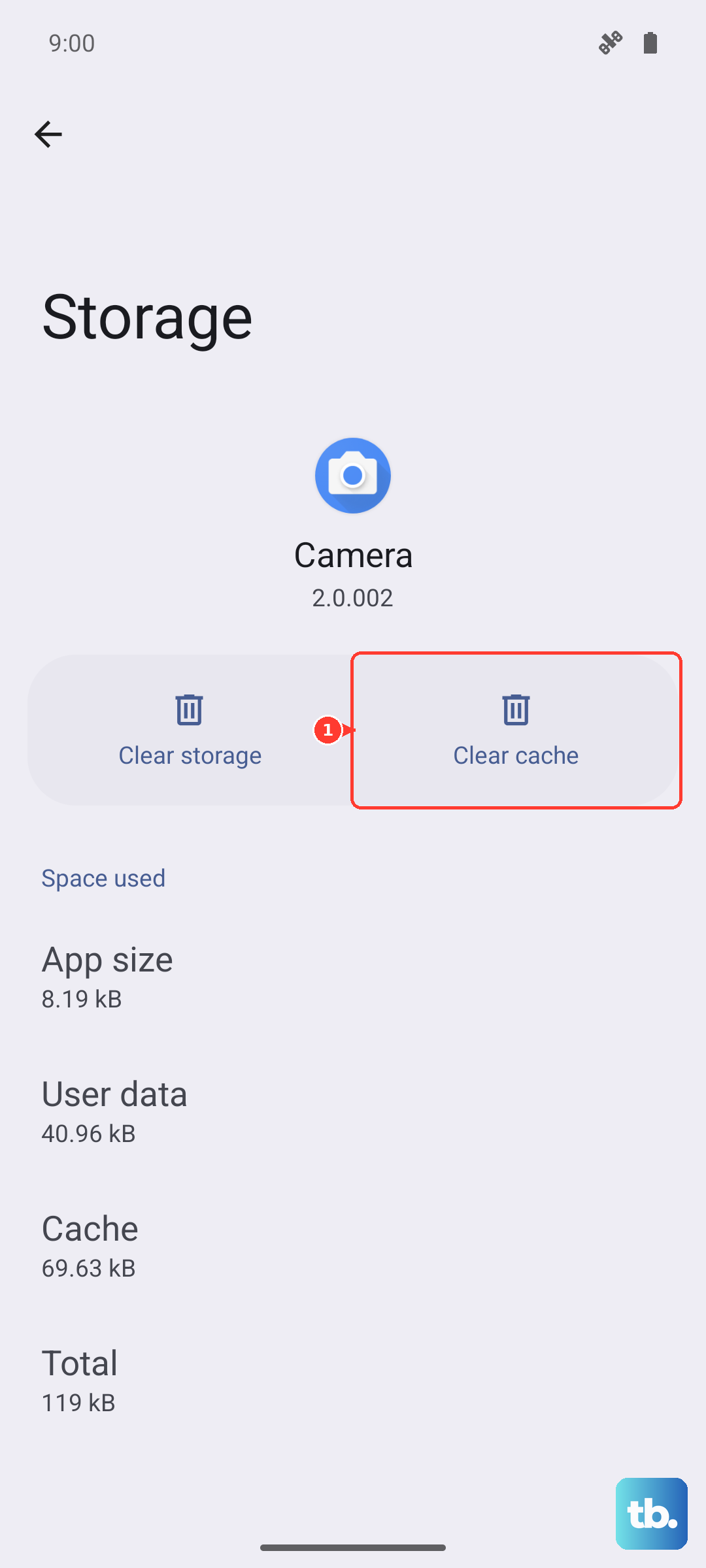
Tap on Storage, then tap Clear cache. Don't clear data just yet, that's a stronger step. After clearing the cache, open the Play Store again and try your download.
Clear Google Play Services Data
If the Play Store cache didn't work, the issue might be deeper with Google Play Services. This is the backbone for all Google apps on your phone. Go back to Settings > Apps, find "Google Play Services" in the list, and tap it.
Tap Storage, then tap Manage storage. Here, you'll see an option to Clear all data. Tap it and confirm. This will reset the service. You'll need to restart your S25 afterward for the change to take full effect.
Check for a Software Update
An outdated version of One UI can sometimes have bugs that affect app downloads. Samsung regularly releases updates to fix these kinds of issues. Go to Settings > Software update and tap Download and install.
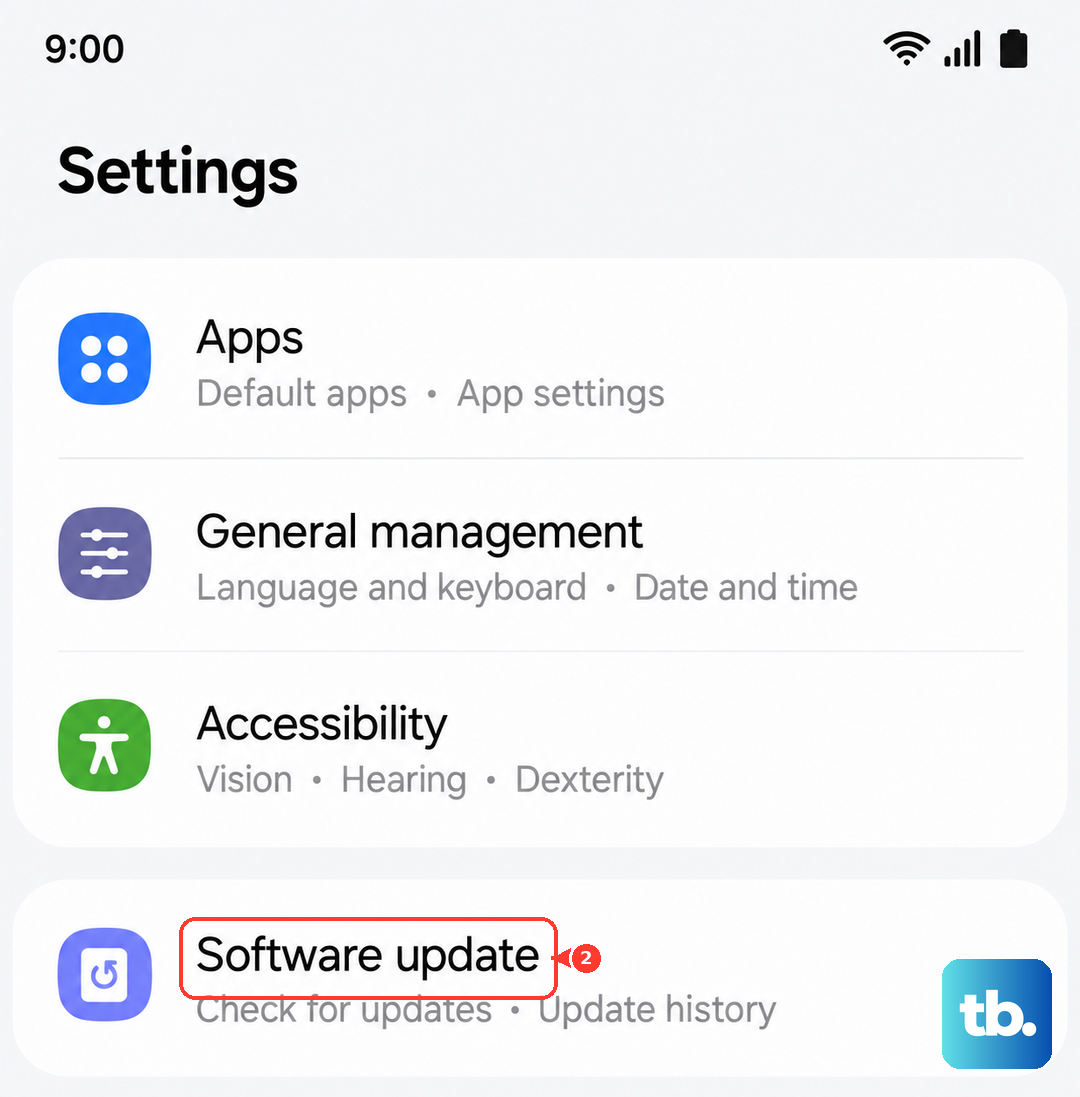
If an update is available, let it install. Your phone will restart. This has resolved download issues for many users, especially after a major new OS version rolls out.
Review Your Samsung Account Sync
Since you're on a Galaxy, your Samsung account sync can sometimes interfere. Go to Settings > Accounts and backup > Manage accounts. Select your Samsung account.
Tap "Sync account" and look at the list. Try turning off sync for a few items like "Contacts" or "Calendar," wait a moment, and then turn them back on. This refreshes the connection without removing your account.
Ensure Download Manager is Enabled
Your phone has a system app called Download Manager that handles all downloads. It should never be off, but it's worth checking. In Settings > Apps, tap the three-dot menu and select Show system apps.
Scroll down and find "Download Manager." Tap on it. If you see a "Disable" button, it's already enabled. If you see an "Enable" button, tap it. You can also tap Storage here and Clear cache for good measure.
Check App-Specific Permissions
Both the Play Store and Play Services need proper permissions. For the Google Play Store app, go to its page in Settings > Apps and tap Permissions. Make sure "Storage" is allowed.
For Google Play Services, go to its app page, tap Permissions, and ensure everything is allowed, especially "Files and media." Also, tap "More permissions" at the bottom to see the full list and verify nothing is blocked.
Remove and Re-add Your Google Account
This is a more thorough step that resets your connection to Google's servers. First, go to Settings > Accounts and backup > Manage accounts. Tap on your Google account, then tap Remove account.
Confirm you want to remove it. Don't worry, your data like contacts and emails are safe in the cloud. After it's removed, tap "Add account" and sign back in with the same Google account. This often clears up persistent authentication errors.
Free Up Storage Space on Your S25
If you're getting an "Insufficient storage" error, your phone is genuinely full. The S25 needs free space to download and unpack app files. Go to Settings > Device care > Storage.
This screen shows you what's taking up space. Tap on "Apps" to see your largest applications. You can offload files to Samsung Cloud or Google Drive, or uninstall apps you no longer use. Clearing a few gigabytes often does the trick.
Address Specific Error Codes
If you see error DF-BPA-09, it's often related to the Google Services Framework. Go to Settings > Apps, show system apps, find "Google Services Framework," tap Storage, and hit Clear data. Then restart.
For error 491 or 921, it's usually a network or cache issue. Try switching from Wi-Fi to mobile data, then clear the cache for both the Play Store and Google Play Services as described earlier.
Reset All App Preferences
This is a useful nuclear option for app-related settings that won't erase your personal data. It resets permissions, background restrictions, and notification settings for all apps. Go to Settings > Apps.
Tap the three-dot menu, then tap Reset app preferences. Confirm. You'll then need to re-grant permissions to apps as you use them, but it can untangle a lot of software conflicts at once.