
When your Samsung Galaxy S25 apps keep closing unexpectedly, it's usually a quick software hiccup you can fix yourself. I'd start by force stopping the app and clearing its cache, as that resolves most random crashes on One UI.
Force Stop and Restart the App
Head to Settings > Apps, then find the app that's giving you trouble. Tap on it and select Force Stop. This completely shuts down the app's process. Wait a few seconds, then open it again from your home screen. This is the digital equivalent of turning it off and on again, and it works surprisingly often.
Clear the App's Cache and Data
If force stopping didn't help, the next step is to clear the app's stored temporary files. Go back to the app's info screen in Settings and tap Storage. Tap Clear Cache first. This gets rid of temporary data that might have become corrupted without affecting your login or saved settings.
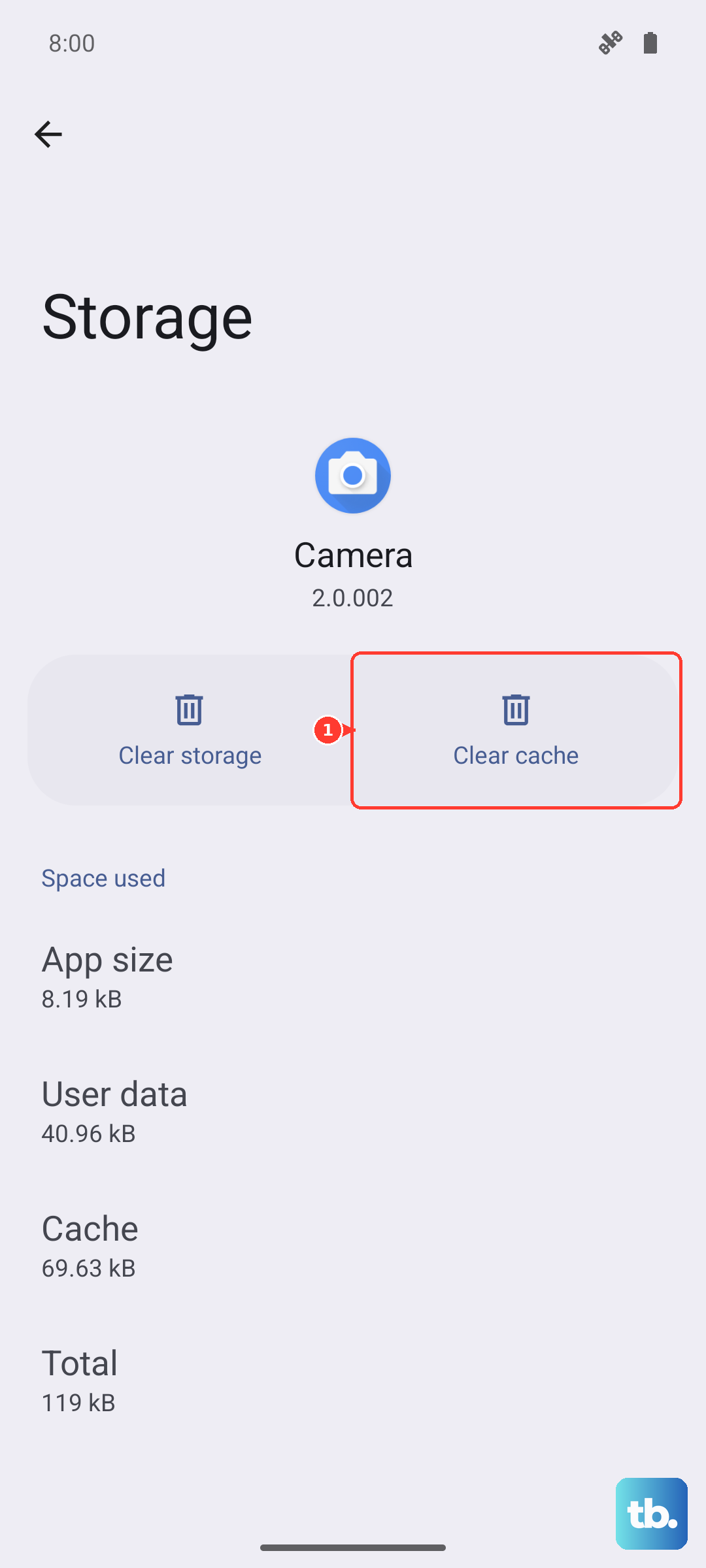
If the app is still crashing, you can try Clear Data. Be aware this will reset the app to its freshly installed state, so you'll likely need to sign back in and reconfigure any preferences. It's a more thorough clean slate for stubborn apps.
Check for App and System Updates
Outdated software is a common culprit. Open the Galaxy Store and the Google Play Store to check for updates. Some Samsung-specific apps get their updates through the Galaxy Store, while most others use the Play Store. It's worth checking both.
Also, make sure your phone's operating system is current. Go to Settings > Software update and tap Download and install. One UI 7 updates often include stability patches that can resolve app compatibility issues.
Free Up RAM and Storage Space
Your S25 has plenty of memory, but having too many apps open at once can still cause newer, resource-heavy apps to close. Swipe up from the bottom and hold to enter the recent apps view, then tap Close all to free up RAM.
Also, check your storage. Go to Settings > Device care > Storage. If you're below 10% free space, apps can struggle to operate. Delete old downloads, offload photos to the cloud, or uninstall apps you no longer use.
Review Battery Optimization Settings
One UI's battery optimization is aggressive by default to save power, and it can sometimes close apps running in the background. For apps you need to run consistently (like messaging or music apps), you can adjust this.
Go to Settings > Apps, select the app, and tap Battery. If it's set to "Optimized," try changing it to Unrestricted. This tells the system not to put that specific app to sleep, which can prevent it from being closed.
Uninstall and Reinstall the Problem App
When a single app is the problem, a clean reinstall can work wonders. Press and hold the app icon on your home screen, tap the info (i) icon, and select Uninstall. Then, head to the app store and download it again. This replaces all the app's files with a fresh copy, eliminating any deep-seated corruption.
Perform a Soft Reset
If multiple apps are crashing, a simple reboot can clear out system-wide glitches. Press and hold the Side key and Volume Down button together for about 10 seconds until you see the Samsung logo. This forces a restart and clears the phone's temporary memory without affecting your data.
Boot into Safe Mode
This helps you figure out if a third-party app you installed is causing the trouble. Press and hold the Side key, then tap and hold the "Power off" option on your screen until you see the Safe Mode prompt. Tap to restart.
In Safe Mode, all downloaded apps are disabled. If your phone runs smoothly here, you know one of your installed apps is the culprit. You'll need to restart normally to exit Safe Mode, then start uninstalling recent apps one by one to find the bad one.
Reset All App Preferences
This resets all your app-related settings, like permissions, default apps, and background restrictions, back to their factory defaults without deleting any app data. It's a good middle-ground step.
Go to Settings > Apps > tap the three-dot menu in the top right > Reset app preferences. You'll just need to re-grant permissions the next time you use each app.