That spinning Wi-Fi icon on your Samsung Galaxy S24 is incredibly frustrating, especially when you know you have a strong signal. This is a common hiccup on Android phones, and the good news is you can almost always fix it yourself without a trip to the repair shop. Let's get your connection back.
Toggle Wi-Fi and Restart Your Phone
Start with the simplest fix. Swipe down from the top of your screen to open the Quick Settings panel. Tap the Wi-Fi icon to turn it off, wait a few seconds, and then tap it again to turn it back on. This forces your S24 to drop the current connection and search for networks fresh, which often solves the problem instantly.
If that doesn't work, give your phone a full restart. Press and hold the Side button and Volume Down button for about ten seconds until you see the Samsung logo appear. A reboot clears out temporary software glitches that can interfere with the Wi-Fi radio.
Use Airplane Mode to Reset All Radios
This trick is a classic for a reason. Turning on Airplane mode shuts down all wireless communications, Wi-Fi, cellular, and Bluetooth. After about 15 seconds, turn it off again. This forces every radio in your phone to reinitialize and reconnect from scratch, which can clear up stubborn connection errors.
Forget the Problem Network and Rejoin
Your phone might be holding onto corrupted login data for your network. To clear it out, go to Settings > Connections > Wi-Fi. Tap on the name of your network, then select Forget.
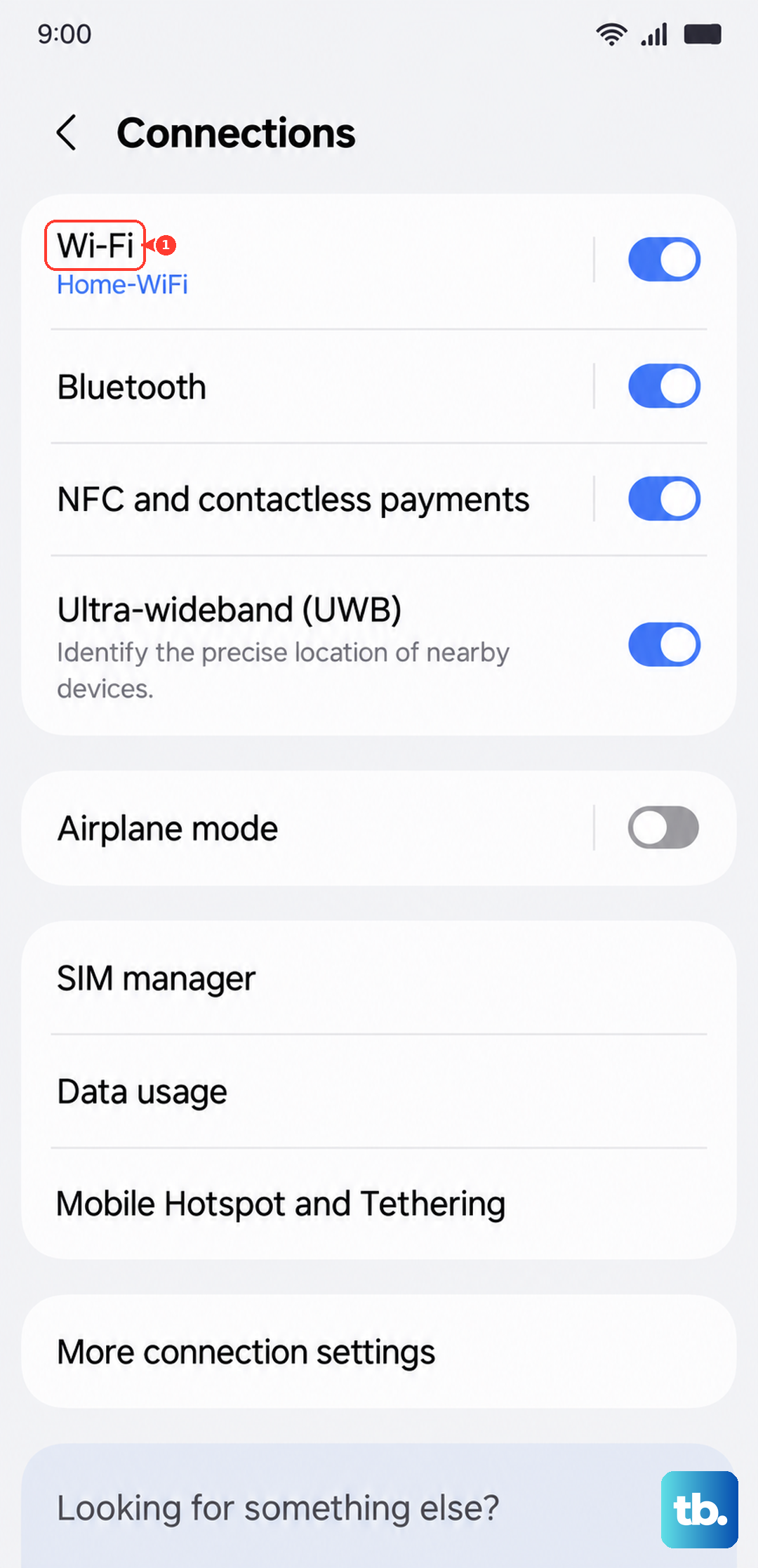
Now, find your network in the list again, tap it, and re-enter the password. This is especially important if you've recently changed your Wi-Fi password or gotten a new router. Your S24 will be trying to use the old credentials, which will never work.
Check for Simple Mistakes
It sounds obvious, but it's worth a quick double-check. Make sure you're selecting the correct network name from the list, especially if you have a neighbor with a similar SSID. Also, verify you're typing the password correctly, as Wi-Fi passwords are case-sensitive.
If you're copying and pasting the password, ensure there aren't any extra spaces at the beginning or end. A single wrong character is all it takes to keep you disconnected.
Disable Bluetooth Temporarily
Bluetooth and Wi-Fi can sometimes interfere with each other on the 2.4GHz band. Try turning off Bluetooth from your Quick Settings panel and see if your Wi-Fi connection stabilizes. If it does, you've found a simple workaround for when you need a reliable internet connection.
Turn Off Smart Network Switch
Your Galaxy S24 has a feature designed to help, but it can sometimes hinder. Smart Network Switch automatically moves you to mobile data if your Wi-Fi signal is deemed weak, but it can be overly aggressive.
To disable it, go to Settings > Connections > Wi-Fi. Tap the three-dot menu in the top right, select Intelligent Wi-Fi, and turn off the switch for Switch to mobile data. This tells your phone to stay connected to Wi-Fi unless it completely drops.
Check Power Saving and Battery Settings
Power saving modes are great for battery life, but they often limit background network activity. Go to Settings > Battery and device care > Battery and make sure any power saving mode is turned off.
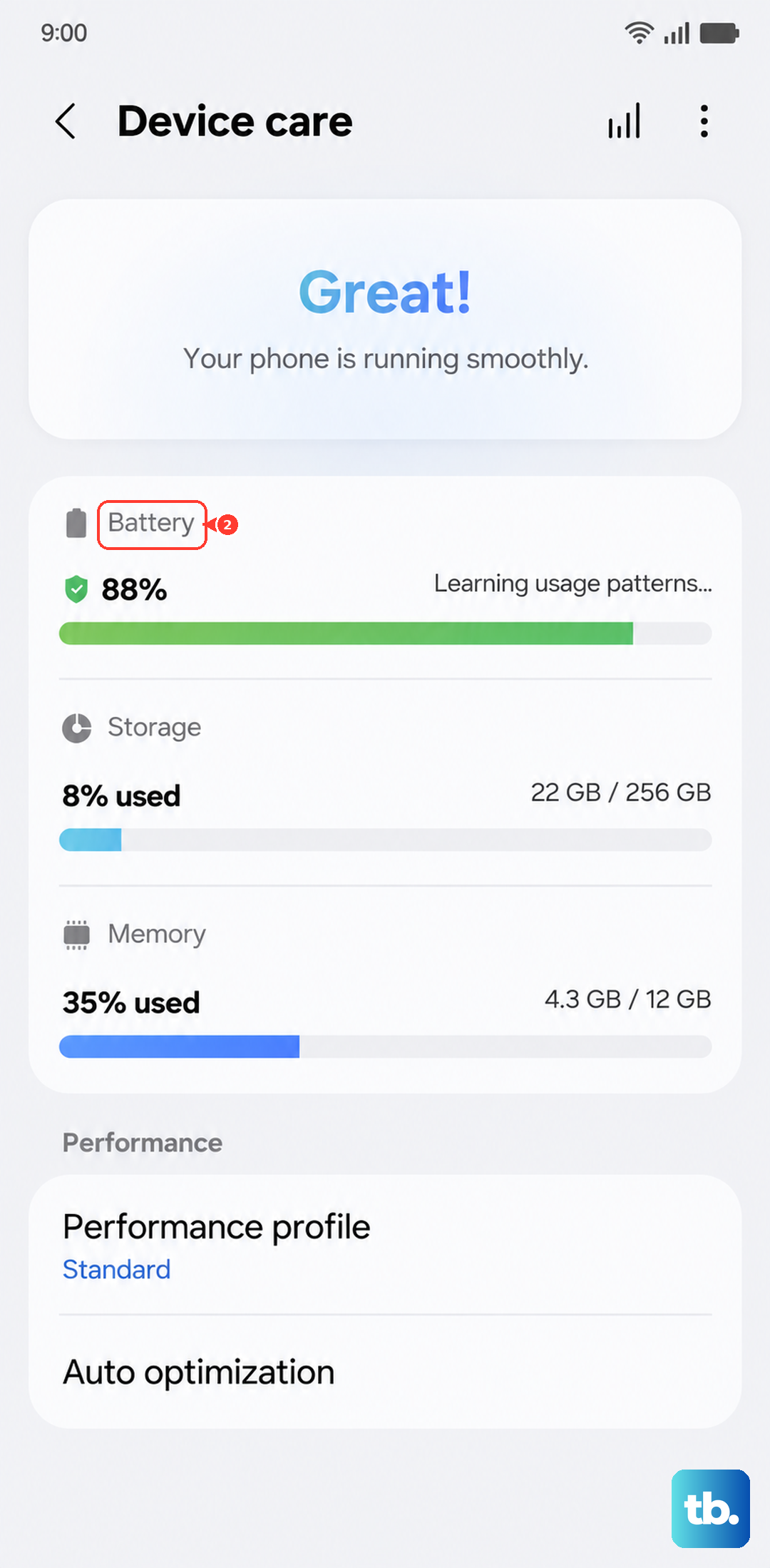
Also, take a look at your app-specific battery settings. Sometimes, an app's connection can be restricted. Go to Battery > Background usage limits to check.
Update Your Phone's Software
Software bugs are a common cause of connectivity issues, and Samsung regularly releases updates with fixes. Go to Settings > Software update and tap Download and install.
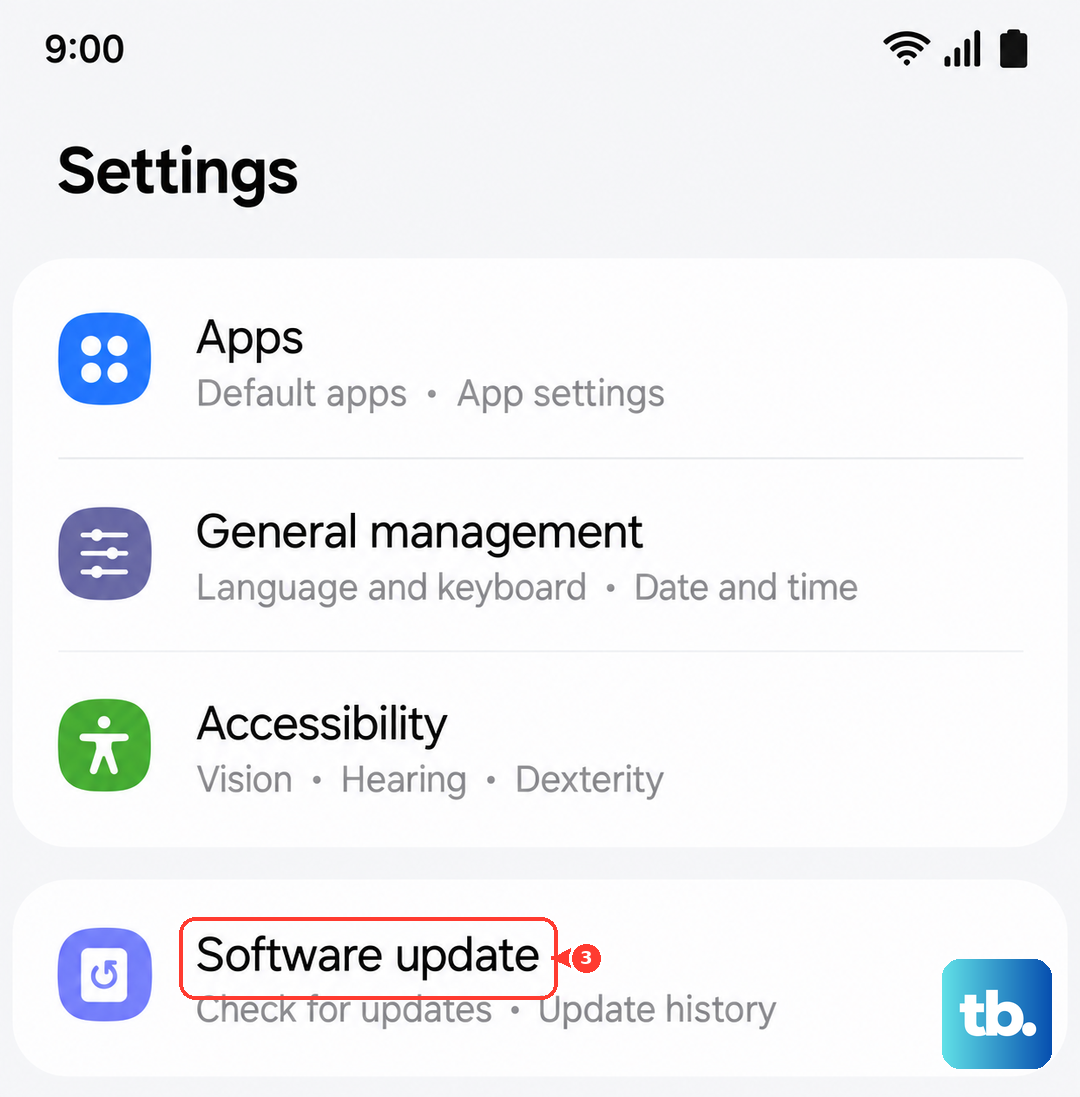
Make sure your phone is connected to a cellular network or, if possible, a different Wi-Fi network to download the update. I've seen minor One UI updates resolve Wi-Fi dropouts that were driving people crazy.
Verify Your Date and Time Settings
This one is easy to overlook. An incorrect date or time on your phone can break the security certificate validation needed to connect to a secured Wi-Fi network. Go to Settings > General management > Date and time.
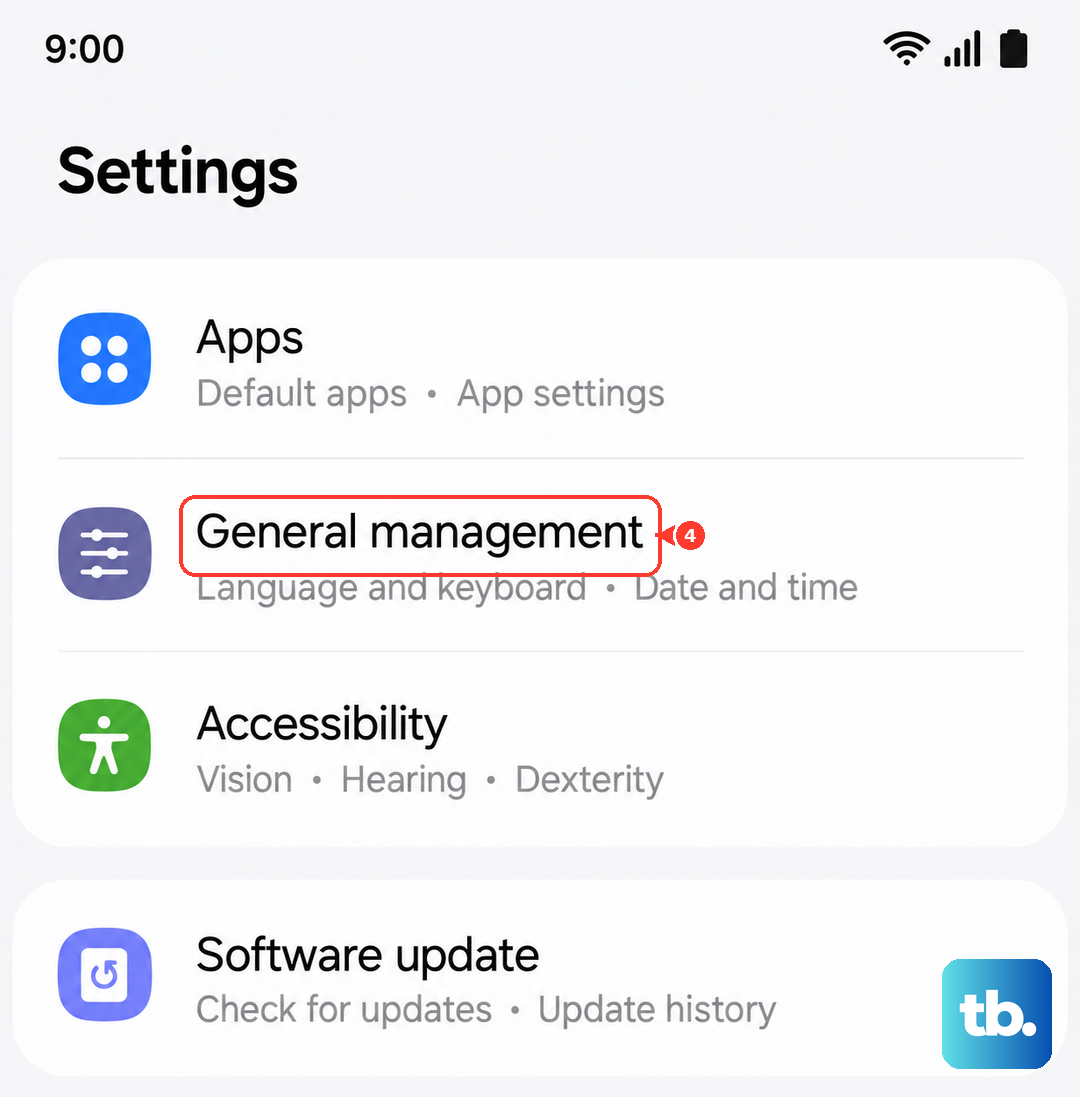
Ensure that Automatic date and time is turned on. This lets your phone sync with network-provided time, keeping everything in order for proper authentication.
Reset Your Network Settings
If you're still stuck, resetting network settings is a strong next step. This will erase all saved Wi-Fi networks, Bluetooth pairings, and mobile network preferences, so you'll have to reconnect to everything afterward.
To do this, navigate to Settings > General management > Reset > Reset network settings. Tap to confirm. This often clears out deep-seated configuration errors.
Don't Forget the Router
The issue might not be your Galaxy S24 at all. If other devices in your home are also struggling to connect, your router is the likely culprit. Unplug it from power, wait a full 60 seconds, and plug it back in.
While you're at it, check if your router has a firmware update available. An outdated router can have compatibility problems with newer devices like the S24. You can usually check this through your router's admin page or its companion app.
Boot Into Safe Mode to Check for App Conflicts
A third-party app you installed could be causing the interference. Common culprits are VPNs, ad blockers, firewall apps, or even certain battery optimizers. To test this, you'll need to boot your S24 into Safe Mode.
Press and hold the Side button until the power menu appears. Then, tap and hold the Power off option until you see the "Safe Mode" prompt. Tap to confirm. If your Wi-Fi works perfectly in Safe Mode, you know a downloaded app is the problem. You'll need to uninstall apps one by one to find the offender.
Perform a Factory Reset
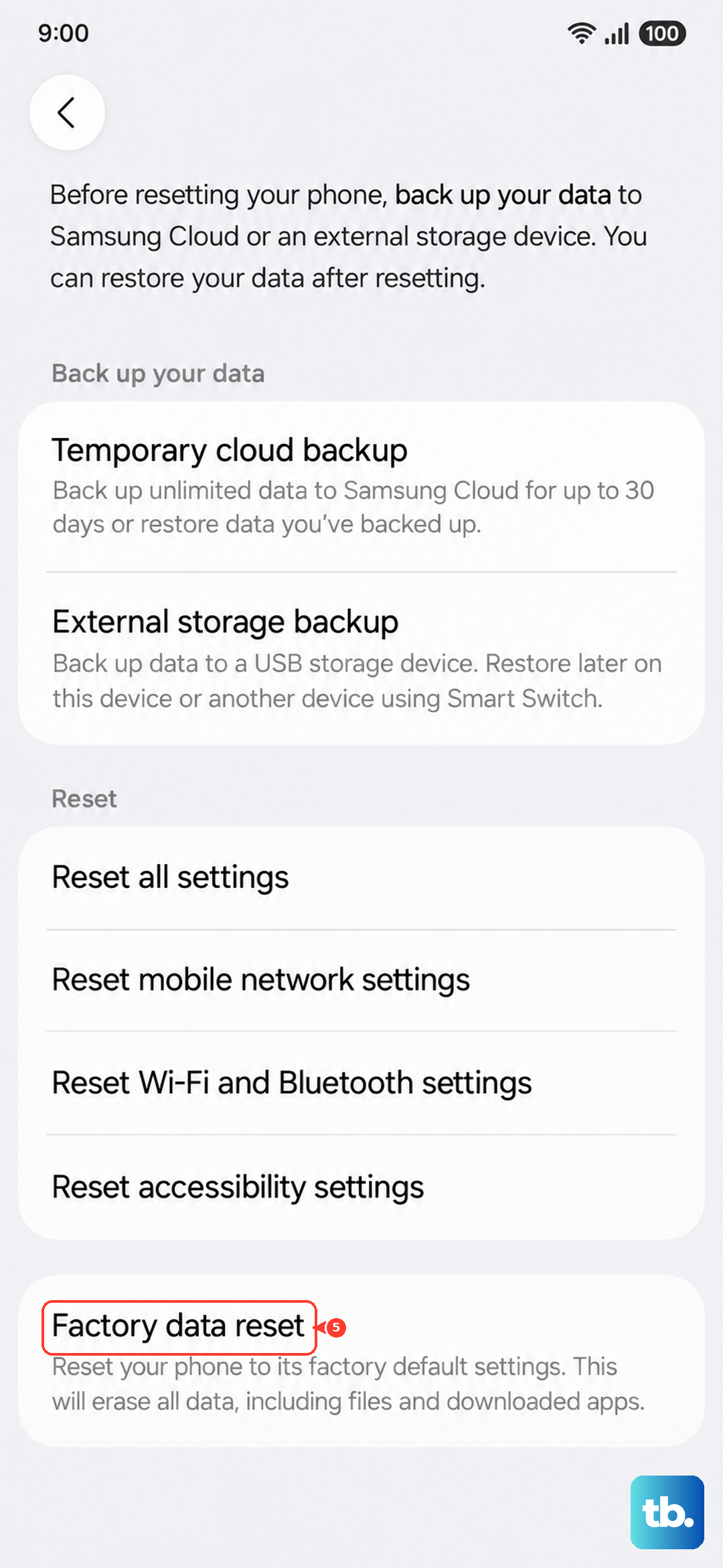
Consider this your absolute last resort. A factory reset will wipe your phone back to its original out-of-the-box state, deleting all your apps, photos, and settings. You must back up everything important first.
If you decide to proceed, go to Settings > General management > Reset > Factory data reset. Follow the prompts to erase your phone. If Wi-Fi still doesn't function correctly after a full factory reset, the issue is likely hardware-related.