When your headphones won't work with your Galaxy S24, it's a major buzzkill for music, calls, and videos. The phone might not recognize them, play sound through the speaker instead, or deliver crackly, distorted audio. Let's get it sorted.
Start with a free online headphone test that checks left and right channels, stereo order, bass, and treble. Two minutes there tells you whether the hardware needs attention at all.
Restart Your Galaxy S24
This is the quickest fix for a lot of weird audio glitches. Press and hold the Volume Down button and the Side button together for about 10 seconds. Keep holding until you see the Samsung logo appear, then let go. This force restart clears out any temporary software hiccups that might be blocking your headphones.
Check the Simple Stuff First
Make sure your wireless headphones have a charge. For wired ones, ensure the USB-C plug is fully inserted into the port until it clicks. Try the headphones with another phone or computer to confirm they're the source of sound, not the problem. I'd start with this one, as it rules out a lot of headaches right away.
Clean the USB-C Port
Lint and pocket debris love to get packed into the charging port, which can stop wired headphones from making a proper connection. Power off your phone, then use a wooden toothpick or a soft-bristled brush to gently scrape out any gunk. Don't use anything metal. A can of compressed air can also help blow debris loose.
Forget and Re-Pair Your Bluetooth Headphones
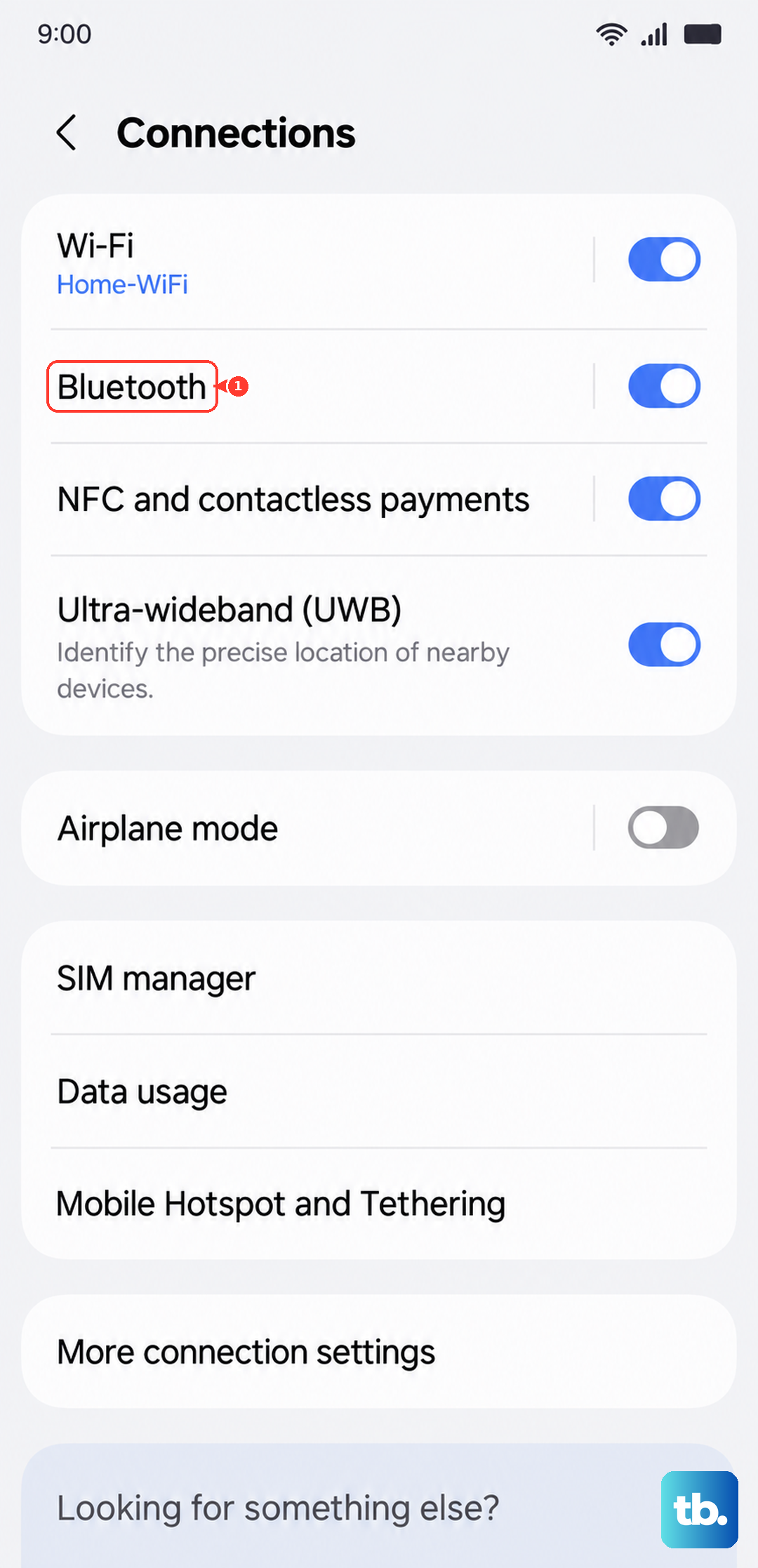
Go to Settings > Connections > Bluetooth. Tap the gear icon next to your headphones' name, then select Unpair or Forget. Put your headphones back into pairing mode, then find and select them on your S24's Bluetooth list to reconnect from scratch. This creates a fresh, clean connection profile.
Check Your Audio Output
Sometimes your S24 sends sound to the wrong place. Pull down the Quick Settings panel and tap the media output icon (it looks like a little triangle over circles). Make sure it's set to your connected headphones and not the phone's speaker or another Bluetooth device. You can also check this within apps like Spotify or YouTube.
Toggle Bluetooth Off and On
Swipe down from the top of your screen to open the Quick Settings panel. Tap the Bluetooth icon to turn it off, wait about 10 seconds, then tap it again to turn it back on. This simple refresh of the Bluetooth radio can often kick-start a stalled connection or fix choppy audio with wireless headphones.
Check for a False Moisture Detection
The S24 is known to sometimes trigger a false "moisture detected" warning in the USB-C port, which will disable audio through wired connections. If you see this alert, unplug everything, power off the phone, and let it sit for a while. You can also try gently drying the port with cool air from a hairdryer. Restarting the phone after often clears the error.
Adjust Sound Quality and Effects
Certain sound settings can interfere. Go to Settings > Sounds and vibration > Sound quality and effects. Try turning off Dolby Atmos or Adapt Sound temporarily to see if it fixes distorted audio. You can also check the Separate app sound feature here to make sure it's not routing audio from specific apps elsewhere.
Update Your Phone's Software
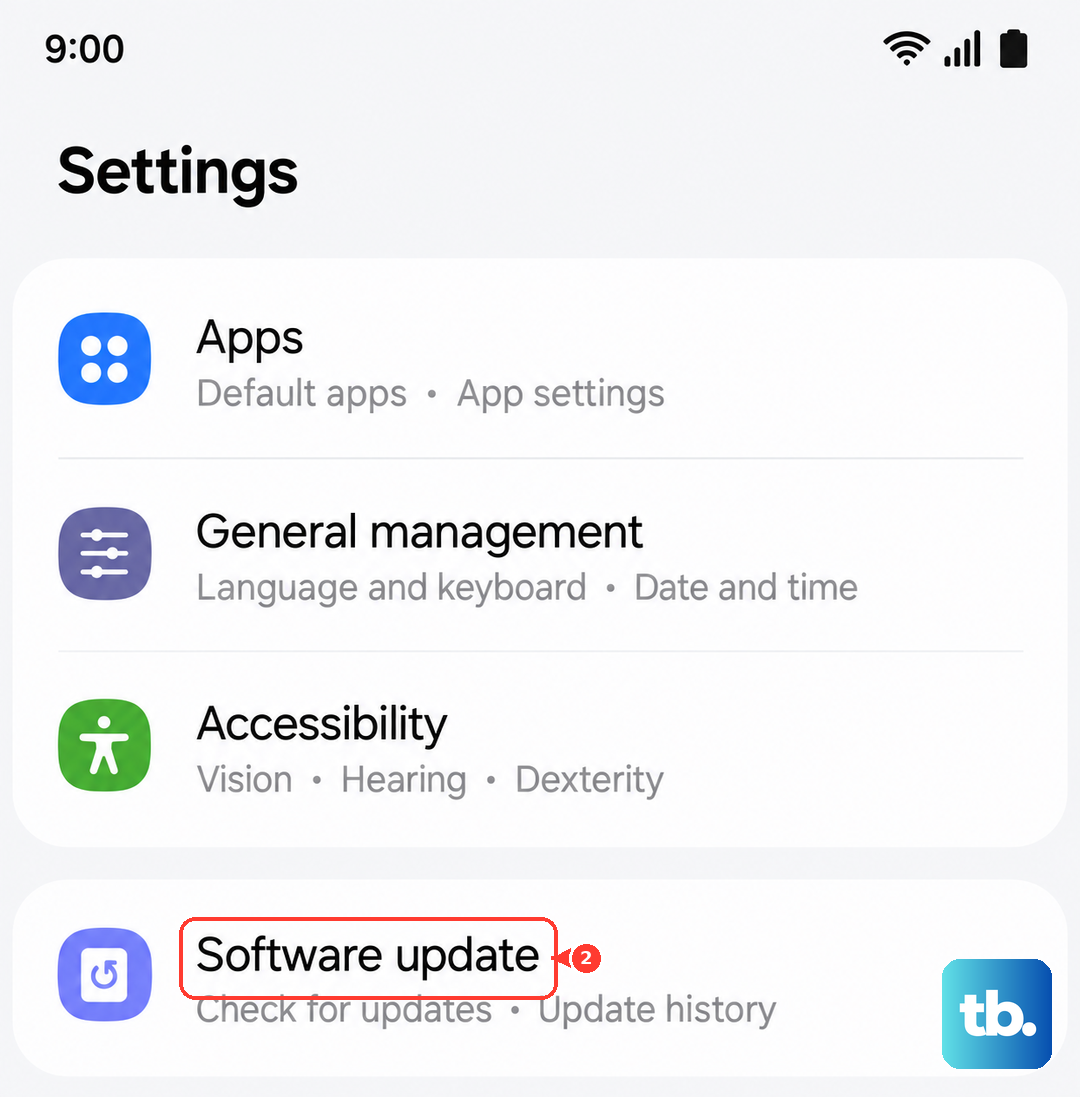
Head to Settings > Software update > Download and install. Samsung frequently releases updates that patch Bluetooth and audio-related bugs. Keeping your S24 on the latest version of One UI and Android is one of the best ways to ensure headphone compatibility, especially for newer models.
Reset All Settings
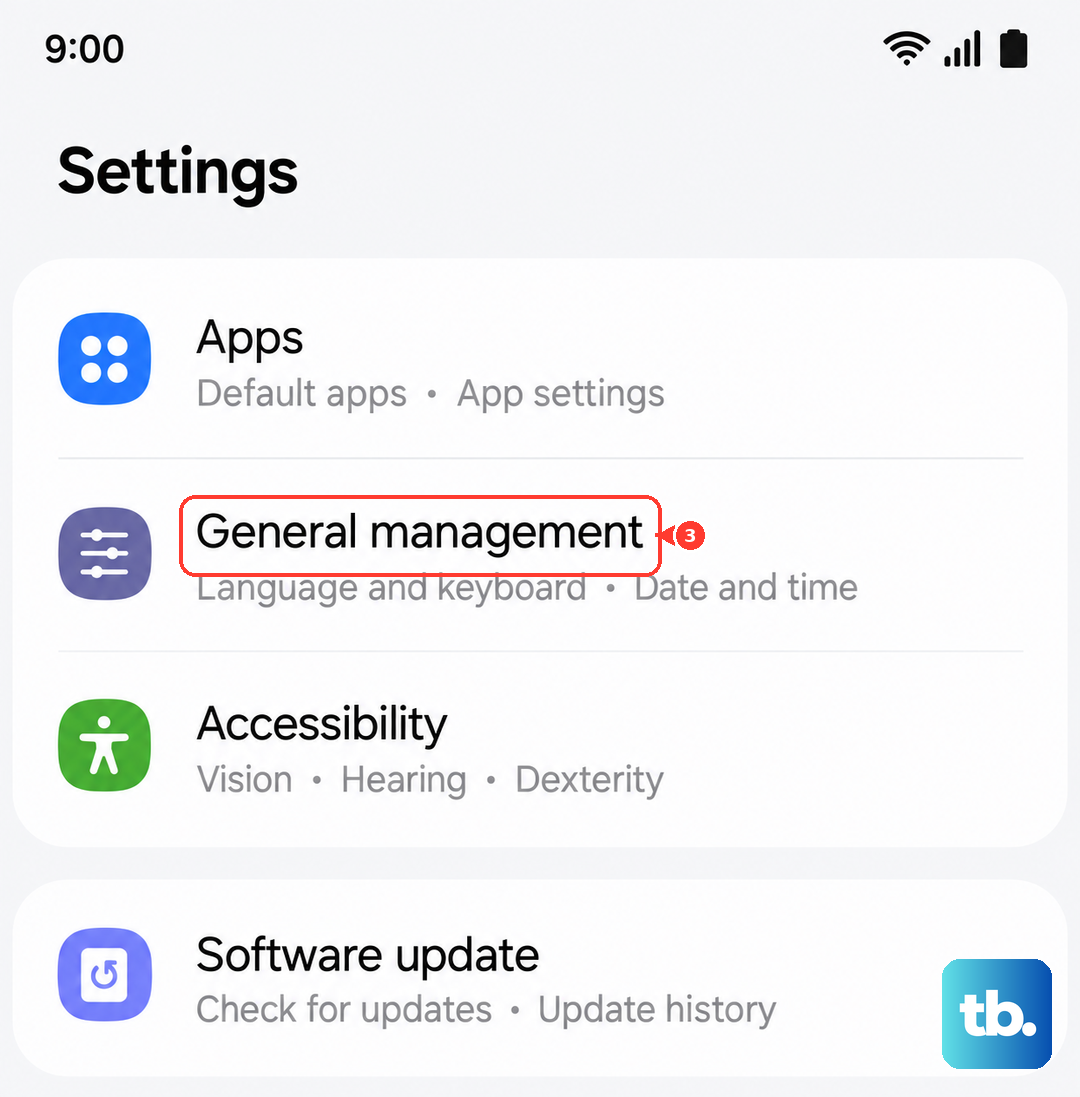
If you're still stuck, this nuclear option for settings can work. Go to Settings > General management > Reset > Reset all settings. This will revert your Wi-Fi, Bluetooth, and sound settings back to factory defaults. You'll need to re-pair all your Bluetooth devices afterward, but it often resolves deep-seated audio routing problems.