
You're staring at your Samsung Galaxy S23, and the Wi-Fi icon just won't turn blue. It's stuck on "Saved" or "Connecting," leaving you stranded without a connection. This is a common headache, but on the S23, it's usually a quick software fix you can handle yourself.
Toggle Wi-Fi and Restart Your Phone
Let's start with the simplest fix. Swipe down from the top of your screen to open the Quick Panel and tap the Wi-Fi icon to turn it off. Wait about ten seconds, then tap it again to turn it back on. This forces your phone to drop the connection and re-scan for networks, which often clears up a temporary glitch.
If that doesn't work, give your S23 a full restart. Press and hold the Side key and Volume Down button together for about ten seconds. You'll see the Samsung logo appear as the phone reboots. This clears out any minor software bugs in One UI that might be blocking the connection.
Forget the Network and Reconnect
Your phone might be holding onto corrupted login details for your network. To fix this, go to Settings > Connections > Wi-Fi. Tap on the name of your network and select Forget.
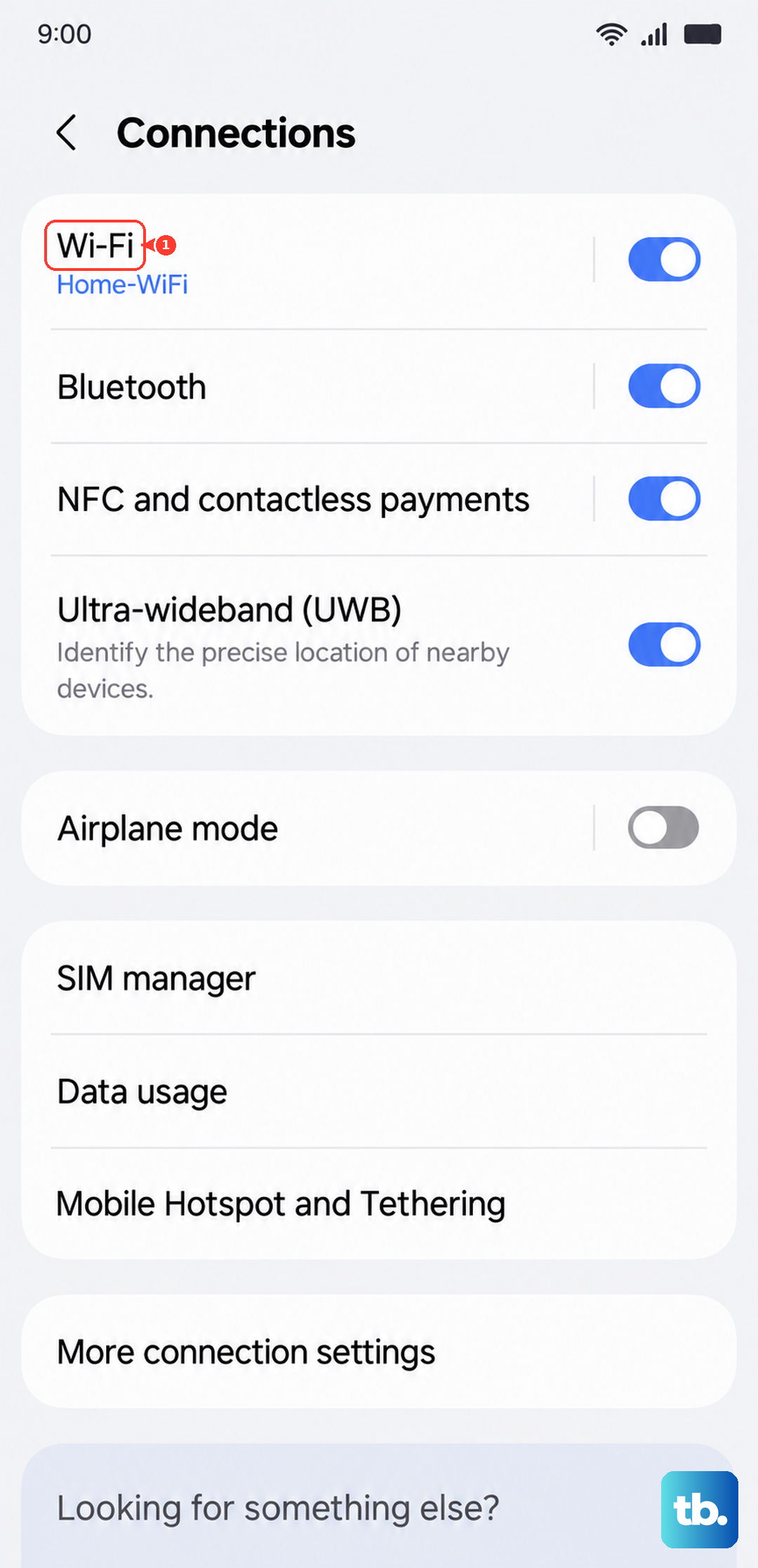
Now, find your network in the list again, tap it, and re-enter the password carefully. Make sure caps lock isn't on, as Wi-Fi passwords are case-sensitive. This is the most effective step if you've recently changed your router or Wi-Fi password.
Check for a Software Update
Samsung has released several updates for the Galaxy S23 that specifically address connectivity and stability issues. An outdated version of One UI or Android could be the root of your Wi-Fi troubles.
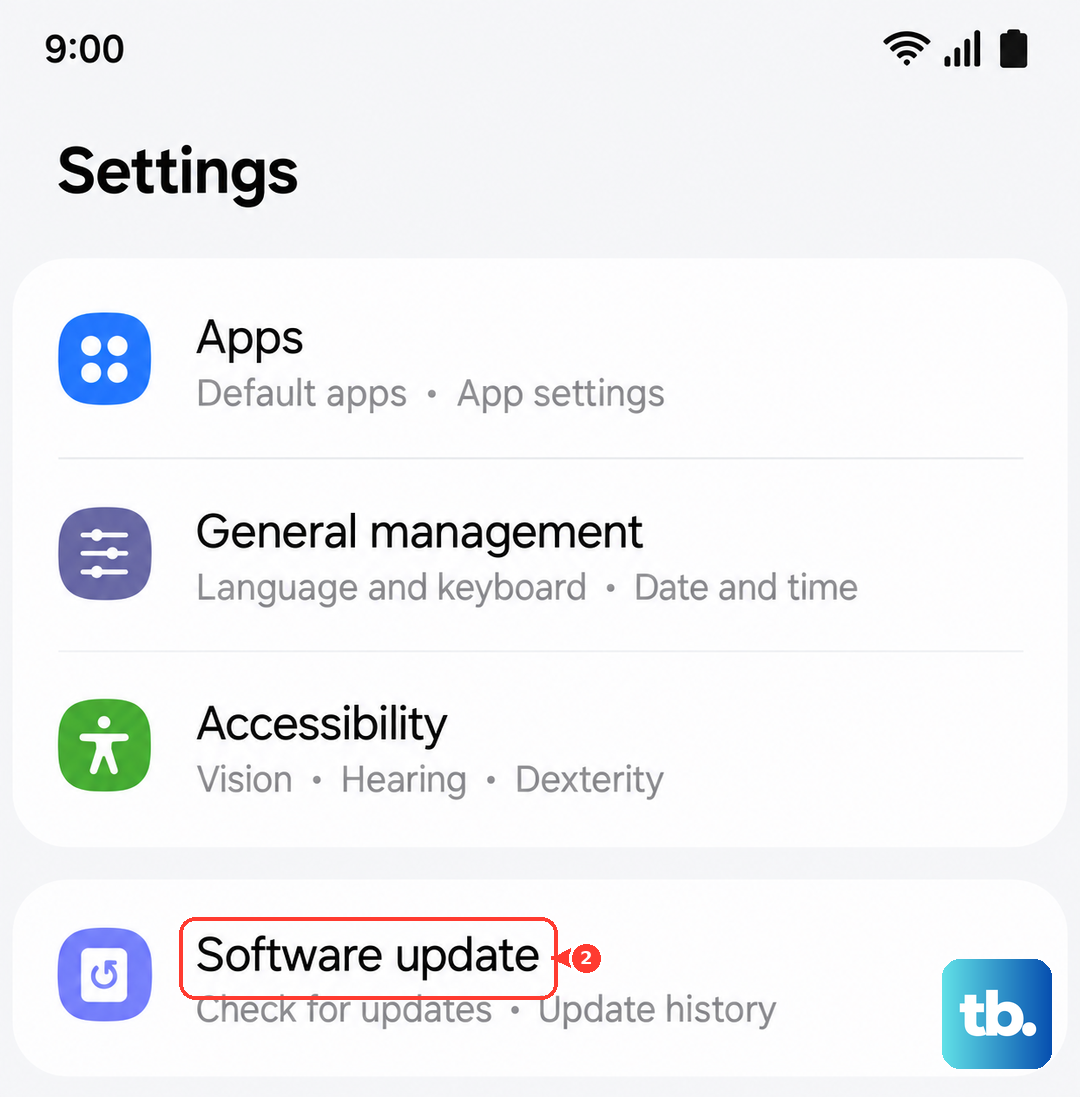
Head to Settings > Software update and tap Download and install. If an update is available, let it install completely. I've seen many S23 Wi-Fi issues resolved simply by getting the phone on the latest patch.
Disable Airplane Mode and Check Bluetooth
Sometimes, a stuck radio state can cause problems. Swipe down to your Quick Panel and make sure Airplane Mode is turned off. If it was on, turn it off and wait a moment for all the radios to reactivate.
While you're there, try turning Bluetooth off temporarily. Bluetooth and Wi-Fi can sometimes interfere with each other on the 2.4GHz band. Turning Bluetooth off for a minute is a quick test to see if it's the source of the conflict.
Turn Off Wi-Fi Power Saving Mode
The S23 has a feature to save battery by reducing Wi-Fi performance. If this is enabled, it can make your connection unstable. Go to Settings > Connections > Wi-Fi.
Tap the three-dot menu in the top right, then go to Intelligent Wi-Fi. Look for an option called "Wi-Fi power saving mode" and make sure it is switched off. This can give your connection an immediate boost.
Reset Your Network Settings
This step clears all your network configurations back to default. It will erase saved Wi-Fi networks, Bluetooth pairings, and mobile network settings, so you'll have to reconnect to everything afterward.
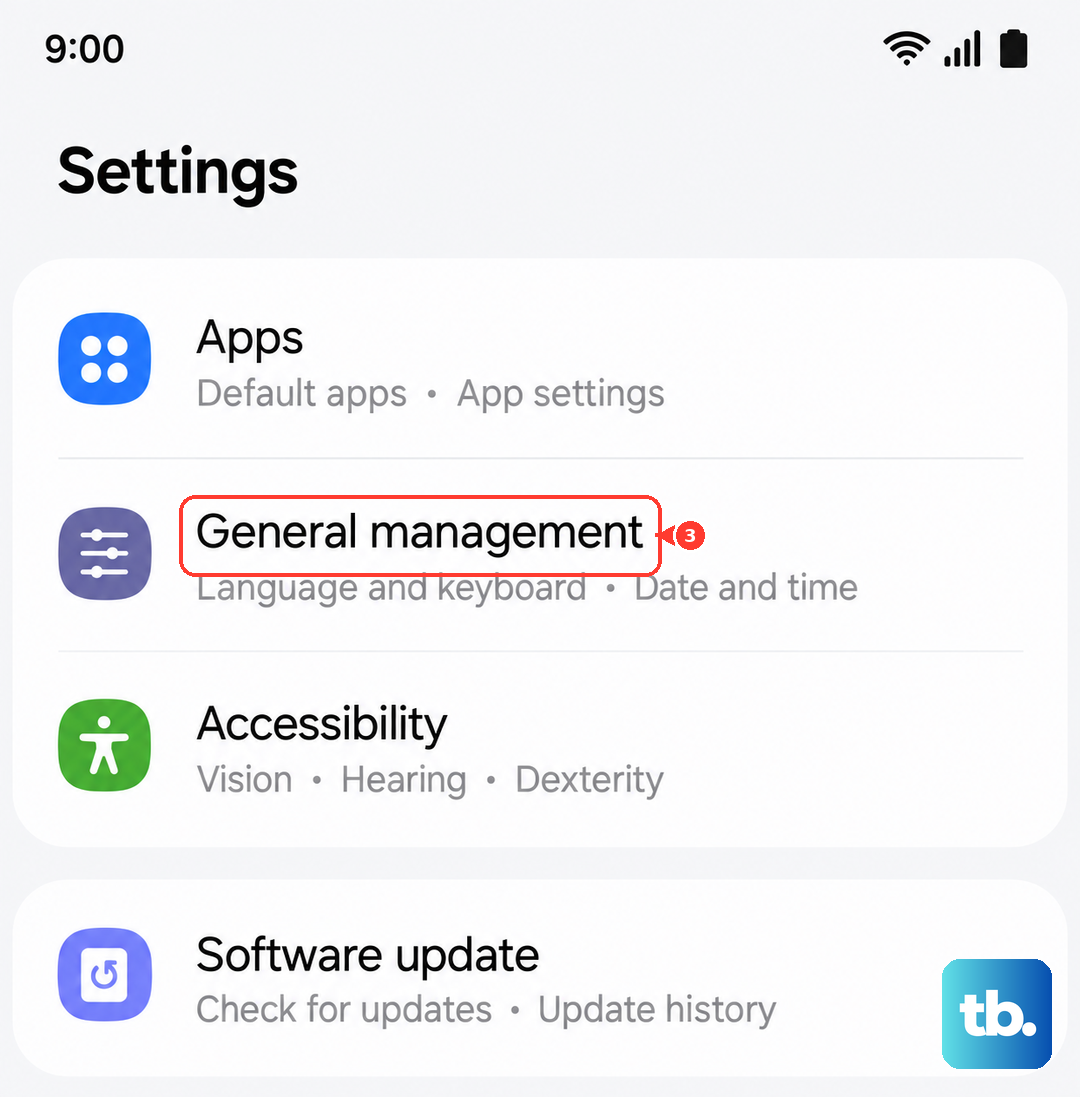
To do this, go to Settings > General Management > Reset. Tap on Reset network settings and confirm. This is a very reliable fix for persistent connection problems that aren't solved by forgetting a single network.
Boot Into Safe Mode
A third-party app you installed could be causing the issue. To check, you need to boot your S23 into Safe Mode, which temporarily disables all downloaded apps. First, press and hold the Side key until the power menu appears.
On that menu, tap and hold the Power off icon until you see a prompt to reboot to Safe Mode. Tap it. If your Wi-Fi works perfectly in Safe Mode, you know a downloaded app is the culprit. You'll need to restart your phone to exit Safe Mode and then uninstall recent apps one by one to find the bad one.
Check Your Router and Other Devices
The problem might not be your phone at all. Before you go any further, try connecting another device, like a laptop or tablet, to your Wi-Fi. If that device also fails, the issue is with your network.
In that case, unplug your router and modem from power for a full minute. This gives them time to clear their memory. Plug them back in and wait for them to fully boot up before trying to connect your S23 again. It's also a good idea to check if your router has a firmware update available.
Verify Date and Time Settings
Incorrect date and time settings can break the security certificate handshake needed to join a Wi-Fi network. Your phone needs the right time to authenticate properly.
Go to Settings > General Management > Date and time. Make sure the options for Automatic date and time and Automatic time zone are both turned on. This syncs your phone with network time servers.
Review Intelligent Wi-Fi and Network Switch
Samsung's "Intelligent Wi-Fi" features are designed to help but can sometimes hinder. Go back to Settings > Connections > Wi-Fi > Intelligent Wi-Fi.
Look for an option called "Switch to mobile data" or "Auto switch to mobile data." Turn this setting off. When this is on, your S23 might prematurely abandon a working Wi-Fi signal if it thinks the connection is poor, which can prevent a stable connection from ever being established.