
If your Samsung Galaxy S23 has gone silent, missing vibrations for calls and alerts, it's a surprisingly common hiccup. The good news is it's usually a quick software or settings fix, not a broken motor.
Force Restart Your Phone
Before you dive into settings, give your S23 a quick reboot. This clears any temporary glitches that might be stopping the vibration motor. Press and hold the Volume Down button and the Side key together for about 10 seconds.
Keep holding until you see the Samsung logo appear on the screen. Once it restarts, test if a call makes it vibrate. I'd start with this one, as it often resolves the issue immediately.
Check Your Sound and Vibration Mode
Your phone might be in a mode that disables vibration entirely. Swipe down from the top of your screen to open the Quick Settings panel. Look for the sound mode icon, which might say "Sound," "Vibrate," or "Mute."
If it's set to "Mute," tap it to switch to "Vibrate" or "Sound." You can also go to Settings > Sounds and vibration > Sound mode to check and change this setting. Make sure "Vibrate while ringing" is toggled on here too.
Adjust the Vibration Intensity
Sometimes the vibration isn't broken, it's just turned down too low to feel, especially if the phone is in a pocket or on a soft surface. Samsung lets you control the strength for different actions.
Go to Settings > Sounds and vibration > Vibration intensity. You'll see sliders for Call vibration, Notification vibration, and Touch feedback. Try sliding them all up to the maximum setting and test again.
Test Vibration with Samsung's Secret Menu
This is a great way to check if the hardware itself is working. Open your Phone app and dial *#0*#. This opens Samsung's service menu. A grid of colored buttons will appear.
Look for the red button labeled "Vibration" or "Vib." Tap it. Your phone should immediately produce a strong, sustained buzz. If it does, your vibration motor is physically fine and the problem is software-related.
Review App-Specific Notification Settings
If vibrations work for some apps but not others, the issue is with that app's notification settings. For example, your messaging app might have its own vibration toggle.
Go to Settings > Apps, select the app that's not vibrating (like Messages or WhatsApp), then tap Notifications. Look for the specific notification category (e.g., "New messages") and ensure the "Vibrate" option is enabled. Some apps bury this setting within their own in-app menus as well.
Boot Into Safe Mode
A third-party app you installed could be interfering with system functions, including vibration. Booting into Safe Mode temporarily disables all downloaded apps. Turn off your S23 completely.
Now, press and hold the Side key to turn it back on. The moment you see the Samsung logo, release the Side key and immediately press and hold the Volume Down button. Keep holding it until you see "Safe mode" in the bottom-left corner of the screen.
If vibration works normally in Safe Mode, you know a downloaded app is the culprit. Restart normally to exit Safe Mode and try uninstalling recently added apps one by one.
Check for Software Updates
Samsung has released several updates for the Galaxy S23, some of which address system bugs that could affect hardware functions. An outdated software version might be the root cause.
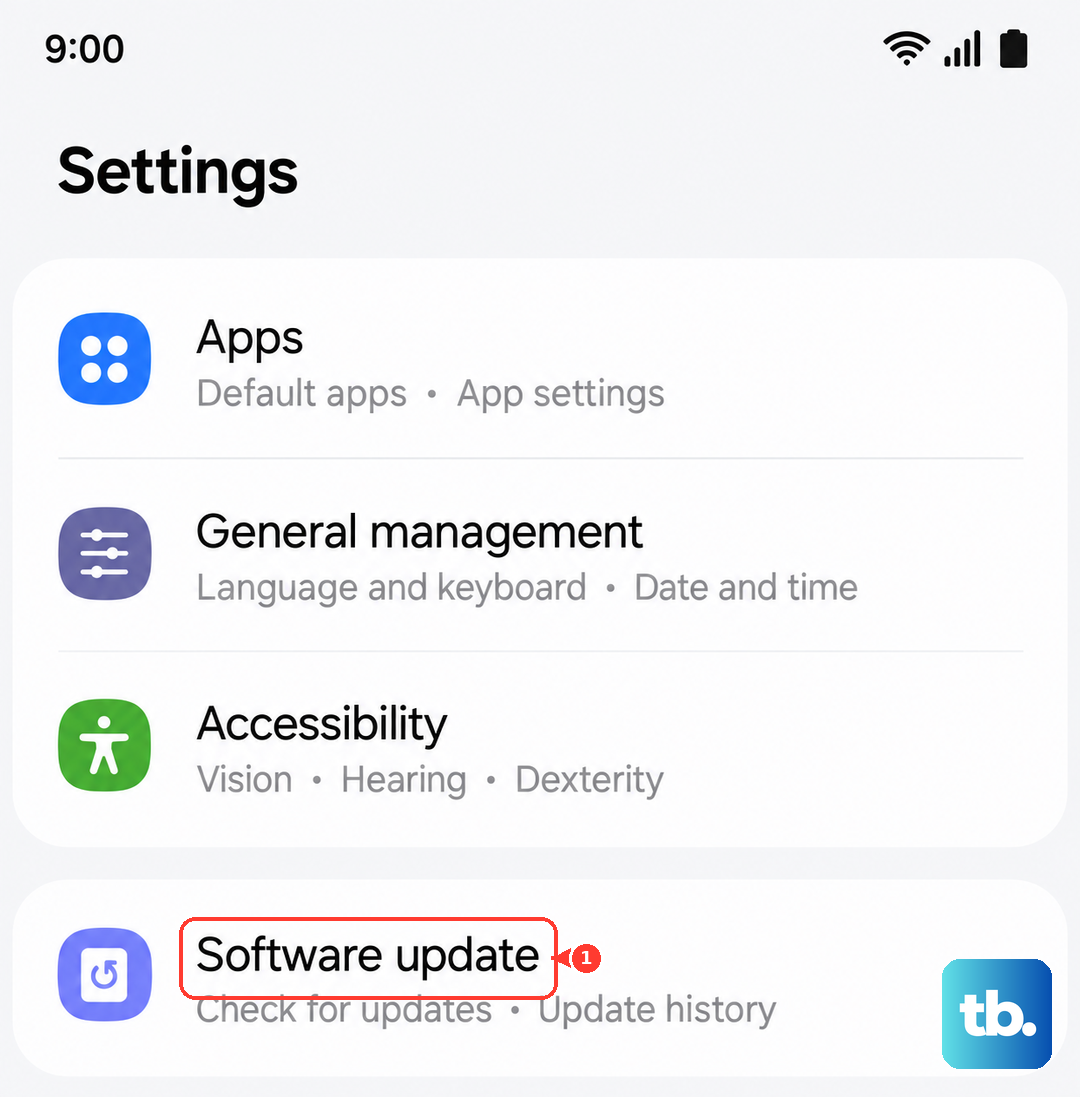
Go to Settings > Software update > Download and install. If an update is available, install it. Make sure your phone is connected to Wi-Fi and has a good battery charge before starting. After the update, check if vibration is restored.
Reset All Settings
If you've customized a lot of settings, something might have gotten misconfigured. Resetting all settings will return your sound, network, and display preferences to factory defaults without deleting any of your personal data, photos, or apps.
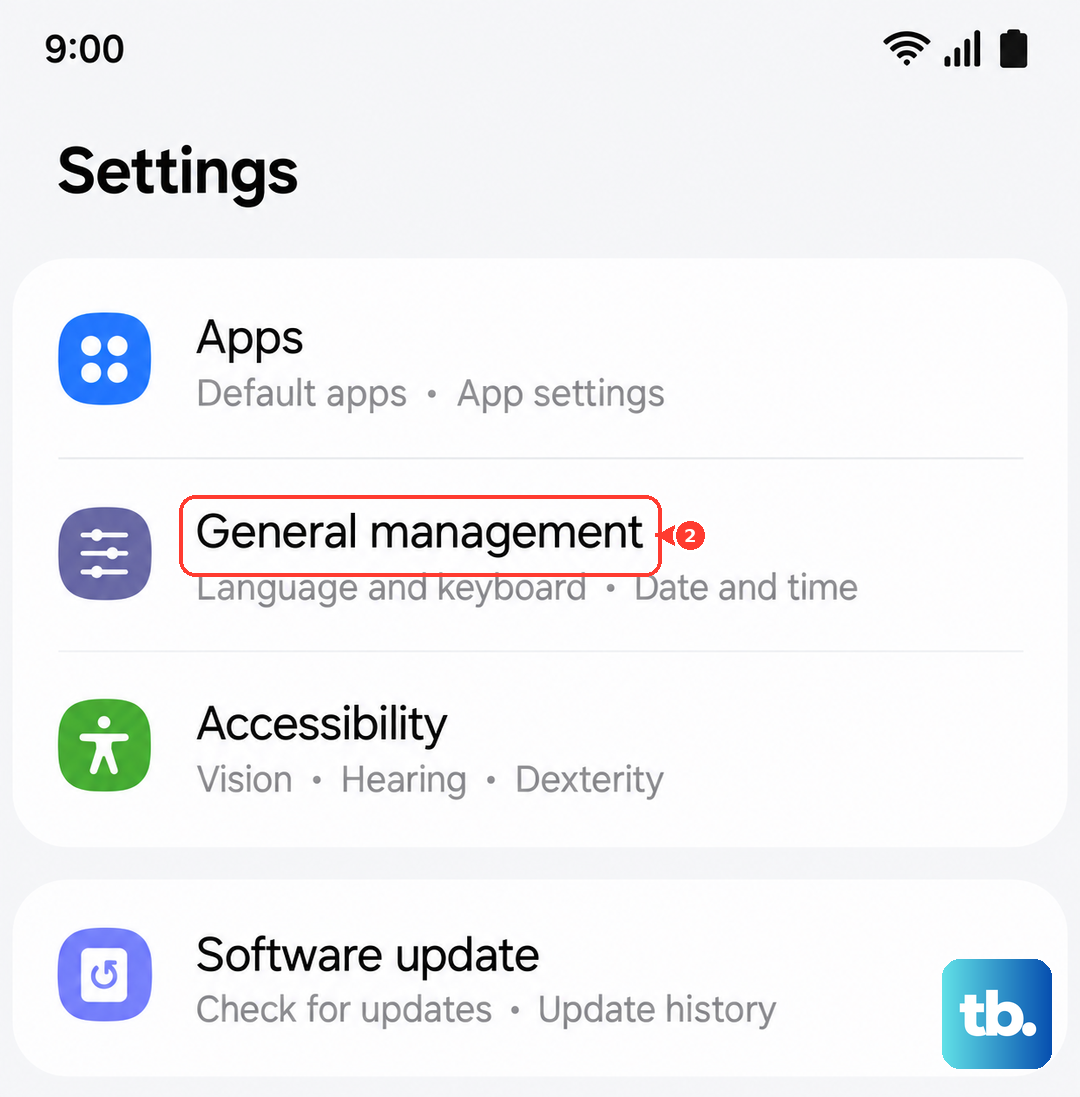
Navigate to Settings > General management > Reset > Reset all settings. Confirm your choice and enter your PIN if prompted. Your phone will reboot. Afterward, you'll need to reconfigure things like Wi-Fi passwords and wallpaper, but it often clears up persistent glitches.
Remove Any Custom Themes
While rare, some third-party themes from the Galaxy Store can have bugs that interfere with system operations. If you're using a custom theme, try switching back to the default Samsung theme.
Long-press on an empty area of your home screen and tap "Themes." Tap on "My stuff" at the bottom, find the "Default" theme, and apply it. Restart your phone after applying the default theme and test the vibration again.