When your Samsung Galaxy S23 microphone stops picking up your voice, it can turn simple phone calls, video chats, or voice notes into a frustrating experience. The first thing I'd do is figure out exactly which microphone is acting up, as the S23 has several for different purposes.
It is worth running a mic test before working through the steps below. The live waveform makes it obvious whether the microphone is picking up sound at all.
Test Which Microphone Is Affected
Open your Voice Recorder app and make a quick test. Speak normally, then cover the bottom of the phone near the USB-C port with your finger while recording another clip. If the first recording is clear but the second is muffled, your primary call microphone (at the bottom) is working, but the top noise-canceling mic might be blocked.
You can also test during a phone call. Put the call on speakerphone. If people can hear you clearly on speaker but not when you hold the phone to your ear, the issue is likely with the bottom primary microphone. If it's the reverse, the top earpiece microphone could be the problem.
Check for Physical Blockages First
Your S23 has microphone holes at the bottom next to the USB-C port, at the top within the earpiece grill, and on the back near the camera array. Take a close look at these tiny openings. It's common for pocket lint, dust, or even a small bit of debris from a case to get lodged in there.
Use a soft-bristled brush, like a clean, dry toothbrush, to gently sweep over the openings. You can also try blowing sharply across them. Avoid using compressed air or poking inside with metal objects, as you could easily damage the sensitive microphone diaphragm.
Remove the Phone Case
Some cases, especially rugged or ill-fitting ones, can partially cover the microphone ports. Take the case off completely and test your microphone again with a quick voice recording or call. I've seen this solve the issue more times than you'd think, especially with third-party cases that weren't designed perfectly for the S23's port cutouts.
Disconnect Bluetooth and Accessories
If your phone is connected to Galaxy Buds, a smartwatch, or a car's Bluetooth system, it might be routing all audio through that external device. Go to Settings > Connections > Bluetooth and turn Bluetooth off temporarily, or tap the gear icon next to your connected device and select Disconnect.
Also, if you have anything plugged into the USB-C port, like headphones or a charging cable, unplug it. A faulty accessory or even a bit of debris in the port can sometimes interfere with the microphone circuit.
Restart Your Phone
A simple restart clears out temporary software glitches that can affect hardware functions. Press and hold the Side key and Volume Down button together for about ten seconds until you see the Samsung logo appear on the screen. This force restarts the phone and is a good first software step.
Verify App Permissions
If the microphone only fails in specific apps like WhatsApp, Instagram, or Zoom, the app might not have permission to use it. Go to Settings > Apps, select the problematic app, and tap Permissions. Make sure the Microphone permission is set to "Allow."
You can also check all your microphone permissions at once by going to Settings > Privacy and safety > Permission manager > Microphone. This shows you every app that has asked for access.
Boot Into Safe Mode
This starts your phone with all third-party apps disabled. If the microphone works perfectly in Safe Mode, you know a recently downloaded app is causing the conflict. To enter Safe Mode, press and hold the Side key and Volume Down key until the power off menu appears.
Then, press and hold the "Power off" option on your screen. It will ask if you want to reboot to Safe Mode. Tap "OK." Test your microphone here. To exit, just restart your phone normally.
Check for Software Updates
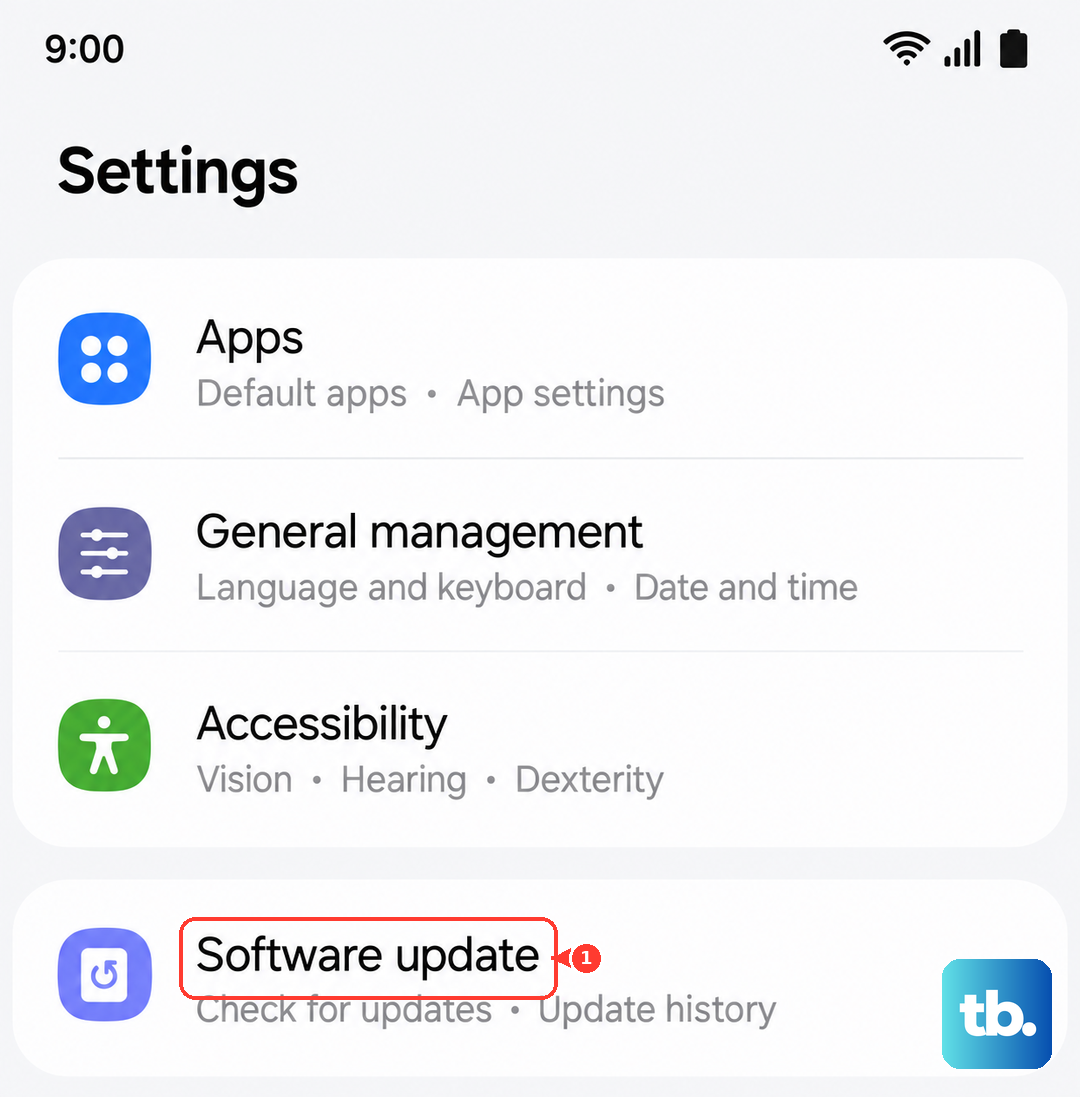
Samsung frequently releases updates that fix bugs, including audio and microphone issues. Go to Settings > Software update > Download and install. Make sure you're connected to Wi-Fi and have sufficient battery. Installing the latest One UI and Android security patches has resolved microphone problems for many S23 users.
Reset App Preferences or Specific Settings
This resets all your app permissions, notification settings, and default apps without deleting any personal data. It can clear up conflicts where a system setting is interfering. Go to Settings > Apps > Menu (three dots) > Reset app preferences and confirm.
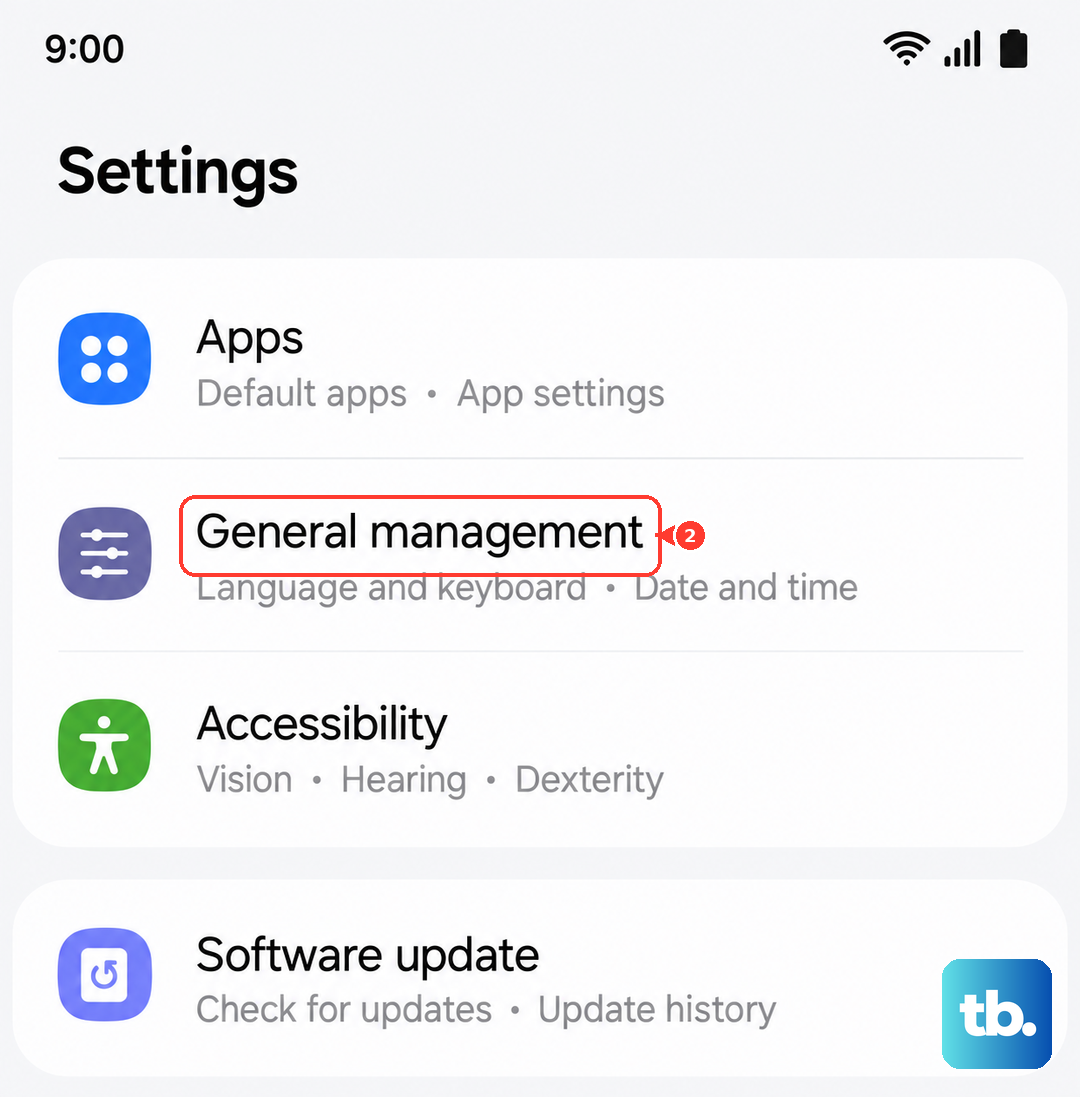
You can also try resetting settings related to calls. Go to Settings > General management > Reset > Reset all settings > Reset settings. This will reset your network, Bluetooth, and accessibility settings back to default.
Inspect for Water Damage or Moisture
The S23 is water-resistant, but if it's been exposed to moisture, the tiny microphone covers can get temporarily blocked. You might see a moisture detection warning in your notification panel. If so, power the phone off completely and leave it in a dry, warm place (not on a heater) for a few hours.
You can also try gently drying the microphone holes with a cool setting on a hairdryer held at a distance. Never charge the phone if you suspect there's moisture in the USB-C port, as this can cause damage.
Perform a Factory Reset
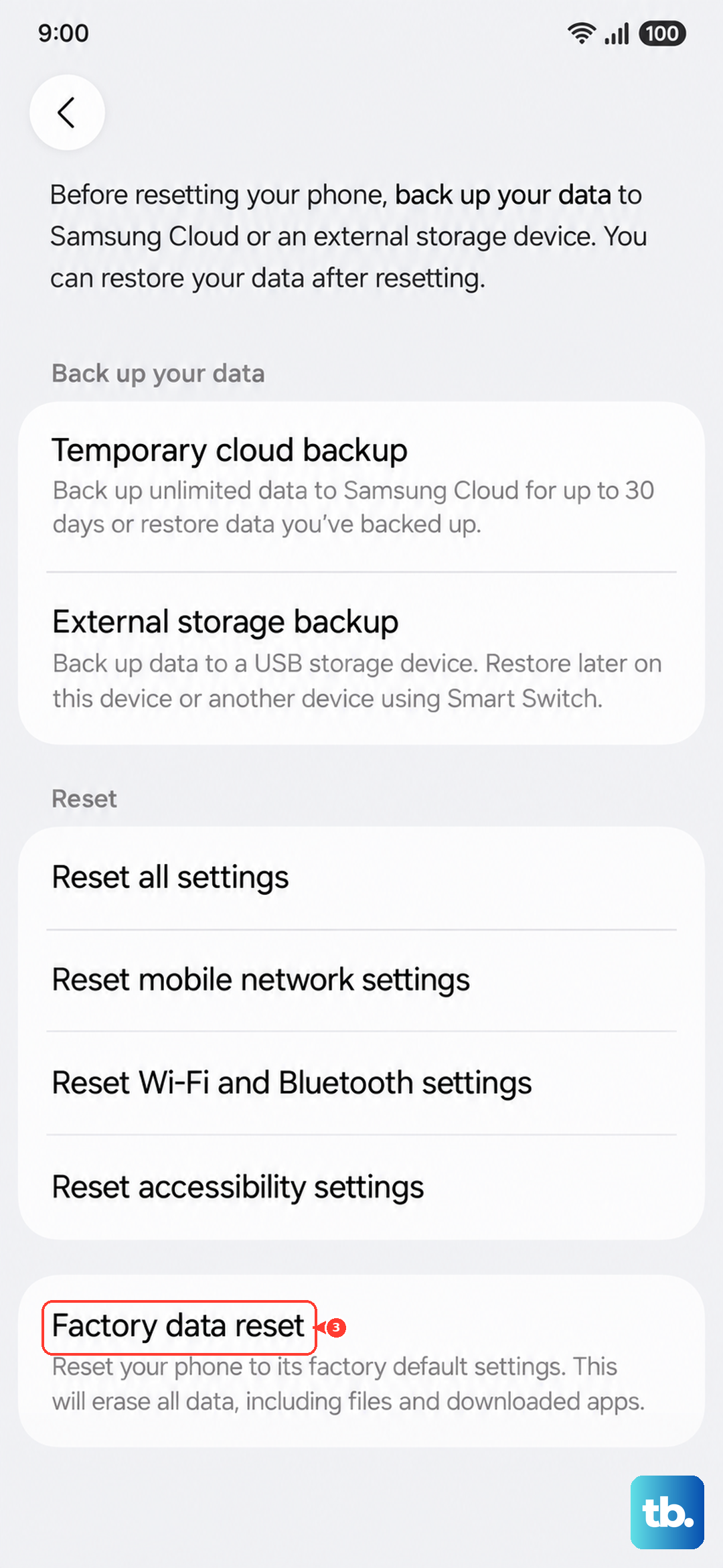
This is a last resort before assuming hardware failure. A factory reset will erase all data from your phone, so you must back up everything important first. Use Samsung Cloud or Smart Switch to back up your data to a computer.
Once backed up, go to Settings > General management > Reset > Factory data reset. Tap "Reset" and follow the prompts. After the phone restarts, set it up as new temporarily (don't restore your backup yet) and test the microphone immediately. If it works, the problem was software-related.