
That "Unfortunately, Samsung Keyboard has stopped" pop-up is a real conversation killer. On your Galaxy S23, this usually points to a temporary software hiccup rather than a hardware problem, and there are several straightforward ways to get your typing back on track.
Force Stop and Restart the Keyboard App
This is the quickest fix and often works immediately. It clears the app from your phone's memory and lets it start fresh.
Head to Settings > Apps. You might need to tap "See all apps" first. Find and select Samsung Keyboard from the list. On the app info page, tap Force Stop and confirm. Now, just exit Settings and try opening your keyboard again in a message or search bar.
Give Your Phone a Quick Restart
If force stopping the app didn't do the trick, a full phone restart is a great next step. It clears out temporary system glitches that might be interfering.
Just press and hold the Side key and either Volume Down button, then tap "Restart" on the screen. If your screen is unresponsive, you can force a restart by pressing and holding the Volume Down button and the Side key together for about 10 seconds until you see the Samsung logo.
Clear the Keyboard's Cache and Data
Corrupted temporary files can cause the keyboard app to crash. Clearing the cache is safe and won't delete your personal typing data, but clearing the app data will reset the keyboard to its default settings, so you'll lose any custom dictionaries or layouts.
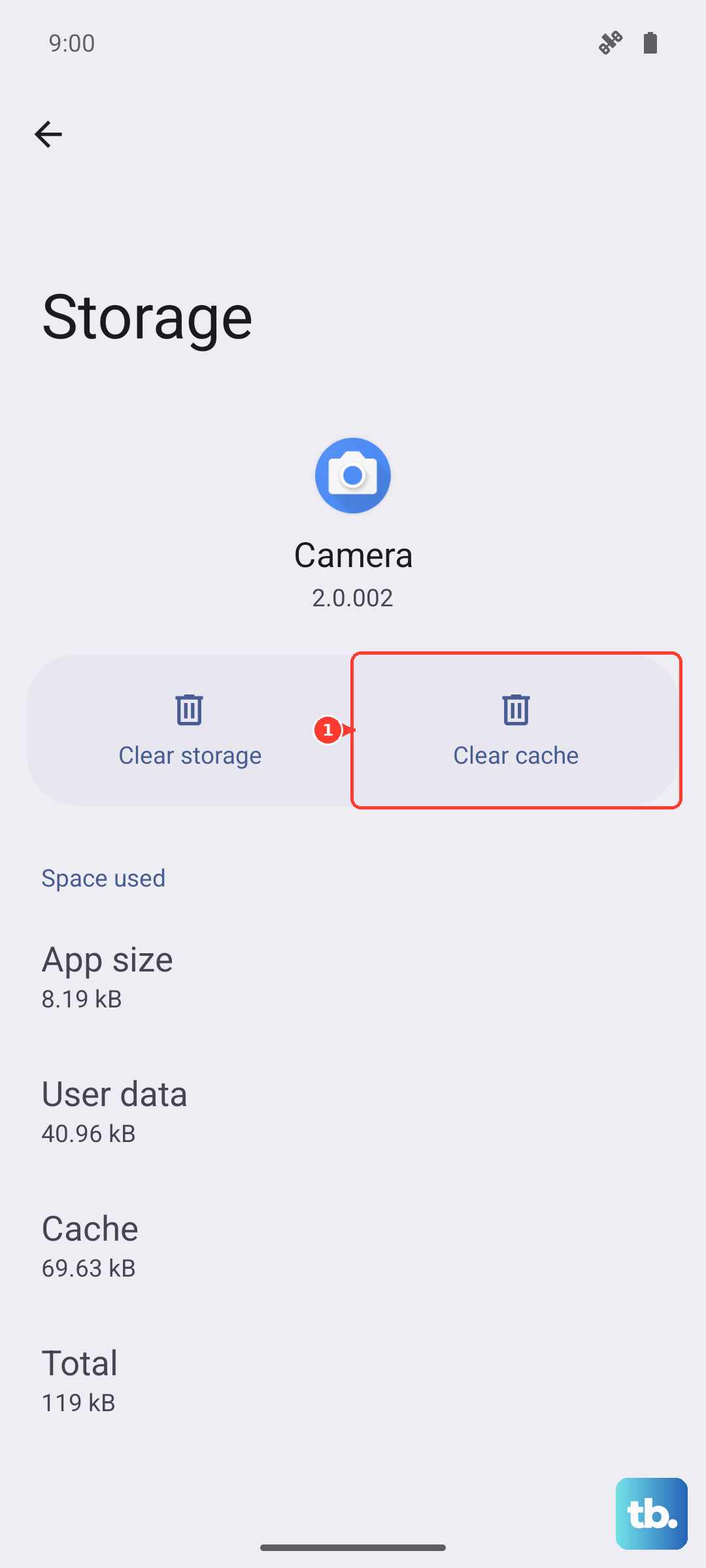
Go back to Settings > Apps > Samsung Keyboard. Tap on Storage. First, tap "Clear Cache." If the problem persists, come back here and tap "Clear Data," then confirm. Your phone will treat the keyboard like a freshly installed app.
Check for a Software Update
Samsung has been pretty proactive with updates for the S23 series, especially for One UI and Android version jumps. These updates frequently include bug fixes for system apps like the keyboard.
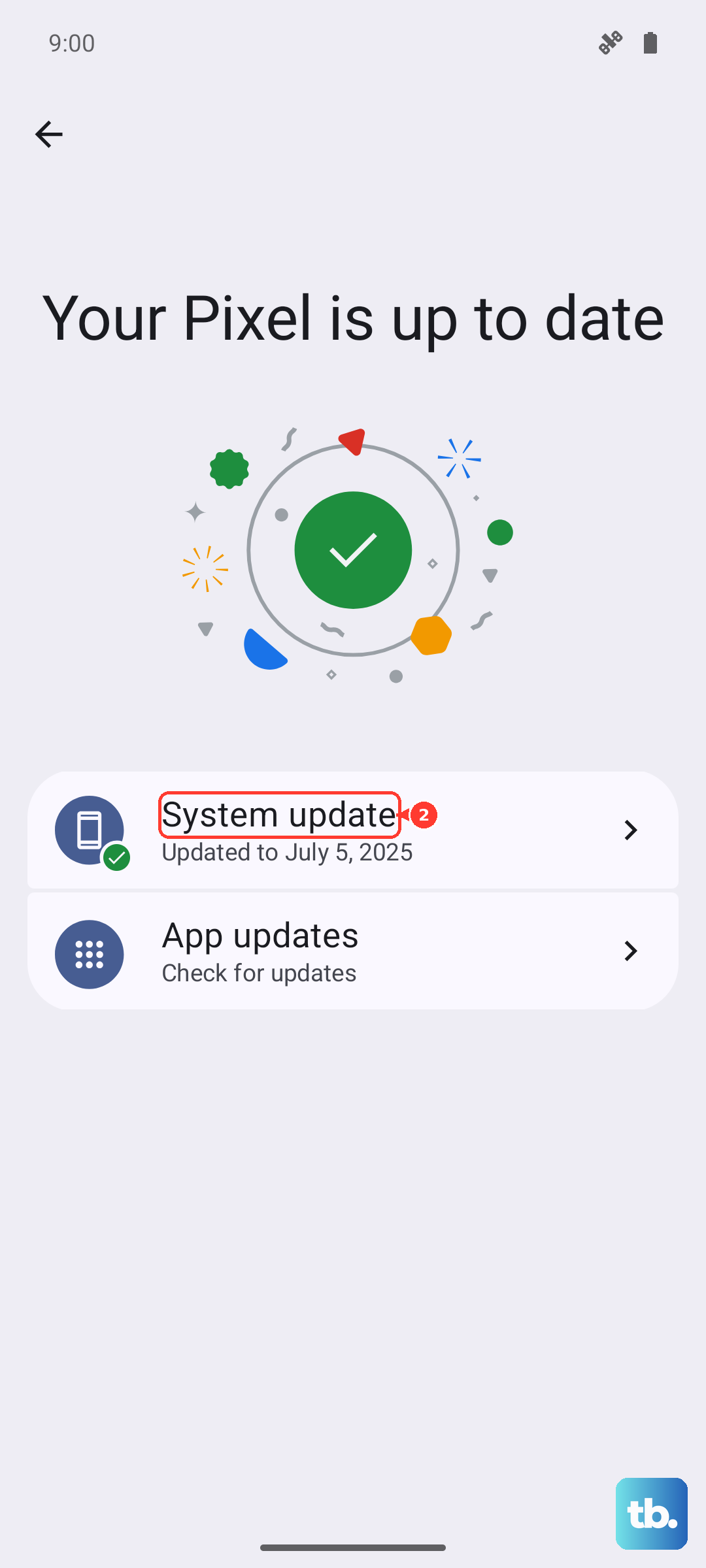
I'd check this early on. Go to Settings > Software update and tap Download and install. If an update is available, let it install completely, as this has resolved keyboard issues for many users after major OS updates.
Update the Keyboard App via Galaxy Store
While system updates cover the core app, Samsung also pushes updates for its keyboard through the Galaxy Store. An outdated version might have a conflict with a newer app you've installed.
Open the Galaxy Store app, tap the menu icon (usually three lines), and go to Updates. See if Samsung Keyboard is listed there. If it is, tap "Update" next to it.
Reset Your Keyboard Settings
If you've changed a lot of settings, something might have gotten misconfigured. Resetting them to default can clear up the conflict without touching your personal data.
Navigate to Settings > General Management > Keyboard list and default. Tap on Samsung Keyboard in the list. At the bottom of its settings page, you should find an option labeled Reset settings. Tap it to restore all keyboard preferences to factory defaults.
Boot Into Safe Mode
This is a great diagnostic step to see if a third-party app you installed is causing the trouble. Safe Mode temporarily disables all apps you downloaded.
Press and hold the Side key to get the power menu, then tap and hold the "Power off" option on your screen. You'll see a "Safe Mode" prompt appear. Tap it to restart into Safe Mode. If your keyboard works perfectly here, you know a downloaded app is the culprit. Start by removing any recent apps, or keyboard-related apps like custom themes or emoji packs.
Try a Different Keyboard App
While you're troubleshooting the Samsung Keyboard, installing a different one gives you a fully functional keyboard to use right away. It's a good workaround.
Head to the Google Play Store and install a popular alternative like Gboard or SwiftKey. Once installed, go to Settings > General Management > Keyboard list and default and tap on Default keyboard to switch to your new one.
Reset All Settings
If you're still stuck, this resets every system setting on your phone, like network, Bluetooth, and display, back to factory defaults. Crucially, it does not delete your photos, messages, or apps.
Go to Settings > General Management > Reset. Select Reset all settings. You'll need to enter your PIN or password, and then confirm. After the phone reboots, you'll have to reconfigure your Wi-Fi, ringtones, and similar preferences, but it often clears deep-seated software conflicts.