You reach for your Samsung Galaxy S23 to light up a dark room or find something under the bed, tap the flashlight, and nothing happens. Maybe the tile flickers but no light appears, the beam is so faint it is useless, or the icon refuses to respond at all. Because the flashlight on the S23 (model SM-S911) shares the same LED as the camera flash, the cause can be anything from a mistapped setting to heat protection to a software glitch, and only rarely a true hardware failure.
The good news is that most flashlight problems clear up with a few quick checks you can run yourself in minutes. Work through the nine fixes below in order, starting with the safest and easiest, and save the reset and service options for last. Each step is based on the standard One UI behavior documented in Samsung's official support guidance for Galaxy phones.
Start with the Quick settings tile and the brightness slider
Before anything else, make sure the flashlight is actually being toggled and that its brightness is not turned all the way down. This rules out a mistapped tile or a minimum brightness setting before you dig into deeper troubleshooting.
- 1.Open the Quick settings panel by swiping down from the top right of the screen.
- 2.Tap the Flashlight icon to turn the light on or off (swipe through the tiles if you do not see it).
- 3.If the light comes on but is very dim, tap and hold the Flashlight icon, then adjust the slider to raise the brightness level. The slider is only available once the flashlight is turned on.
If the tile lights up but the LED stays dark, or the slider does nothing, move on to a restart.
Reboot the phone to clear a stuck LED
A normal restart clears the temporary glitches that can lock up the LED after heavy use or a frozen background process. This is one of the most reliable fixes for a flashlight that suddenly stopped responding.
Press and hold the Volume down button and the Side button simultaneously.
When the power options appear, tap Restart.
Tap Restart again, then let the phone reboot on its own.
Once the phone is back up, open Quick settings and test the flashlight again.
Force a restart if the screen is frozen
If the screen is unresponsive and the flashlight tile will not toggle at all, the phone may be locked up and need a forced restart. This does not erase any of your data; it simply powers the device off and back on.
Press and hold the Volume down button and the Side button (or Power button) simultaneously.
Keep holding until the device turns off and turns back on.
The screen goes black, then the Samsung logo appears.
Samsung's guidance says to hold the buttons until the device turns off and back on rather than for a fixed number of seconds, so do not let go too early. Once the phone restarts, check the flashlight again from Quick settings.
Let an overheated phone cool down
Because the flashlight uses the same LED as the camera flash, the phone's heat protection can interrupt flash and camera functions when the device runs hot. Galaxy phones operate best in an ambient range of 32 to 95 degrees Fahrenheit; when overheating, the screen may get dimmer, the device may slow down, charging may pause, and apps may be automatically closed.
During camera use, an overheated phone can display "Exit Camera. Battery temperature too high." This is a normal protective condition, not a defect. The fix is to wait for the device to cool down and then begin again.
Remove any thick case, move out of direct sun or heat, stop charging or recording video, and give the phone a few minutes to cool. Then try the flashlight once more.
Install the latest software update
A firmware bug affecting the camera or flash is often resolved by a software update, so it is worth checking for one before any deeper steps. The phone will restart on its own to finish installing.
Open Settings.
Tap Software update (this may be labeled System updates on some models).
Tap Download and install (or Check for system updates, or Check for software updates, depending on your carrier).
Install any available update and let the phone restart to complete it.
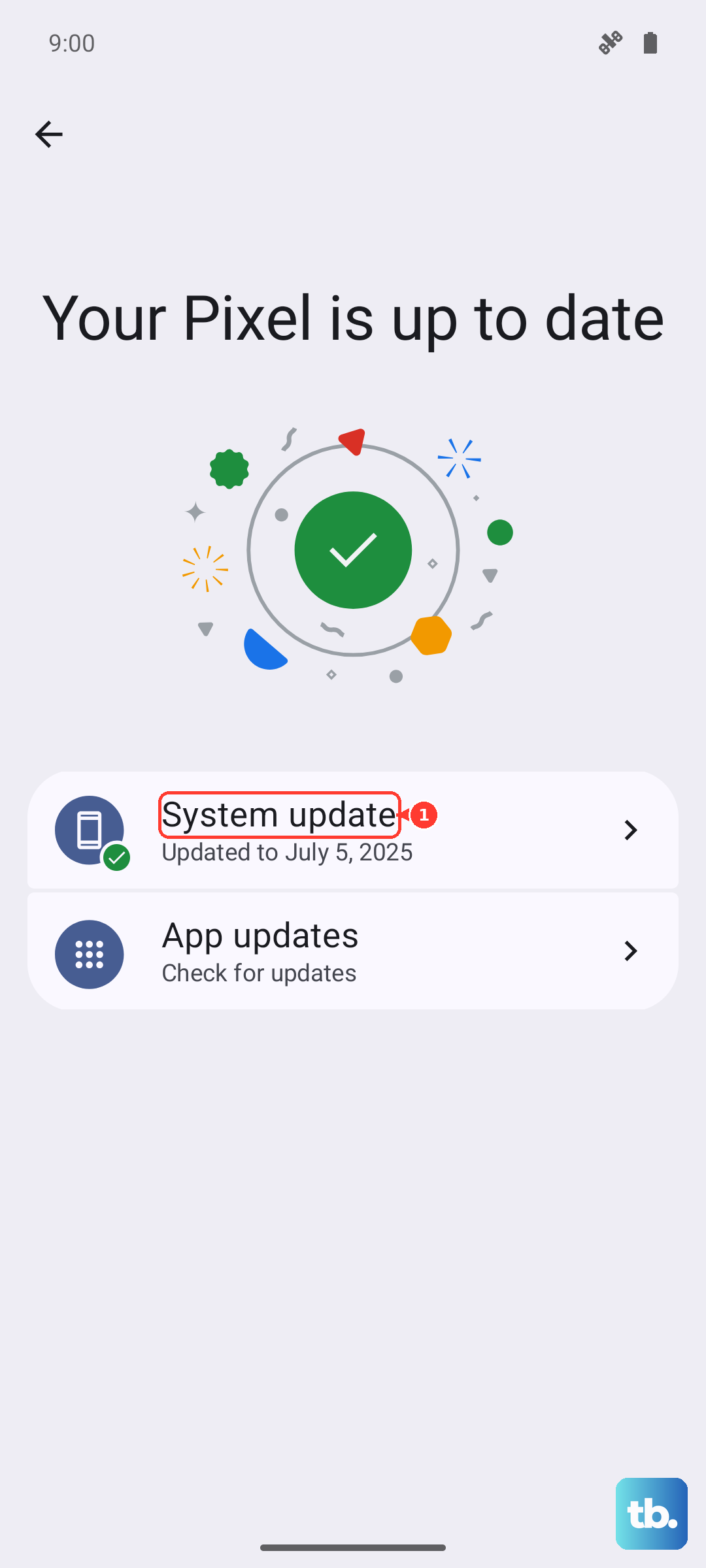
After the update finishes and the phone reboots, open Quick settings and confirm the flashlight is working.
Reset the Camera app settings
Since the flashlight and the camera flash share the same LED, a misconfigured Camera app can interfere with the light. Returning the Camera to its defaults often restores normal flash behavior without touching the rest of your phone.
Open the Camera app.
Tap Settings (or the Quick settings icon, then Settings on One UI 7.0 and later).
Swipe to and tap Reset settings.
Tap Reset, then test the flashlight again.
Use Safe Mode to expose a problem app
Safe Mode loads only the original software that came with the phone, so it tells you whether a downloaded app is interfering with the flashlight or camera. If the flashlight works in Safe Mode, a third-party app is the culprit.
Open the power menu (press and hold the Side or Power button, or swipe down with two fingers and tap the Power icon).
Touch and hold Power off until the Safe mode icon appears.
Tap Safe mode.
Test the flashlight while in Safe Mode. If it works, restart normally and uninstall the apps you added most recently, especially any that control the camera or flash.
Run the flashlight test in Samsung Members
If software steps have not helped, the built-in diagnostics tool will confirm whether the LED hardware itself still responds. This is the clearest way to tell a software hiccup apart from a physical fault.
Open the Samsung Members app.
Go to the Discover tab.
Tap Diagnostics, then Phone diagnostics.
Run the individual flashlight test, or tap Test all, and follow the on-screen instructions.
A failed test glows red with an x, while completed sections glow blue. A failed flashlight result points to a hardware problem that needs service rather than another software fix.
Back up and factory reset, then contact Samsung
As a final software step, a factory data reset wipes out a deep, stubborn software fault that survived everything above. This erases your data, so back up everything first. Samsung warns, "Please save any information you need prior to the factory reset because your personal information may not be recovered." The reset removes Google accounts, system and app data, downloaded apps, music, photos, and settings.
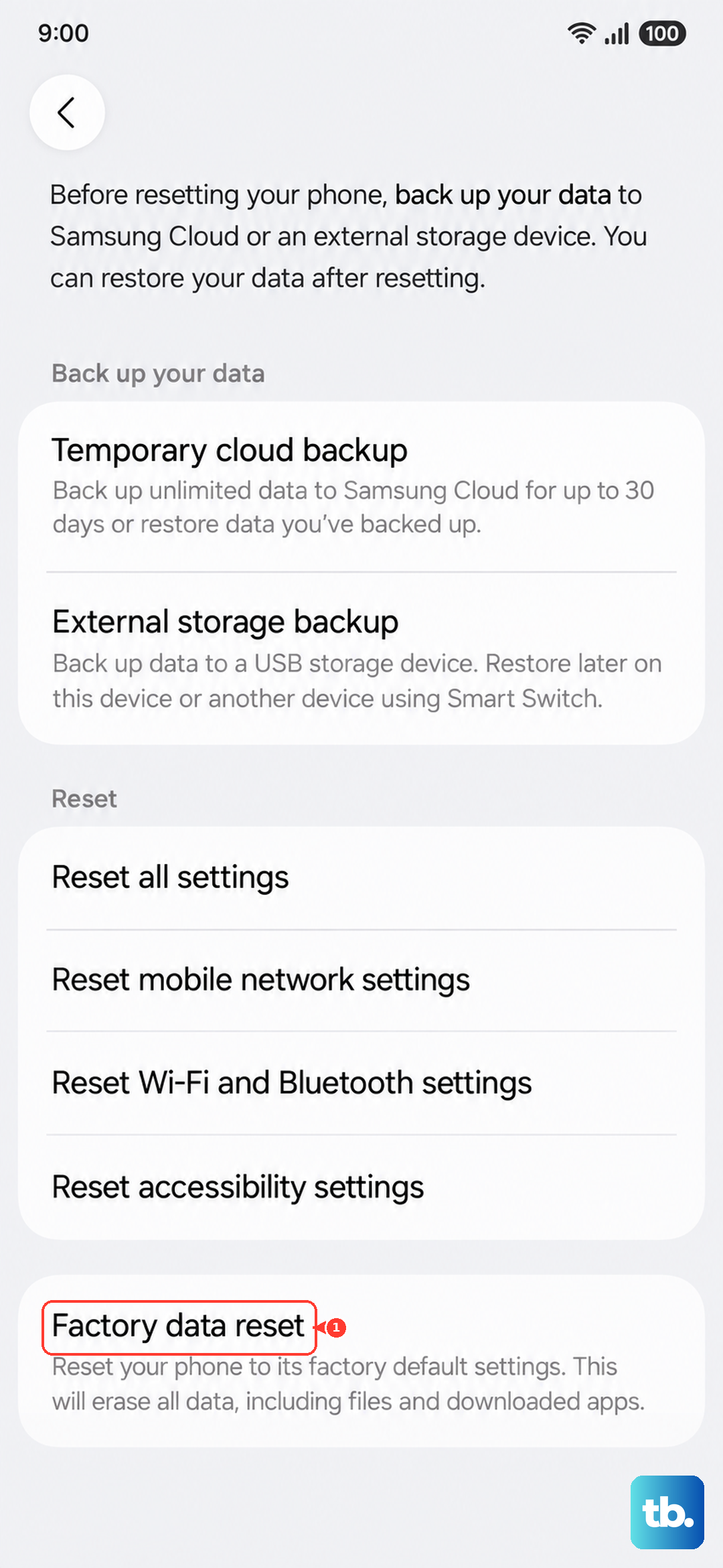
Back up your photos, accounts, and files.
Open Settings.
Tap General management.
Tap Reset, then Factory data reset.
Review the information, then tap Reset (or Delete all) to confirm.
If the flashlight still does not work after the reset, or it failed the Samsung Members diagnostics test, the issue is almost certainly hardware. At that point, contact Samsung Support or visit an authorized service center for repair.
Frequently Asked Questions
Why is my Galaxy S23 flashlight on but very dim?
The brightness slider may be set near its minimum. Tap and hold the Flashlight icon in the Quick settings panel and raise the slider; the slider only appears once the flashlight is already turned on.
Can heat really stop the flashlight from working?
Yes. The flashlight shares the LED with the camera flash, and Galaxy phones run best between 32 and 95 degrees Fahrenheit. When the phone overheats, the screen may dim, performance may slow, charging may pause, and apps may close, which can interrupt the flash. Let the phone cool, then try again.
How do I know if the flashlight problem is hardware or software?
Run the flashlight test in the Samsung Members app under Discover, then Diagnostics, then Phone diagnostics. A failed test glows red with an x, which points to a hardware fault, while a passing test (glowing blue) suggests the problem is software related.
Will a factory reset delete my photos and apps?
Yes. A factory data reset erases Google accounts, system and app data, downloaded apps, music, photos, and settings, and Samsung notes that personal information may not be recovered afterward. Back up everything important before you reset.
Why would resetting the Camera app help the flashlight?
The flashlight and the camera flash use the same LED, so returning the Camera app to its default settings can clear a setting that is interfering with the light. Open the Camera app, tap Settings, tap Reset settings, then tap Reset and test the flashlight again.