
Seeing "Call Failed" on your Samsung Galaxy S23 can stop you right in the middle of an important conversation. This error pops up when your phone can't properly connect to your carrier's network to complete the call. It's usually a quick fix related to your signal, a software hiccup, or a setting that needs adjusting.
Let's start with the fastest solution you can try right now.
Toggle Airplane Mode
The quickest way to reset your cellular connection is to use Airplane Mode. This forces your phone to disconnect from and then reconnect to the network, clearing any temporary glitches.
Swipe down from the top of your screen to open the Quick Settings panel. Tap the Airplane Mode icon to turn it on, wait about 10 seconds, then tap it again to turn it off. Check your signal bars in the top right corner to see if they come back stronger.
Check Your Signal Strength
Weak signal is the most common culprit for failed calls. Look at the signal indicator next to your battery icon. If you only have one or two bars, try moving to a different room or near a window.
Buildings, basements, and rural areas often have poor reception. If you see an "X" or "No Service" message, the network issue is definitely signal-related.
Restart Your Galaxy S23
A simple reboot can clear out minor software bugs that might be interfering with the phone app or modem. Press and hold the Side key and Volume Down button together for about 10 seconds until you see the Samsung logo appear.
This force restart method works even if the screen is frozen. Once it boots back up, try making a call again.
Check for Do Not Disturb and Call Blocking
Your S23 has several features that can silently block calls. First, swipe down twice to view all Quick Settings tiles and make sure Do Not Disturb is turned off.
Also, check if you've accidentally blocked the number. Open the Phone app, tap the three-dot menu, go to Settings > Block numbers. Review the list and remove any numbers that shouldn't be there.
Ensure Mobile Data is Enabled
While calls use the voice network, some carrier features rely on a data connection. It's good to make sure your mobile data is on.
Go to Settings > Connections > Data usage. Make sure the "Mobile data" switch is turned on. If you're traveling, you might also need to enable data roaming in the same menu, but be aware of potential charges.
Update Your Software
Samsung frequently releases updates that fix bugs affecting network connectivity and the phone dialer. I've seen updates specifically address calling issues on recent models.
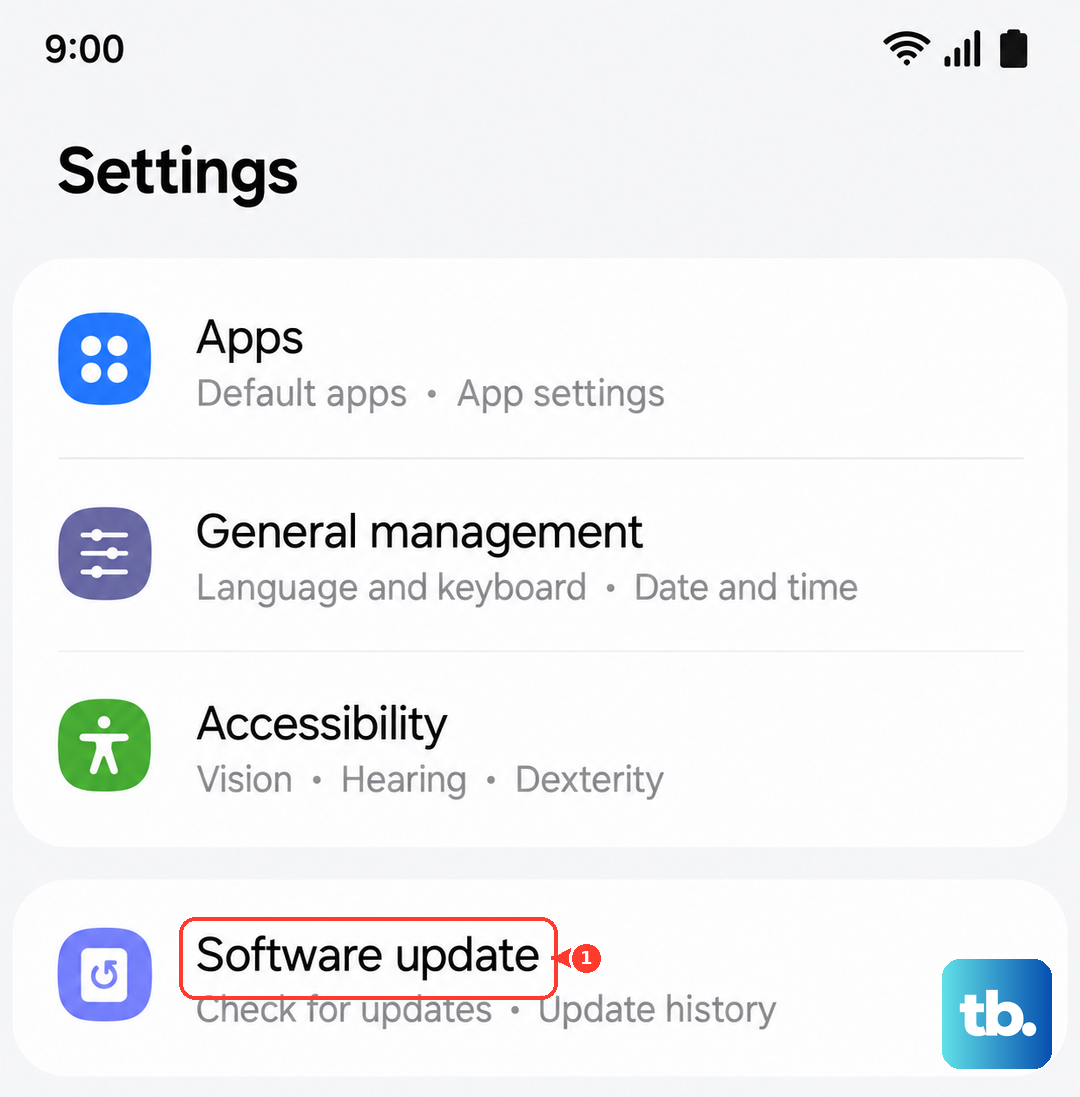
Connect to Wi-Fi, then go to Settings > Software update > Download and install. If an update is available, let it install completely. Your phone will restart, and this often resolves the problem.
Reinsert Your SIM Card
A loose or dirty SIM card can cause intermittent connection problems. You'll need the SIM ejector tool that came with your phone or a small paperclip.
Gently push the tool into the small hole on the SIM tray on the bottom edge of the phone. Pull the tray out, remove the SIM card, and carefully wipe the gold contacts with a soft, dry cloth. Blow any dust out of the tray slot and reinsert everything firmly.
Reset Your Network Settings
This clears all your saved Wi-Fi networks, Bluetooth pairings, and cellular network preferences. It's a strong step for persistent calling problems.
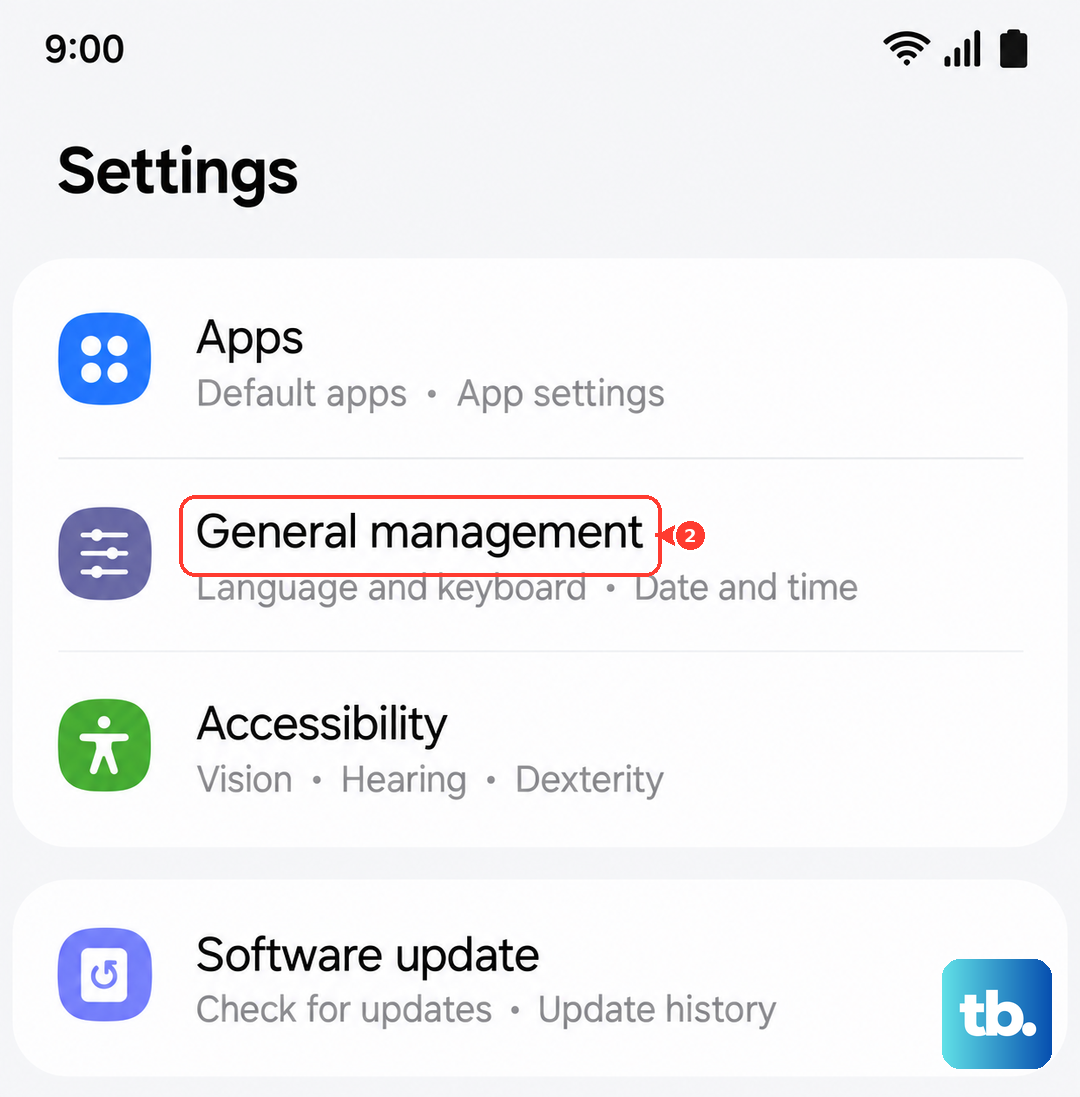
Go to Settings > General management > Reset > Reset network settings. Tap "Reset settings" and confirm. You'll need to reconnect to Wi-Fi and re-pair Bluetooth devices afterward, but it often fixes stubborn network glitches.
Try Safe Mode
If a recently downloaded third-party app is causing a conflict, booting into Safe Mode can tell you. This starts your phone with all non-essential apps disabled.
Press and hold the Side key until the power menu appears. Then, tap and hold the "Power off" option on your screen. You'll see a "Safe mode" prompt, tap it to restart. If calls work fine in Safe Mode, you'll need to uninstall recent apps one by one to find the culprit.
Check for Carrier Updates
Sometimes the issue is with carrier-specific settings. These updates are separate from Samsung's software updates and can improve calling reliability.
They usually install automatically, but you can check. Go to Settings > Software update and tap "Download and install." If a carrier settings update is available, it will often be included here or will prompt you separately.
Switch Between Network Modes
Your S23 defaults to 5G where available, but sometimes dropping to a 4G LTE or even 3G connection can make calls more stable, especially in areas with spotty 5G coverage.
Navigate to Settings > Connections > Mobile networks > Network mode. Try selecting "LTE/3G/2G (auto connect)" instead of the 5G option. Test a call, then you can switch it back later.
Verify Your Call Settings
There are a few specific call settings in One UI that could be interfering. Open the Phone app, tap the three dots, and go to Settings > Other call settings.
Look at options like "Wi-Fi calling" and "Voice over LTE (VoLTE)." Try toggling Wi-Fi calling off if you're not using it. Ensure VoLTE is enabled, as this provides clearer calls over the 4G network.
Contact Your Mobile Carrier
If you've tried everything here, the problem might be on your carrier's end. There could be a temporary network outage in your area, a problem with your account, or an issue with your SIM card's provisioning.
Call their customer service from another phone if possible. They can check for outages, reprovision your line, or send you a replacement SIM card if yours is found to be faulty.