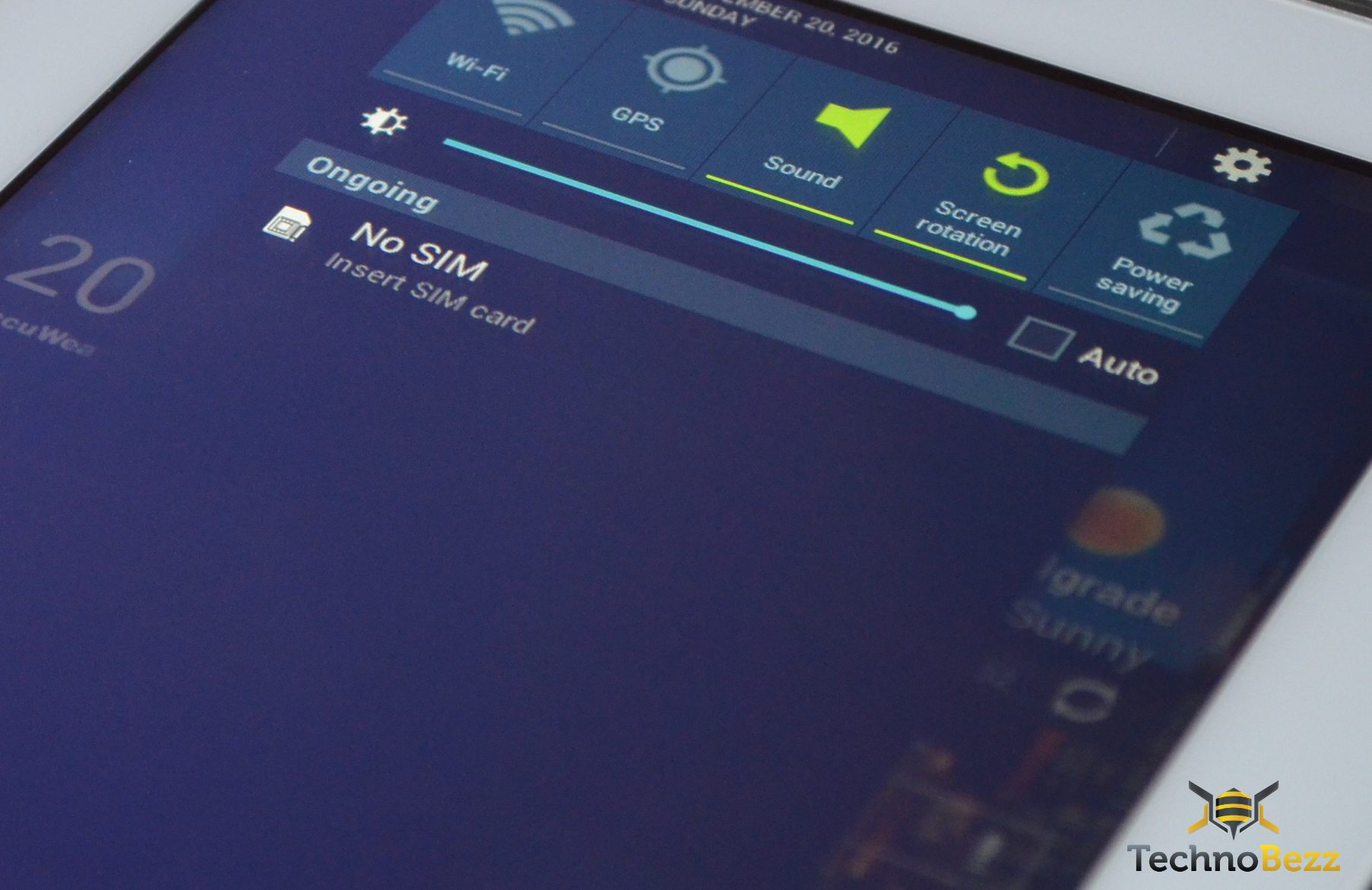
A "No SIM card" error on Android means your phone has stopped reading the SIM that connects it to your carrier, so calls, texts, and mobile data all go dark. The cause is usually small and fixable at home, such as a loose card, a software glitch after an update, or a setting that quietly turned itself off.
Below are 15 fixes ordered the way a technician would try them, starting with the fast ones that solve most cases. Work down the list and stop as soon as your signal bars come back.
Read more - Why Your Android Phone Shows No Service and How to Fix It
Why Your Android Says No SIM Card
The message can appear even when a SIM is physically in the tray. Knowing the likely cause helps you pick the right fix instead of guessing.
Most "No SIM" errors trace back to one of a handful of issues. Use the table to match what you are seeing to the fix worth trying first.
| Likely cause | What you notice | Fix to try first |
|---|---|---|
| Temporary software glitch | Error appeared suddenly with no other change | Restart and toggle Airplane mode |
| SIM toggled off | Error after an update or reboot | Enable the SIM in SIM card manager |
| Loose or dirty SIM | Error comes and goes, or after a drop | Power off and reseat the SIM |
| Damaged SIM or tray | SIM fails in a second phone too | Request a replacement SIM |
| Network or APN misconfiguration | SIM reads but no service | Reset network settings |
| Carrier outage or deactivation | Started after a plan change or area-wide | Check status and call your carrier |
Restart Your Phone
A restart clears the temporary memory and forces Android to re-detect the SIM, which fixes a surprising number of these errors. Press and hold the Power button, or hold Volume down and Power together, until the power menu appears.
Tap Restart and wait for the phone to boot fully. If you only see a Power off option, turn the phone off, wait about ten seconds, then turn it back on.
Toggle Airplane Mode
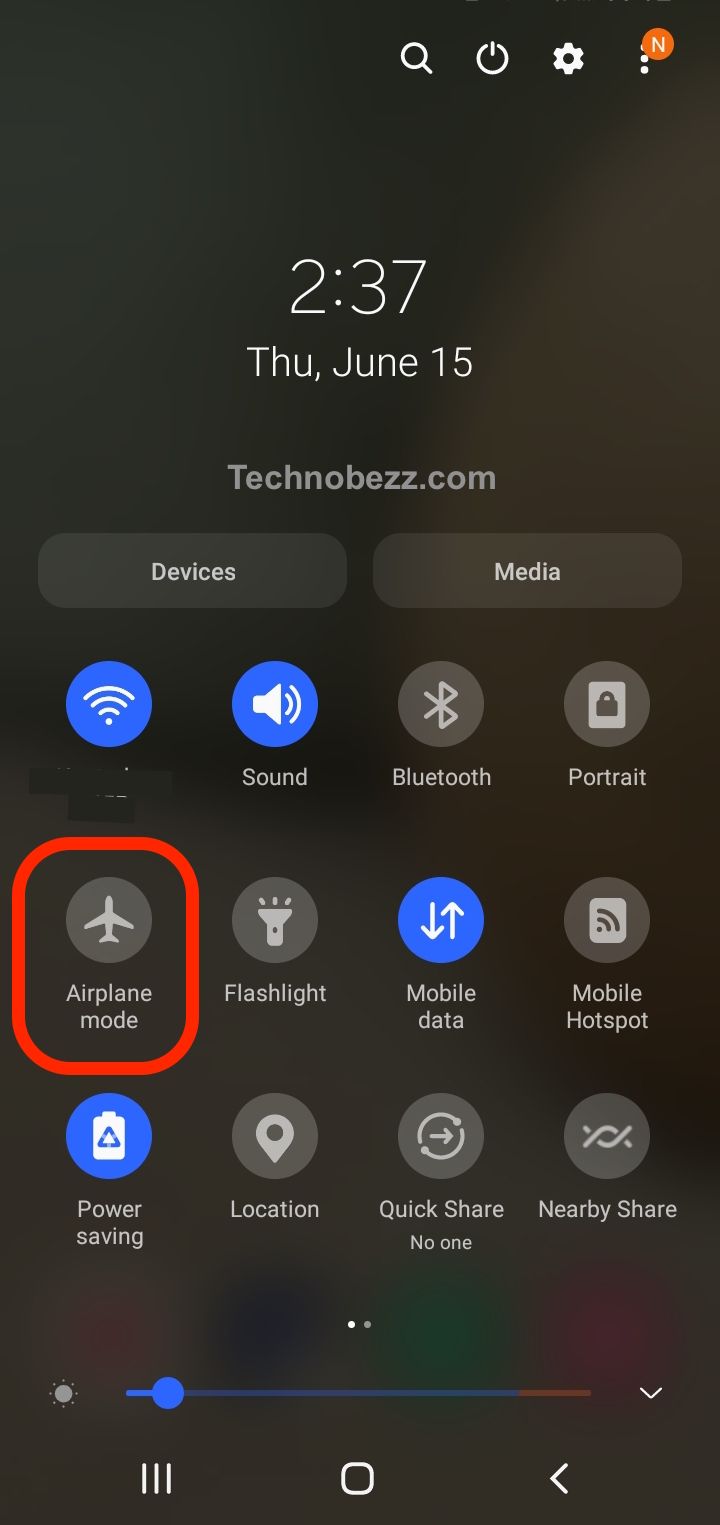
Airplane mode disconnects all radios and then reconnects them from scratch, which often re-establishes the carrier link. Swipe down from the top of the screen to open the Quick Settings panel.
Tap the Airplane mode icon to turn it on, wait about ten seconds, then tap it again to turn it off. You can also reach it through Settings > Connections, or Settings > Network & internet on stock Android.
Enable Your SIM in SIM Card Manager
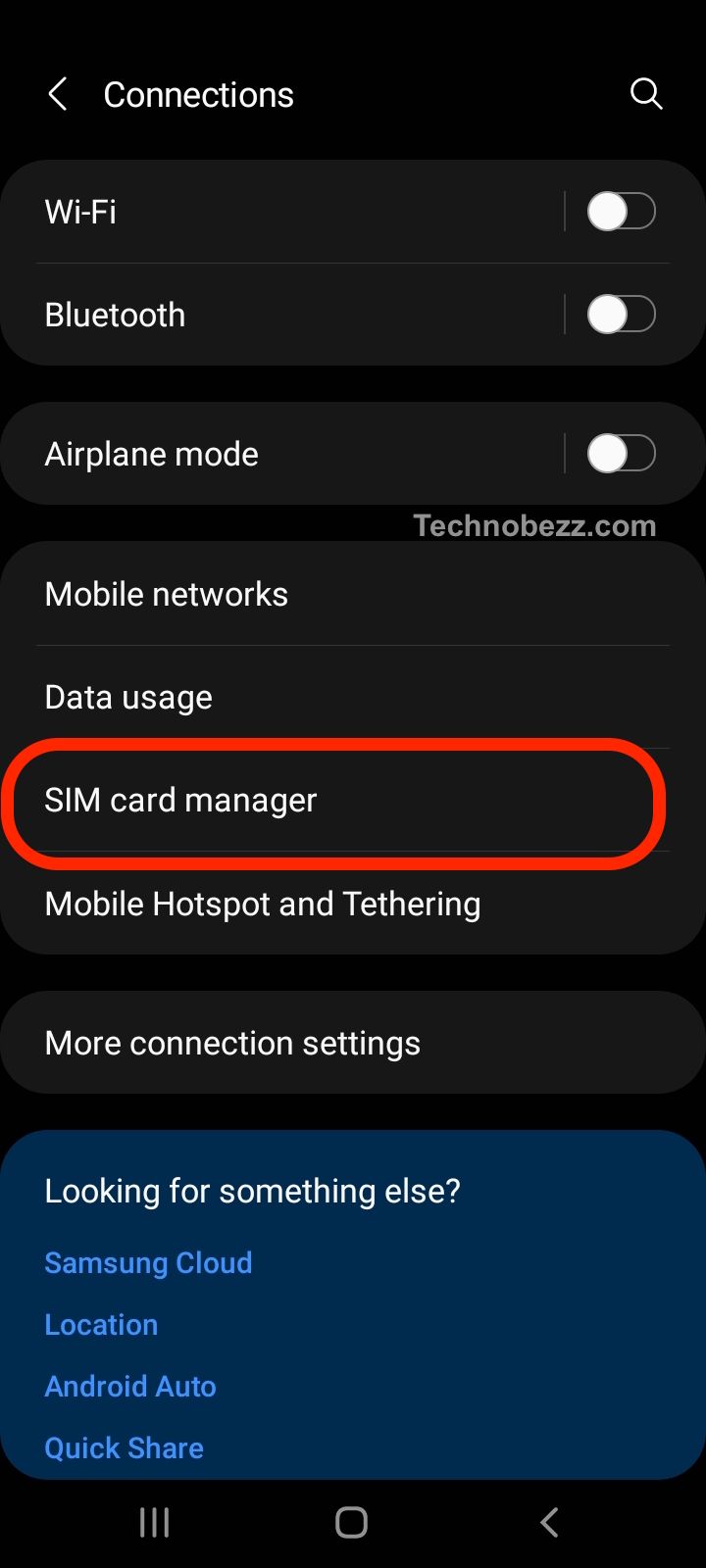
Your SIM can be switched off in software without you knowing, especially after a system update or a reboot. Turning it back on takes seconds.
- Open Settings
- Tap Connections, or Network & internet on stock Android
- Tap SIM card manager, or SIMs
- Make sure the toggle for your SIM is switched on
Read more - Fix Not Registered On Network on Samsung Galaxy
Power Off and Reseat the Physical SIM
A SIM that has shifted slightly in the tray will not make contact, and reseating it while the phone is powered off is the safe way to fix that. Removing a SIM with the phone still on can corrupt the connection.
- 1.Power off the phone completely
- 2.Eject the tray with the SIM ejector tool or a straightened paperclip
- 3.Lift out the SIM and set the tray on a clean surface
- 4.Seat the SIM flat so the notched corner matches the tray and it sits flush
- 5.Slide the tray back in until it is level with the phone body, then power on
Inspect and Clean the SIM and Tray
Dust, lint, or residue on the gold contacts can block the connection, and a bent tray can hold the SIM at a slight angle. A quick inspection rules both out.
Look at the gold contacts for scratches, stains, or corrosion. Wipe the SIM gently with a clean, dry, lint-free cloth, and check that the tray is flat and not warped. Avoid liquids, alcohol wipes, or anything abrasive on the contacts.
Test the SIM in Another Phone
This single test tells you whether the problem is the SIM or the phone, so it is worth doing before any deeper fix. Move your SIM into a different working phone.
If the SIM works in the other phone, the issue is on your device, so continue down the software fixes below. If it fails there too, the SIM itself is likely damaged or deactivated, and you should contact your carrier for a replacement.
Check for a Carrier Outage or SIM Deactivation
If your SIM was working and suddenly stopped, the problem may be on the carrier side rather than your phone. A network outage in your area, or a SIM that was deactivated after a plan change, port, or upgrade, both show up as a missing or failing SIM.
Check your carrier's status page or app for outages, and look at your account to confirm the line and SIM are active. If you recently changed plans or swapped phones, your carrier may need to re-provision the SIM on their end.
Update Your Software
A system bug can break SIM detection, and carriers and phone makers push fixes for exactly this through updates. Installing the latest version often resolves it.
- Open Settings
- Tap Software update, or System then System update on stock Android
- Download and install anything available
- Restart the phone after it finishes
Update Google Carrier Services
Carrier Services is the Google app that manages much of the connection between Android and your carrier, and an outdated version can interfere with SIM and network behavior. Keeping it current is a quiet but effective fix.
Open the Play Store, search for Carrier Services, and tap Update if the option appears. Restart the phone afterward so the new version loads.
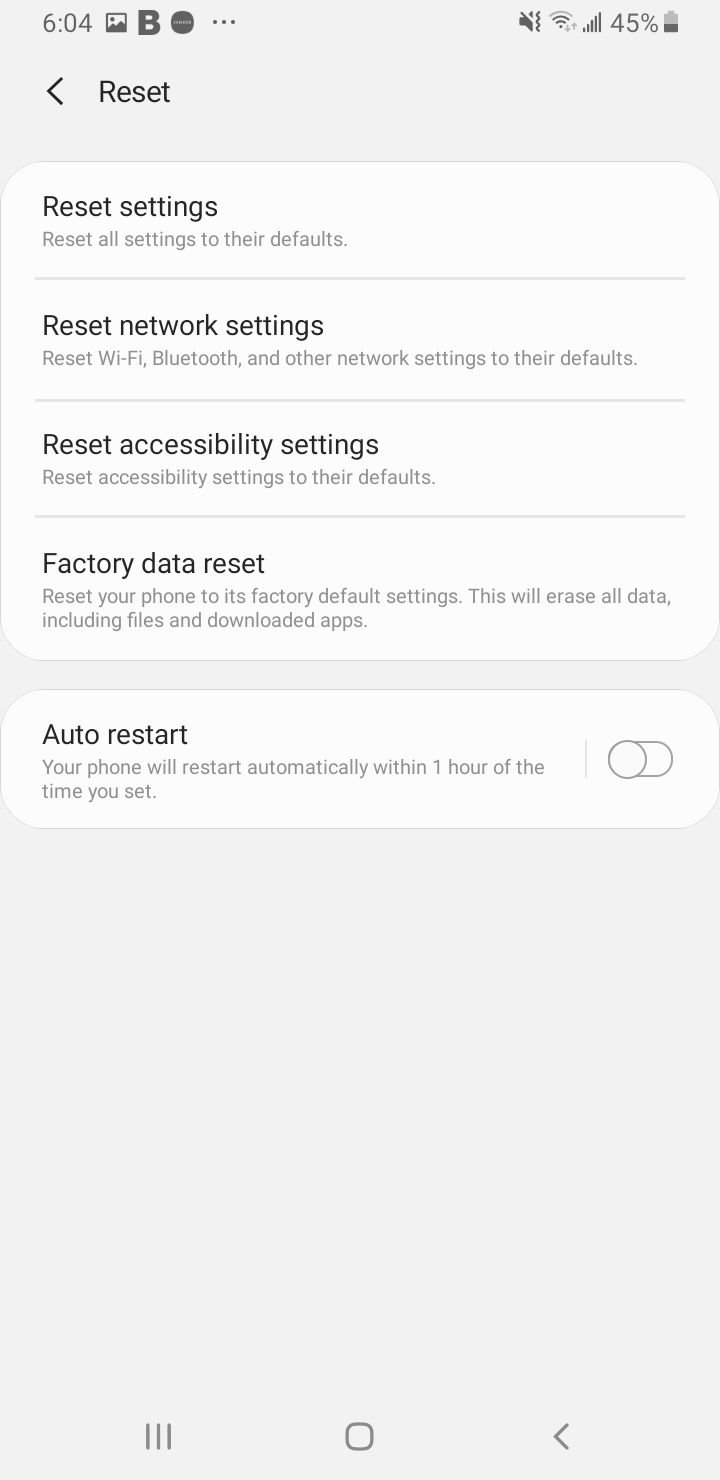
Reset Network Settings
This clears Wi-Fi, mobile, Bluetooth, and APN configurations and rebuilds them from defaults, which fixes corrupted network state without touching your photos, apps, or messages. You will need to reconnect to Wi-Fi and re-pair Bluetooth devices afterward.
- On Samsung, go to Settings > General management > Reset > Reset mobile network settings, then confirm
- On stock Android, go to Settings > System > Reset options > Reset Wi-Fi, mobile & Bluetooth, then tap Reset
Clear the SIM Card Manager Cache
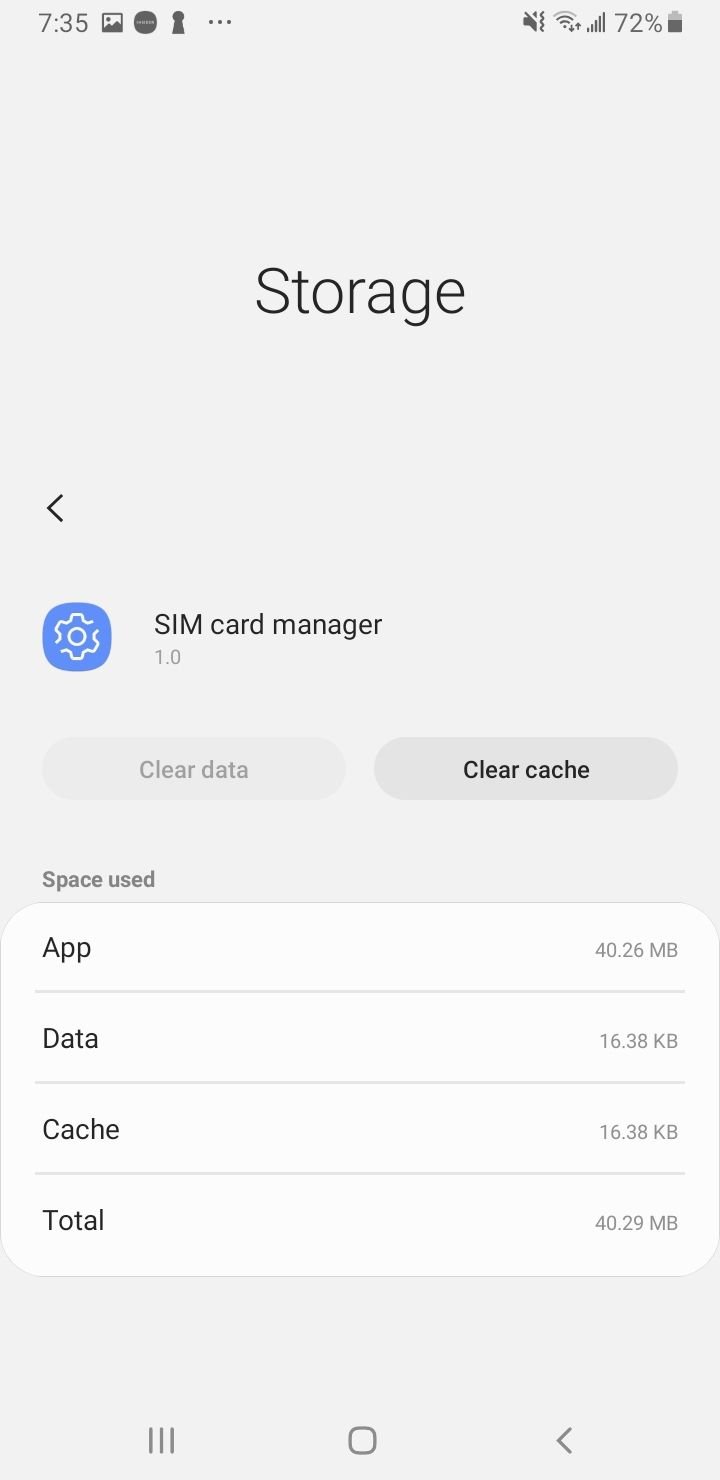
Corrupt cached data in the system SIM apps can stop the phone from reading the card, and clearing it forces a clean rebuild. Your settings and data are not affected.
- Go to Settings > Apps
- Tap the menu, then Show system apps
- Find SIM card manager
- Tap Storage, then Clear cache
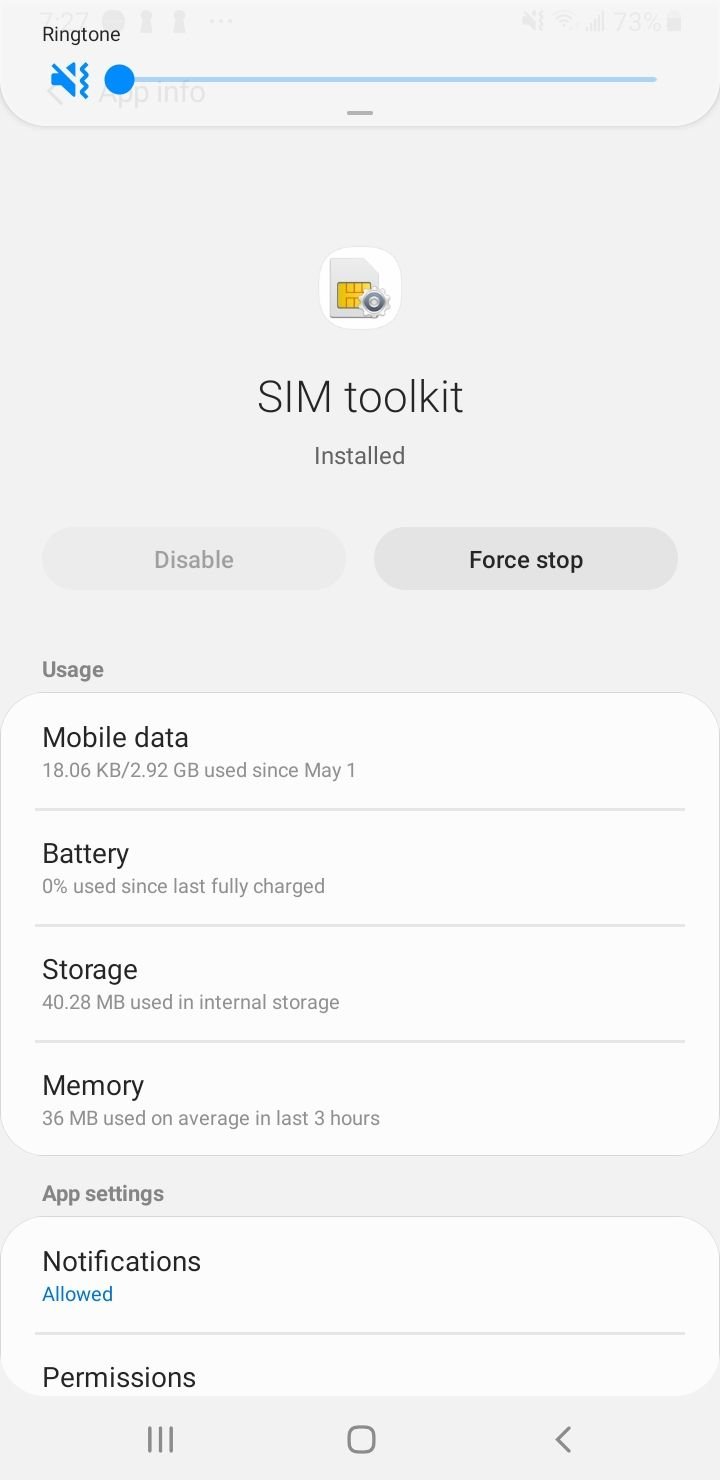
Do the same for SIM Toolkit if it is listed, then restart the phone.
Change the Network Mode
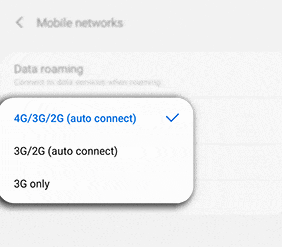
If your phone is locked to a band your area no longer serves well, letting it choose automatically can restore the connection. The auto setting lets it move freely between 5G, 4G, and older networks.
- Open Settings > Connections > Mobile networks
- Tap Network mode
- Choose the auto option, such as 5G/LTE/3G/2G (auto connect)
If you are on the edge of 5G coverage, briefly selecting an LTE-first mode can give you a more stable connection while you keep troubleshooting.
Read more - How to Fix Mobile Network Not Available on Android
Reset APN Settings
Wrong Access Point Name settings can leave you connected to the carrier but with no usable service, which is easy to mistake for a SIM failure. Resetting them to default usually clears it.
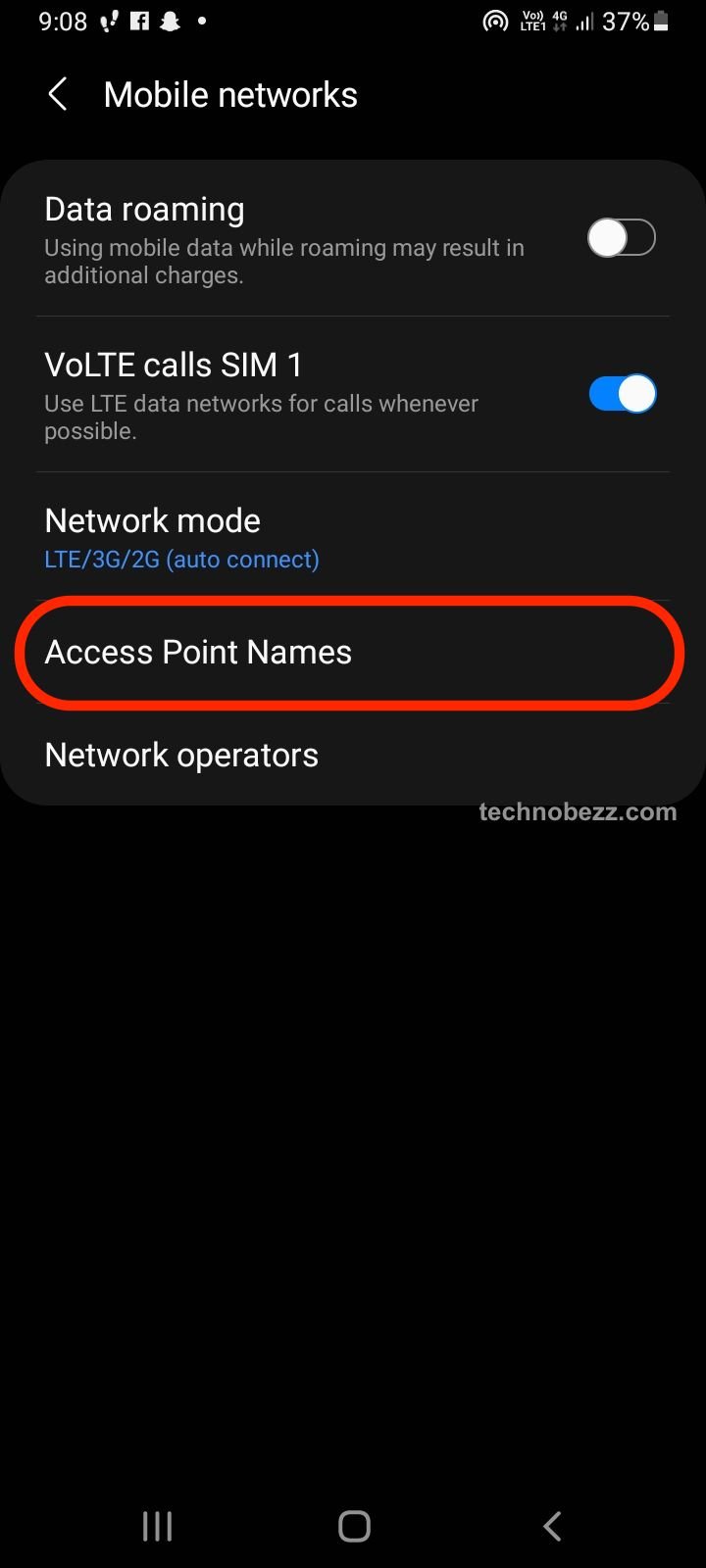
- Go to Settings > Connections > Mobile networks > Access Point Names
- Tap the menu, then Reset to default
- Re-enter any custom APN values your carrier provided
Read more - Updated APN Settings for AT&T Verizon T-Mobile and Other US Carriers
Select Your Network Manually
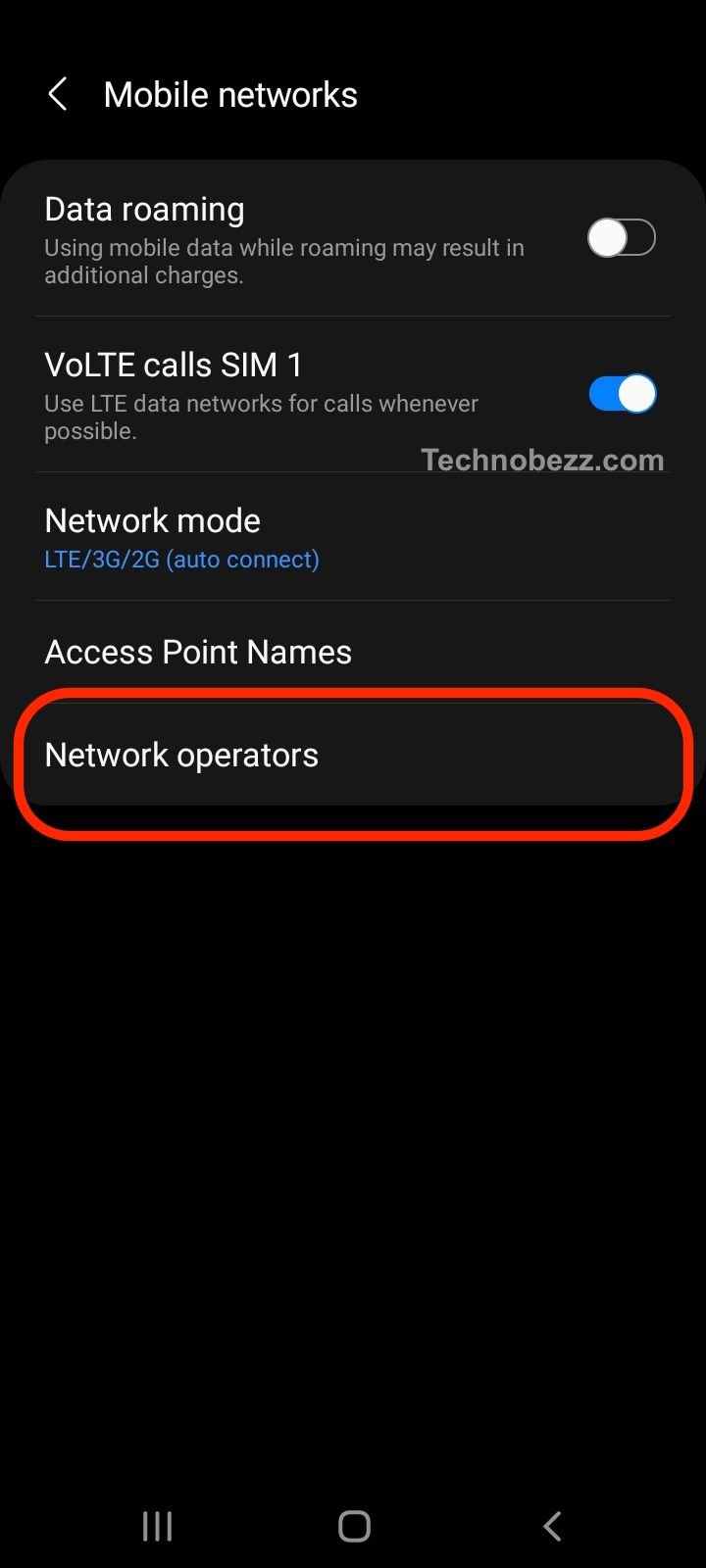
When automatic selection cannot lock onto your carrier, choosing it by hand can force the registration. This is useful when you are roaming or near a network edge.
- Go to Settings > Connections > Mobile networks
- Tap Network operators, then Search now
- Select your carrier from the list
If manual selection works, switch back to automatic afterward so the phone can move between towers as you travel.
Re-Add or Re-Download Your eSIM
If you use an eSIM rather than a physical card, the profile itself can fail and show as no SIM. Removing it and adding it back, or re-downloading it, often resolves this.
Open Settings > Connections > SIM card manager, or Settings > Network & internet > SIMs, and check whether the eSIM is present and switched on. If it is missing, re-add it using the QR code or activation details from your carrier, and confirm data roaming is on if you are traveling. Carriers can also re-provision an eSIM remotely, so call them if it will not reactivate.
Check Safe Mode and the IMEI
Safe Mode loads Android without third-party apps, so if your SIM works there, a downloaded app is the culprit. Boot into Safe Mode and test for service, then uninstall recently added apps if the SIM returns.
You can also confirm the phone still recognizes its own hardware by dialing *#06# or checking Settings > About phone > Status. If the IMEI is blank or shows as unknown, that points to a deeper hardware or firmware problem worth raising with support.
Factory Reset as a Last Resort
If software fixes have all failed and the SIM works in another phone, a factory reset rebuilds the system from scratch. Back up your photos, contacts, and apps first, because this erases everything.
- Go to Settings > General management, or System on stock Android
- Tap Reset, then Factory data reset
- Follow the prompts and set the phone up again
When to Get Hardware Help
If nothing above works and the SIM is confirmed good in another phone, the problem is likely inside your device. A few hardware faults produce a persistent No SIM error.
- A worn SIM reader that no longer makes contact
- Loose antenna connectors that affect signal
- Internal board damage from a drop or liquid
Contact your phone maker's support or visit a repair center for a hardware inspection rather than continuing to swap settings.
Frequently Asked Questions
Why does my phone say no SIM card when there is one?
The card may be loose, dirty, or switched off in SIM card manager, or a software glitch is blocking detection. Power off and reseat the SIM, confirm it is enabled in settings, and restart the phone.
Can a no SIM card error fix itself?
Yes, when the cause is a temporary glitch or a brief carrier outage, the SIM often reconnects after a restart or once the outage clears. If it keeps returning, work through the fixes above to find the real cause.
How do I enable my SIM card on Android?
Go to Settings > Connections > SIM card manager, or Settings > Network & internet > SIMs on stock Android, then turn on the toggle for your SIM.
Do I need a new SIM if I see a no SIM error?
Only if the SIM is physically damaged or deactivated. Test it in another phone first, and if it fails there too, ask your carrier for a replacement.
What is the difference between an eSIM and a physical SIM for this error?
A physical SIM can fail from dust, a loose tray, or contact damage, while an eSIM has no card to reseat. For an eSIM, you re-add or re-download the profile and have your carrier re-provision it instead of cleaning or swapping a card.
Will resetting network settings delete my data?
No, it only clears Wi-Fi, mobile, Bluetooth, and APN configurations, leaving your photos, apps, and messages untouched. You will need to reconnect to Wi-Fi and re-pair Bluetooth devices afterward.
First published October 16, 2025. Last updated June 4, 2026.