
When your Samsung Galaxy A56 won't update, it's usually a simple roadblock you can clear yourself. You might see an error like "Software update failed," a download that won't start, or an installation that gets stuck. Let's get your phone back on track.
Check Your Wi-Fi Connection
Major One UI updates require a stable Wi-Fi connection and won't download over mobile data. Open your browser and load a webpage to test the speed. If it's slow, try restarting your router or connecting to a different network. Public Wi-Fi often blocks large update files.
Free Up Storage Space
Your Galaxy A56 needs free space to download and unpack the update file. Go to Settings > Device care > Storage to see what's available. I'd aim for at least 5-6 GB free. You can quickly clear space by deleting old downloads or using the "Clean now" button to remove cached data.
Delete a Corrupted Update File
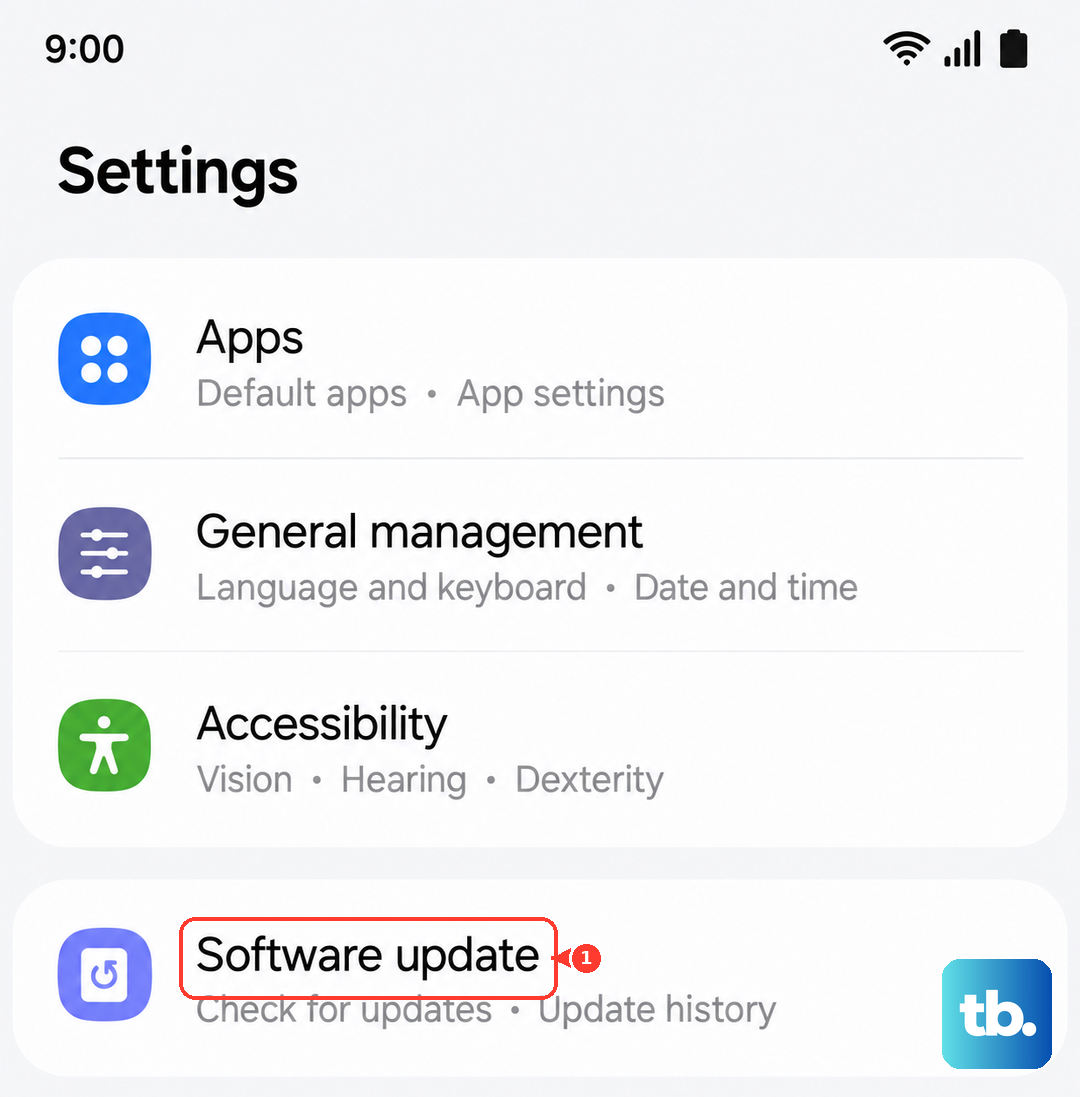
If a previous download attempt failed, the partial file can block new ones. Navigate to Settings > Device care > Storage. Tap on "Software update" in the list of apps and select Clear data. This removes the cached update files. Then, go back to Settings > Software update and try downloading again.
Restart Your Phone
A simple restart can clear temporary glitches that stop the update process. Press and hold the Volume Down and Side button for about 10 seconds until the Samsung logo appears. Once it reboots, head straight to Settings > Software update and tap "Download and install."
Check for Moisture in the USB Port
The Galaxy A56 has a moisture detection feature that can disable data connectivity if it thinks the port is wet, which also blocks updates. If you see a water drop icon, make sure the port is completely dry. You can try turning the phone off and using a can of compressed air to gently blow it out. Let it sit for an hour before trying again.
Reset Your Network Settings
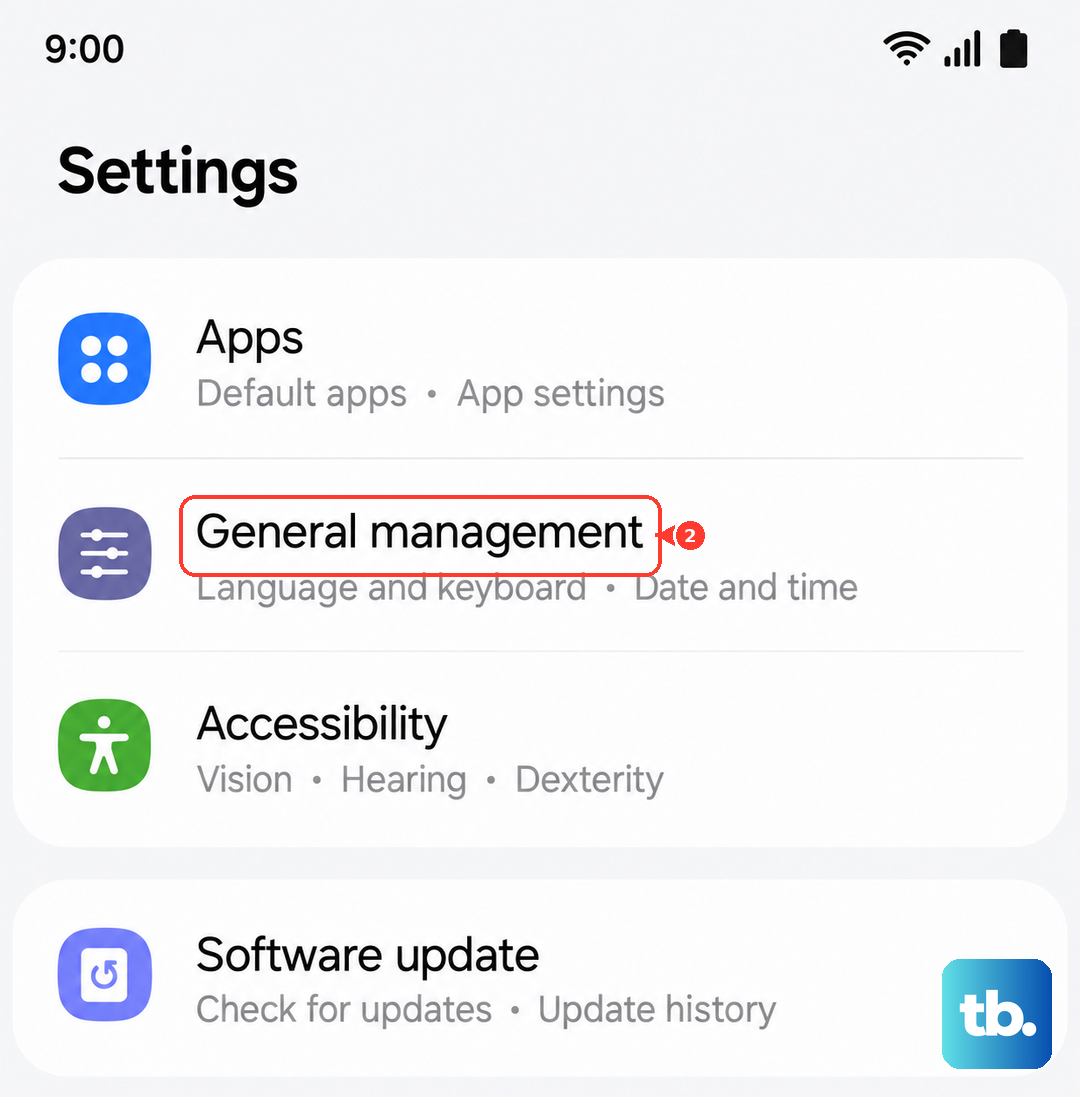
This clears all saved Wi-Fi networks and Bluetooth pairings, which can resolve hidden connection issues. Go to Settings > General management > Reset > Reset network settings. You'll need to re-enter your Wi-Fi password afterward. Then, check for the update again.
Update Using a Computer
If the over-the-air update keeps failing, use Samsung's official Smart Switch software on a Windows PC or Mac. Download Smart Switch, connect your A56 with a USB-C cable, and the program will check for updates. This method downloads the file to your computer first, bypassing any storage or connection problems on the phone itself.
Check Samsung's Update Schedule
Updates for the Galaxy A56 are released in regional waves. Your phone might not have received the update yet. You can check Samsung's official update tracker for your country or model number (like SM-A56x). Sometimes, waiting a day or two is all you need to do.
Try During Off-Peak Hours
When a new version of One UI rolls out, Samsung's servers can get overwhelmed. Download failures are common in the first 24 hours. Try checking for the update very early in the morning or late at night, when server traffic is much lower.
Ensure Your Phone is Compatible
Major Android version updates are typically supported for about three years. The Galaxy A56 launched with Android 15, so it will receive updates for several years. If an update isn't appearing, it might be because your specific carrier model hasn't approved it yet, not because the phone is incompatible.
Check for App Interference
Some apps, like VPNs, ad blockers, or custom DNS services, can interfere with the update server connection. Try temporarily disabling any VPN apps or going to Settings > Connections > More connection settings > Private DNS and setting it to "Off." Then attempt the software update check again.