
When Bixby or Google Assistant stops responding on your Galaxy A56, it can feel like your phone has gone deaf. The voice assistant that's supposed to help you hands-free suddenly ignores you. Here's how to get it listening and talking again.
Start With a Quick Restart
Before diving into settings, give your phone a fresh start. Press and hold the Volume Down button and the Side button together for about 10 seconds until you see the Samsung logo. This force restart can clear up temporary software glitches that might be affecting the microphone or voice services.
Check Your Primary Assistant Settings
First, figure out which assistant you're trying to use. Your A56 can use Bixby, Google Assistant, or both. Open your Settings app and look for "Apps." Tap on "Choose default apps" and then "Digital assistant app." Here, you can select which assistant launches when you press and hold the Side button or say the wake word.
For Bixby, open the Bixby app itself. Make sure the voice wake-up feature is turned on. You might need to go through a quick setup again if it's been disabled. For Google Assistant, open the Google app, tap your profile picture, go to Settings, then Google Assistant, and finally "Hey Google & Voice Match." Ensure "Hey Google" is toggled on.
Review Your Microphone Permissions
Voice assistants need explicit permission to use your microphone. Go to Settings > Privacy and safety > Permission manager. Tap on "Microphone" and look for Bixby, Google, or the Google app in the list. Make sure the toggle is switched on. If it's off, the assistant can't hear you at all.
Also, check for any battery optimization settings that might be putting these apps to sleep. Go to Settings > Battery. Tap "Background usage limits" and ensure your chosen assistant app is not in the "Sleeping" or "Deep sleeping" apps list.
Test Your Phone's Microphones
Your Galaxy A56 has multiple microphones for noise cancellation. If one is blocked, it can hinder voice pickup. Try making a regular phone call or recording a voice memo. If the other person can't hear you clearly or your recording is muffled, you might have a hardware issue.
Check the small microphone holes at the bottom of the phone and near the rear camera. Gently clean them with a soft, dry brush. Avoid using compressed air or sharp objects, as you could push debris further in or cause damage. A case or screen protector that doesn't align perfectly could also be covering a mic.
Disable Conflicting Features
Certain accessibility and sound features can interfere. Go to Settings > Accessibility > Hearing enhancements. If "Mono audio" is enabled, try turning it off. Also, check Settings > Sounds and vibration > Separate app sound. If this is enabled for a specific app, it might be routing all audio, including assistant prompts, to that app only.
Do Not Disturb or a Silent profile won't usually stop the assistant from hearing you, but it can silence its verbal responses. Make sure your media volume is turned up by pressing the volume buttons and tapping the settings icon that appears to adjust all sliders.
Retrain the Voice Model
If the assistant hears but doesn't recognize you, retraining your voice model can help. For Google Assistant, go back to the "Hey Google & Voice Match" settings and tap "Retrain voice model." Follow the prompts to say "Hey Google" and "Ok Google" a few times.
For Bixby, you might need to reset its voice wake-up. Inside the Bixby settings, look for "Voice wake-up" and toggle it off and back on. It will likely prompt you to go through the setup process again, where you'll repeat "Hi Bixby" several times in a quiet room.
Update Your Phone's Software
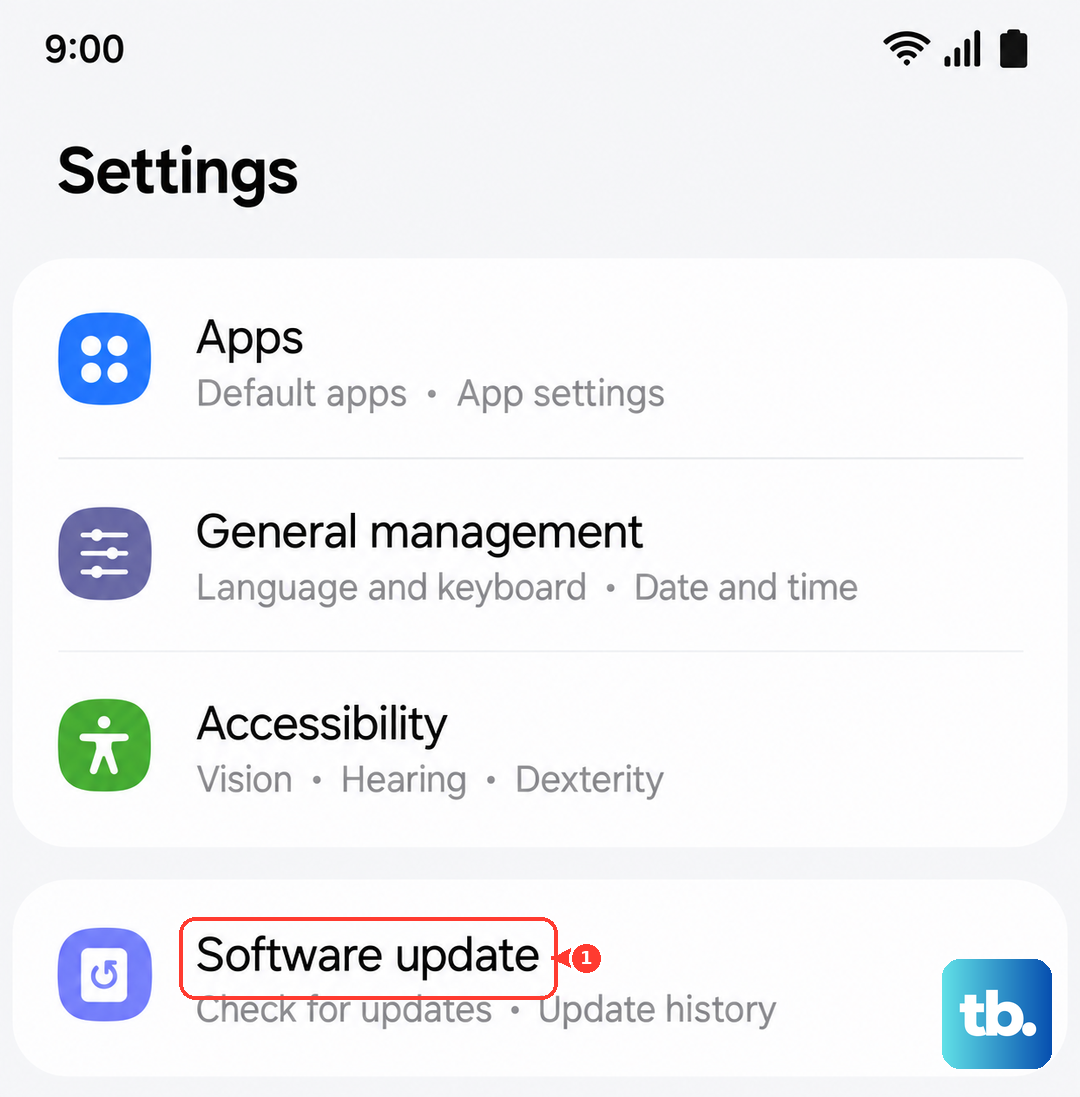
Software bugs in One UI or Android can break voice features. Samsung regularly releases updates with fixes. Connect to Wi-Fi and go to Settings > Software update > Download and install. If an update is available, install it and restart your phone. This is one of the most effective fixes for intermittent issues that appeared out of nowhere.
Also, open the Galaxy Store and Google Play Store to check for updates to the Bixby and Google apps specifically. An outdated app version can be the sole culprit.
Check Your Network Connection
While basic commands might process on the device, many assistant requests require an internet connection to fetch answers, control smart home devices, or search the web. Ensure you have a stable Wi-Fi or mobile data connection. Try asking a simple question that doesn't need the internet, like "Set a timer for 5 minutes." If that works but "What's the weather?" doesn't, the issue is likely your connection.
Clear the Assistant App's Cache
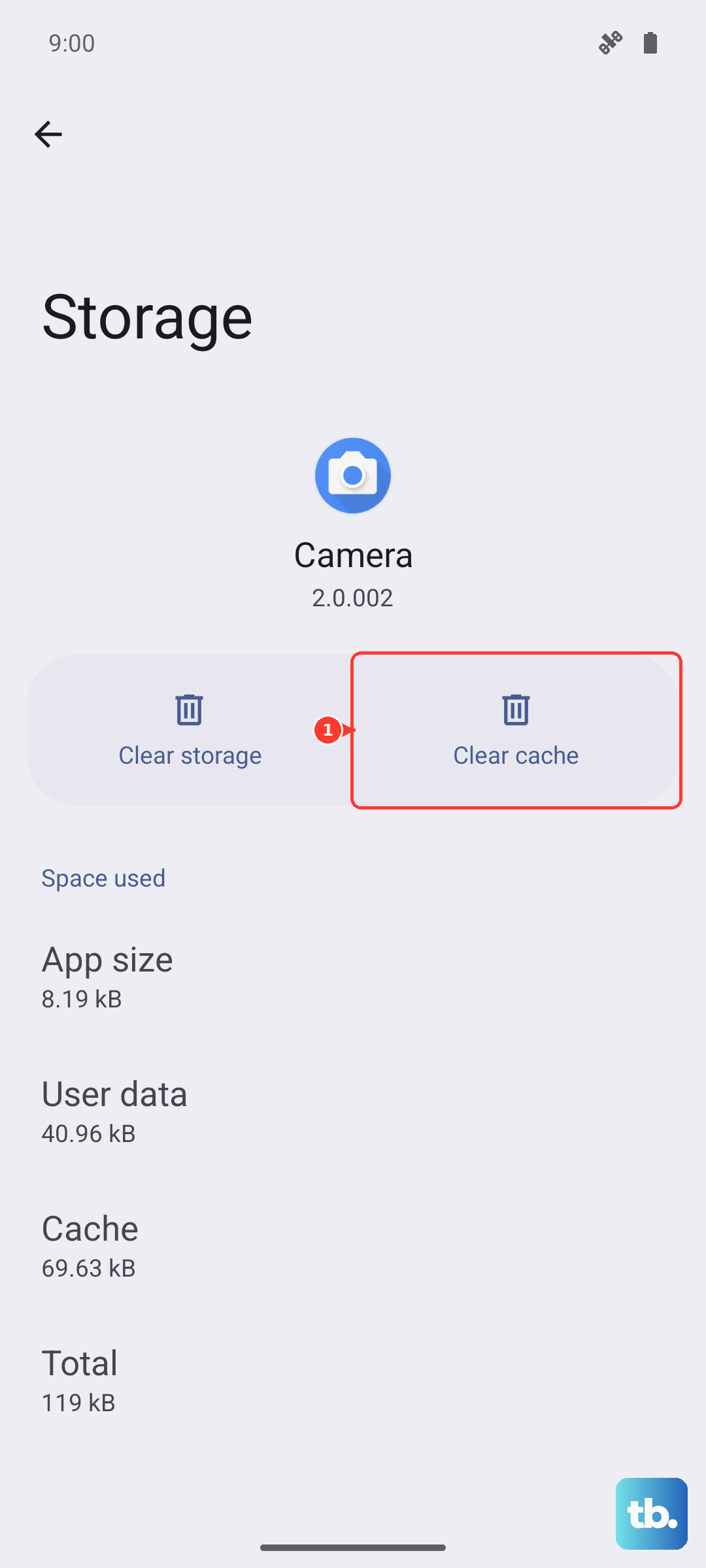
Corrupted temporary data can cause strange behavior. Go to Settings > Apps, find either "Bixby" or "Google" in the list, and tap on it. Select "Storage" and then tap "Clear cache." This won't delete your personal data or settings, but it will remove temporary files that might be causing a conflict. After clearing, restart your phone and test the assistant again.
Reset App Preferences or All Settings
If a specific setting you've changed elsewhere is blocking the microphone, you can reset all app preferences. This reverts permissions, background restrictions, and default apps to their original state without touching your personal data. Go to Settings > Apps > Menu (three dots) > Reset app preferences and confirm.
As a more comprehensive step, you can reset all system settings. This will wipe your Wi-Fi passwords, Bluetooth pairings, and custom sound/display settings, but your photos and apps remain. Navigate to Settings > General management > Reset > Reset all settings. After the phone reboots, you'll need to reconfigure your preferences, but this often resolves deep-seated software conflicts.