
If your Galaxy A56 has gone silent and you're missing calls or messages because the vibration motor isn't working, it's a surprisingly common hiccup. The good news is it's almost always a software setting or a minor glitch you can fix yourself in a few minutes.
I'd start with the simplest fix first, which is a force restart. This clears out any temporary software bugs that might be telling the vibration motor to stay quiet.
Force Restart Your Phone
Press and hold the Volume Down button and the Side key (power button) together for about 10 seconds. Keep holding them until you see the Samsung logo appear on the screen, then let go.
Your phone will restart normally. This is the same method used on the Galaxy S series, and it often kicks the vibration system back into gear without touching any of your data or settings.
Check Your Sound and Vibration Mode
Your A56 might be in a mode that deliberately silences vibrations. Swipe down from the top of your screen twice to open the Quick Settings panel and look at the sound mode icon.
If it shows a speaker with a slash or a vibration icon, tap it to cycle back to the standard "Sound" mode. You can also go into Settings > Sounds and vibration and make sure "Sound mode" is set to "Sound" and not "Vibrate" or "Mute."
While you're in the Sounds and vibration menu, scroll down and check that the "Vibrate while ringing" switch is turned on. If it's already on, try turning it off and back on again.
Adjust the Vibration Strength
Sometimes the vibration is working, but it's set so weak you can barely feel it, especially if the phone is in a pocket or on a soft surface. Samsung lets you control this intensity.
Go to Settings > Sounds and vibration > Vibration intensity. You'll see separate sliders for call vibration, notification vibration, and touch feedback.
Drag each slider to the right to increase the strength. Test it as you adjust to find a level that works for you. Don't forget to enable "Touch vibration" here if you want haptic feedback from typing and navigation.
Look at App-Specific Notification Settings
If vibration works for some apps but not others, the problem is isolated to that app's notification settings. For example, your phone might vibrate for a text but not for an email.
Open Settings > Apps, select the app that's not vibrating, and tap "Notifications." Make sure notifications are allowed for that app overall.
Then, tap into specific notification categories (like "General" or "New messages") and ensure the "Vibrate" option is enabled for each one you care about. You might need to set the importance to "High" for vibrations to work.
Test for a Third-Party App Conflict
A recently installed app could be interfering with system functions, including vibration. Booting into Safe Mode temporarily disables all third-party apps so you can check.
To enter Safe Mode, turn your Galaxy A56 off completely. Press and hold the Side key to turn it back on, and immediately after you see the Samsung logo, press and hold the Volume Down button. Keep holding it until you see "Safe mode" in the bottom-left corner of the screen.
In Safe Mode, try to trigger a vibration by changing the sound mode to vibrate or getting a test call. If it works now, a downloaded app is the culprit. Restart normally to exit Safe Mode and try uninstalling apps you installed around the time the problem started.
Update Your Phone's Software
Outdated software can have bugs that affect hardware components. Samsung regularly releases updates that fix these kinds of issues.
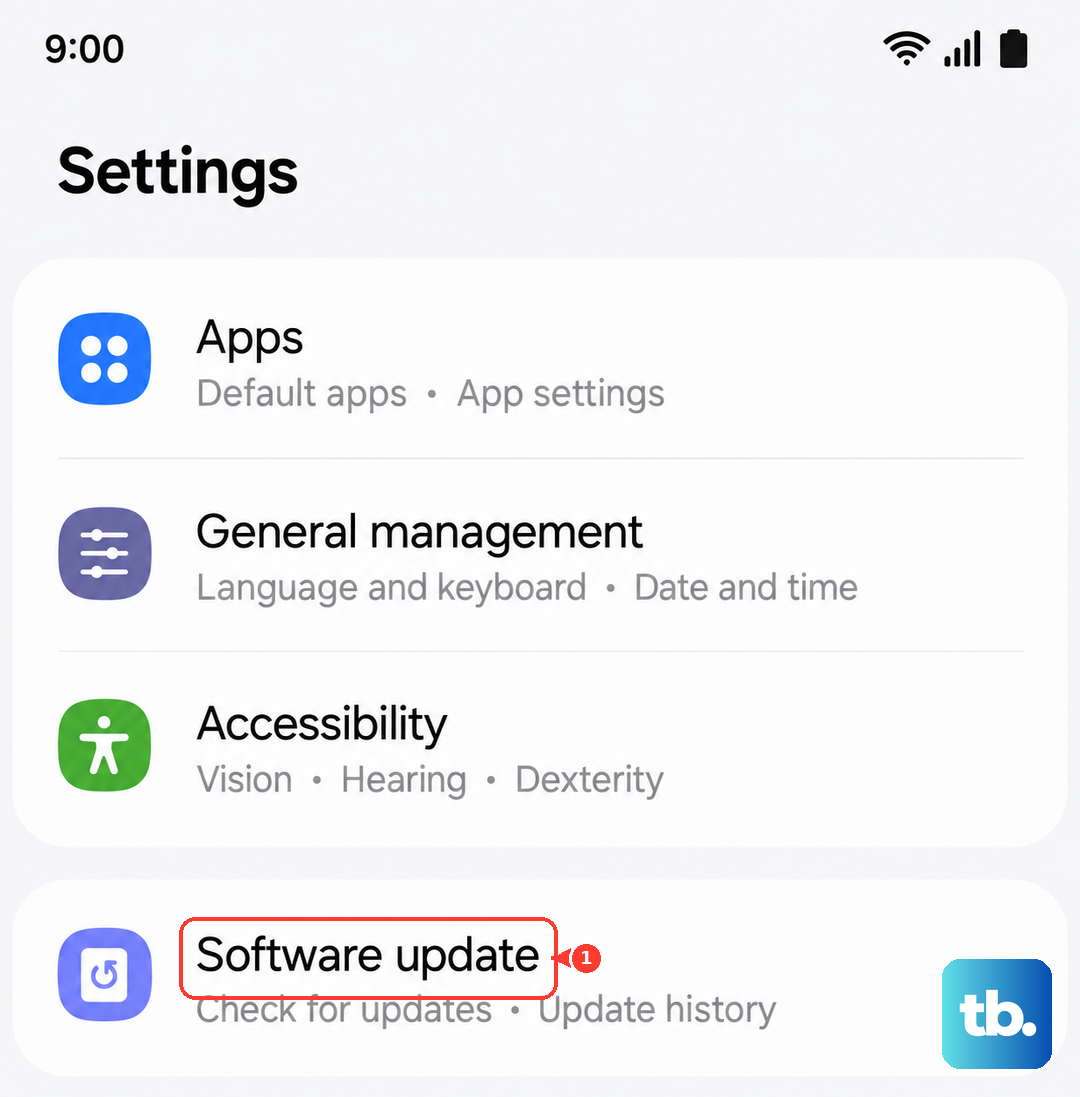
Go to Settings > Software update > Download and install. If an update is available, connect to Wi-Fi and let it install. Your phone will restart during this process. After updating, check if the vibration function has been restored.
Run a Hardware Test
Samsung phones have a built-in diagnostic menu that can test the vibration motor directly. This is a great way to rule out a physical hardware failure.
Open your Phone app and dial *#0*#. This will open a secret service menu. Tap the button labeled "Vibration" or "Vib."
Your phone should immediately execute a strong, continuous vibration pattern. If it does, the hardware is perfectly fine and your issue is purely software or settings-based. If nothing happens at all during this test, it points to a potential hardware problem.
Reset All Settings
If you've checked everything and vibration is still dead, a settings reset can help. This won't delete your photos, apps, or personal data, but it will revert all system settings to their factory defaults.
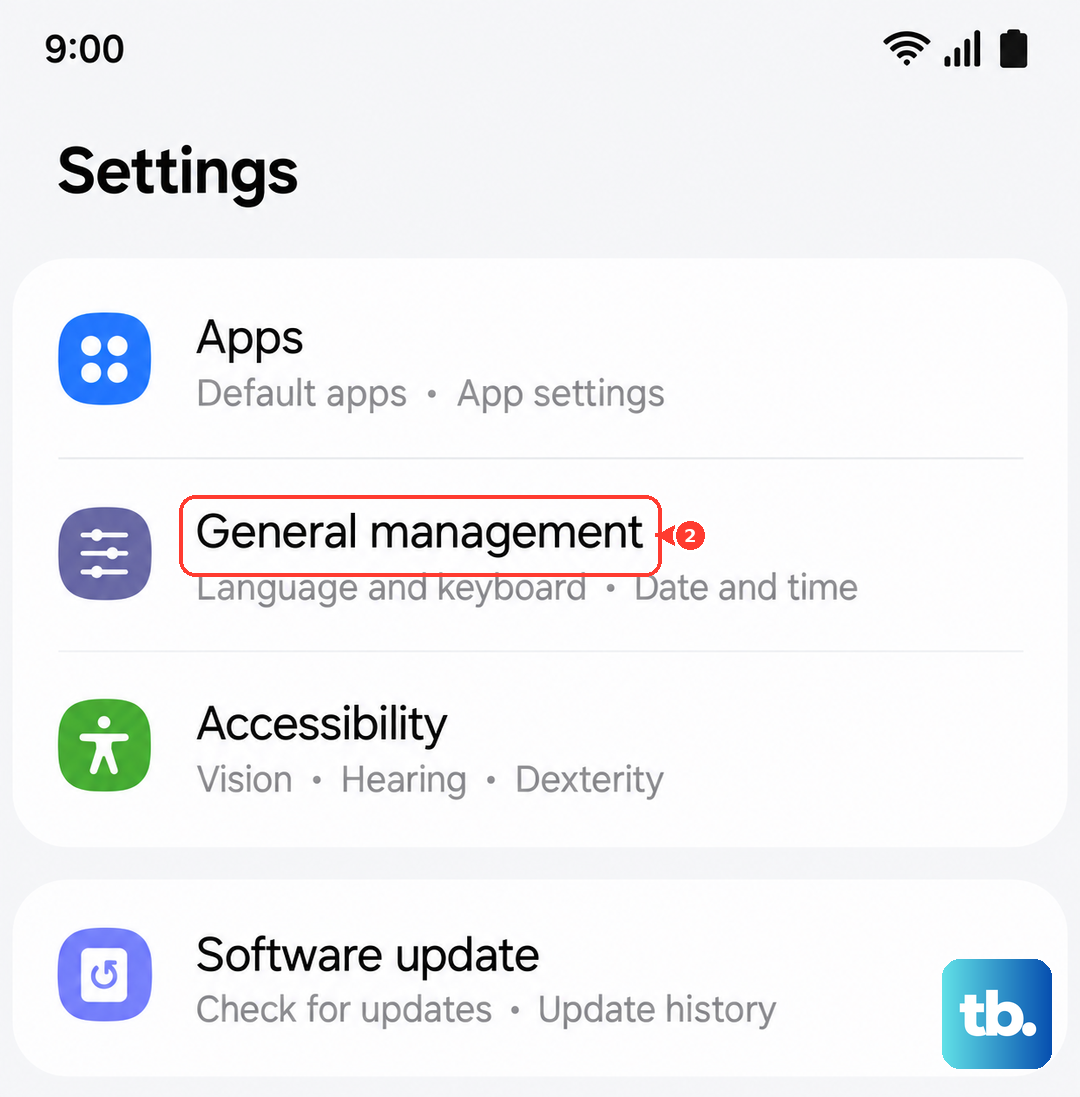
Go to Settings > General management > Reset > Reset settings. Tap "Reset settings" again and enter your PIN if prompted. Your phone will reboot. Afterward, you'll need to reconfigure things like Wi-Fi passwords and wallpaper, but it often resolves stubborn glitches.
Before you do this, if you're using a custom theme from the Galaxy Store, try switching back to the default theme first. Long-press on your home screen, tap "Themes," and apply the "Default" theme. Occasionally, third-party themes can cause unexpected system behavior.