
If your Galaxy A56 isn't showing notifications, you're probably missing important messages and alerts. This is a common hiccup with Samsung's One UI, but it's usually something you can fix yourself in a few minutes. I'd start with the simplest solutions first.
Restart Your Phone
It sounds too easy, but a restart clears out temporary glitches in the system that can block notifications. Just press and hold the Volume Down button and the Side button together for about 10 seconds until you see the Samsung logo. This force restart method works on the A56 and most recent Galaxy phones.
Check Do Not Disturb and Focus Modes
Open your quick settings panel by swiping down from the top of the screen twice. Look for the "Do Not Disturb" or "Focus" icons and make sure they aren't enabled. Also, go into Settings > Notifications > Do Not Disturb to check your schedules and allowed apps.
Sometimes, a specific Focus mode might be blocking alerts from the apps you care about. You can review and adjust these in your notification settings.
Review App-Specific Notification Settings
This is where the problem usually lies. Each app on your A56 has its own notification permissions. Go to Settings > Notifications > App notifications. Here, you'll see a list of all your apps.
Find the app that's not alerting you, like Messages or Gmail, and tap on it. Make sure the toggle at the top is switched on. Then, check that the specific alert types within the app, such as "New messages" or "Primary inbox," are also enabled and set to make a sound or pop up on your screen.
Allow Background Activity for Key Apps
To save battery, Android and One UI can sometimes restrict what apps do in the background. If an app is put to sleep, it can't check for new messages to notify you about.
Go to Settings > Apps, select the problematic app, and then tap Battery. Ensure the setting is not "Restricted." Choosing "Optimized" or "Unrestricted" will allow it to run necessary background processes for notifications.
Clear the App's Cache and Data
Corrupted temporary files can break an app's notification function. Clearing the cache is safe and won't delete your personal info. For a more thorough reset, clearing data will, so be sure you know your login details for that app.
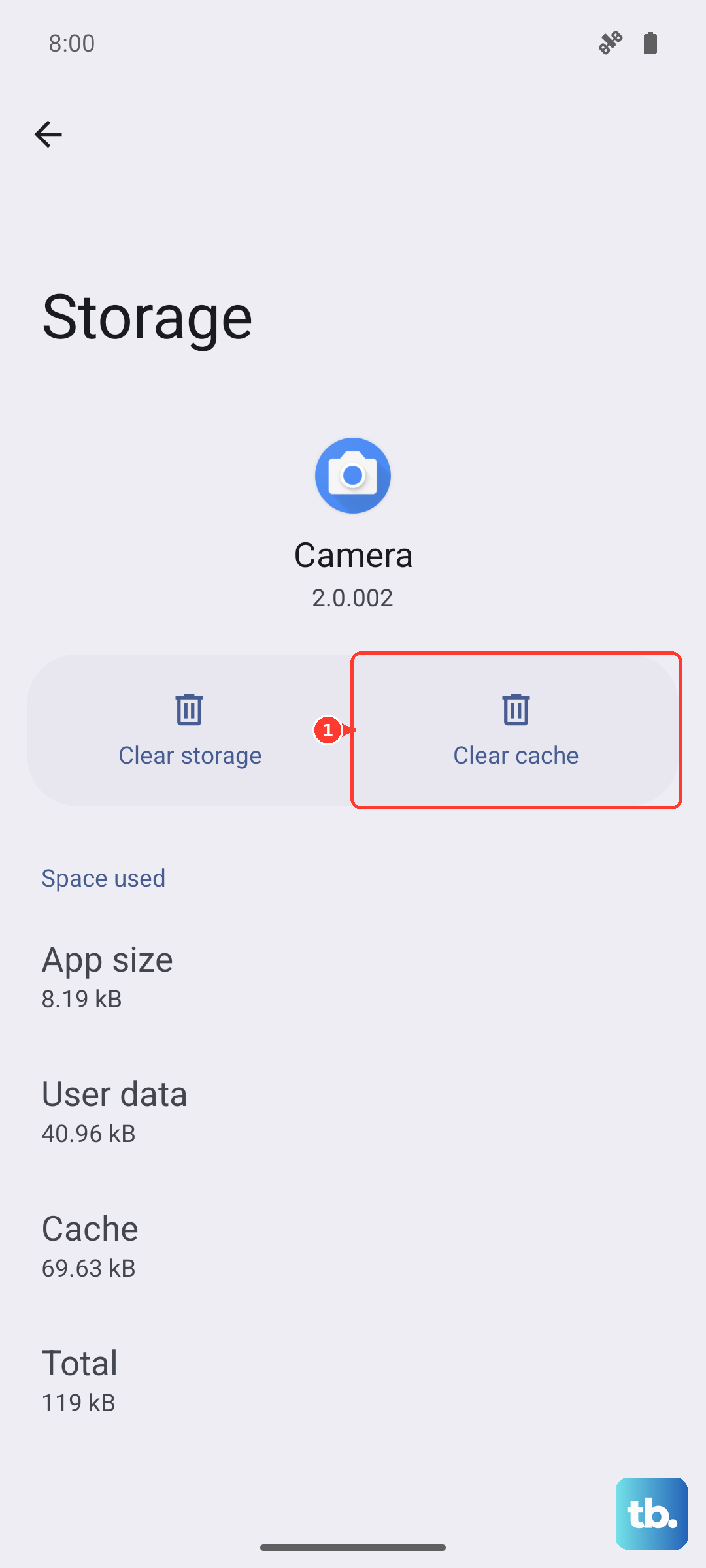
Head to Settings > Apps, find the app, and select it. Tap Storage, then hit "Clear cache." If that doesn't work, you can try "Clear data" next. After doing this, restart the app and check your notification settings within the app again, as they may have reset.
Check for Software Updates
System bugs that affect notifications are often patched in updates. Since your A56 runs One UI 7 on Android 15, Samsung is still rolling out improvements. Go to Settings > Software update > Download and install to see if a new version is available.
Reset App Preferences
This is a useful nuclear option for notification problems. It resets all your app permissions, notification settings, and background restrictions back to default without deleting any of your personal app data.
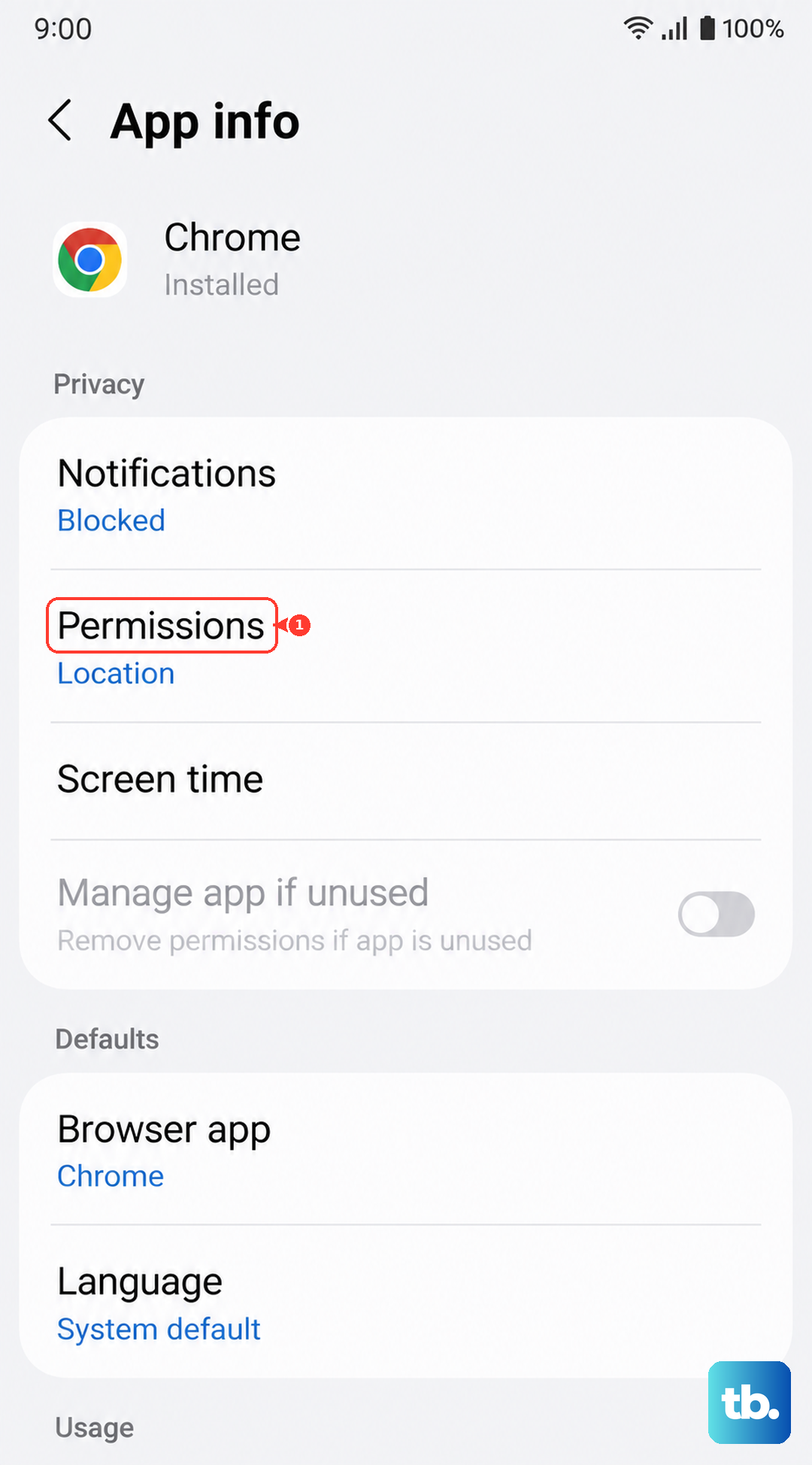
You can find it by going to Settings > Apps, tapping the three-dot menu in the top right, and selecting "Reset app preferences." You'll just need to re-allow notifications for your important apps afterward.
Disable Adaptive Notifications
One UI has a feature called "Adaptive notifications" that tries to learn which alerts you ignore and quietly hide them. Sometimes it gets a bit too eager. You can turn this off in Settings > Notifications > Advanced settings and toggling off "Adaptive notifications."
Ensure Notification Channels Aren't Muted
In Android, each app can have multiple "channels" for different types of alerts. Long-press on any notification from the app that's giving you trouble, then tap "Settings." This takes you directly to that app's notification channels.
Look through the list and make sure the important channels aren't set to "Silent" or have their importance lowered to "Low." They should typically be set to "Urgent" or "High" to pop up and make sound.
Examine Power Saving Modes
Both standard and enhanced power saving modes can severely limit background data and notifications to conserve battery. Go to Settings > Battery and make sure no power saving mode is active. If you need one on, tap into the mode's settings and ensure your critical apps are allowed to send notifications.
Clear the System UI Cache
The system interface that draws your notifications can have its own cache issues. You'll need to wipe the cache partition, which is safe and doesn't touch your photos or messages.
Turn off your Galaxy A56. Press and hold the Volume Up button and the Side button together. When you feel a vibration or see the Samsung logo, let go. Use the volume keys to navigate to "Wipe cache partition" and press the side button to select it. Confirm, then select "Reboot system now."