
When your Samsung Galaxy A56 won't download those photos or videos from a text, it's usually a quick setting or a network hiccup. MMS needs a mobile data connection to work, and sometimes the phone's software just needs a nudge in the right direction.
Let's start with the most common fixes that often solve the problem in under a minute.
Restart Your Galaxy A56
A simple restart clears out temporary glitches that can stall message downloads. For the Galaxy A56, press and hold the Volume Down button and the Side key (power button) together for about 10 seconds.
You'll see the Samsung logo appear as the phone reboots. This is the same force restart method used on the Galaxy S series, and it's a great first step.
Check Your Mobile Data Connection
MMS doesn't download over Wi-Fi alone. You need an active mobile data connection. Swipe down from the top of your screen twice to open the Quick Settings panel.
Make sure the Mobile Data icon is turned on. If you're in a low-signal area, try moving to a spot with better reception, as a weak signal can prevent the download from starting.
Enable Auto-Retrieve for MMS
This is a crucial setting. If auto-retrieve is off, your A56 will wait for you to manually tap "Download" on every multimedia message. Open the Samsung Messages app and tap the three-dot menu in the top right.
Go to Settings > Multimedia messages. Here, you'll find the "Auto download" option. Make sure the toggle is switched on. While you're here, also check "Roaming auto download" if you travel.
Clear the Messages App Cache
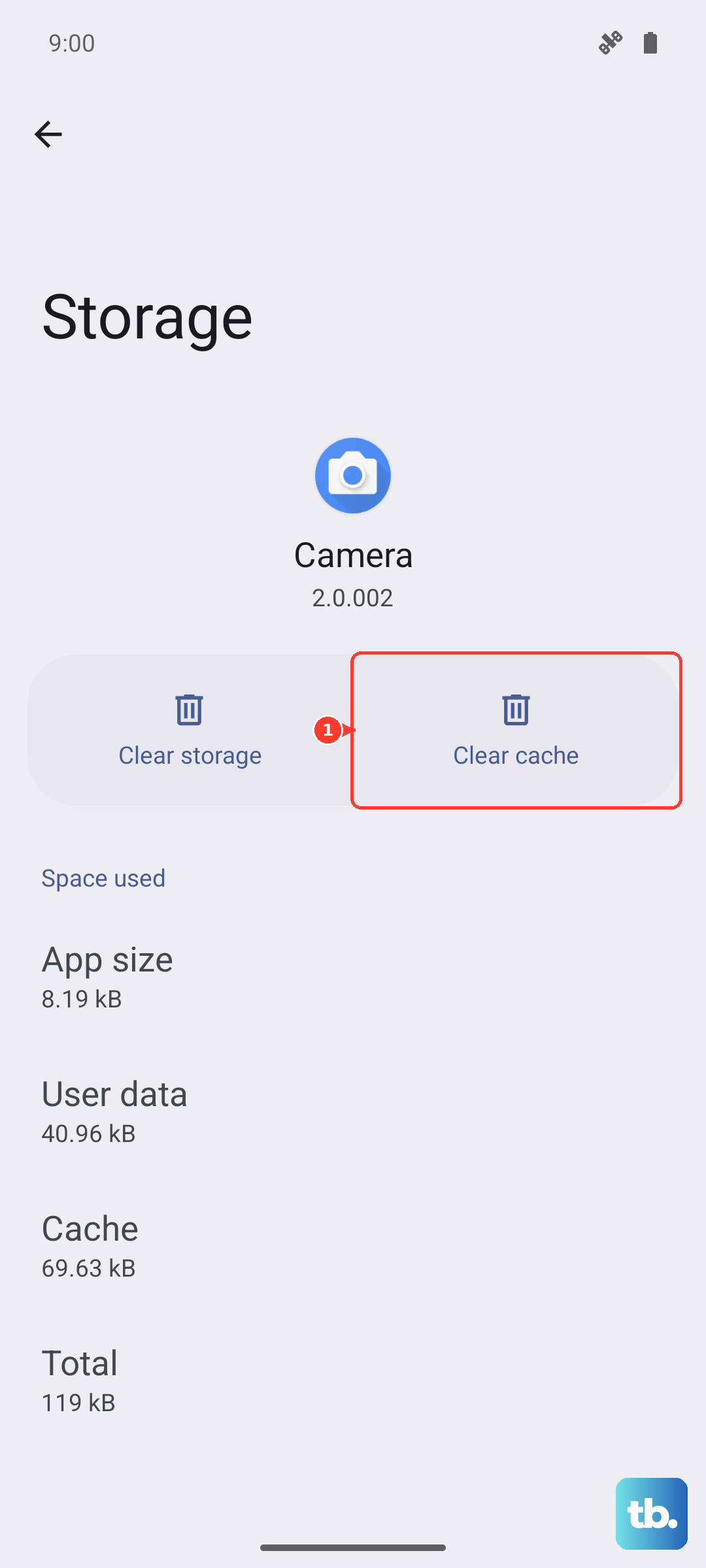
Corrupted temporary files in the app's cache can cause all sorts of weird behavior, including failed downloads. Clearing it is safe and won't delete your messages.
Go to your phone's Settings > Apps. Find and tap on "Messages" in the list. Select Storage, then tap "Clear cache." After doing this, force close the app and reopen it to see if MMS downloads work.
Verify Your APN Settings
Incorrect Access Point Name (APN) settings are a common culprit, especially if you recently switched carriers or SIM cards. These settings tell your phone how to connect to your carrier's multimedia service.
Go to Settings > Connections > Mobile networks > Access Point Names. You should see a list of APNs. Your carrier's correct APN should be selected (usually indicated by a filled-in circle).
If nothing looks right or you're unsure, the fastest fix is to contact your carrier's support. They can send you the correct APN configuration via a text message that auto-configures your phone.
Reset Your Network Settings
This step resets all Wi-Fi, Bluetooth, and mobile network settings back to factory defaults. It's more thorough than just toggling airplane mode and can fix deeper configuration issues.
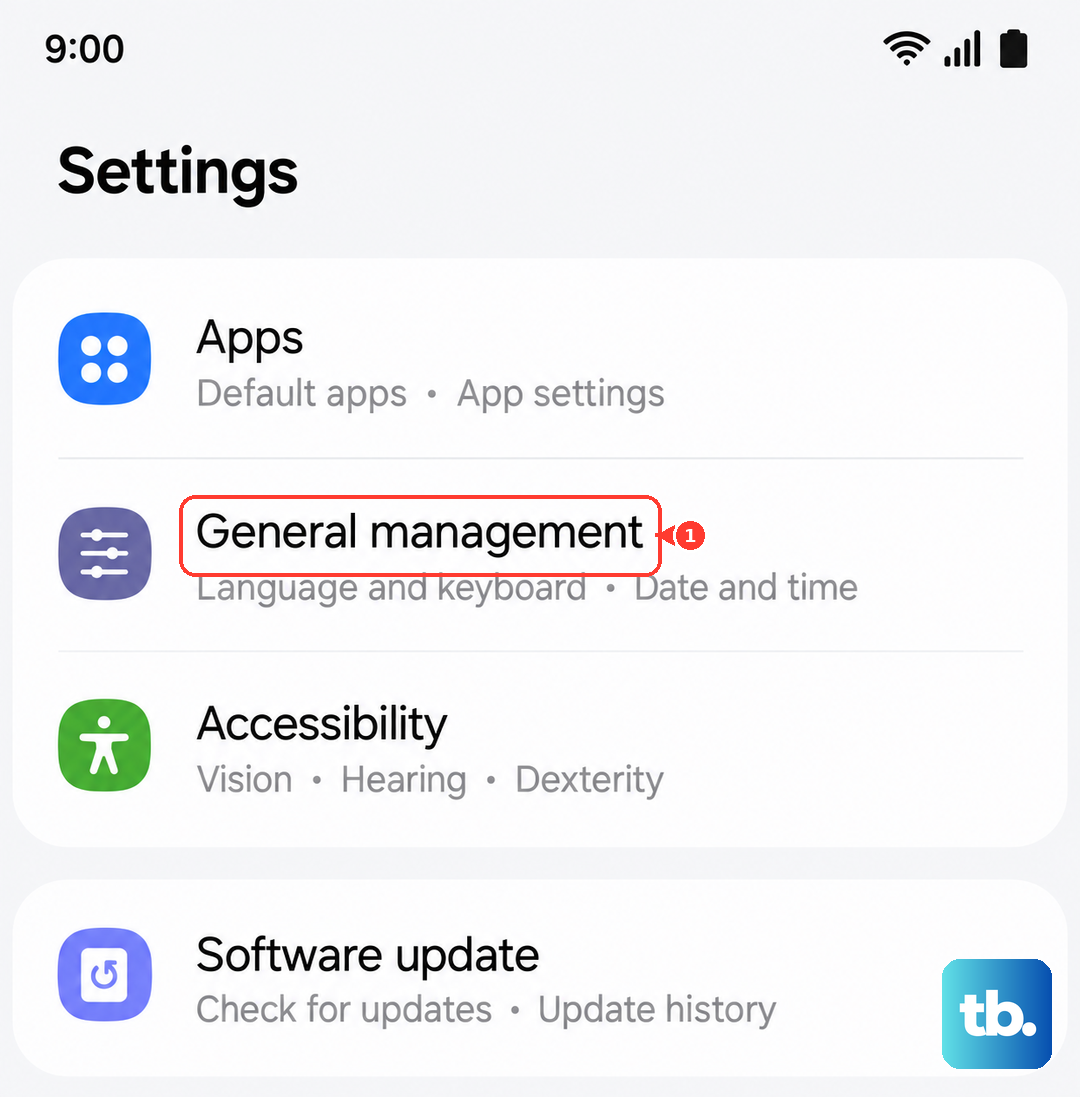
You'll find this option under Settings > General management > Reset > Reset network settings. You'll need to re-enter Wi-Fi passwords and re-pair Bluetooth devices afterward, but it often clears up persistent MMS problems.
Check for Software Updates
Outdated software on your Galaxy A56 can have bugs that affect messaging. Samsung regularly releases updates that fix these kinds of issues. Go to Settings > Software update > Download and install.
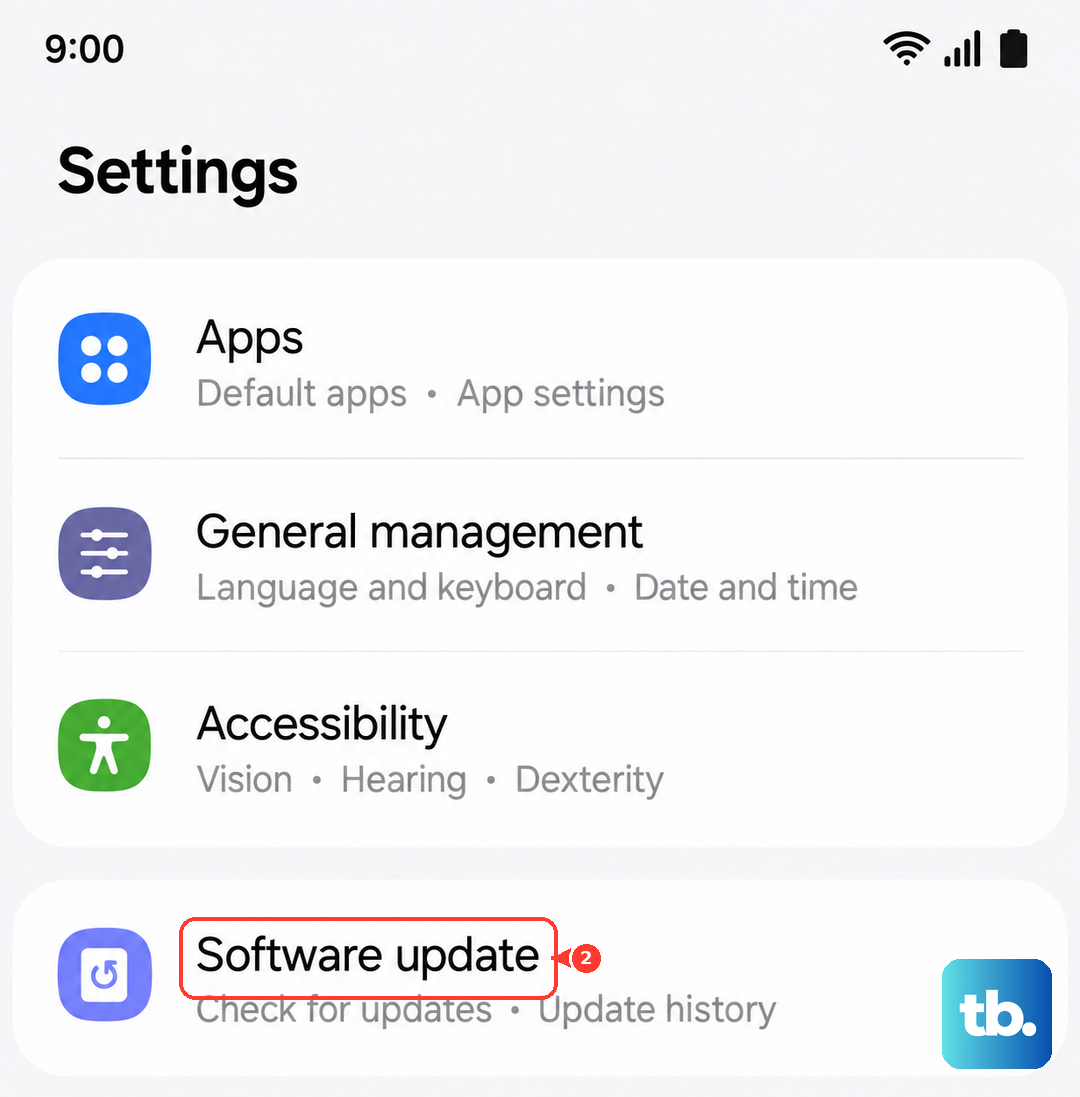
If an update is available, install it. I've seen minor point updates specifically address connectivity and messaging bugs, so this is always worth a check.
Try a Different Messaging App
Sometimes the issue is isolated to the Samsung Messages app itself. Downloading a free alternative like Google Messages from the Play Store can help diagnose the problem.
Set the new app as your default, give it the necessary permissions, and see if MMS downloads come through. If they do, the problem is likely with the Samsung app, and you can stick with the new one or clear the Samsung app's data as a next step.
Clear Old Message Threads and Files
If your storage is extremely full, the system might struggle to save new multimedia files. While this is less common, it's good to check. Open the Samsung Messages app and look for old threads with lots of photos or videos.
Deleting these can free up space. You can also enable auto-deletion in the Messages settings to keep things clean going forward.
Contact Your Mobile Carrier
If you've worked through all these steps and MMS still won't download, the issue might be on your carrier's end. There could be a service outage in your area, a problem with your account provisioning, or a block on multimedia messaging.
Call their customer support. They can check your line, resend the provisioning signals, and confirm if there are any known issues affecting MMS delivery for Samsung devices on their network.