
When your Samsung Galaxy A56 microphone stops picking up your voice, it can turn simple phone calls, video chats, or voice notes into a frustrating experience. The issue might be with the phone's main mic, the one used for calls, or even the one for video recording. Let's start by figuring out exactly which microphone is acting up.
It is worth running a online mic test before working through the steps below. The live waveform makes it obvious whether the microphone is picking up sound at all.
Test Your Galaxy A56 Microphone
Open your Voice Recorder app, which comes pre-installed on your phone. Tap the red record button and speak normally for about ten seconds. Play it back. If your voice sounds muffled, distant, or isn't there at all, you've confirmed the problem.
You can also make a quick test call to your voicemail. Speak clearly and listen to the message you leave. If the caller can't hear you but you can hear them, that points to the primary call microphone having an issue.
For the video microphone, open your Camera app and switch to video mode. Record a short clip while talking. Play it back with the volume up to check the audio quality. This tests the microphone array used for recording.
Check for Physical Blockages
The Galaxy A56 has several small microphone holes. The main one is at the bottom of the phone, next to the USB-C charging port. There's also typically one at the top near the earpiece and sometimes one on the back near the camera module.
Take a close look at these tiny openings. It's very common for pocket lint, dust, or even a bit of moisture to get packed in there. Use a dry, soft-bristled toothbrush or a can of compressed air to gently dislodge any debris. Be careful not to push anything further inside.
Remove Your Phone Case
Some cases, especially rugged or poorly designed ones, can partially cover the microphone ports. I've seen this happen more often than you'd think. Take the case off completely and run the Voice Recorder test again.
Also, check if a screen protector is improperly aligned and creeping over the top earpiece grille, which can house a secondary microphone. If the problem goes away without the case, you might need a different one.
Disconnect Bluetooth and Other Audio Devices
If your phone is connected to wireless earbuds, a headset, or a car's Bluetooth system, it will route all microphone audio through that connected device. Go to Settings > Connections > Bluetooth and turn Bluetooth off temporarily.
Then, try making a call or recording a memo. If your microphone works now, the issue was with the audio routing, not your phone's hardware. Make sure your preferred Bluetooth device is charged and in range when you reconnect.
Force Restart Your Phone
A quick reboot can clear out temporary software glitches that might be affecting the audio driver. For the Galaxy A56, press and hold the Volume Down button and the Side (power) button together for about 10 seconds.
You'll see the Samsung logo appear as the phone restarts. This is the same method used on the Galaxy S series and it doesn't delete any of your data. Once it's back on, test the microphone immediately.
Check App Permissions
In Android 15 with One UI 7, apps need explicit permission to use your microphone. If an app like WhatsApp, Google Meet, or Instagram can't hear you, its permission might have been revoked.
Go to Settings > Apps, select the problematic app, and tap Permissions. Find the Microphone permission and make sure it's set to "Allow." While you're there, you can also check if the app has any pending updates in the Galaxy Store or Play Store, as bugs are often fixed in updates.
Close and Reopen Problematic Apps
If the microphone fails in just one app, force stop it. Go to Settings > Apps, find the app, and tap Force stop. Then, open the app fresh from your home screen.
This clears the app from your phone's memory and can resolve conflicts that occurred during its last session. It's a good, quick step for app-specific issues before diving deeper into system settings.
Update Your Software
Samsung regularly releases updates that fix known bugs, including audio and microphone problems. Go to Settings > Software update and tap Download and install.
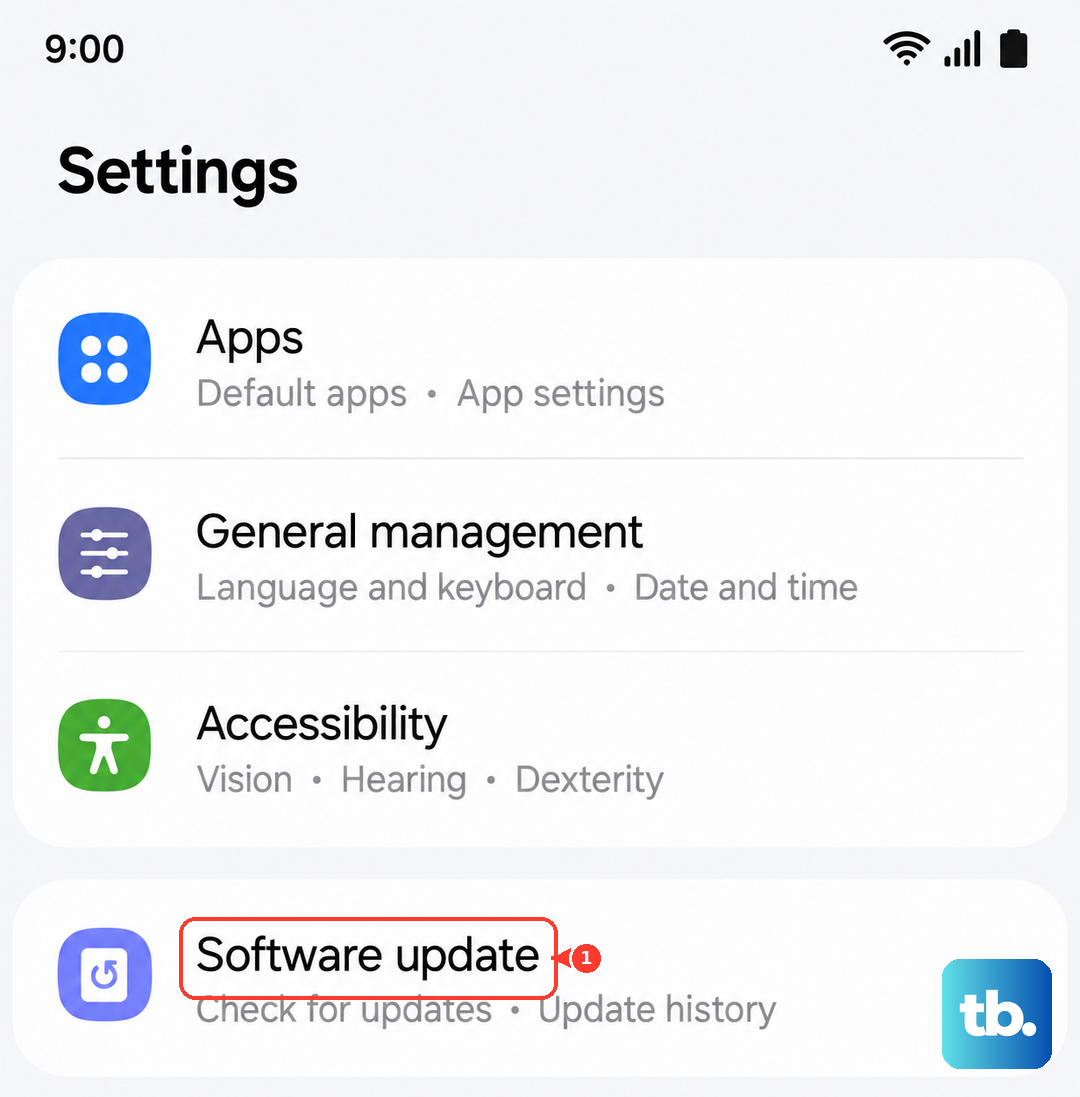
Make sure your phone is connected to Wi-Fi and has at least a 50% charge before proceeding. An update can address a software conflict that's preventing the microphones from functioning correctly.
Reset All Settings
This is a more thorough step that resets all your system settings to default without touching your personal photos, messages, or apps. It will wipe your Wi-Fi passwords, Bluetooth pairings, and custom display settings, so be prepared to re-enter those.
Go to Settings > General management > Reset > Reset all settings. Enter your PIN if prompted and confirm. After the phone reboots, test the microphone. This can fix a misconfiguration deep in the system that's causing the problem.
Check for Moisture Detection
The Galaxy A56 has a moisture detection feature for its USB-C port. While this usually affects charging, it can sometimes trigger protective measures that disable certain functions. If you see a water droplet icon in your notification panel, the port needs to dry out completely.
Power off the phone and leave it in a dry, warm place for a few hours. You can also gently dry the port with a blast of cool air from a hairdryer (no heat). Avoid using compressed air here, as it can push moisture inward.
Boot into Safe Mode
Safe Mode temporarily disables all third-party apps you've downloaded. If the microphone works perfectly in Safe Mode, then a recently installed app is likely causing the conflict. To enter Safe Mode, press and hold the power button until the power off menu appears.
Then, tap and hold the "Power off" option on your screen. You'll get a prompt to reboot into Safe Mode. Tap "Safe mode" to confirm. Test your microphone here. To exit, simply restart your phone normally.