
When your headphones stop working with your Samsung Galaxy A56, it can ruin your music, calls, and videos. The phone might not detect your wired earbuds, fail to connect to Bluetooth headphones, or play all audio through the speaker instead. Let's get it sorted.
A browser based left and right audio test makes this easy to confirm. If both sides play test tones correctly there, the headphones are fine and the problem is in the device or app.
Restart Your Galaxy A56
This is the quickest fix for a lot of weird audio glitches. Press and hold the Volume Down button and the Side button (power key) together for about 10 seconds. You'll see the Samsung logo appear as the phone restarts. It clears out temporary software hiccups that can mess with audio routing.
Check the Simple Stuff First
Make sure your Bluetooth headphones have charge. For wired headphones, ensure the USB-C adapter is fully plugged in. Try your headphones with another phone or computer to confirm they're working properly. If they don't work anywhere else, the problem is with the headphones themselves.
Clean the USB-C Port
Lint and pocket debris love to get packed into the charging port, and that can stop a wired connection from making proper contact. Power off your phone first. Then, use a wooden toothpick or a soft-bristled brush to gently clean out the port. Avoid using metal, as it can damage the delicate pins inside.
If you see a moisture detection warning, even though the port seems dry, this cleaning step is crucial. Let the phone sit for a few hours in a dry place after cleaning, as the alert can sometimes be triggered by humidity or a tiny bit of condensation.
Forget and Re-Pair Your Bluetooth Headphones
Go to Settings and then tap Connections. Select Bluetooth and find your headphones in the list under "Paired devices." Tap the gear icon next to their name, then select Unpair or Forget. Put your headphones back into pairing mode and select them from the available devices list on your phone to reconnect from scratch.
Adjust the Volume and Media Output
Press the volume up button on the side of your phone while something is playing. Make sure the volume slider isn't all the way down. Also, pull down the Quick Settings panel and check that the Media output isn't set to "Phone" or another device.
You can tap that Media output tile to see a list of available audio devices, like your Bluetooth headphones or a speaker. Selecting your headphones here forces the audio to route correctly if it got stuck.
Toggle Bluetooth Off and On
Swipe down from the top of your screen twice to open the full Quick Settings panel. Tap the Bluetooth icon to turn it off, wait about 10 seconds, then tap it again to turn it back on. This simple refresh of the Bluetooth radio can often kickstart a stubborn connection.
Check for Software Updates
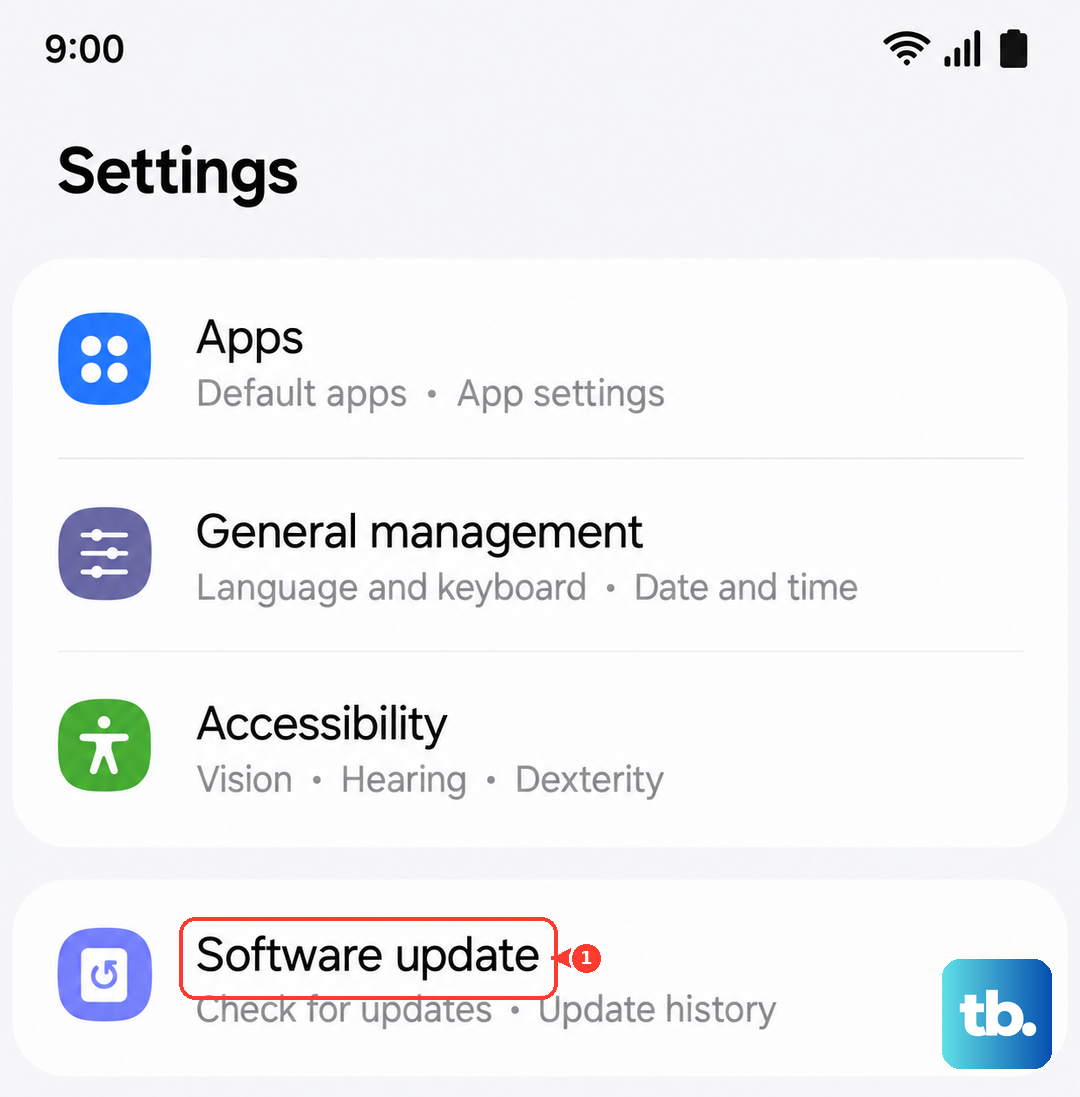
Samsung releases updates for One UI that fix bugs, including audio and Bluetooth problems. Open Settings, go to Software update, and tap Download and install. If an update is available, install it. I've seen updates specifically resolve headphone detection issues on recent Galaxy models.
Reset All Settings
If nothing else is working, a settings reset can clear corrupted preferences. Go to Settings > General management > Reset > Reset all settings. This will not delete your photos or apps, but it will reset your Wi-Fi passwords, Bluetooth pairings, and sound settings back to default. You'll need to re-pair your headphones afterward.
Try a Different USB-C Adapter or Cable
If you're using wired headphones with a USB-C to 3.5mm dongle, the adapter itself could be faulty. These little adapters can fail. Try using a different one if you have access to it. Similarly, if you're using USB-C headphones, try a different cable to rule out a cable issue.
Check for App-Specific Audio Issues
Sometimes the problem isn't system-wide, but confined to one app. If audio only fails in YouTube, Spotify, or a specific game, check that app's settings for any audio output options. Try force-stopping the app by going to Settings > Apps, selecting the app, and tapping Force stop. Then reopen it.