
When your Samsung Galaxy A56's GPS stops locking on, it can leave you stranded without navigation or make location-based apps useless. The good news is that most GPS problems on the A56 are software glitches you can fix yourself in a few minutes. I've found that starting with a simple refresh of the location service often gets things back on track.
Refresh Your Location Service
Swipe down twice from the top of your screen to open the full Quick Settings panel. Find the "Location" tile and tap it to turn it off. Wait about 30 seconds, then tap it again to turn it back on. This quick reset forces the GPS hardware to reinitialize and can clear up a temporary hiccup.
If that doesn't do it, the next step is to force restart your phone. Press and hold the Volume Down button and the Side key (power button) together for about 10 seconds. Let go when you see the Samsung logo appear. This is more thorough than a standard restart and clears out any system-level glitches affecting the GPS.
Check Your Location Settings and Permissions
Your A56's GPS might be working fine, but the settings or app permissions could be blocking it. Open Settings and tap Location. First, make sure the main switch at the top is turned on.
While you're there, tap on Location services. For the best possible GPS accuracy, especially for navigation, make sure Google Location Accuracy is enabled. This uses Wi-Fi and mobile networks to help your GPS get a lock faster.
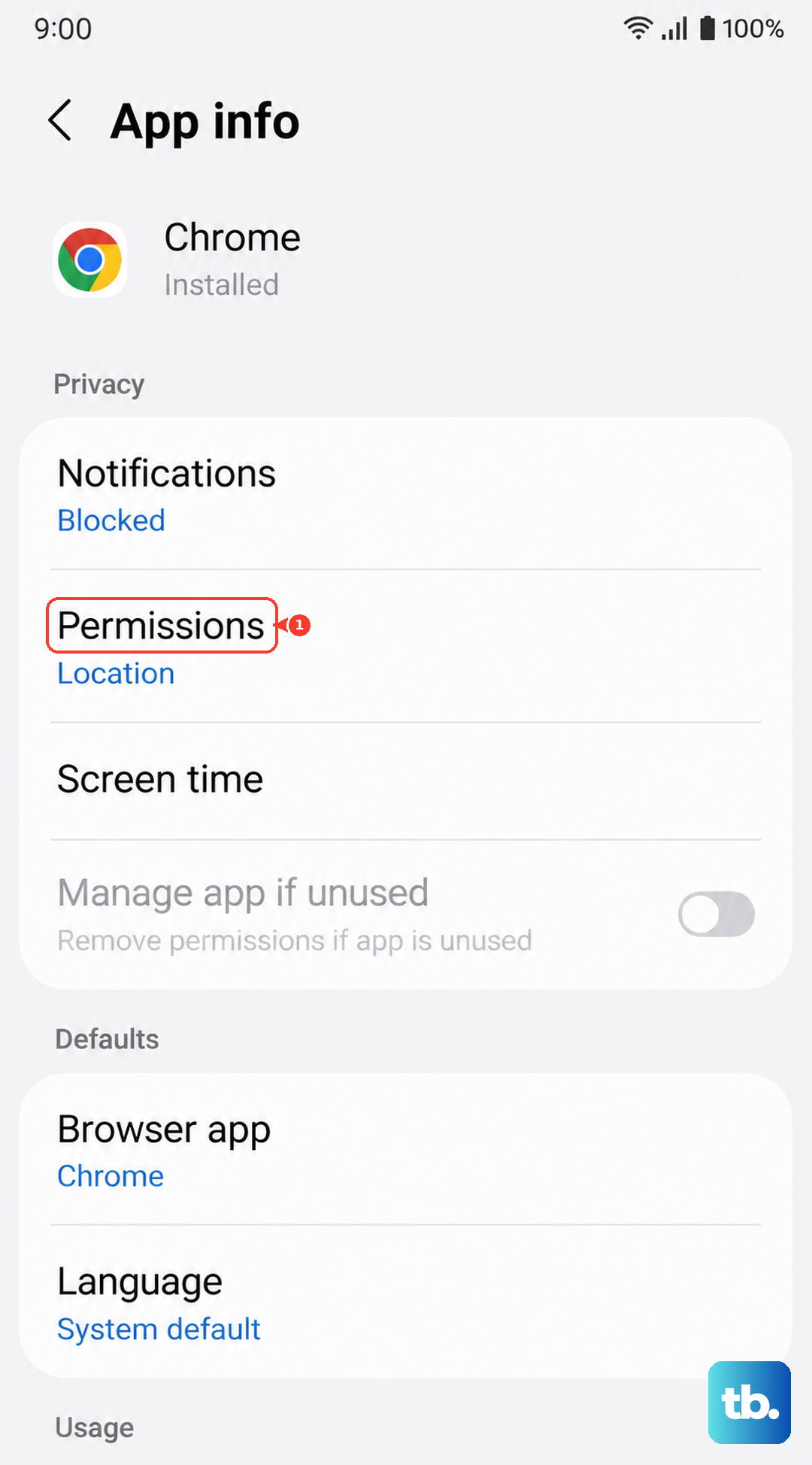
You also need to check individual apps. Go to Settings > Apps, select an app like Google Maps, then tap Permissions. Ensure it has permission to access your location, set to "Allow only while using the app" or "Allow all the time" for navigation.
Disable Power Saving Modes
One UI's power saving features are great for battery life, but they often limit background processes, including GPS. If you have any battery saver enabled, it could be preventing apps from accessing your location properly.
Go to Settings > Battery. If Power saving is on, tap it and switch it off. For a more aggressive fix, also check Settings > Battery > More battery settings and turn off Adaptive battery temporarily to test.
Update Your Apps and One UI Software
An outdated version of Google Maps, Waze, or your system software can cause compatibility issues with the GPS. Head to the Google Play Store, tap your profile icon, and select Manage apps and device. Update all your apps, especially any navigation or fitness apps.
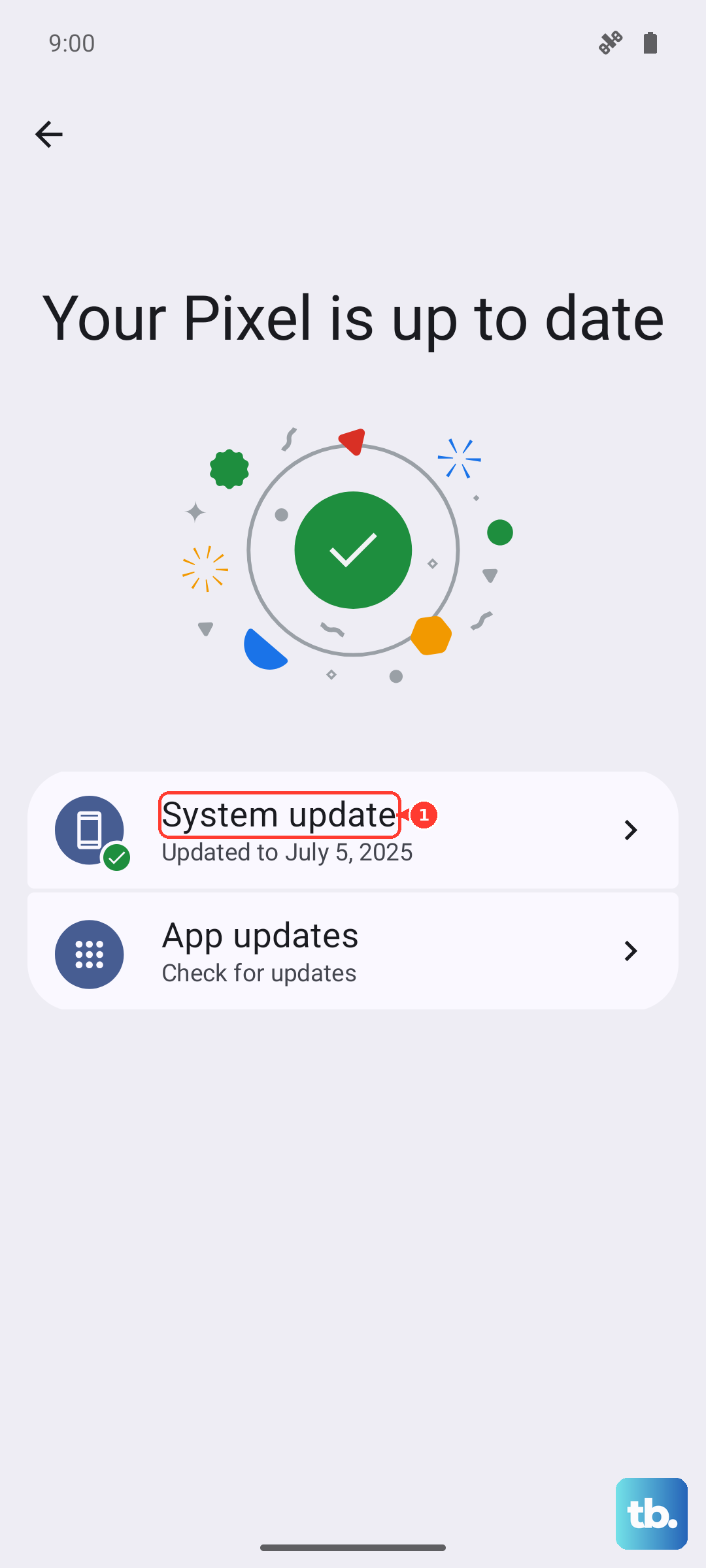
Next, check for a system update. Go to Settings > Software update and tap Download and install. Samsung frequently releases updates that fix bugs, including ones related to location services. Installing the latest One UI update based on Android 15 can resolve a lot of these problems.
Clear the App Cache and Data
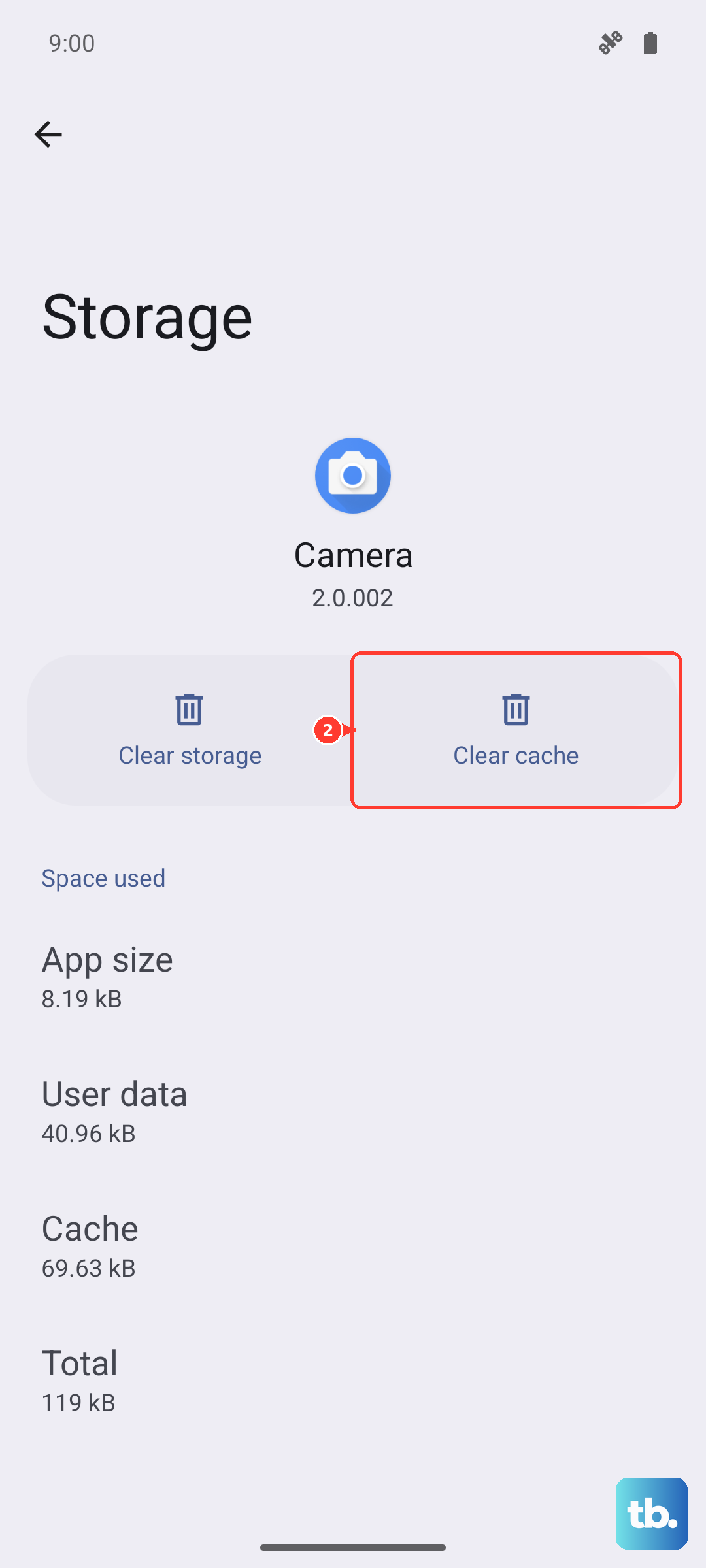
Sometimes the data stored by your navigation app gets corrupted. Clearing its cache is a safe first step that won't delete your saved places. Go to Settings > Apps, find Google Maps (or your problematic app), and select it.
Tap Storage, then hit Clear cache. Try the app again. If the GPS is still broken, you can go back and tap Clear data. Just be aware this will reset the app, so you'll need to sign back in and may lose offline maps.
Test in Safe Mode
If you've installed a new app recently, it could be interfering with the GPS. Booting into Safe Mode disables all third-party apps, helping you pinpoint the culprit. Press and hold the Side key and Volume down key until the power menu appears.
On the menu, tap and hold the Power off option. You'll see a prompt to restart in Safe Mode. Tap it. Once your A56 reboots, you'll see "Safe mode" in the bottom corner. Open Maps and test the GPS. If it works perfectly here, a recently installed app is likely the cause. Restart normally to exit Safe Mode and try uninstalling apps one by one.
Improve Your Signal Reception
GPS signals are line-of-sight and can be blocked by physical objects. If you're indoors, in a basement, or surrounded by tall buildings, your A56 will struggle. Move to an open area with a clear view of the sky, like a park or a large parking lot.
Also, check your phone case. Some thick metal or heavily insulated cases can interfere with the antenna. Try removing the case temporarily to see if your GPS accuracy improves. Avoid using your phone on the dashboard if you have a heated windshield, as the metallic layer can block signals.
Reset Your Network and Location Settings
This resets all your Wi-Fi, Bluetooth, and mobile network connections along with location preferences, but it won't delete your personal data. It's a good middle-ground step before considering more drastic measures. Go to Settings > General management.
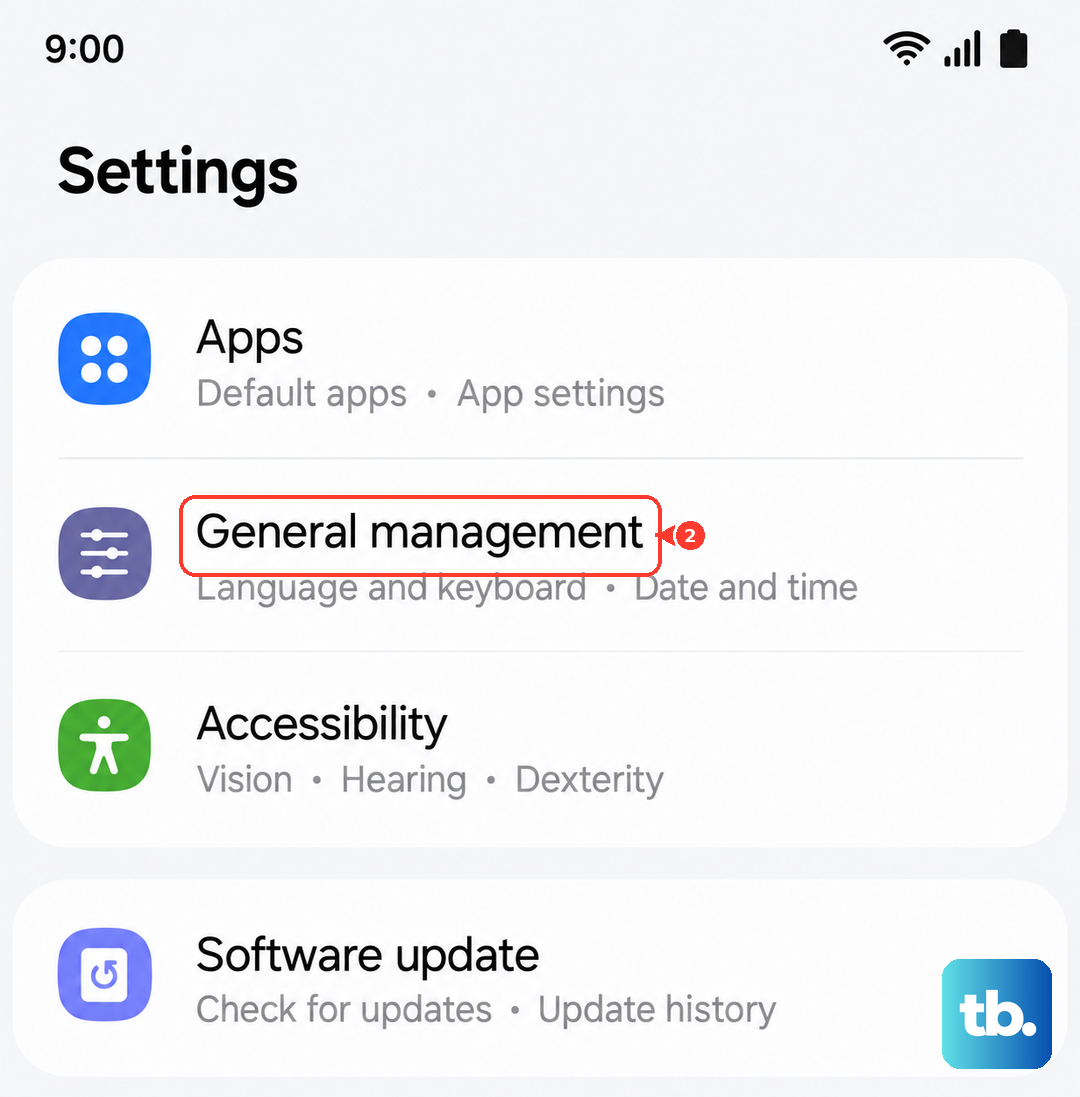
Tap Reset, then select Reset network settings. You'll need to re-enter Wi-Fi passwords and re-pair Bluetooth devices afterward. Once that's done, go back to Settings > General management > Reset and choose Reset location settings. This will revert all your location permissions and preferences to default.
Use a GPS Diagnostic Tool
To figure out if it's a software or hardware problem, you can use a diagnostic app. Download an app like "GPS Test" or "GPS Status & Toolbox" from the Play Store. Open the app and go to its satellite view.
Take your phone outside with a clear sky view. The app will show you how many satellites your A56 can "see" and connect to. If it can't find any satellites at all after a few minutes, it could point to a deeper hardware issue. If it finds and connects to plenty of satellites but your navigation apps still fail, the problem is almost certainly software-based.
Clear the System Cache Partition
This clears temporary system files that can sometimes become corrupted. First, turn off your Galaxy A56 completely. Now, press and hold the Volume Up button and the Side key at the same time.
When you feel the phone vibrate and see the Samsung logo, let go of the Side key but keep holding Volume Up until the Android Recovery screen appears. Use the Volume Down button to highlight Wipe cache partition, then press the Side key to select it. Confirm the action, then select Reboot system now when it's done.