
A blurry camera on your Samsung Galaxy A56 can turn a great moment into a disappointing photo. The blur might be constant, only happen in low light, or affect just one of the lenses. Before you worry about a hardware issue, there are several straightforward things you can check and fix yourself.
Clean the Camera Lenses
Start with the simplest solution. Use a soft microfiber cloth to gently wipe the camera lenses on the back of your phone. Fingerprints, dust, or pocket lint on the lens are the most common culprits for a hazy, blurry look in your photos. I'd avoid using your shirt or a rough tissue, as they can leave micro-scratches on the lens coating over time.
Remove Your Phone Case
Take your Galaxy A56 out of its case and snap a test photo. Some cases, particularly thicker or poorly designed ones, can sit too close to the camera bump. This can cause the edge of the case to slightly cover the lens or create a reflection that softens the image. Also, make sure you haven't accidentally left a plastic camera lens protector on from when you first unboxed the phone.
Tap to Focus Properly
Open the Camera app and tap directly on your subject on the screen. You'll see a yellow focus box appear. The camera's autofocus can sometimes get confused, especially with busy backgrounds or in low light. Tapping tells the phone exactly where to focus. For more control, you can press and hold on the screen to lock both the focus and exposure (AE/AF Lock).
Switch Between Camera Lenses
Your Galaxy A56 has multiple lenses. In the Camera app, try switching between them by tapping the tree icon for the ultrawide lens, the standard "1x" for the main lens. The A56 has no dedicated telephoto lens, so the "2x" option is just a digital crop of the main camera, not a separate module; the phone's third rear camera is a 5MP macro lens. If only one lens produces blurry photos, the issue is isolated to that specific camera module, which might just need a more thorough cleaning.
Force Close and Reopen the Camera App
Swipe up from the bottom of the screen and hold to enter the recent apps view. Find the Camera app and swipe it away to close it completely. Then, open it fresh from your app drawer. This clears any temporary software glitch that might be causing the autofocus to malfunction or the image processing to act up.
Restart Your Galaxy A56
If closing the app didn't help, a full restart can clear deeper system processes. Press and hold the Volume Down button and the Side key (power button) together for about 10 seconds until you feel a vibration and see the Samsung logo. This force restart resets the entire camera software stack and often resolves temporary bugs affecting photo quality.
Check for Moisture in the USB-C Port
The Galaxy A56 has a moisture detection feature for its USB-C port. If the phone thinks there's moisture present, it can sometimes trigger safeguards that affect other systems. You might see a water droplet icon in your notification panel. Make sure the port is completely dry using compressed air or by letting it air out, and avoid charging it until the alert clears.
Update Your Phone's Software
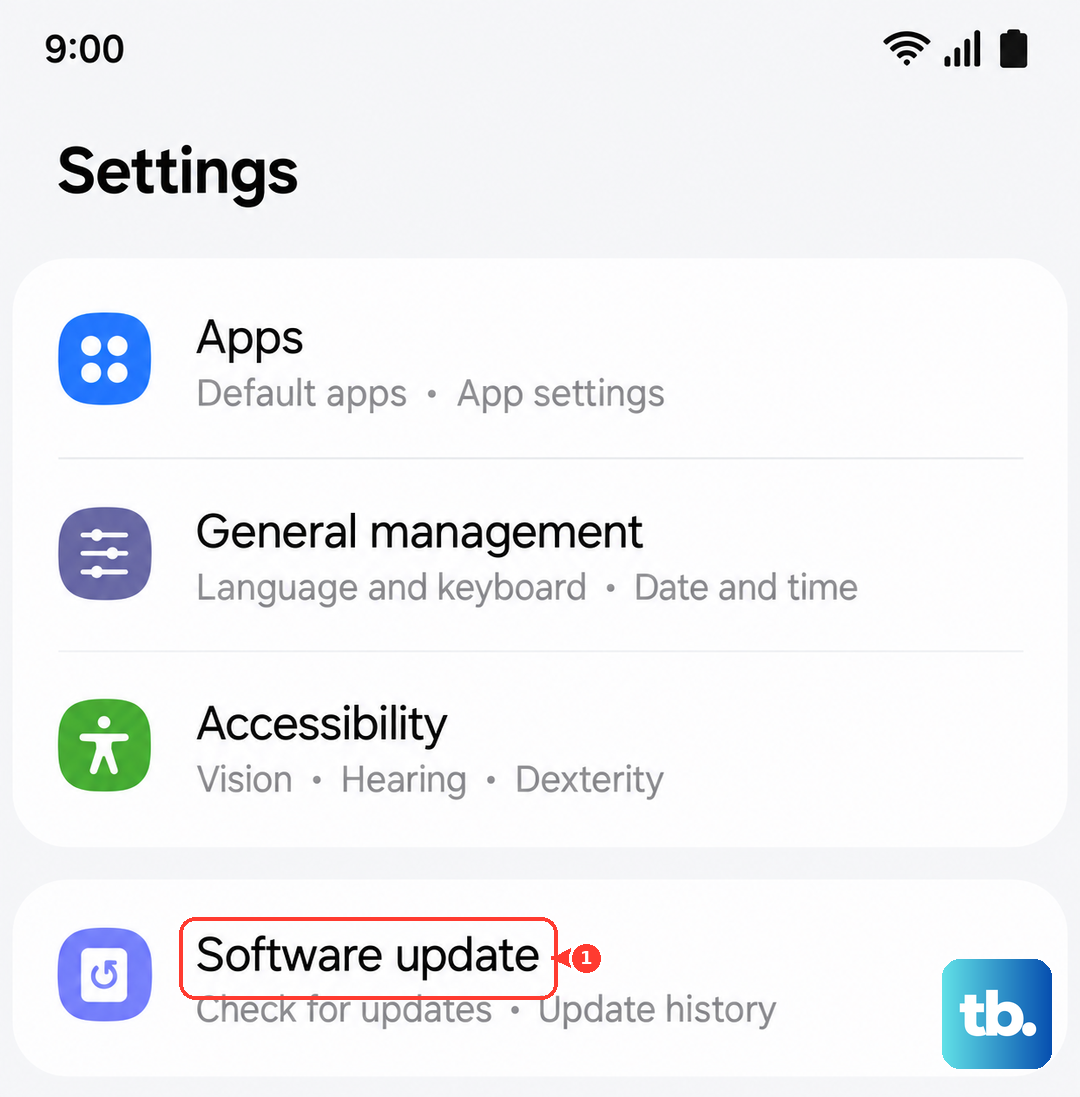
Go to Settings > Software update > Download and install. Samsung frequently releases updates that include camera performance improvements, autofocus tweaks, and bug fixes for One UI. A known issue causing blur in certain modes might already have a patch waiting for you.
Reset the Camera Settings
If you've changed a lot of settings, one of them could be contributing to the problem. Open the Camera app, tap the settings gear icon, and scroll down to find Reset settings. This will revert all your camera preferences back to default without deleting any of your photos. It's a good way to rule out a misconfigured option.
Test in Good Lighting
Camera sensors struggle in dim light, leading to blur from both slower shutter speeds and increased digital noise. Try taking the same photo in a well-lit area or near a window. If the blur disappears, the issue is likely related to low-light performance, not a defect. Using Night mode or the flash can help in these situations.
Disable any special shooting modes like Food mode or Portrait mode for a basic test, as these apply heavy software effects that can sometimes soften the image too much. Stick to the standard Photo mode to see if the blur persists. If you've tried all these steps and the camera is still consistently blurry, the issue may be with the physical camera module or its stabilization hardware.