
If your Samsung Galaxy A56 keeps dropping its Bluetooth connection to your headphones, car, or speaker, it's a frustrating but common problem. The good news is that most of the time, it's a software glitch you can fix yourself without needing a trip to a repair shop.
I'd start with the simplest fix first, as it often does the trick. Pull down the notification shade from the top of your screen and tap the Bluetooth icon to turn it off. Wait about ten seconds, then tap it again to turn it back on. This quick refresh can clear up a temporary communication hiccup between your phone and the other device.
Restart Your Phone and the Bluetooth Device
When toggling Bluetooth doesn't work, a full restart is the logical next step. For your Galaxy A56, press and hold the Volume Down button and the Side button together for about ten seconds. You'll see the Samsung logo appear as the phone reboots.
Don't forget to restart the device you're trying to connect to, whether it's earbuds, a speaker, or your car's infotainment system. Power it off completely, wait a moment, and turn it back on. Once both devices are fresh, try pairing them again.
Forget and Re-Pair the Problem Device
Sometimes the pairing information itself gets corrupted. The best fix is to remove the device from your phone's memory and start over. Open your phone's Settings and go to Connections > Bluetooth.
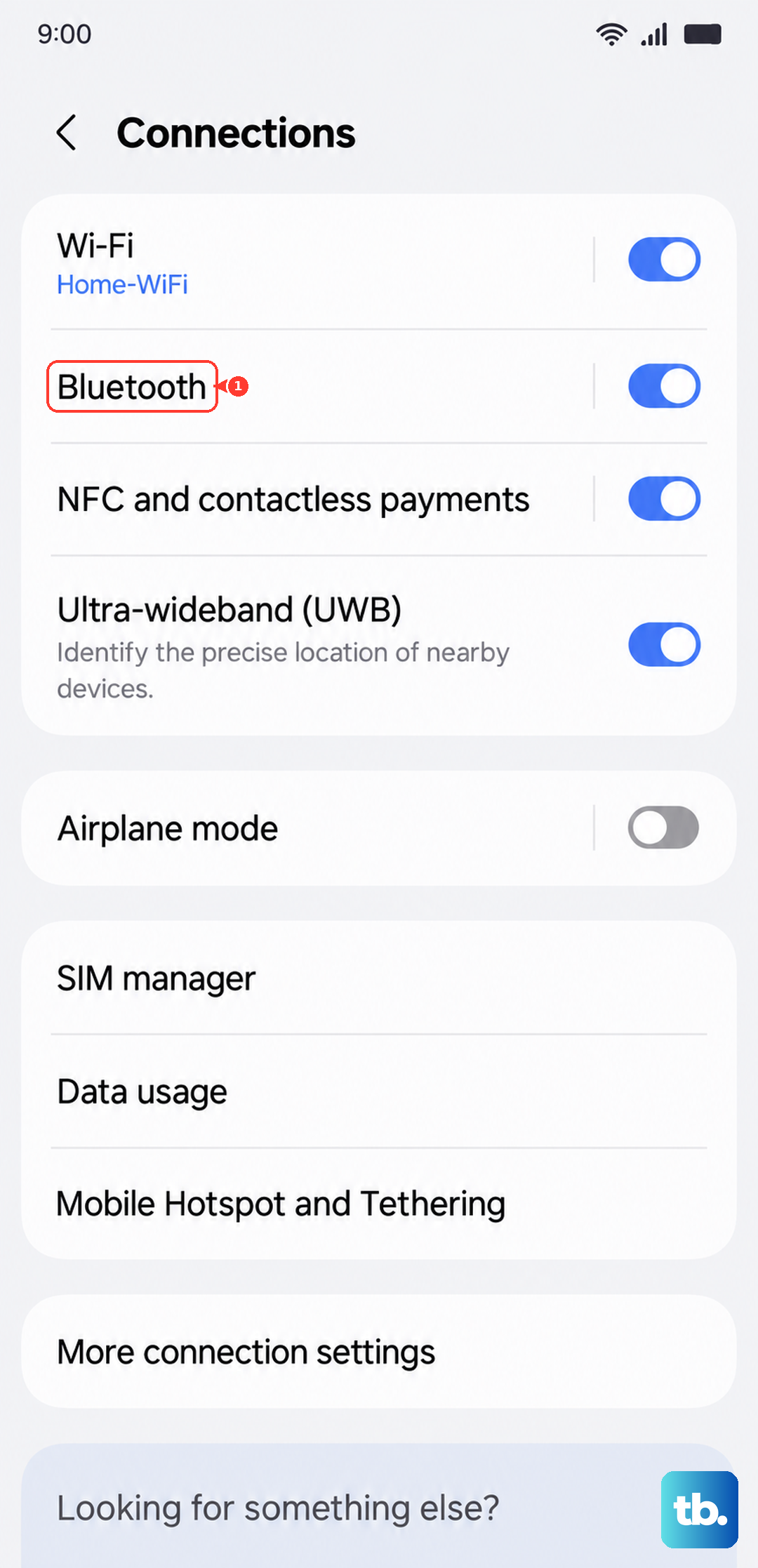
Find the troublesome device in your list of paired gadgets. Tap the gear icon next to its name, then select Unpair or Forget. After it's removed, put the other device back into its pairing mode. You'll usually see a blinking light or hear an audio cue. Then, select it from the "Available devices" list on your A56 to create a new, clean connection.
Clear the Bluetooth System Cache
Your phone stores temporary data to help Bluetooth run smoothly, but this cache can become corrupted. Clearing it is a safe and effective step that doesn't delete your paired devices. Go to Settings > Apps.
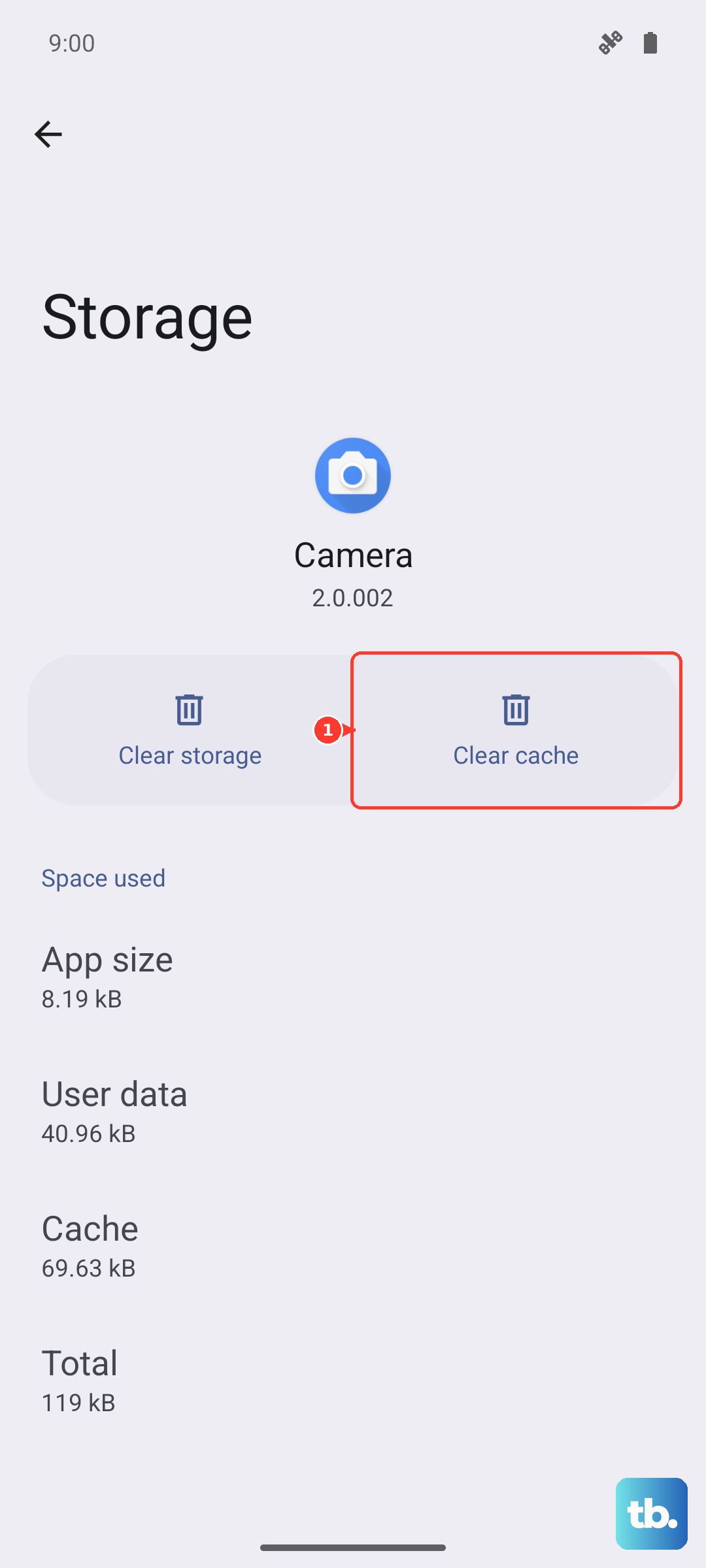
Tap the three-dot menu in the top right and select Show system apps. Scroll down and find the entry simply named "Bluetooth." Tap on it, then go to Storage. Here, tap the Clear cache button. Restart your phone afterward and test your connection.
Check for Software Updates
Running outdated software on your Galaxy A56 is a common cause of Bluetooth instability. Samsung frequently releases updates that fix bugs and improve compatibility with various accessories. To check, navigate to Settings > Software update > Download and install.
If an update is available, connect to Wi-Fi and let it install. It's also worth checking if the Bluetooth device itself has a firmware update, often through its own companion app like Galaxy Wearable for Samsung earbuds or the manufacturer's app for other brands.
Reset Your Network Settings
This is a more comprehensive step that resets all wireless communications on your phone back to their default state. It will erase your saved Wi-Fi networks, Bluetooth pairings, and mobile data settings, so you'll need to re-enter Wi-Fi passwords afterward.
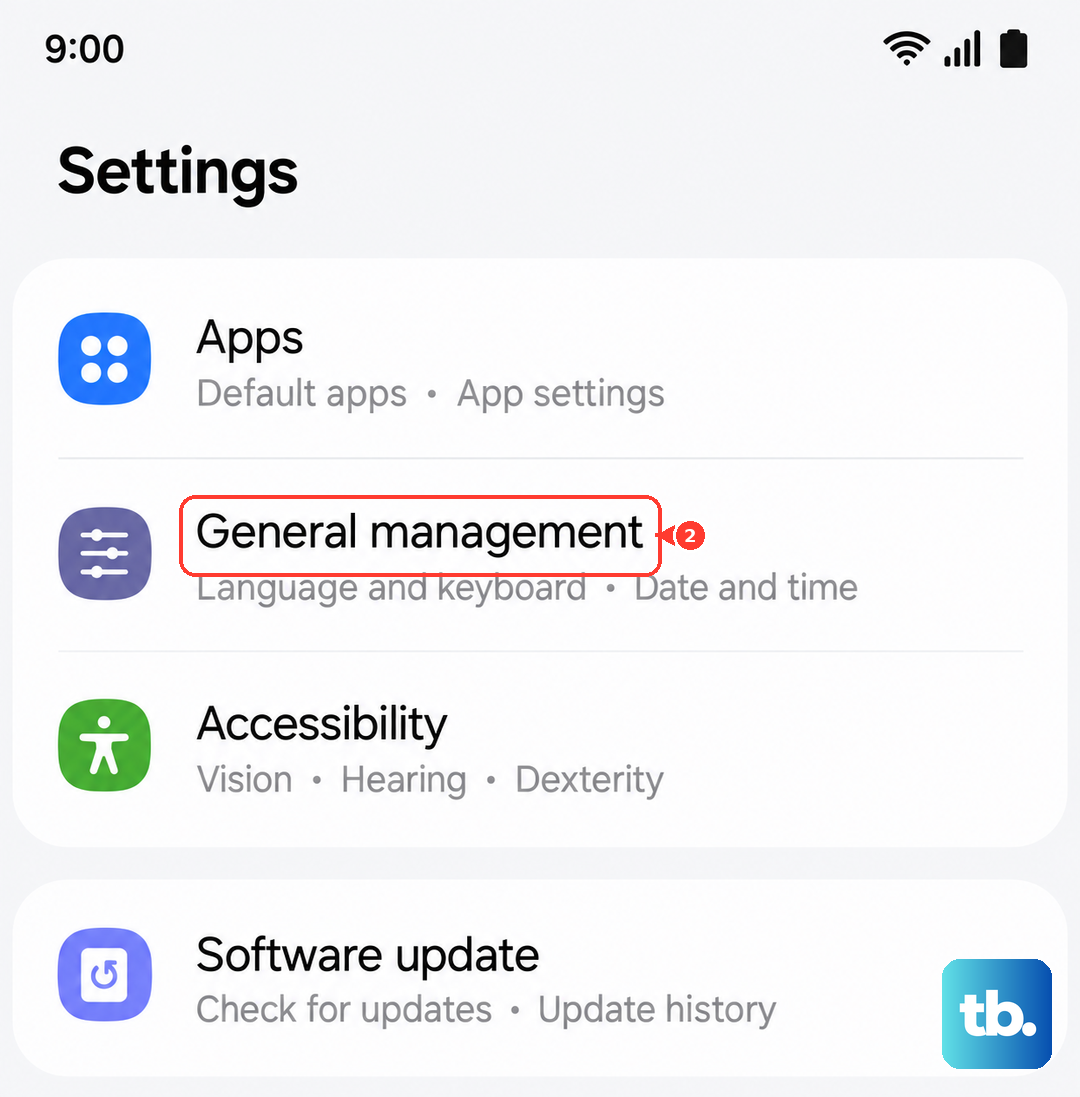
To do this, go to Settings > General management > Reset. Select Reset network settings and confirm. Your phone will reboot. After it comes back on, you can re-pair your Bluetooth devices from scratch, which often resolves persistent disconnection issues.
Boot Into Safe Mode
If the problem started after you installed a new app, that app could be interfering. Safe Mode temporarily disables all third-party apps, letting you see if the problem is with the phone's core software or something you added. To enter Safe Mode on the A56, press and hold the Side button until the power menu appears.
Then, tap and hold the "Power off" option on your screen. You'll get a prompt to restart in Safe Mode. Tap "OK." If Bluetooth works perfectly in Safe Mode, you know a downloaded app is the culprit. Restart normally and try uninstalling recent apps one by one to find the offender.
Check for Physical Interference and Distance
Bluetooth is a short-range radio signal, and it can be blocked or disrupted. Make sure there aren't large metal objects, walls, or even microwave ovens operating between your phone and the connected device. Other wireless signals like Wi-Fi routers can also cause interference, especially on the crowded 2.4GHz band.
Try to keep your Galaxy A56 within about 30 feet of the Bluetooth device for a stable connection. If you're having issues in a specific location, like your car, try pairing and using the devices in a different room to rule out environmental interference.
Clear Bluetooth Data as a Last Resort
If clearing the cache didn't help, you can take the more drastic step of clearing the Bluetooth app's data. Warning: this will erase all your paired devices from the phone. You'll need to pair every single Bluetooth accessory again, from your watch to your car.
Follow the same path to Settings > Apps > Bluetooth > Storage. This time, tap Clear data instead of "Clear cache." Confirm the action, then restart your phone. This gives the Bluetooth system a completely fresh start, which can solve deep-seated software glitches.
Address Car Bluetooth Problems Specifically
Car systems are notorious for Bluetooth issues. The most reliable method is to clean the slate on both sides. First, forget the car from your Galaxy A56's Bluetooth list. Then, go into your car's infotainment system settings and delete your phone from its memory as well.
With both devices having "forgotten" each other, restart your phone and the car's system. Then, initiate pairing from your car's menu, not your phone. This often creates a more stable connection. Also check your car manufacturer's website to see if there's a firmware update available for your vehicle's Bluetooth module.