
A completely black screen on your Samsung Galaxy A56 can be a real scare, but it's often a temporary glitch you can fix yourself. The phone might have crashed, the battery could be totally flat, or a software hiccup is preventing the display from waking up.
Before you panic, let's work through the most common solutions. I'd start with the force restart, as it solves a huge percentage of these black screen issues on Galaxy phones.
Force Restart Your Galaxy A56
This is the universal first step for any unresponsive Samsung phone. Press and hold the Volume Down button and the Side button (the power key) together for about 10 seconds. Keep holding even if the screen stays dark.
You should feel a vibration and then see the Samsung logo appear as the phone reboots. This process forces a fresh boot and clears out any temporary software crashes that were freezing the display.
Charge the Phone Properly
Since the Galaxy A56 doesn't come with a charger in the box, you might be using an old or underpowered one. The phone supports 25W wired fast charging, so for the best chance, use a USB-C cable and a compatible 25W PD (Power Delivery) charger.
Plug it in and leave it alone for at least 30 to 45 minutes. A deeply drained battery won't show any sign of life for several minutes. If you see no charging indicator light or symbol after a long wait, try a different cable and wall adapter.
Check for Moisture in the USB-C Port
The Galaxy A56 has a moisture detection feature that can disable charging if it thinks the port is wet. This is a known safeguard, but it can sometimes be triggered by humidity.
Inspect the charging port for any visible lint, dust, or corrosion. You can gently clean it with a dry toothpick or a blast of compressed air. If you get a moisture warning, power the phone off completely and let it dry in a well-ventilated area for a few hours before trying to charge again.
Look for Signs of Life
Even with a black screen, the phone might still be on. Press the side button to see if it vibrates. Try calling it from another phone to see if it rings. If you hear sounds or feel vibrations, the main board is working and the problem is likely with the display itself.
Also, check the screen very carefully under a bright light for any hairline cracks or discolored spots that could indicate physical damage from a drop.
Boot into Safe Mode
A recently installed app could be causing a system conflict that results in a black screen. You can boot into Safe Mode to disable all third-party apps. First, force restart the phone as described earlier.
As soon as you see the Samsung logo appear during the reboot, immediately press and hold the Volume Down button. Keep holding it until the phone finishes starting up. You'll see "Safe Mode" in the bottom corner of the screen. If the display works in Safe Mode, you'll need to uninstall apps one by one to find the culprit.
Connect to a Computer
Grab a USB-C cable and connect your Galaxy A56 to a Windows PC or Mac. Listen for the connection sound from the computer. On Windows, you might see it appear in File Explorer. On a Mac, check the Android File Transfer app.
If the computer recognizes the device, it confirms the phone's core system is booting. The issue is then isolated to the display or its software drivers. This is a useful diagnostic step before moving to more drastic measures.
Use Recovery Mode to Wipe Cache
A corrupted system cache can sometimes cause display problems. To clear it, you need to enter the Android Recovery menu. First, connect your phone to a computer with a USB-C cable or make sure it has at least 30% battery.
Press and hold the Volume Up button and the Side button together. When the Samsung logo appears, release only the Side button but keep holding Volume Up. You'll enter a blue recovery menu. Use the volume keys to navigate to Wipe cache partition and select it with the side button. After it completes, select Reboot system now.
Perform a Factory Reset
This is a last resort that will erase all your personal data, so only proceed if you have a backup. You can initiate it from the Recovery Mode menu mentioned above. Navigate to Factory data reset or Wipe data/factory reset and confirm.
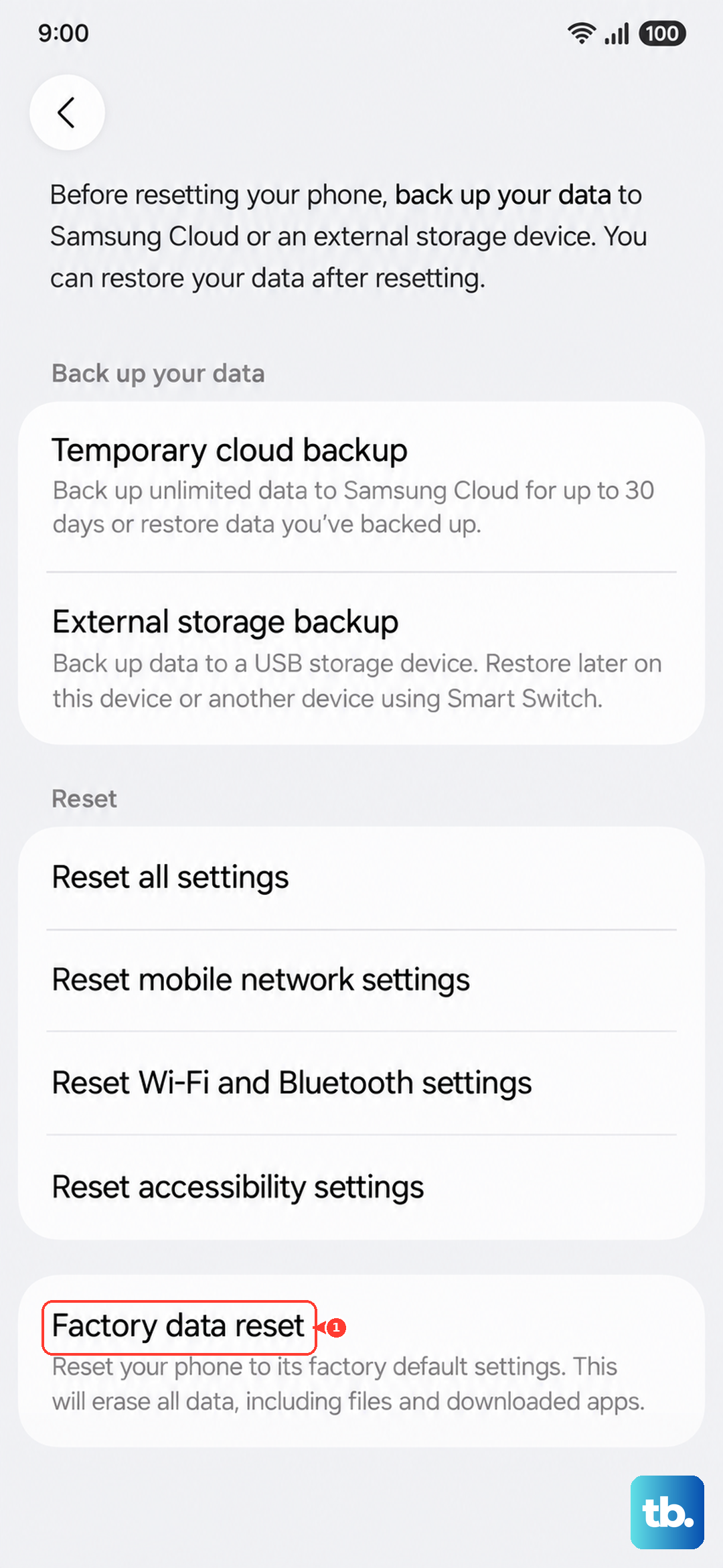
If the screen is too black to see the recovery menu, you might be able to use Samsung's Find My Mobile service from a web browser on another device. If you had it set up, you can remotely lock or factory reset your Galaxy A56, which can sometimes kick it out of a software lock-up.