
If your Samsung Galaxy A56 screen is stuck in one orientation, it's usually a quick settings fix. The most common reason is that the auto-rotate toggle got switched off by accident, maybe from a swipe in the notification panel.
Pull down the notification shade and look for the icon that says "Portrait" or "Auto rotate." Tap it once to switch it on. When it's active, the icon will be blue or highlighted. I'd start with this one, as it solves the issue about 90% of the time.
Enable Home Screen Rotation in One UI
By default, Samsung's One UI doesn't rotate the home screen, even with auto-rotate on. If you're trying to get your app icons to flip to landscape, you need to enable a separate setting.
Pull down the notification panel and tap the text label that says "Portrait" or "Auto rotate," not just the icon. This opens a small menu. Inside, toggle on the option for "Home screen and Voice call screen." On your A56 with One UI 7, this is what allows your main home screen pages to rotate.
Perform a Force Restart
A simple restart can clear out temporary software glitches that might be freezing the sensor. For the Galaxy A56, the method is the same as the S series: press and hold the Volume Down button and the Side (power) button together for about 10 seconds.
Keep holding until you see the Samsung logo appear, then release. The phone will reboot. This doesn't delete any data, it just gives the system a fresh start. Test the rotation after it fully boots up.
Check for App-Specific Rotation Lock
Sometimes the problem isn't with your phone, but with a specific app. Video players, games, or reading apps often lock their orientation. If rotation works fine in your camera or web browser but not in one particular app, that app is likely controlling it.
Look inside that app's own settings for a rotation or orientation lock option. Also, if the issue started after installing a new app, that app could be causing a conflict. Try uninstalling recent apps to see if the behavior returns to normal.
Update Your Phone's Software
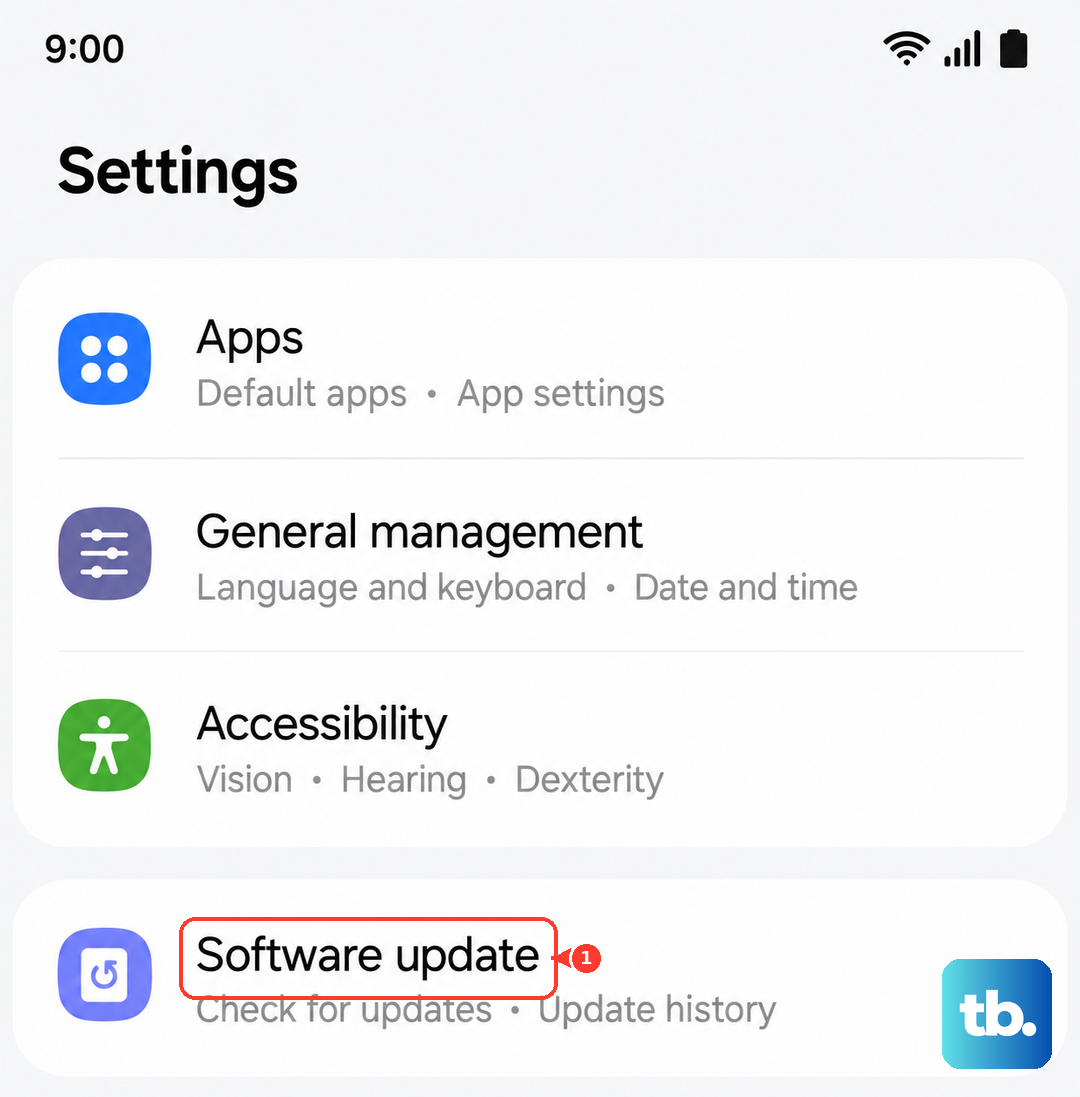
Occasionally, a bug in the system software can affect sensor performance. Samsung regularly releases updates that fix these kinds of issues. It's worth checking if your A56 is running the latest version of One UI and Android.
Go to Settings > Software update > Download and install. If an update is available, connect to Wi-Fi and let it install. A software update has fixed sensor problems for many users in the past.
Test the Sensors with Diagnostic Mode
Your A56 uses an accelerometer and gyroscope to detect movement. You can test these directly with Samsung's hidden diagnostic menu. Open your Phone dialer and type *#0*#.
This will launch a secret test screen. Tap on "Sensor." You'll see a test screen with various readings. Place your phone on a flat surface, then slowly tilt and rotate it. The values for "X_Angle," "Y_Angle," and "Z_Angle" should change smoothly as you move. If they don't change at all, it could point to a hardware fault.
Check for Physical Interference
This sounds simple, but make sure you're not accidentally touching the screen while trying to rotate the phone. The touchscreen is very sensitive, and palm contact can sometimes prevent the orientation from changing. Also, ensure you're rotating the phone fully between portrait and landscape; a slight tilt often isn't enough.
If you use a very thick or poorly fitted case, it might be putting pressure on the frame and interfering with the sensors. Try removing the case temporarily and see if rotation works normally without it.
Consider a Hardware Sensor Issue
If you've tried all the software steps (toggling settings, force restarting, updating software, and the diagnostic test shows no sensor movement), the problem might be physical. The A56's sensors are part of the main logic board and can be damaged by a significant drop or liquid exposure.
Since the A56 doesn't have an official IP water resistance rating, moisture damage is a possibility. If you've had the phone near water and later see rotation problems along with a moisture detection warning in the USB-C port, the issues could be related. In that case, the sensors would need professional inspection at a repair center.