
When your Galaxy A55's voice assistant stops responding, it can feel like you've lost a helpful companion. Whether it's Bixby or Google Assistant that's gone quiet, the issue usually comes down to a few common settings or a minor software hiccup. Let's get it listening and talking again.
Start With a Quick Restart
Before diving into settings, give your phone a fresh start. Press and hold the Volume Down button and the Side button (power button) together for about 10 seconds. Keep holding until you see the Samsung logo appear on the screen, then let go.
This force restart clears out any temporary glitches in the system that might be preventing the microphone or voice service from working properly. It's the fastest thing to try and often does the trick.
Check Your Primary Assistant Settings
First, figure out which assistant you're trying to use. The A55 can use Bixby, Google Assistant, or both. Open your Settings app and look for "Apps." Tap on "Choose default apps" and then "Digital assistant app."
Here, you can set your preferred assistant. If it's set to "None," that's your problem. Select either Bixby or Google Assistant. Next, go back to Settings and find the specific settings for your chosen assistant, look for "Google" or "Bixby" in the main settings list.
Inside the assistant's settings, make sure the "Hey Google" or "Hi Bixby" wake word feature is toggled on. Also, verify that the microphone permission is enabled for the assistant app under Settings > Apps > [Assistant Name] > Permissions.
Review Your Sound and Accessibility Settings
Certain modes and features can interfere with your phone's ability to listen. Open Settings and go to "Sounds and vibration." Make sure your phone isn't in Silent or Do Not Disturb mode, as this can sometimes mute the assistant's responses.
Another setting to check is in Accessibility. Go to Settings > Accessibility > Advanced settings > Notification reminders. If this is turned on, it can occasionally conflict with voice wake-up commands. Try turning it off temporarily to test.
Also in Accessibility, check "Sound detectors." This feature, designed to listen for specific sounds like a baby crying, will disable the "Hey Google" wake word when it's active. Make sure it's switched off.
Check for Physical Microphone Blockages
The Galaxy A55 has microphone ports at the bottom and top of the phone. Carefully inspect these small holes for any lint, dust, or debris that might have accumulated in your pocket or bag.
You can gently clean them with a soft, dry toothbrush or a can of compressed air. Avoid using anything sharp like a pin, as you could easily damage the sensitive microphone inside. Also, check if your phone case is improperly aligned and covering any of the mic holes.
Retrain the Voice Model for Better Recognition
If the assistant hears you but doesn't activate, it might need a refresher on your voice. For Google Assistant, open the Google app, tap your profile picture, go to Settings > Google Assistant > Hey Google & Voice Match.
Tap "Retrain voice model" and follow the prompts, speaking the phrases clearly. For Bixby, open the Bixby app (or say "Hi Bixby" and tap the settings icon), then go to Voice > Voice wake-up and follow the re-training steps there.
This process helps the software better understand your specific accent and tone, especially if you've had the phone for a while and your voice model might be outdated.
Update Your Apps and System Software
An outdated version of the Google app, Bixby, or the One UI software itself can cause compatibility issues. Open the Galaxy Store to check for Bixby updates and the Google Play Store to update the Google app.
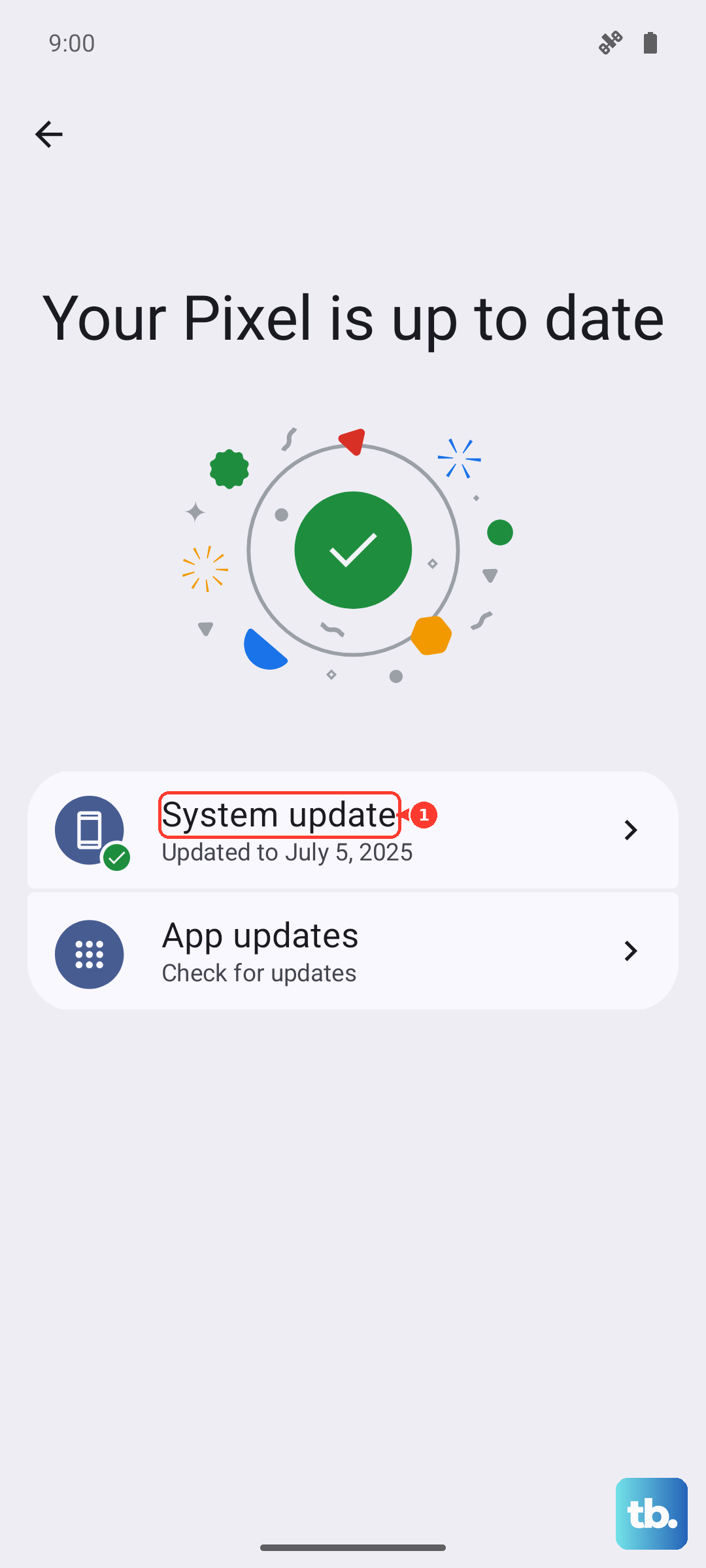
More importantly, check for a system update. Go to Settings > Software update > Download and install. Samsung frequently releases updates that fix bugs affecting microphone performance and voice services. Installing the latest patch can resolve the problem instantly.
Clear the Cache for the Assistant App
Corrupted temporary data (cache) can break app features. Go to Settings > Apps, then find and select your voice assistant app (Google or Bixby). Tap on "Storage" and then tap "Clear cache."
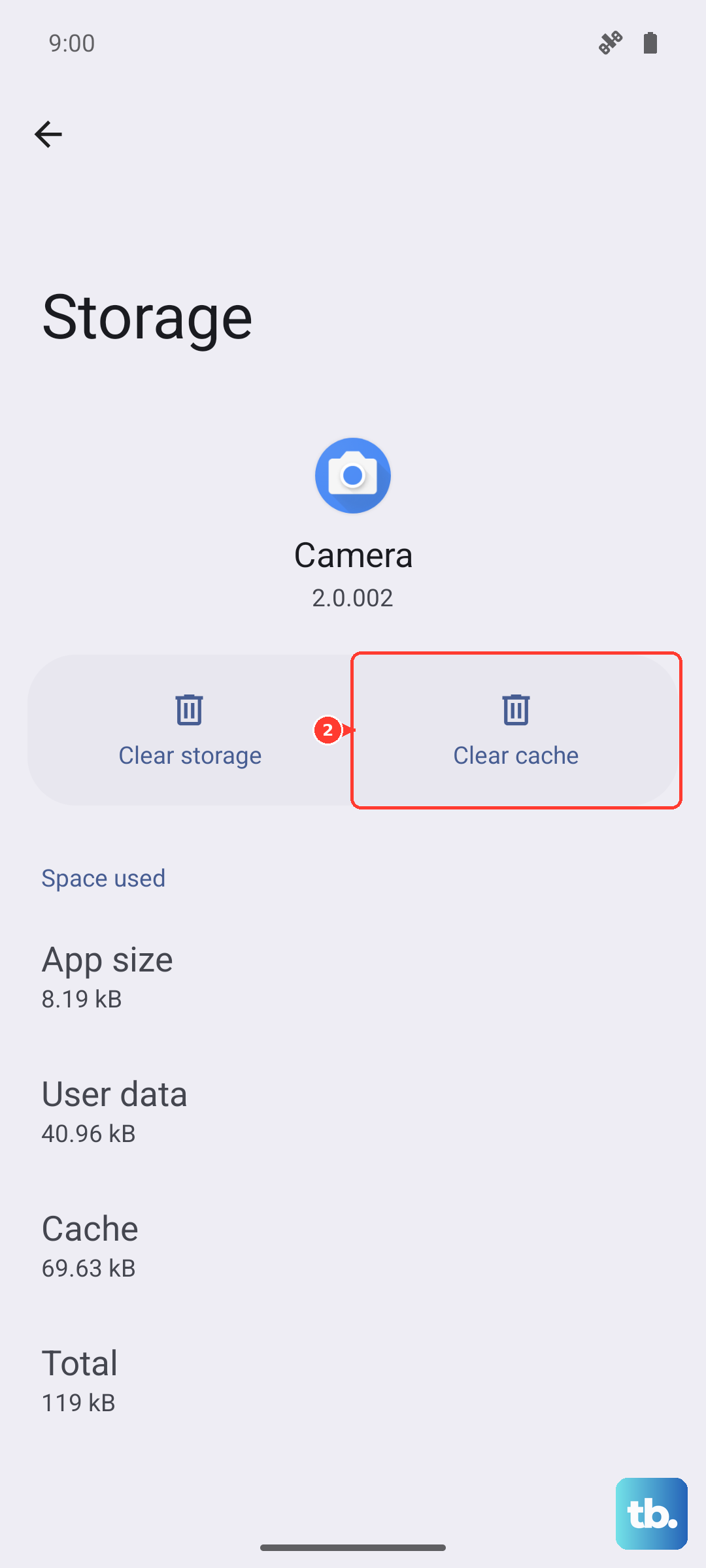
This doesn't delete any of your personal data or settings. It simply removes temporary files that might have become corrupted. After clearing the cache, restart your phone and test the voice command again.
Reset All App Preferences
This is a broader fix that resets permissions, default apps, and background restrictions without touching your personal data. Go to Settings > Apps, then tap the three-dot menu in the top right and select "Reset app preferences."
You'll need to re-grant permissions when you use apps for the first time afterward, but it can resolve conflicts where the microphone permission for your assistant was somehow revoked or misconfigured by another app.
Check for Network Issues
While basic commands can be processed on the device, many assistant requests require an internet connection. If you're on mobile data, ensure you have a strong signal. If you're on Wi-Fi, try toggling it off and on again.
You can also try putting your phone in Airplane mode for 30 seconds and then turning it off. This resets the network radios and can clear up a connectivity glitch that's preventing the assistant from contacting its servers.
Perform a Network Settings Reset
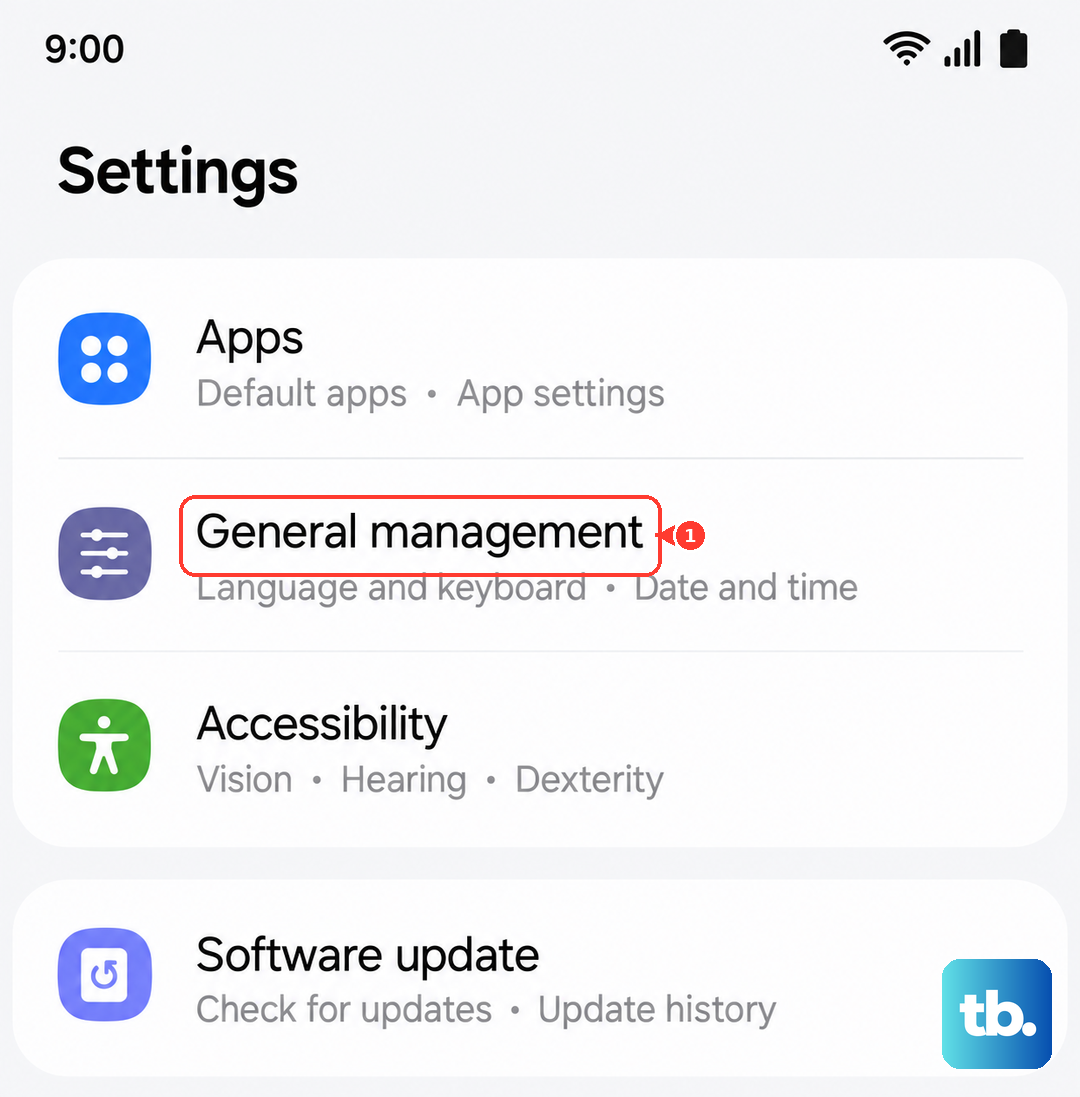
If you suspect a deeper network configuration problem is blocking the assistant, you can reset your network settings. Go to Settings > General management > Reset > Reset network settings.
This will erase all saved Wi-Fi networks, Bluetooth pairings, and mobile network settings. You'll have to reconnect to Wi-Fi and re-pair Bluetooth devices, but it can fix persistent issues related to connectivity that affect online-dependent services like your voice assistant.