
Seeing a "SIM Not Provisioned" or "SIM Card Not Provisioned MM2" message on your Samsung Galaxy A55 can stop you from making calls or using mobile data right in its tracks. This error means your phone can't properly connect your SIM card to your carrier's network, so it's essentially not recognized as an active line.
It's a common hiccup that usually has a straightforward fix. I'd start by checking if the SIM is properly activated with your carrier, as that's the most frequent culprit, especially with a new card or a recently changed plan.
Restart Your Galaxy A55
A simple restart can clear out temporary software glitches that might be blocking the network connection. Just press and hold the Side button and Volume Down button together for about 10 seconds until you see the Samsung logo appear.
Wait for the phone to boot up completely and see if the error is gone. This is the quickest thing to try and it often works.
Check Your SIM Card Activation Status
If this is a brand new SIM card or you just switched to a new plan, it might not be fully activated on your carrier's system yet. The same goes if you've recently ported your number from another provider.
You'll need to contact your mobile carrier's customer service directly to check. They can look up your account and see if the SIM is properly registered and active. Sometimes activation can take a few hours, but they can usually push it through on their end.
Toggle Airplane Mode On and Off
This forces your phone's radio to disconnect from the network and reconnect fresh, which can resolve a stale connection. Swipe down from the top of your screen twice to open the full Quick Settings panel.
Tap the Airplane Mode icon to turn it on. Wait for about 30 seconds, then tap it again to turn it off. Your phone will search for the network again, and this often clears up the provisioned error.
Reinsert the SIM Card
The SIM might not be making a good connection in the tray. First, power off your Galaxy A55 completely. Find the SIM ejector tool that came in the box (a small metal pin) and insert it into the tiny hole on the SIM tray, usually on the bottom edge of the phone.
Gently pull the tray out and carefully remove the SIM card. Give the gold contacts on the card a quick look for any obvious dirt or damage. Blow gently on the tray slot to clear any dust, then reseat the SIM card firmly and slide the tray back in. Power your phone back on.
Manually Select Your Network Operator
Your phone might be trying to connect to the wrong network tower. You can manually tell it which carrier to use. Open the Settings app and go to Connections > Mobile networks.
Tap on Network operators. The phone will search for available networks. Once the list appears, select your specific carrier's name from the options. Don't choose one that says "Forbidden."
Update Your Phone's Software
An outdated system can sometimes have bugs that affect network connectivity. Samsung regularly releases updates that fix these kinds of issues. Go to Settings > Software update and tap Download and install.
If an update is available, make sure you're connected to Wi-Fi and let it install. After the phone restarts, check if the SIM error is resolved.
Check Your Account Balance or Plan Status
For prepaid users, a lack of funds will suspend service. Even on postpaid plans, a missed payment can cause a temporary suspension that triggers this error. Log into your carrier's app or website to check your account status and current balance.
If everything looks fine there, it's still worth a quick call to customer service to confirm there are no blocks or flags on your line that you can't see from your end.
Reset Your Network Settings
This will wipe all your saved Wi-Fi networks, Bluetooth pairings, and mobile network preferences back to default. It's a strong step that often fixes persistent connection problems. First, go to Settings > General management.
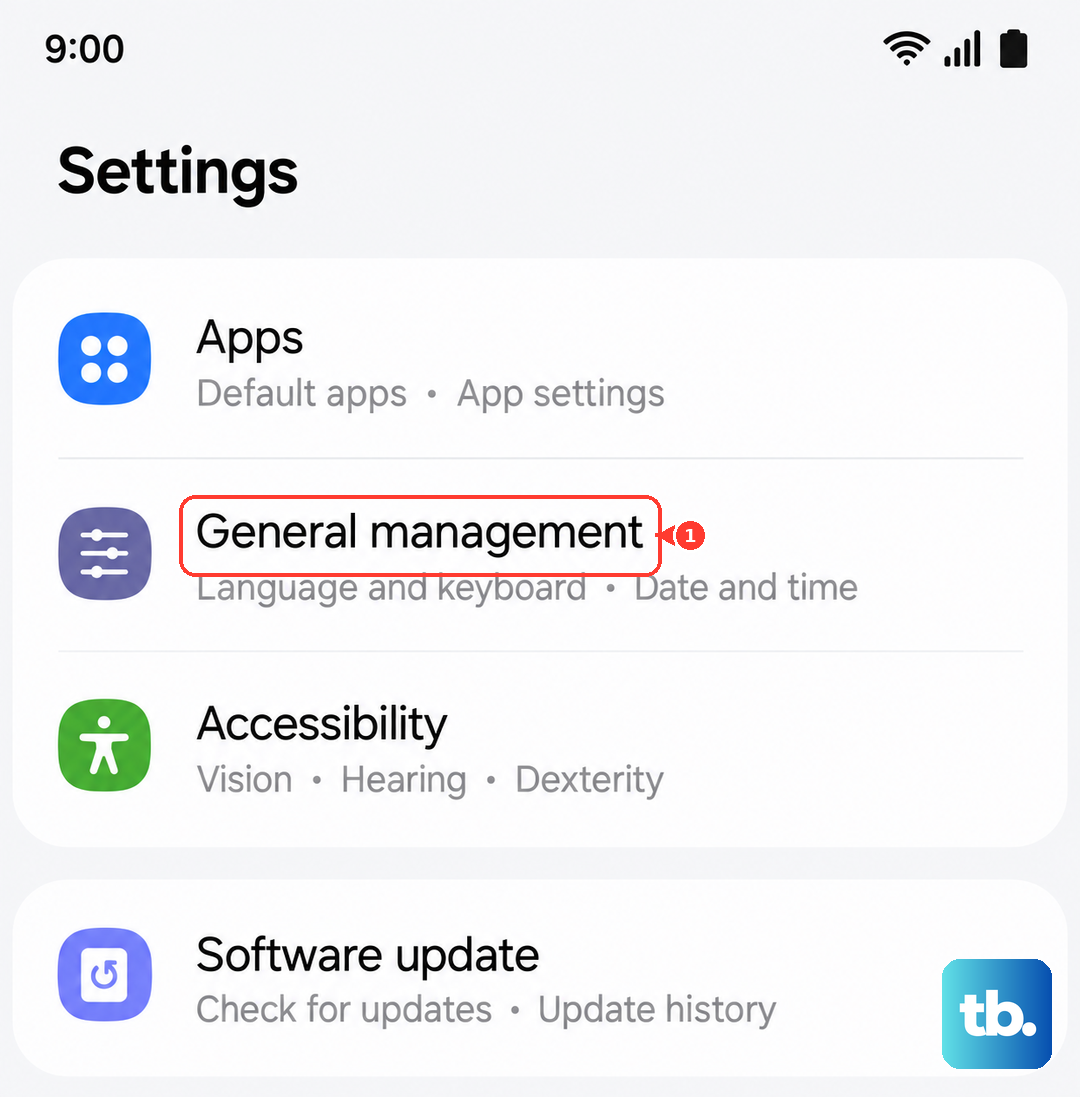
Tap on Reset and then select Reset network settings. You'll need to confirm your PIN or password. After the reset, your phone will reboot and you'll need to reconnect to Wi-Fi and re-pair Bluetooth devices, but the SIM error may be gone.
Try the SIM Card in Another Phone
This test tells you if the problem is with the SIM card itself or with your Galaxy A55. Find another unlocked phone that uses the same size SIM (likely a Nano-SIM) and insert your SIM card into it.
If the other phone also shows a "Not Provisioned" error, then the issue is definitely with the SIM or your carrier account. If the SIM works perfectly in the other phone, the problem is likely within your A55's hardware or software.
Contact Your Mobile Carrier for Support
If you've tried everything here and the error persists, your carrier's technical support team needs to get involved. They can run deeper diagnostics on your line, check for network outages in your area, and determine if you need a replacement SIM card.
They can also reprovision your SIM on their network, which is essentially telling their system to recognize it all over again. Have your account information and phone's IMEI number ready when you call; you can find the IMEI in Settings > About phone.