Screen flickering on your Samsung Galaxy A55 is incredibly distracting, making it hard to read or use your phone. You might see the display flash, pulse, or show weird lines. This can be caused by a software hiccup, a problematic app, or a deeper hardware issue. Let's get it sorted.
Start with a free online monitor test to check the panel with fullscreen test patterns. What you see there tells you whether to blame the display, the cable, or the source.
Force Restart Your Phone
This is the quickest fix for a temporary software glitch. Press and hold the Volume Down button and the Side (power) button together for about 10 seconds. Keep holding until you see the Samsung logo appear, then let go. This forces a clean reboot and often clears up random display problems right away.
Disable Adaptive Brightness
Your A55's screen brightness automatically adjusts to your surroundings. If the ambient light sensor gets confused, it can cause the screen to flicker as it tries to compensate. Swipe down twice for the Quick Settings panel and tap the Adaptive brightness icon to turn it off. You can also go to Settings > Display and toggle it off there. After disabling it, manually set your brightness to a comfortable level.
Check for a Software Update
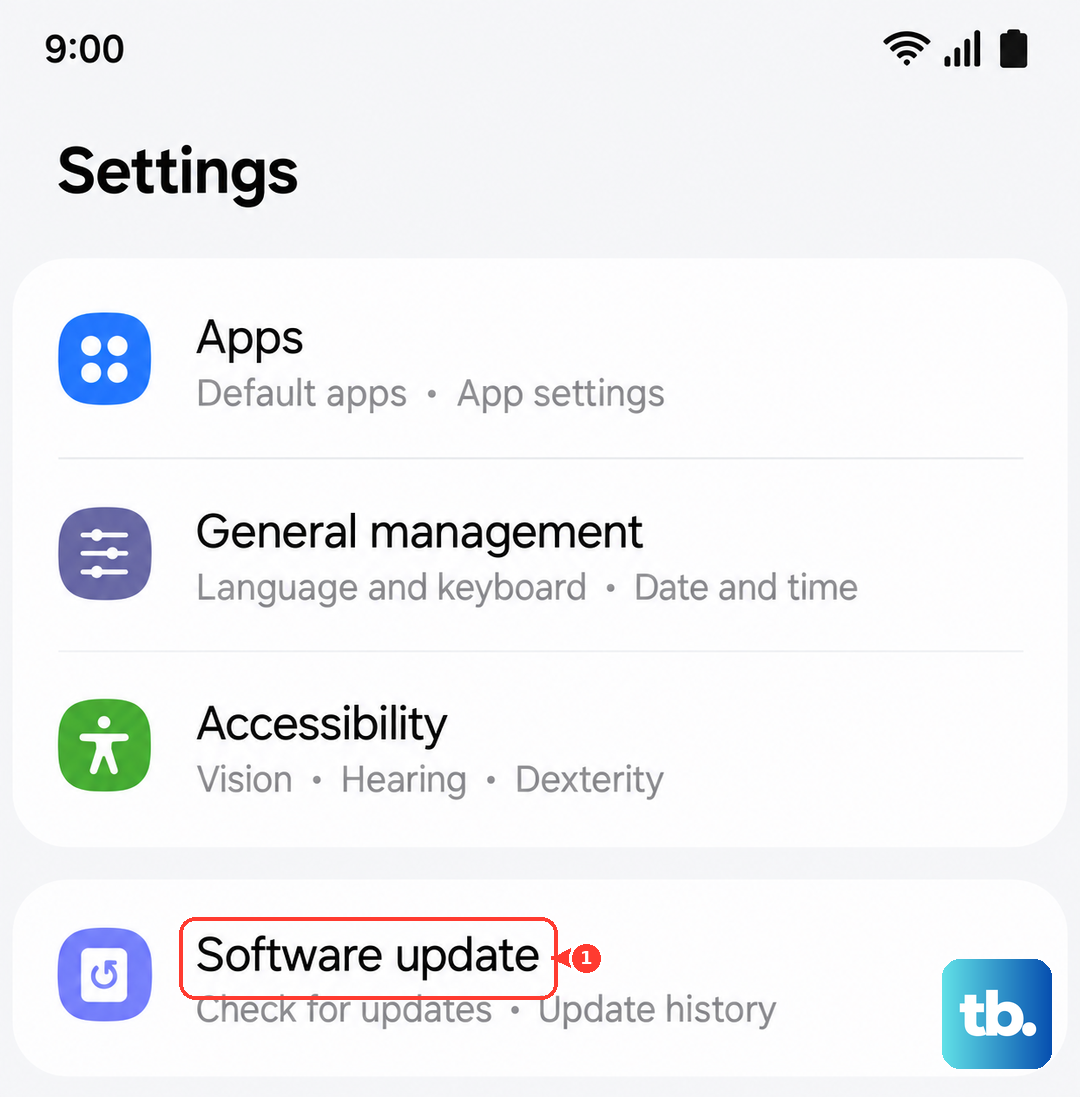
Samsung regularly releases updates that fix bugs, including display issues. Go to Settings > Software update and tap Download and install. Make sure your phone is connected to Wi-Fi and has enough battery. I've seen updates specifically target screen stability problems on recent Galaxy models, so this is a crucial step.
Close Problematic Apps
A specific app, especially one with heavy graphics or overlays, could be causing the trouble. Open your recent apps view by swiping up from the bottom and holding. Swipe up on each app to close it completely. Restart your phone after doing this, then see if the flickering is gone. If it stops, you can reopen your apps one at a time to try and identify which one was the culprit.
Boot Into Safe Mode
Safe Mode temporarily disables all third-party apps. If the flickering stops in Safe Mode, you know a downloaded app is to blame. To enter Safe Mode, press and hold the power button until the power menu appears. Then, tap and hold the Power off option. You'll see a prompt to restart in Safe Mode; tap it. Your screen will say "Safe mode" in the bottom corner. Use your phone normally here to see if the issue persists.
Adjust Motion Smoothness Settings
The Galaxy A55 lets you choose between a standard 60Hz refresh rate and a smoother 120Hz option. Sometimes, the software managing this high refresh rate can glitch. Go to Settings > Display > Motion smoothness. Try switching from Adaptive to Standard. This changes how fluid animations look, but it can also stop erratic screen behavior.
Reset All Settings
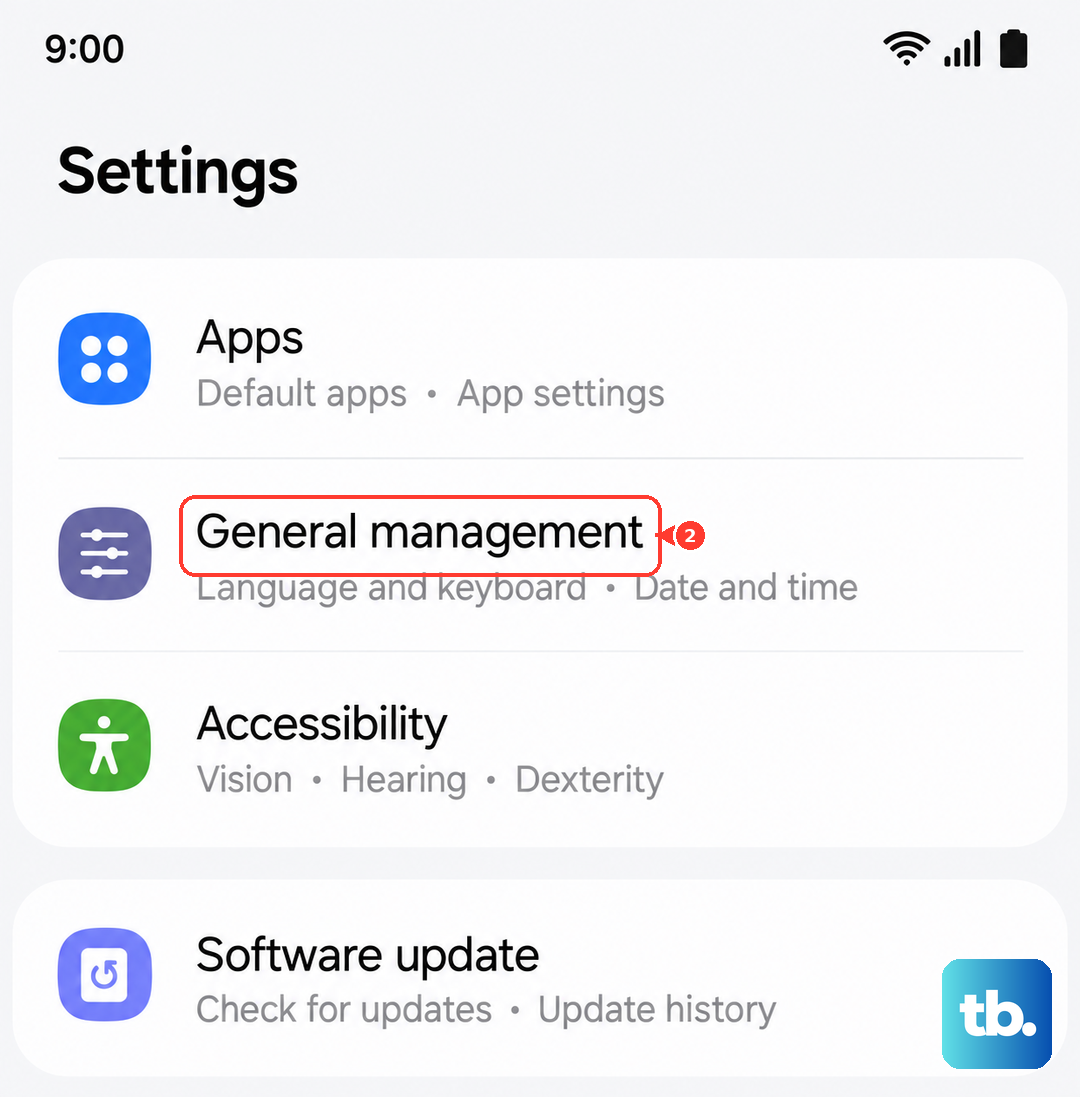
This resets every system setting on your phone back to factory defaults without touching your personal data. It will clear your Wi-Fi passwords, display preferences, and ringtones, but it's very effective for configuration errors. Go to Settings > General management > Reset > Reset all settings. Enter your PIN if prompted and confirm. After the phone reboots, you'll need to reconfigure your preferences, but the flickering may be gone.
Inspect for Physical Damage
If the flickering started after you dropped your A55 or got it wet, there could be internal damage. The USB-C port on the A55 is less water-resistant than on flagship models, so moisture ingress is a possibility. Look closely at the screen for any new cracks, spots, or areas of discoloration. Even a small, hairline crack can disrupt the display's internal connections.
Perform a Factory Reset
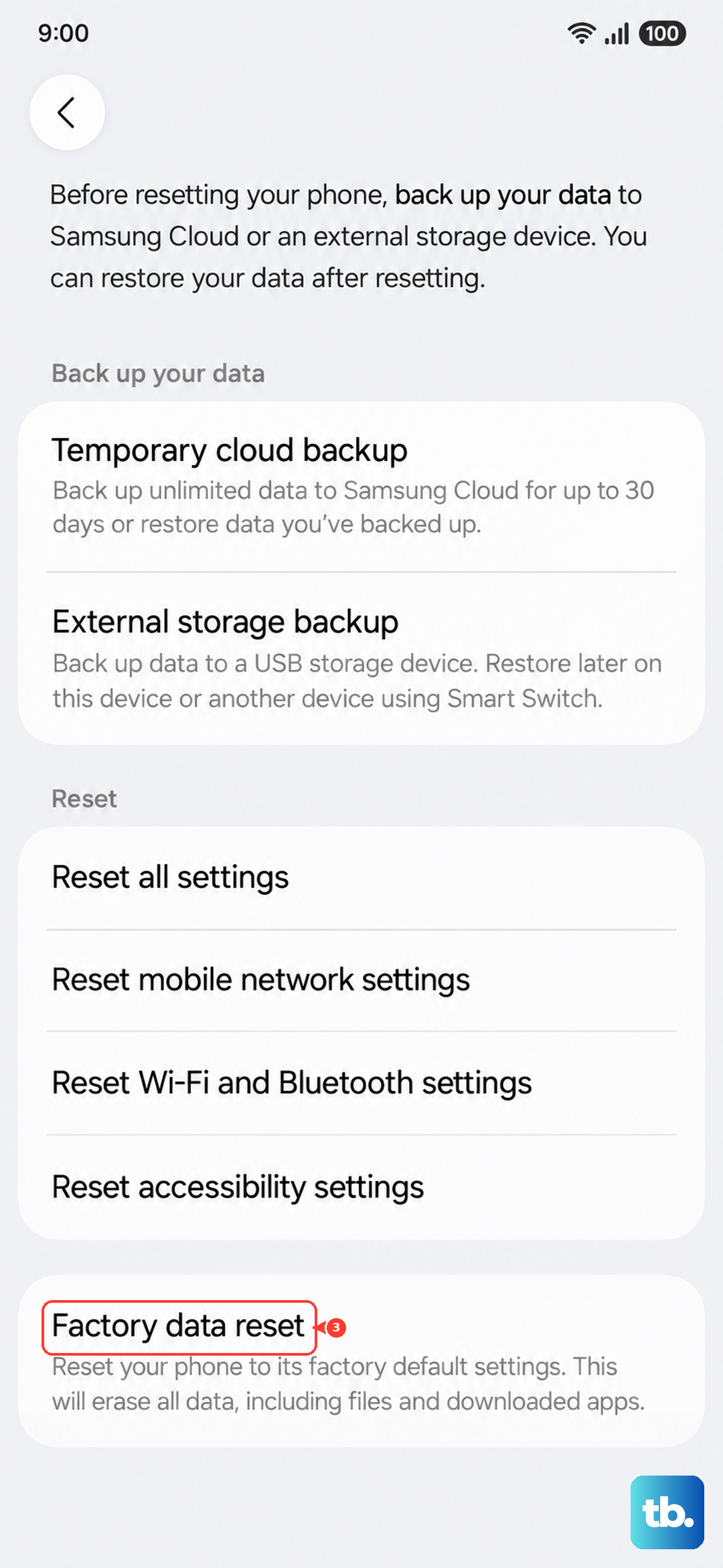
This is your last software step before considering a repair. A factory reset will erase all your data and apps, returning the phone to its original state. First, make sure everything important is backed up to your Samsung account or Google Drive. Then, go to Settings > General management > Reset > Factory data reset. Follow the prompts to erase everything. If the screen still flickers on a completely fresh phone, the issue is almost certainly hardware-related.