You plug in or pair your headphones, hit play, and the Galaxy A55 5G stays silent, routes the sound to its own speaker, or refuses to connect at all. It is a frustrating problem on a phone you rely on for music, calls, and video, and it is made more confusing by one detail many owners miss. The A55 has no 3.5mm headphone jack at all. That single fact rules out some old habits and points you toward a short list of checks that actually work. Run through the fixes below in order, starting with the quickest and safest, and you will usually have audio back in your ears within a few minutes.
Before working through the fixes, run a quick headphone test in your browser. It plays the left and right sides separately, so you can tell right away whether one channel is actually dead.
Start by working out which headphones the A55 can actually use
The Galaxy A55 5G does not have a 3.5mm headphone port. According to Samsung's support guidance, newer Galaxy devices "no longer feature dedicated 3.5mm headphone sockets, utilising instead a USB-C convertor." In practice that gives you three legitimate options. You can use Bluetooth headphones such as Galaxy Buds, USB-C wired headphones with a digital output, or a standard 3.5mm headset plugged into a USB-C-to-3.5mm adapter.
If you have been pushing a 3.5mm plug straight into the USB-C port, that is your whole problem, because the two connectors are not compatible and no sound will ever come through. Confirm which type of headphones you own before you try anything else, since the rest of these fixes split along that line.
Rule out the volume and a hidden audio route
Before you dig into pairing or hardware, make sure the obvious is covered. Turn the media volume up, confirm the phone is not muted, and check that the audio is not quietly being sent to a different output.
Samsung's Separate app sound feature can send one app's audio to a separate speaker or device instead of your headphones, which looks exactly like headphones that are not working. Open Settings > Sounds and vibrations > Separate app sound, then tap the switch to confirm it is off, or that it is pointed at the output you actually want.
Power-cycle the phone and the headphones together
A restart clears the temporary glitches behind most audio and connection hiccups, so restart both the phone and the Bluetooth device when sound or pairing fails. Press and hold the Volume down button and the Side button simultaneously until the device turns off and turns back on, then turn your Bluetooth headphones off and on as well.
If the screen has frozen and a normal restart will not go through, force one instead. Press and hold the Volume down and Side buttons together until the screen goes black and the phone restarts. If a Maintenance mode screen appears, choose Normal Boot.
Wired listening only works through USB-C with a built-in DAC
For wired audio the A55 needs either USB-C headphones with a digital output or, according to Samsung, "a USB Type-C to 3.5mm Headset Jack Convert Adapter with built in DAC." The DAC, or digital-to-analog converter, is the part that matters. Samsung warns that "if you choose an adaptor from a different manufacturer, always ensure that it is DAC compatible," because an analog, non-DAC adapter can trigger a compatibility error and produce no sound at all.
While you are at it, reseat the plug so it is fully connected, and inspect the USB-C port for lint or debris that can block a clean contact. A blocked or partly seated connector is a common reason wired audio cuts out or never starts.
Sort the Bluetooth fundamentals before anything else
For wireless headphones, a few basics solve most failures. Make sure the headphones are charged and actually in pairing mode, and keep them close to the phone while you test.
Crucially, your headphones may refuse to connect if they are already paired to another device, so disconnect them from that phone, tablet, or laptop first. Distance and interference can also break the connection, so close the gap and clear any obstacles between the headphones and the phone before you assume something is broken.
Pair, or forget and re-pair, your Bluetooth headphones
With the headphones in pairing mode, go to Settings > Connections > Bluetooth, make sure Bluetooth is enabled, scroll to Available devices, and select your headphones, tapping OK to confirm if prompted. For a shortcut, swipe down from the top of the screen, touch and hold the Bluetooth icon to open the same settings, enable Bluetooth, then choose the device under Available devices.
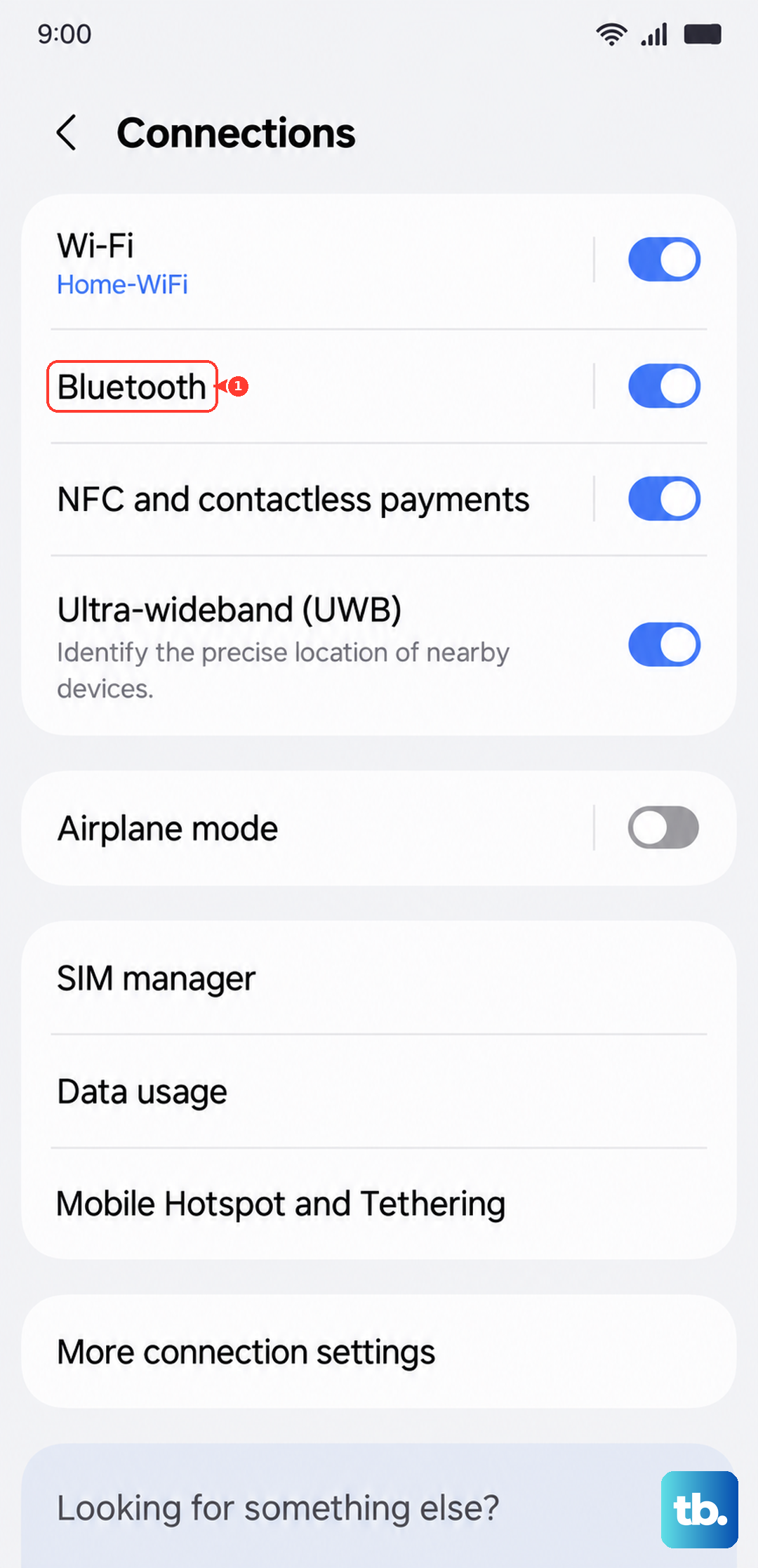
If the headphones were paired before but now refuse to connect, clear the old pairing and start fresh. Forgetting a device removes only that saved pairing, so you simply pair it again afterward.
- 1.Go to Settings > Connections > Bluetooth.
- 2.Tap the device's settings icon.
- 3.Tap Forget device.
- 4.Put the headphones back into pairing mode and pair them again.
For Galaxy Buds, lean on the Galaxy Wearable app
Samsung earbuds and watches connect and are managed through the Galaxy Wearable app, which is also where you install their firmware updates. If you are using Galaxy Buds, open Galaxy Wearable to reconnect them and to install any pending earbud firmware update, which often clears dropouts and one-side-only audio.
For non-Samsung wireless headphones, check the accessory maker's own app for firmware updates, since outdated earbud firmware can cause the same symptoms regardless of brand.
Keep One UI up to date
An outdated system build can carry audio and Bluetooth bugs that no amount of re-pairing will fix. Open Settings, tap Software update, tap Download and install, then follow the on-screen instructions, and the phone restarts to finish installing.
Keep the battery charged and stay on Wi-Fi during the update so it does not stall partway through.
Dig deeper with a connections reset and Safe mode
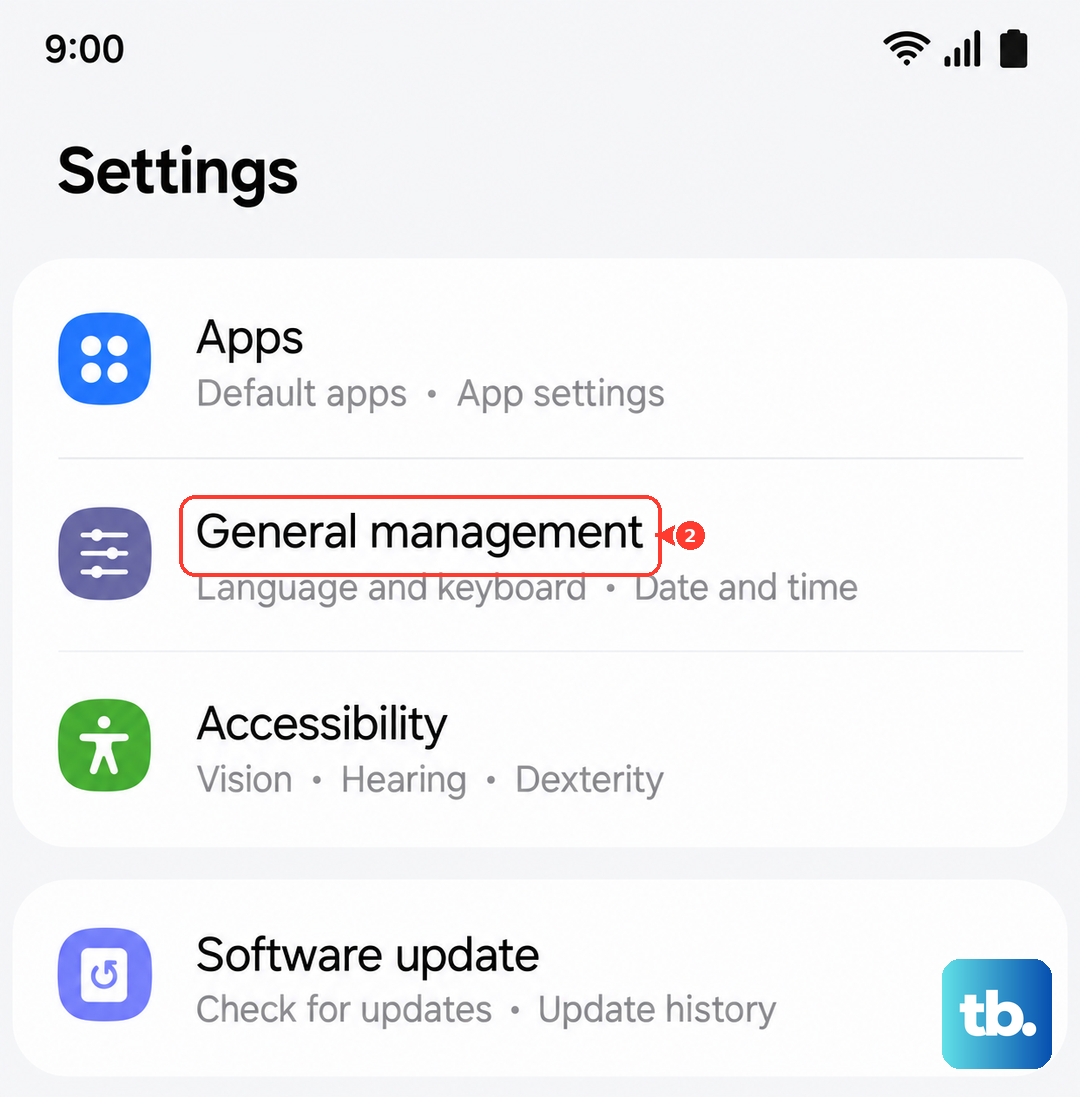
If pairing and re-pairing have not helped, two deeper checks are worth running before anything drastic. The first clears corrupted Bluetooth pairings without touching your personal files. Go to Settings > General management > Reset > Reset Wi-Fi and Bluetooth settings, shown on some builds as "Reset network settings," then pair your headphones again.
The second rules out a downloaded app that is hijacking audio output. Power the phone off, turn it on, and when the Samsung logo appears press and hold the Volume down button until "Safe mode" shows in the bottom-left corner. Test your headphones, and if they work in Safe mode a third-party app is the cause, so uninstall recently added apps one at a time. Restart the phone normally to leave Safe mode.
When a factory reset and Samsung support are the last call
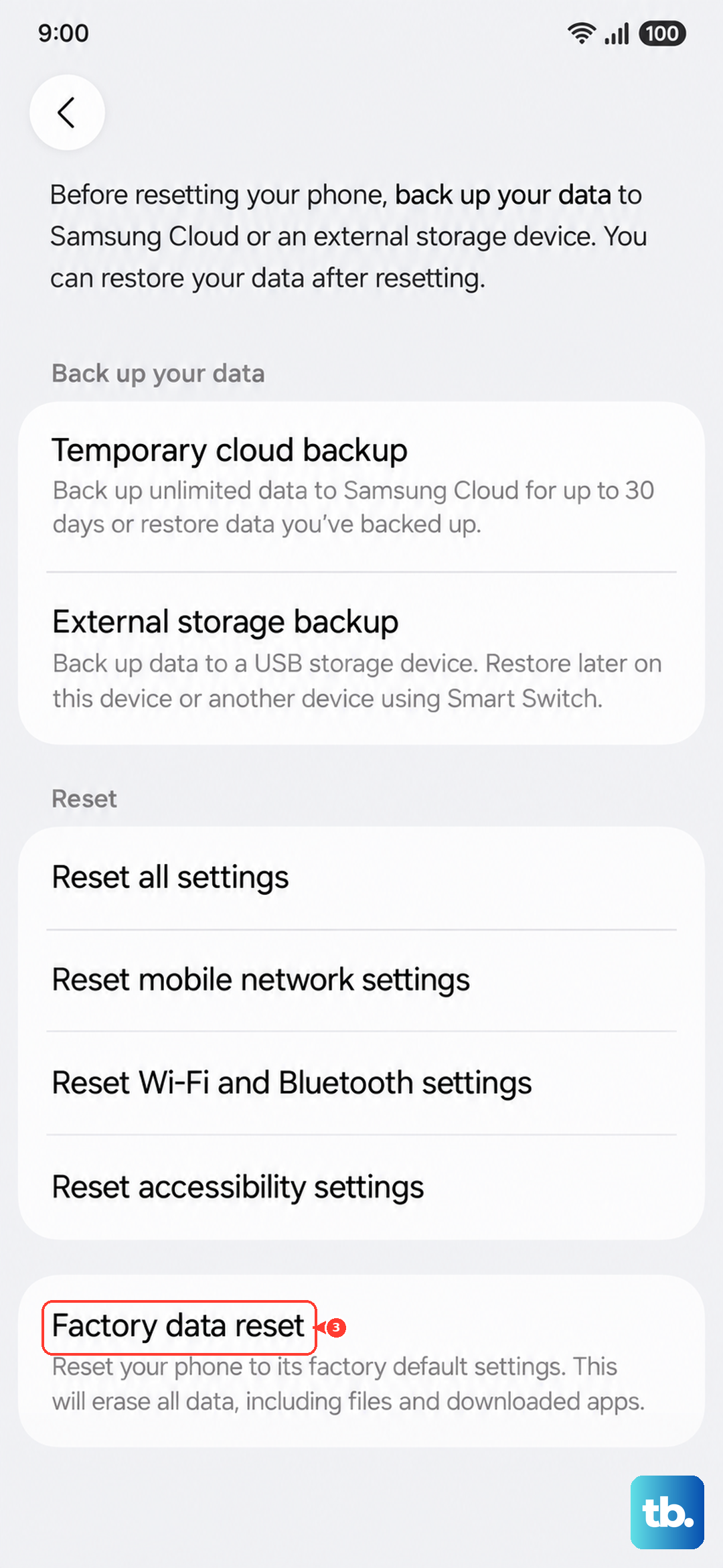
If nothing above restores sound, a factory reset is the final software step, but back up first. A factory reset completely erases your personal information and data, and that data may not be recoverable, so save anything you need before you begin.
Once your data is safe, go to Settings > General management > Reset > Factory data reset > Reset > Delete all, entering your lock credentials and Samsung account password if prompted. If headphones still will not work after a clean reset, the fault is most likely hardware, so book a visit to a Samsung service center or schedule a repair through Samsung's online service.
Frequently Asked Questions
Does the Samsung Galaxy A55 have a headphone jack?
No. The Galaxy A55 5G does not include a 3.5mm headphone socket. Samsung says newer Galaxy devices rely on a USB-C convertor instead, so you listen through Bluetooth headphones, USB-C wired headphones, or a 3.5mm headset connected via a USB-C-to-3.5mm adapter.
Why does my USB-C adapter produce no sound on the A55?
The A55 needs an adapter with a built-in DAC. Samsung advises that if you choose an adapter from a different manufacturer you must ensure it is DAC compatible, because an analog, non-DAC adapter can show a compatibility error and play no sound.
How do I reset Bluetooth without erasing my data?
Use Settings > General management > Reset > Reset Wi-Fi and Bluetooth settings, also shown as "Reset network settings." This clears saved Wi-Fi and Bluetooth connections so you can pair fresh, while leaving your personal files in place.
How do I update Galaxy Buds firmware?
Open the Galaxy Wearable app, which is how Samsung earbuds connect and are managed, and install any available earbud firmware update. For non-Samsung headphones, check the accessory maker's app for updates instead.
What should I do if headphones still fail after a factory reset?
A problem that survives a factory reset is most likely a hardware fault. Visit a Samsung service center or schedule a repair through Samsung's online service so the port or audio components can be inspected.