
If your Samsung Galaxy A36 isn't buzzing for calls or notifications, it's a common hiccup that's usually easy to fix. The vibration motor is a small but crucial part of the phone, and a few settings or a minor software glitch can stop it from working.
Perform a Quick Restart
Before diving into settings, give your phone a fresh start. Press and hold the Volume Down and Power buttons together for about 10 seconds until you see the Samsung logo appear. This force restart clears out any temporary software bugs that might be freezing the vibration motor.
Verify Your Sound and Vibration Mode
It sounds simple, but double-check your sound mode. Swipe down from the top of your screen to open the Quick Settings panel. Look for the sound icon, it should say "Sound," not "Vibrate" or "Mute." If it's set to "Mute," vibration is completely disabled.
You can also go into Settings > Sounds and vibration. Here, make sure the "Sound mode" is set to "Sound" and that the "Vibrate while ringing" toggle is switched on. Sometimes just toggling it off and back on can kickstart things.
Adjust the Vibration Intensity
If the vibration feels weak or nonexistent, the intensity might be turned down. In Settings > Sounds and vibration, tap on "Vibration intensity." You'll find separate sliders for calls, notifications, and touch feedback.
Slide each one up to a higher level. I'd test it after each adjustment to see if it makes a difference. On the A36, some users find the default vibration a bit subtle, so cranking it up a notch often helps.
Check App-Specific Notification Settings
Is the problem only with texts from one person or alerts from a specific app like WhatsApp? The issue is likely in that app's notification settings. Go to Settings > Apps, select the problematic app, and tap "Notifications."
Make sure notifications are allowed for that app. Then, tap into each notification category (like "Messages" or "General") and ensure the "Vibrate" option is enabled. Some apps have their own internal vibration settings that override the system.
Test Vibration with Samsung's Secret Menu
This is a great way to check if the hardware itself is broken. Open your Phone dialer and type in *#0*#. This opens Samsung's service menu. Tap the "Vibration" test button.
If your phone vibrates strongly in this test, the motor is physically fine and your problem is purely software or settings related. If there's no vibration at all here, it points more toward a hardware issue.
Update Your Software
Since the Galaxy A36 runs Android 15 with One UI 7, there were some initial bugs reported after launch. Samsung often fixes these kinds of glitches in updates. Go to Settings > Software update > Download and install.
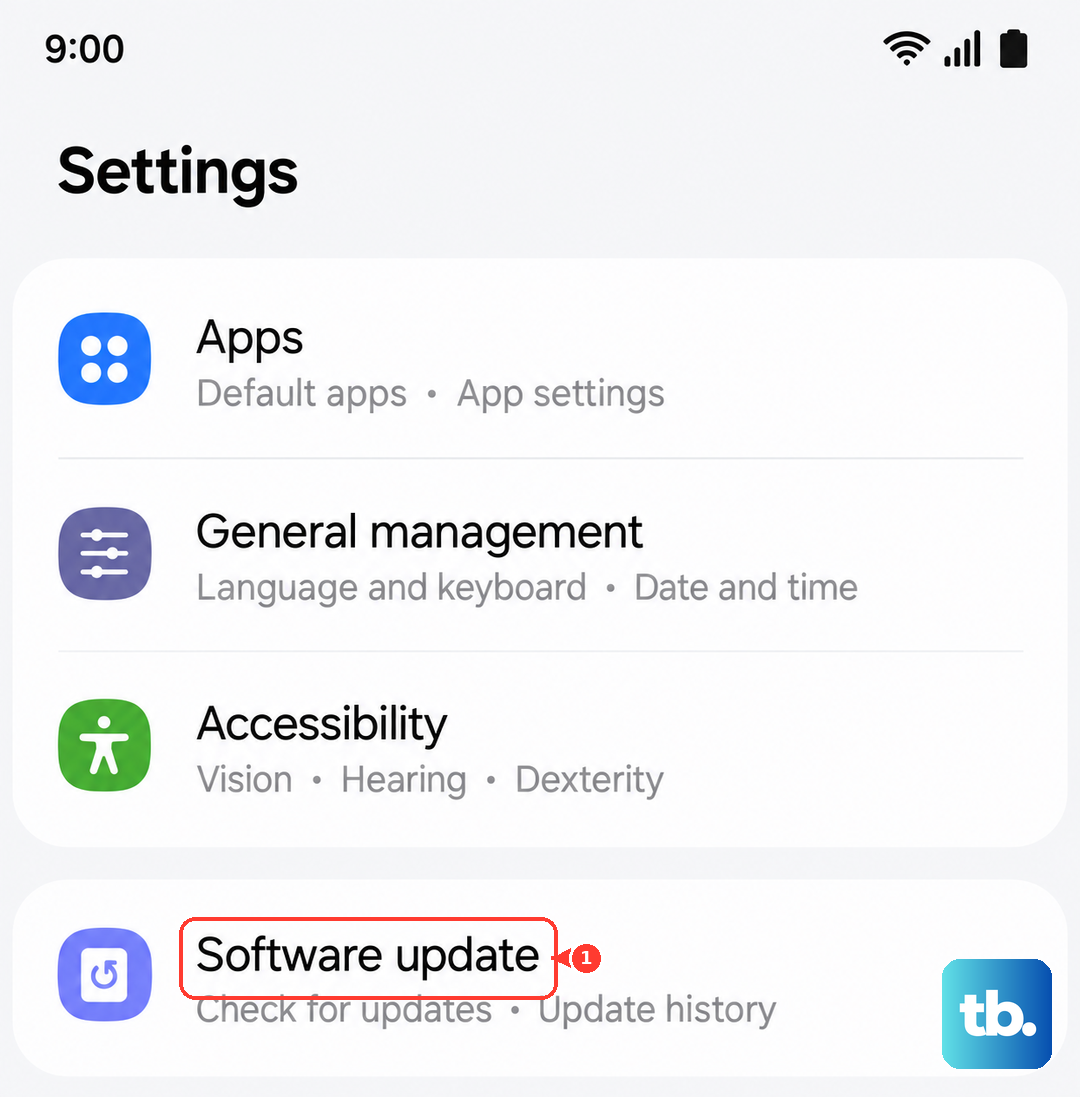
Install any available updates. After the phone restarts, check if vibration is working. A software update can resolve conflicts that affect system functions like the vibration motor.
Boot Into Safe Mode
This tells you if a third-party app you installed is causing the trouble. To enter Safe Mode, press and hold the Power button until the power menu appears. Then, tap and hold the "Power off" option on your screen.
You'll see a prompt to reboot to Safe Mode; tap "OK." Once booted, you'll see "Safe mode" in the bottom corner. Test your vibration now. If it works perfectly in Safe Mode, you'll need to find and uninstall the problematic app you recently downloaded.
Reset All Settings
This is a more thorough step that won't delete your personal data like photos or messages, but it will reset all your preferences. Go to Settings > General management > Reset > Reset settings.
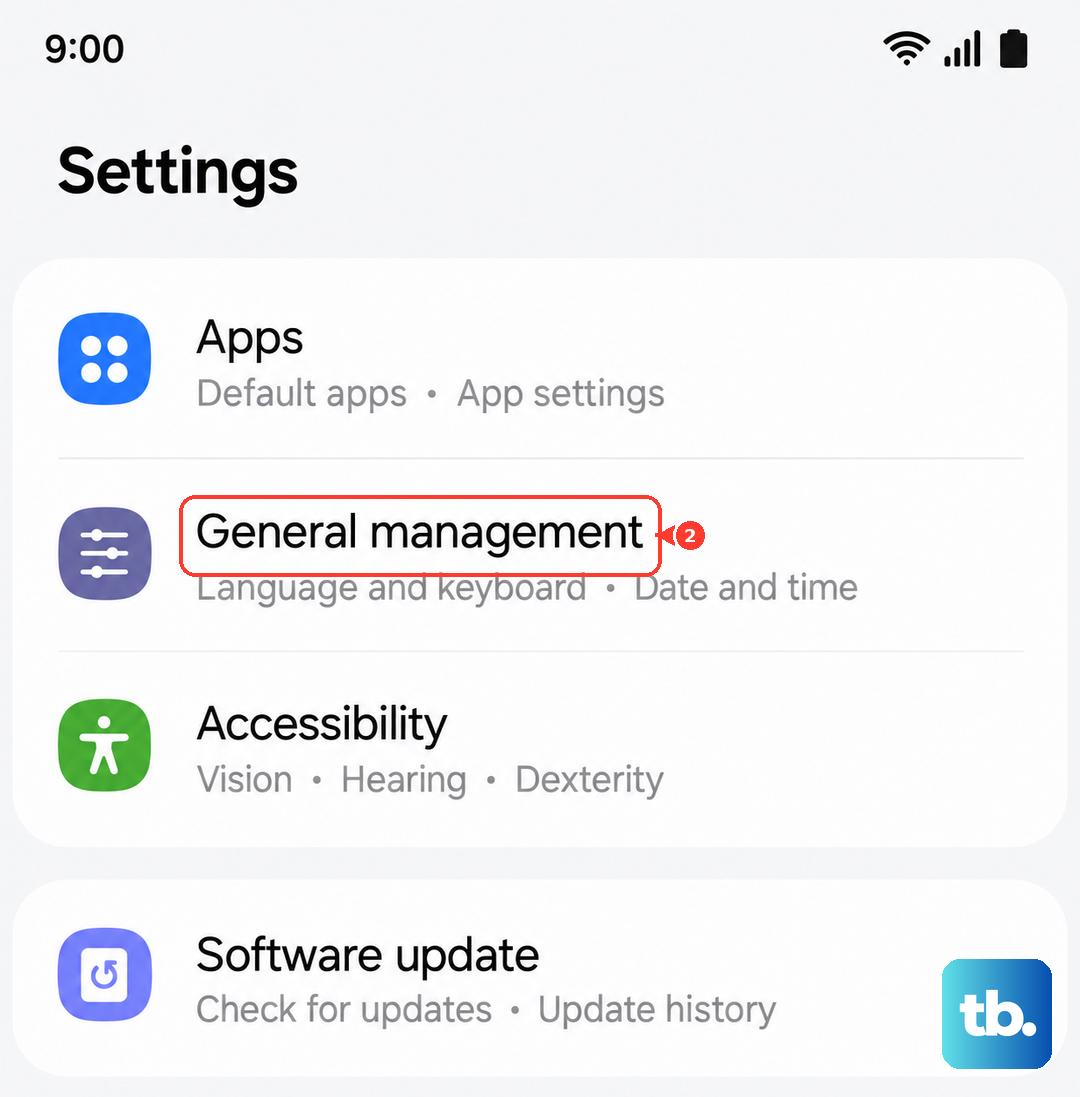
Tap "Reset settings" and confirm. Your phone will reboot. Afterward, you'll need to reconfigure things like Wi-Fi passwords and wallpaper, but it often clears up persistent system glitches affecting hardware features.
Remove Any Custom Themes
Sometimes, a theme downloaded from the Galaxy Store can interfere with system behaviors. To rule this out, apply the default theme. Long-press on an empty spot on your home screen and tap "Themes."
Tap on "Menu" (the three lines) and go to "My themes." Find the "Default" theme and apply it. Restart your phone and see if the vibration returns. It's a less common cause, but I've seen it happen.
Check for Physical Damage or Obstructions
While less likely, it's worth considering if the phone has been dropped or exposed to moisture. The Galaxy A36's fingerprint sensor is known to act up in humid conditions, and moisture could potentially affect internal components like the vibration motor.
Look for any signs of recent damage. If you suspect liquid exposure, power the phone off completely and leave it in a dry, warm place for a full day before trying again. Persistent hardware failure would require a professional repair.