
Seeing a "SIM Not Provisioned" message on your Samsung Galaxy A36 can stop you in your tracks. It means your phone can't connect to your carrier's network, so you can't make calls, send texts, or use mobile data. The good news is, it's usually something you can fix yourself without a trip to the store.
I'd start with the simplest fix first. Press and hold the Volume Down and Power buttons together for about 10 seconds until you see the Samsung logo. This force restart can clear out a temporary software glitch that's blocking the network connection. It's the quickest thing to try and often works.
Check Your SIM Card and Tray
Power your Galaxy A36 off completely. Use the SIM ejector tool that came in the box to pop out the tray. Take a close look at the SIM card itself for any obvious scratches, cracks, or dirt on the gold contacts.
Give the card a gentle wipe with a soft, dry cloth and blow any dust out of the SIM tray slot. Carefully reinsert the tray, making sure the card is seated firmly and the tray is flush with the phone's frame. Then power it back on.
Toggle Airplane Mode On and Off
Swipe down twice from the top of your screen to open the full Quick Settings panel. Tap the Airplane Mode icon to turn it on. Wait for about 15 to 20 seconds, then tap it again to turn it off.
This forces your phone's modem to disconnect from and then search for all network signals again. It's a basic refresh that can solve a lot of temporary connection hiccups.
Verify Your Account and SIM Status
This is a very common cause, especially with a new SIM card or a recently transferred number. If you're on a prepaid plan, check your balance through your carrier's app or website to make sure you haven't run out of credit.
For postpaid accounts, your service might have been suspended. The fastest way to check is to contact your carrier's customer support. They can tell you in seconds if your SIM is active and provisioned correctly on their network.
Manually Select Your Network Operator
Sometimes the automatic network selection gets confused. You can manually tell your phone which carrier to use. Go to Settings > Connections > Mobile networks > Network operators.
Tap "Search networks" and wait for the list to populate. Select your specific carrier's name from the list. Don't just choose the first one you see, make sure it's exactly your provider.
Update Your Phone's Software
Since the Galaxy A36 runs Android 15 with One UI 7, there could be a software bug affecting the modem. Samsung regularly releases updates that fix these kinds of issues.
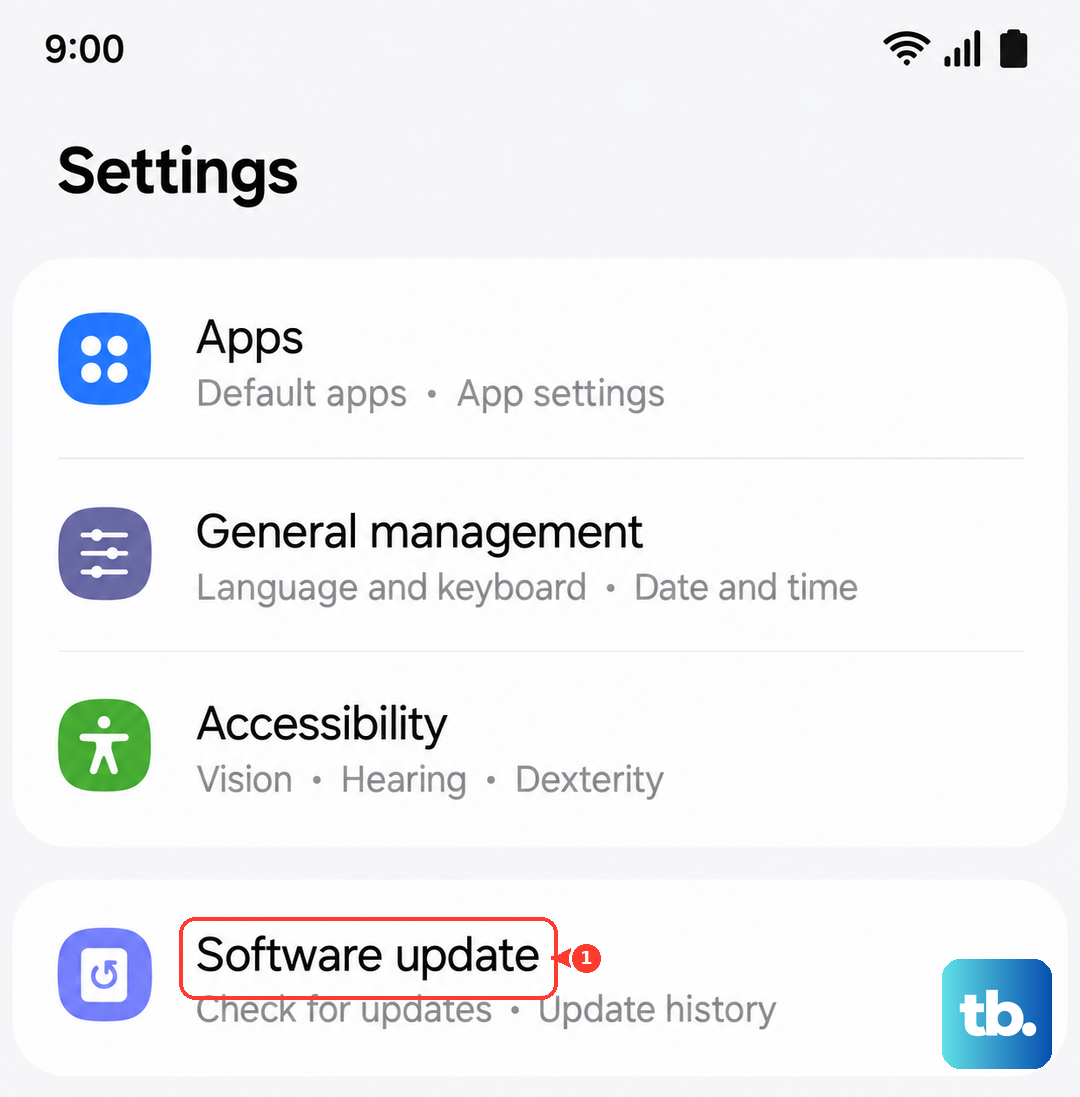
Go to Settings > Software update and tap "Download and install." If an update is available, install it and restart your phone. This has resolved network problems for many users after a major OS launch.
Reset Your Network Settings
This will erase all your saved Wi-Fi networks, Bluetooth pairings, and mobile network preferences, but it won't touch your personal data. It's a strong step for persistent network errors.
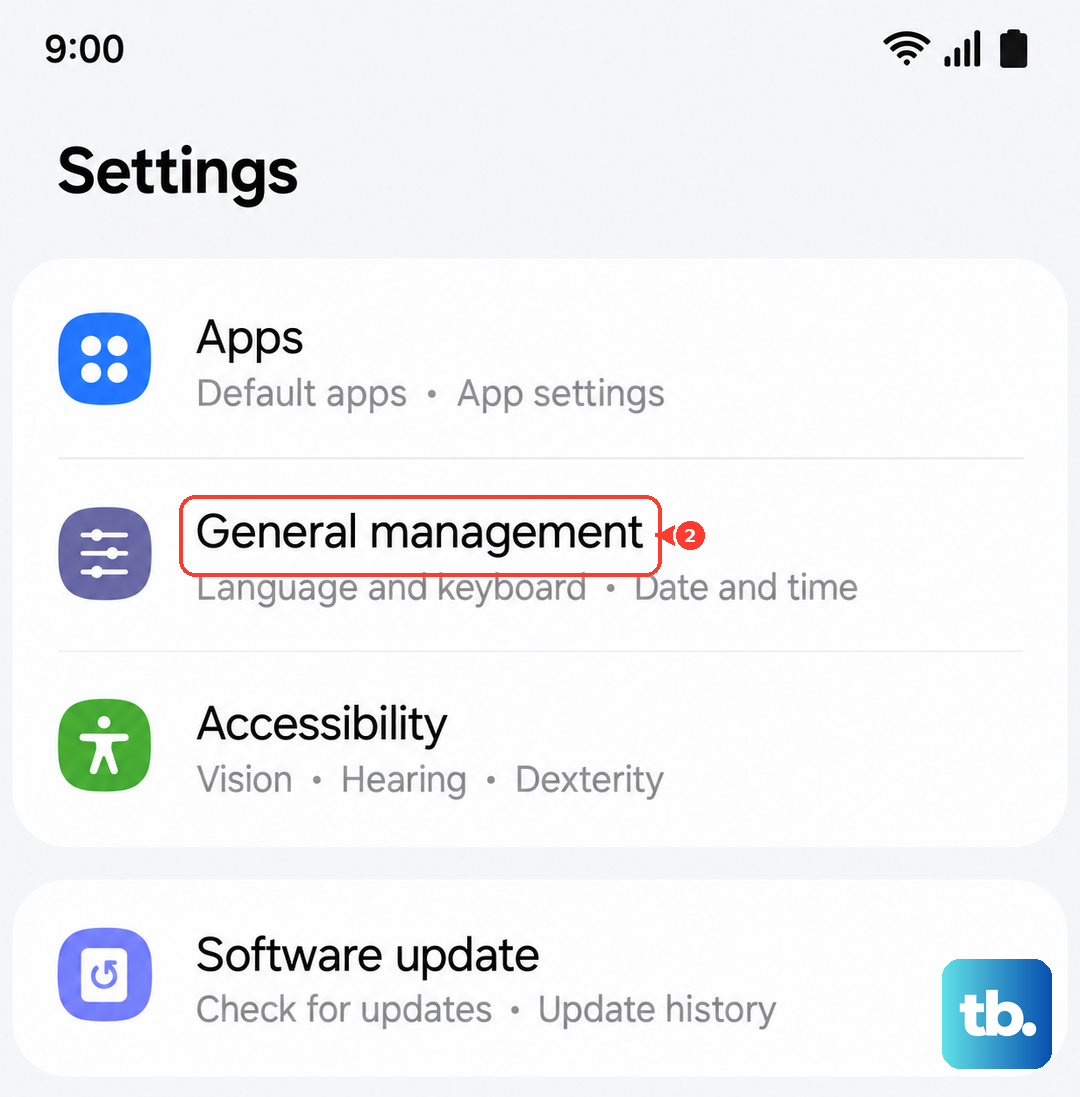
On your A36, navigate to Settings > General management > Reset > Reset network settings. Tap "Reset settings" and enter your PIN if prompted. After the phone reboots, you'll need to reconnect to Wi-Fi and re-pair Bluetooth devices.
Check for Carrier Services Updates
Open the Google Play Store, tap your profile icon, and go to "Manage apps and device." Look under "Updates available" for an app called "Carrier Services." If it's listed, update it.
This system app helps manage communication between your phone and your carrier's network. An outdated version can sometimes cause provisioning errors.
Try the SIM Card in Another Phone
Find another phone that uses the same size SIM card (likely a nano-SIM). Power that phone off, insert your A36's SIM card, and turn it on. If the "SIM Not Provisioned" error appears on that phone too, the problem is definitely with the SIM or your account.
If the other phone connects to the network just fine, then the issue is isolated to your Galaxy A36, which points more to a software or hardware problem with the device itself.
Contact Your Carrier for a Replacement SIM
If you've tried everything else, your SIM card itself might be faulty, expired, or damaged. Physical SIM cards do have a lifespan and can wear out. Contact your mobile provider and explain the steps you've already taken.
They can often check the card's status remotely and will usually send you a replacement SIM for free or for a small fee. Once you get the new SIM, you'll need to activate it, which they can guide you through.