If your Samsung Galaxy A36 is getting uncomfortably warm, you're not alone. This is a common issue, especially with the initial One UI 7 software that launched with the phone. The good news is, it's usually something you can fix yourself without any special tools.
I'd start with the simplest solution first. Take your phone out of its case, especially if it's a thick or rugged one. Cases trap heat, and removing it can let your A36 cool down almost immediately. If it feels cooler without the case, you've found a quick fix.
Close Background Apps and Check for Updates
Your phone can get hot when apps are working hard in the background. Swipe up from the bottom and hold to see your recent apps, then swipe each one away to close it. Pay special attention to social media, camera, and gaming apps, as these are common culprits.
Next, check for software updates. Go to Settings > Software update > Download and install. Early versions of One UI 7 had some bugs that affected battery and thermal management, so Samsung has likely released patches to address this.
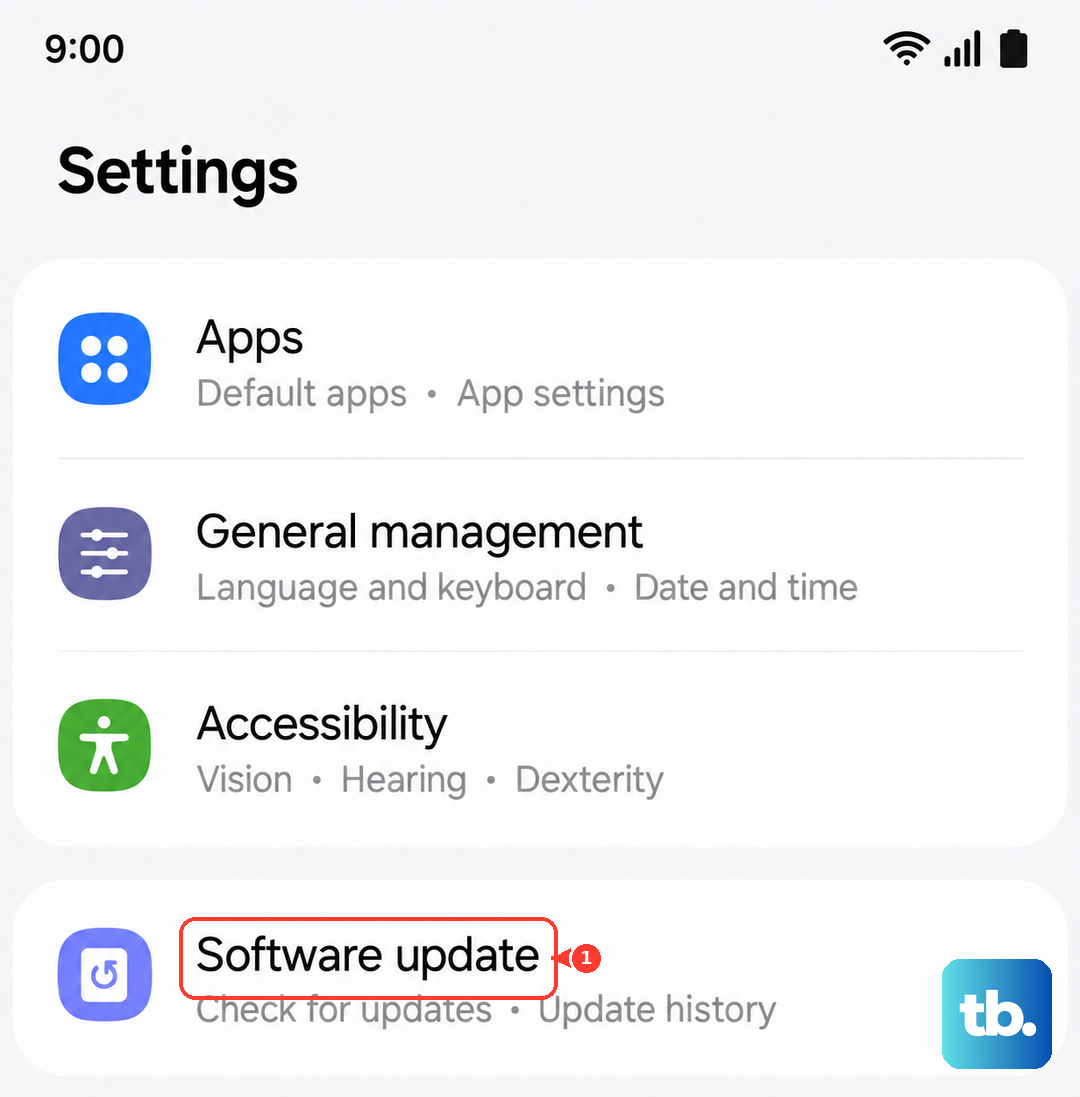
Keeping your phone updated is one of the easiest ways to prevent overheating caused by software glitches.
Adjust Your Display and Performance Settings
The bright, high-refresh-rate screen on the A36 is a major source of heat. Try reducing the screen brightness manually instead of using auto-brightness. You can also lower the screen refresh rate.
Go to Settings > Display > Motion smoothness. Switch from "Adaptive" to "Standard" (60Hz). This reduces the workload on the processor and can make a noticeable difference in temperature during general use.
For a more comprehensive approach, enable a power-saving mode. Go to Settings > Battery > Power saving. This mode limits background activity and peak performance, which directly reduces heat generation.
Manage Your Connectivity and Signal
Constantly searching for a signal, especially on 5G, can make your phone work overtime. If you're in an area with weak cellular reception, try switching your mobile network mode.
Go to Settings > Connections > Mobile networks > Network mode. Try selecting "LTE/3G/2G (auto connect)" instead of the 5G option. This can significantly reduce heat and improve battery life when a strong 5G signal isn't available.
Also, turn off Bluetooth, GPS (Location), and Wi-Fi when you're not using them. You can quickly toggle these from the notification panel by swiping down from the top of the screen twice.
Check Your Charging Habits
The Galaxy A36 supports 45W fast charging, but that process generates heat. Make sure you're using a compatible charger. For the fastest, most efficient charge, you need a USB-PD (Power Delivery) charger that supports 45W output.
Avoid using the phone intensively while it's charging, especially for gaming or video calls. This combines two heat-producing activities and can cause the temperature to spike. If the phone gets very hot while charging, unplug it, let it cool down, and try charging again later.
For long-term battery health and less heat, consider enabling a battery protection feature. Go to Settings > Battery > More battery settings > Battery protection. This limits the maximum charge to 85%, which is easier on the battery and can reduce charging heat.
Identify and Remove Problematic Apps
Sometimes, a single misbehaving app is the root cause. Go to Settings > Battery. Here, you can see which apps have been using the most battery since your last full charge.
An app using a disproportionately high percentage might be malfunctioning. Try uninstalling that app or checking for its own updates in the Galaxy Store or Google Play Store. You can also restrict its background activity by tapping on the app in the battery list and selecting "Restrict background activity."
Perform a Force Restart
If the phone is hot and becoming unresponsive, a soft reset can clear out any temporary glitches. Press and hold the Volume Down button and the Power button simultaneously for about 10 seconds.
Keep holding until you see the Samsung logo appear on the screen, then release. This forces the phone to reboot without deleting any of your personal data or settings. It's a good first step if the overheating comes on suddenly.
Avoid Extreme Environments and Direct Sunlight
This might seem obvious, but it's worth mentioning. Never leave your A36 in a hot car, on a beach towel in direct sun, or next to a heater. The Gorilla Glass Victus+ screen and dark colors on many phones can absorb a lot of heat.
If you've been outside on a hot day, let the phone cool down in a shaded, air-conditioned space before you start charging it or using it for demanding tasks. Using a lighter-colored phone case can also help reflect a bit of heat instead of absorbing it.
Consider a Factory Reset (Last Resort)
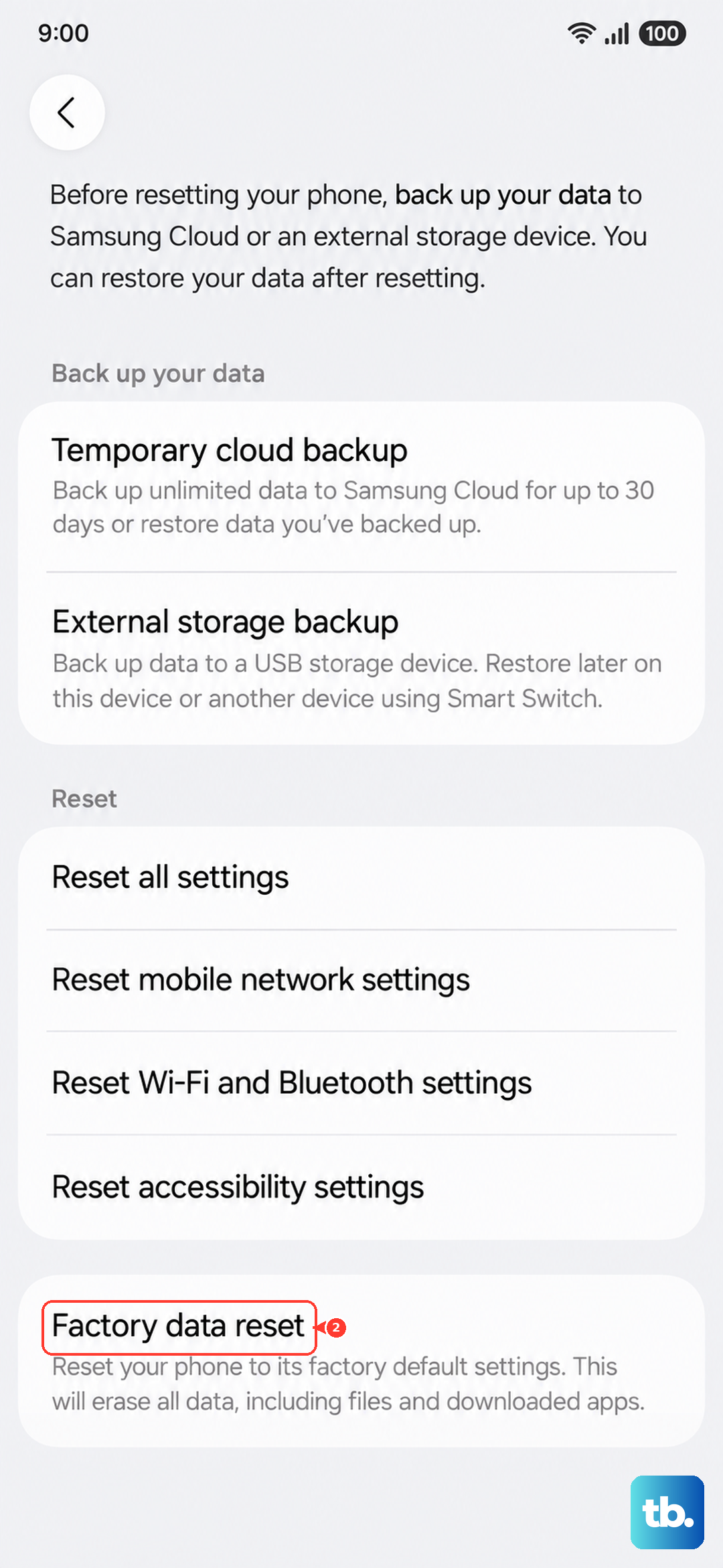
If you've tried everything else and the overheating persists, a software issue might be deeply rooted. Before you do this, ensure all your important data is backed up to Samsung Cloud or your Google account.
Go to Settings > General management > Reset > Factory data reset. This will erase everything and return the phone to its original out-of-the-box state. After the reset, set the phone up as new without restoring a backup immediately to see if the overheating stops. If it does, you can then gradually restore your data.