
Seeing that "MMS sending failed" error on your Samsung Galaxy A36 can be frustrating, especially when you're trying to share a photo or video. This is often a quick fix related to your data connection or a simple setting that needs adjusting.
I'd start by checking your mobile data. MMS messages can't send over Wi-Fi alone, they need an active cellular data connection. Swipe down from the top of your screen to open the Quick Settings panel and make sure the mobile data icon is turned on. If you have a strong signal but it's still failing, try toggling Airplane mode on for a few seconds and then off again to refresh the network connection.
Verify Your MMS Settings in Samsung Messages
Open the Samsung Messages app and tap the three-dot menu in the top right corner. Go to Settings > Multimedia messages. Here, make sure "Auto download" is enabled. Also, check that the "Group conversation" option is turned on if you're having trouble with group MMS.
Sometimes, especially after a software update to One UI 7, these settings can get reset or behave oddly. Toggling them off and back on can help re-establish the proper connection to your carrier's MMS service.
Clear the Cache for Your Messaging App
Corrupted temporary files can block the messaging app from working correctly. Go to your phone's Settings, then tap Apps. Find and select Messages from the list. Tap on Storage and then hit Clear cache.
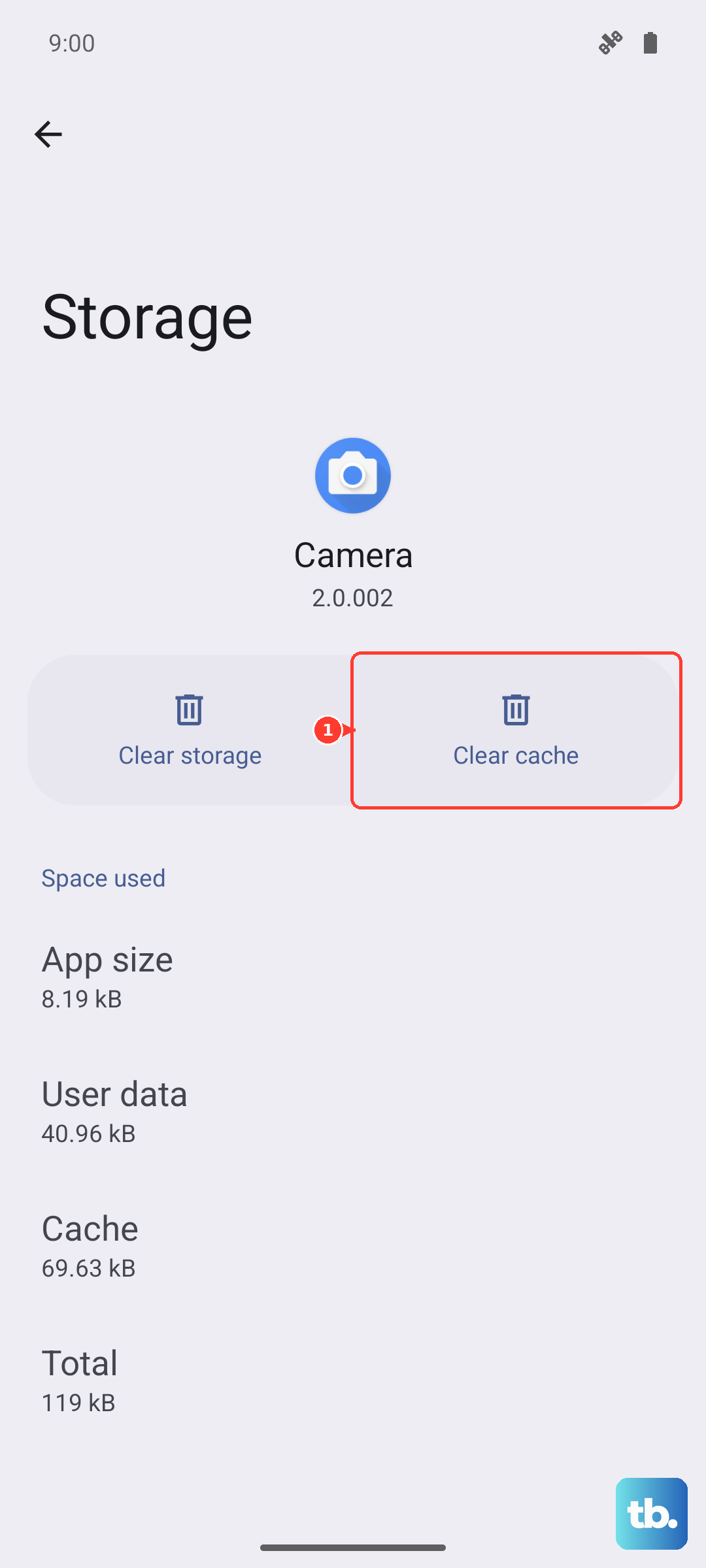
This won't delete any of your actual messages or conversations, it just cleans out the temporary junk. After doing this, restart the Messages app and try sending an MMS again. If the problem is really stubborn, you can tap Clear data next, but be aware this will erase your entire message history within the Samsung app.
Check and Update Your APN Settings
Incorrect Access Point Name (APN) settings are a very common culprit. These tell your phone exactly how to connect to your carrier's network for data and MMS. Go to Settings > Connections > Mobile networks > Access Point Names.
You should see a list of APNs, with one selected (usually your carrier's name). Tap on it to view the details. The most critical fields for MMS are the "MMSC" (the multimedia messaging service center address), "MMS proxy", and "MMS port". If any of these are blank or look wrong, you'll need the correct info from your carrier. A quick web search for "[Your Carrier] APN settings 2025" often brings up the latest details.
Perform a Network Settings Reset
This is a more thorough step that can clear up deeper network glitches, especially if you've recently switched carriers or SIM cards. It will reset all Wi-Fi, Bluetooth, and cellular network settings back to default.
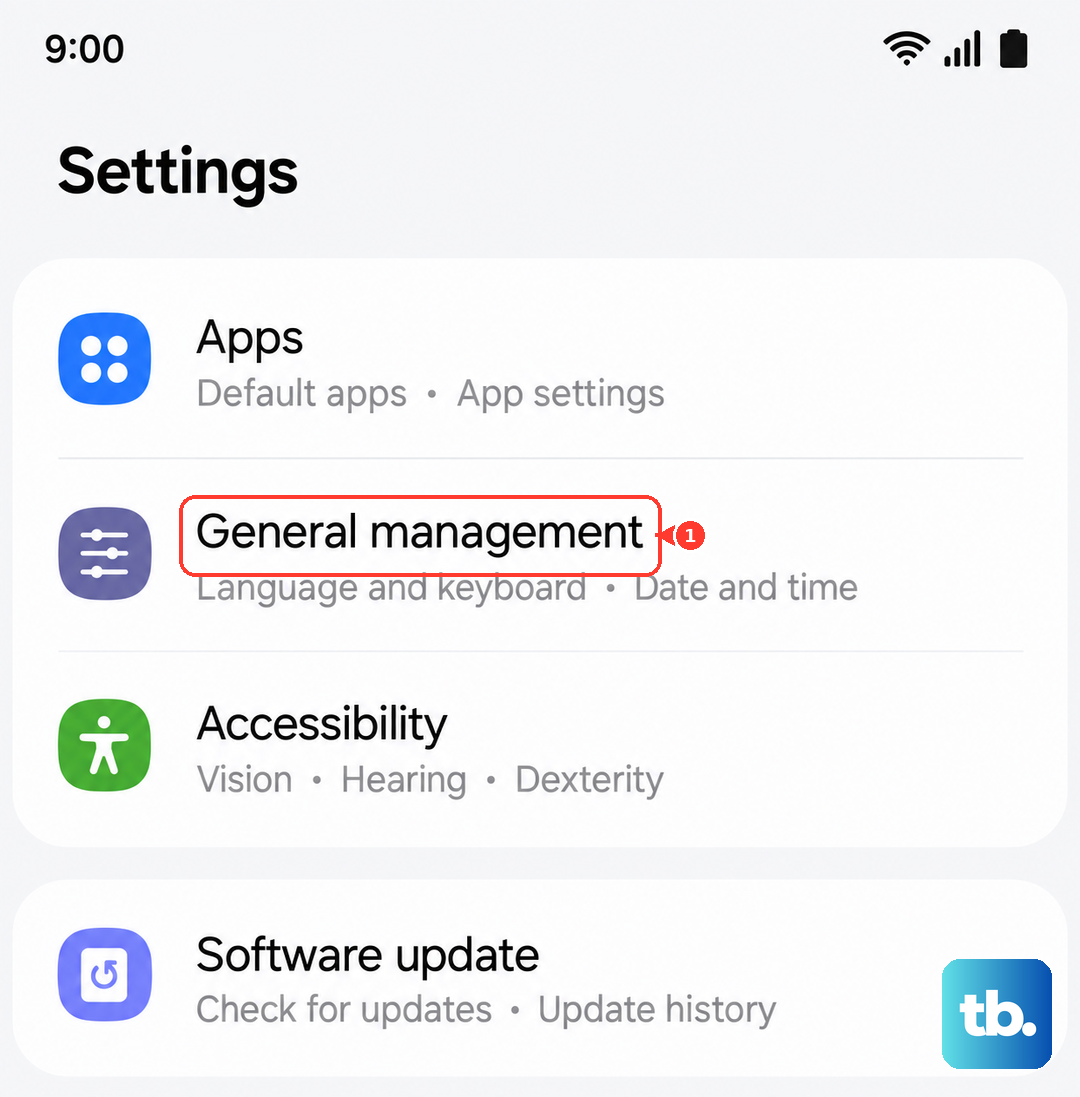
Go to Settings > General management > Reset > Reset network settings. You'll need to confirm your PIN or password. After the reset, your phone will restart and you'll have to reconnect to your Wi-Fi networks and re-pair Bluetooth devices, but it often resolves persistent MMS and data issues.
Ensure Your Phone Software is Up to Date
Since the Galaxy A36 launched with Android 15 and One UI 7, there have been some initial bugs reported. Samsung frequently releases updates to patch these kinds of problems. Go to Settings > Software update and tap Download and install.
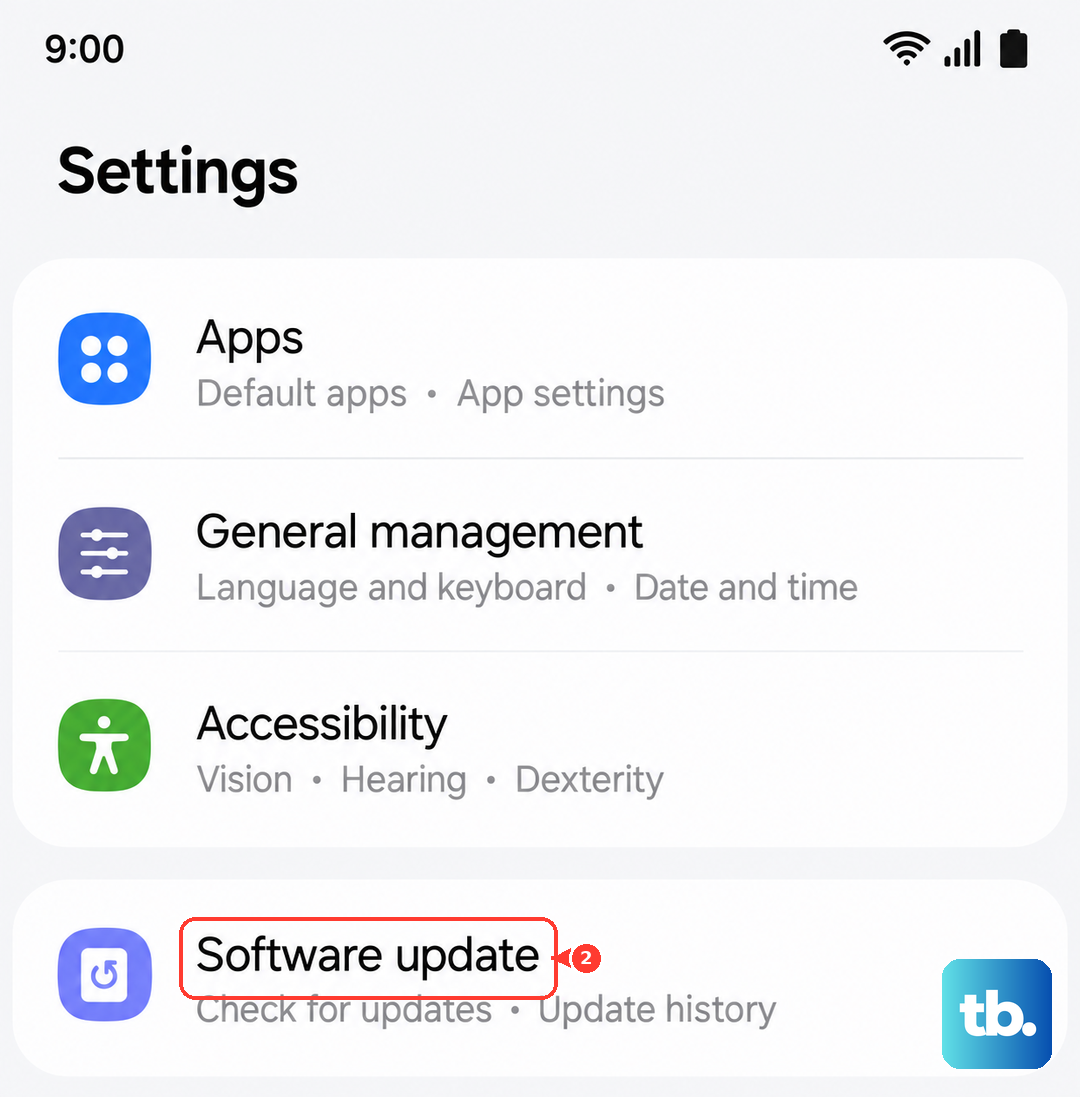
If an update is available, install it and let your phone restart. An update can fix conflicts between the messaging app and the carrier services that handle MMS delivery in the background.
Try Using Google Messages as an Alternative
If Samsung's default app keeps failing, switching to Google Messages can be a great workaround. Download Google Messages from the Play Store. Once installed, open it and it will prompt you to set it as your default messaging app.
Google Messages sometimes handles MMS and RCS (chat features) more reliably across different carriers and phone models. It's worth a try to see if the problem is specific to the Samsung app's implementation on your network.
Check for Low Storage Space
Your phone needs a bit of free space to process and store incoming MMS attachments. If your storage is nearly full, it can fail silently. Go to Settings > Device care > Storage to see how much space you have left.
Try to free up at least a few hundred megabytes if you're running low. You can clear old downloads, offload photos to the cloud, or uninstall apps you no longer use. This simple step can unexpectedly fix the sending error.
Contact Your Mobile Carrier
If you've tried everything here, the issue might be on your carrier's end. Give them a call or use their online support chat. Ask them to verify that MMS services are active on your line and that there are no account-level blocks.
You can also ask them to reprovision your line, which is a fancy way of saying they resend the activation signals to your phone. This can refresh your connection to all their network services, including MMS. Have them confirm the exact APN settings you should be using for your Galaxy A36 while you're on the line.
Perform a Force Restart
This is different from a normal restart and can clear temporary system hangs that a standard reboot might miss. Press and hold the Volume Down button and the Power button simultaneously for about 10 seconds.
Keep holding them until you see the Samsung logo appear on the screen, then let go. Your phone will boot up fresh. This is a good final step before moving on to more involved fixes, as it resets all the phone's core processes.