
When your Samsung Galaxy A36 microphone stops picking up your voice on calls, it can be incredibly frustrating. The problem might be with the phone app, a specific contact, or the microphone itself. Let's start by figuring out exactly what's happening.
Test Your Galaxy A36 Microphone
Before trying fixes, confirm the issue. Open your Voice Recorder app and make a quick recording. Speak at a normal volume and play it back. If the recording is clear, the problem might be isolated to phone calls. If it's muffled or silent, the microphone itself could be blocked or faulty.
You can also test by making a quick call to your voicemail. Ask the person on the other end how you sound, or listen to the message you leave. This helps determine if it's an outgoing audio issue.
Check for Physical Blockages
The Galaxy A36 has microphone holes at the bottom next to the USB-C port and usually one at the top. These tiny openings are magnets for pocket lint and dust. Take a close look under bright light and gently clean them with a dry, soft-bristled brush like a clean toothbrush.
Be very careful not to push debris further in. Compressed air can work, but use short, gentle bursts from a can designed for electronics. I've seen cases where a single piece of lint was the entire problem.
Remove Your Phone Case
Some cases, especially rugged or ill-fitting ones, can partially cover the microphone grilles. It's a simple but often overlooked step. Take the case off completely and make a test call to see if your voice comes through more clearly.
Disconnect Bluetooth and Other Audio Devices
If your phone is connected to wireless earbuds, a car stereo, or a smartwatch with call functionality, it will route the microphone audio through that device. Go to Settings > Connections > Bluetooth and turn Bluetooth off temporarily, or manually disconnect any audio devices listed.
Then try your call again using the phone's built-in microphone. This is one of the most common reasons people suddenly can't be heard.
Restart Your Phone
A quick reboot clears out temporary glitches in the phone app or audio system. Press and hold the Volume Down button and the Power button together for about ten seconds until you feel a vibration and see the Samsung logo. This force restarts the phone.
After it boots back up, try a call immediately. Many transient software hiccups are resolved with this simple step.
Check App Permissions for Phone and Calling Apps
Your phone's dialer and any other calling apps like WhatsApp or Google Meet need explicit permission to use the microphone. Go to Settings > Apps, then find and select your Phone app. Tap on Permissions and ensure the Microphone permission is set to "Allow."
Do the same for any other apps where you're having call issues. If you recently updated an app or the Android OS, permissions can sometimes get reset.
Clear the Cache for the Phone App
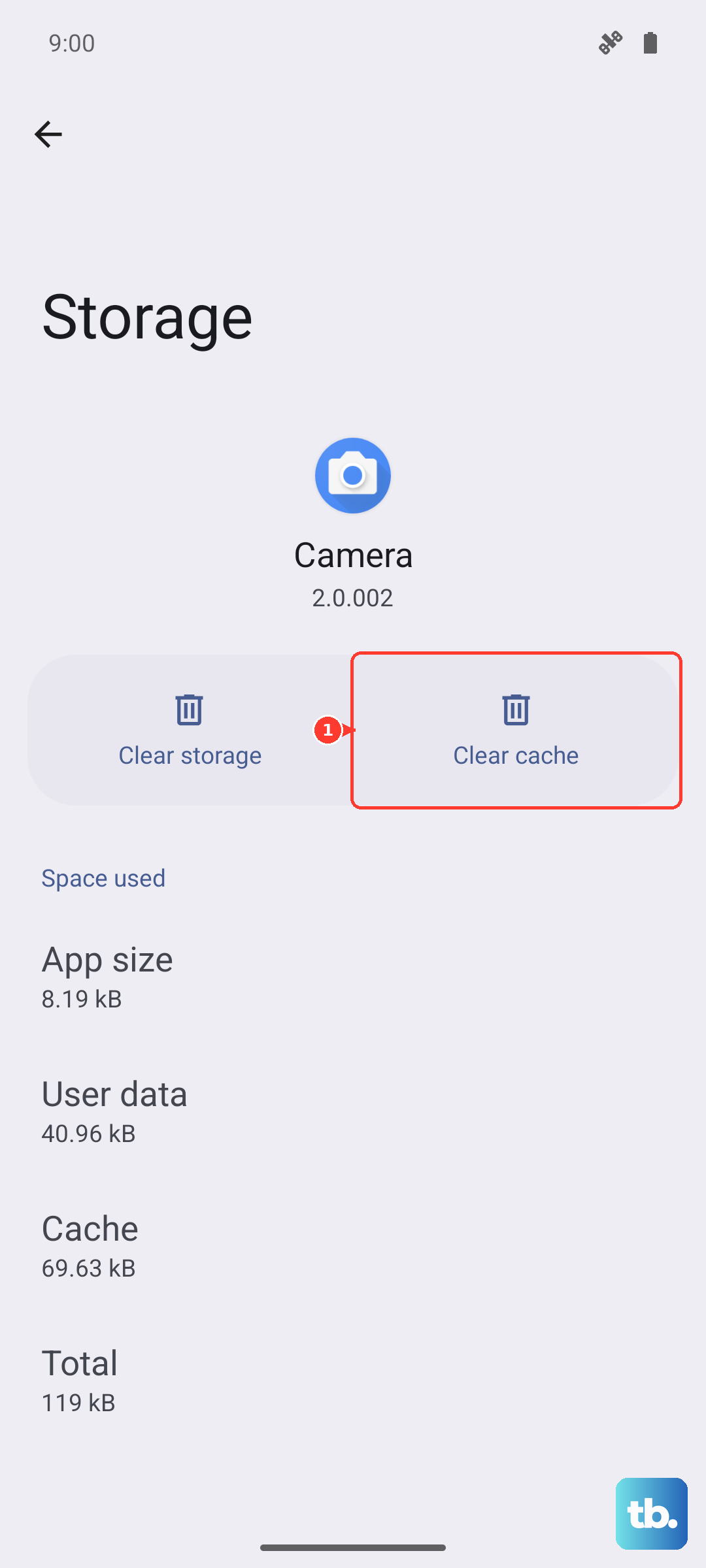
Corrupted temporary data in the Phone app can cause audio problems. This won't delete your call history or contacts. Go to Settings > Apps, select Phone, then tap on Storage.
Tap Clear Cache. If the problem persists, you can also tap Clear Data, but be aware this will reset the Phone app to its default settings, which may erase your call log. After clearing, restart your phone once more.
Turn Off Wi-Fi Calling Temporarily
Wi-Fi Calling is a great feature, but it can sometimes introduce audio issues depending on your network. To see if it's the culprit, go to Settings > Connections > Wi-Fi Calling and toggle it off.
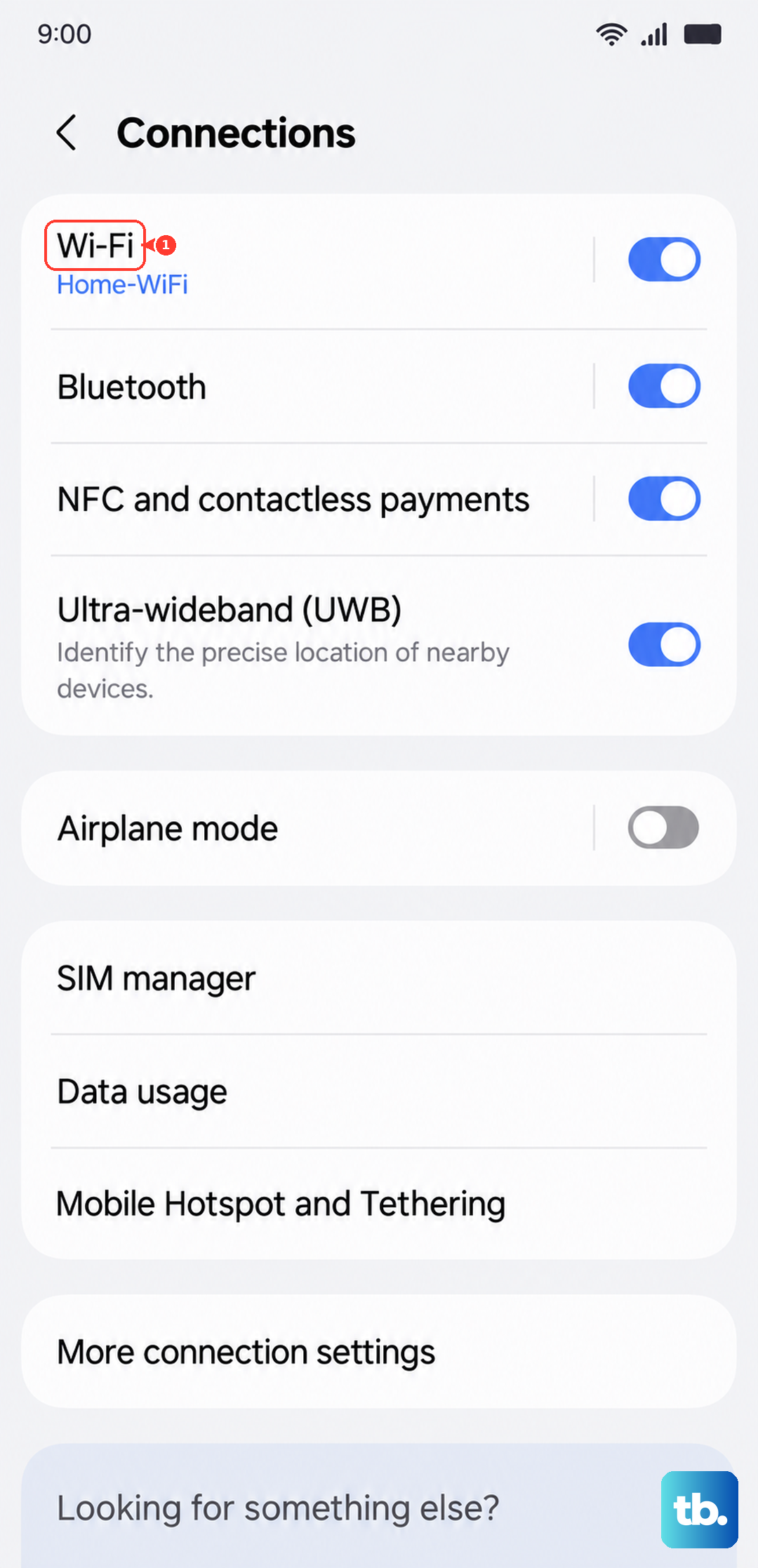
Place a call over the regular cellular network to test. If the audio is better, you know the issue is related to the Wi-Fi Calling function or your internet connection during calls.
Update Your Software
Samsung regularly releases updates that fix bugs, including audio and call quality issues. Since the A36 runs One UI 7 on Android 15, there may already be patches for initial launch bugs. Connect to Wi-Fi and go to Settings > Software update > Download and install.
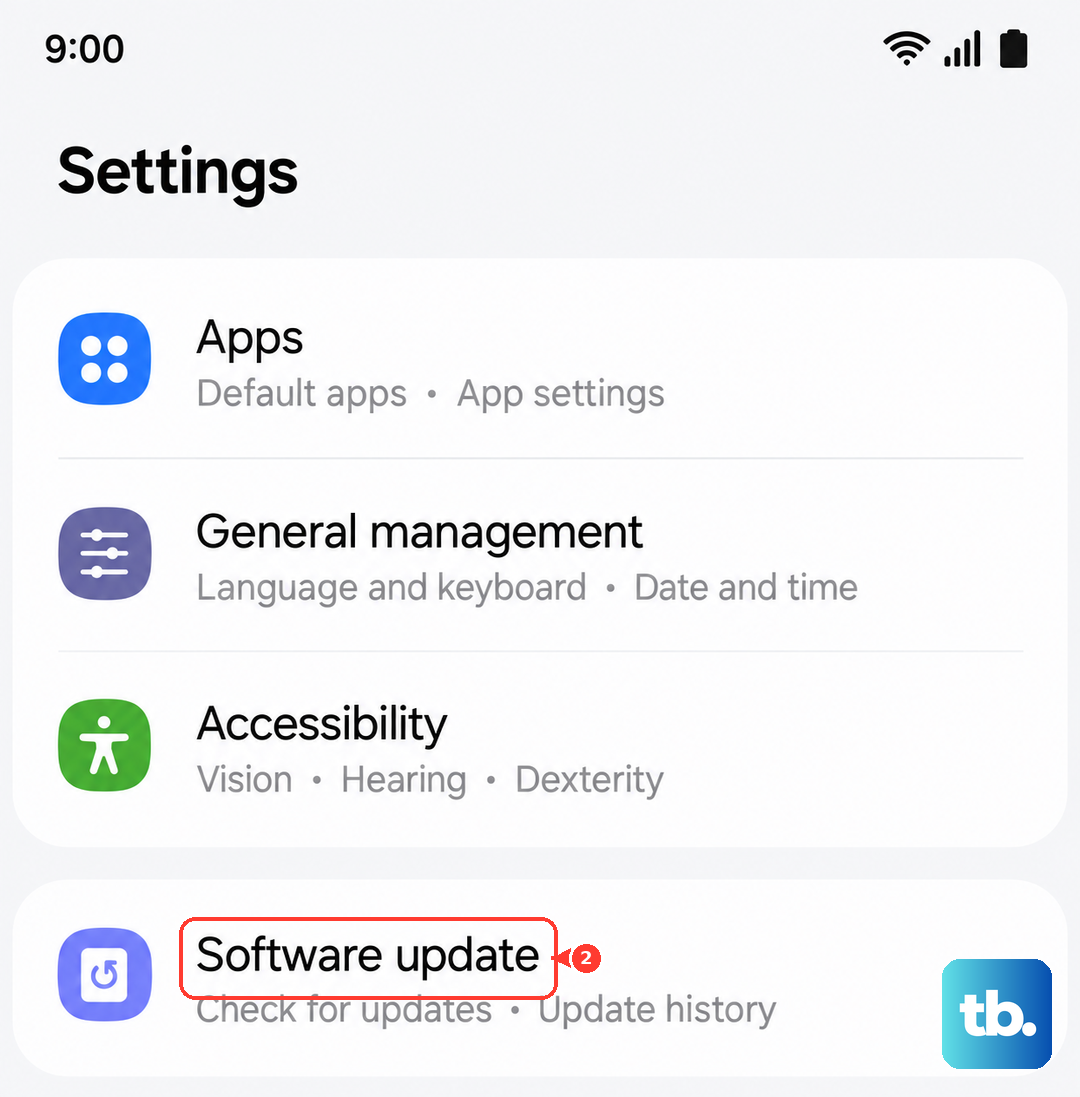
Let the update complete and then test your microphone again. Keeping your phone updated is one of the best ways to prevent these kinds of problems.
Reset All Settings
If you're still having trouble, a settings reset can help. This will revert all your system settings (like Wi-Fi passwords, Bluetooth pairings, and display preferences) back to default without touching your personal data like photos and messages.
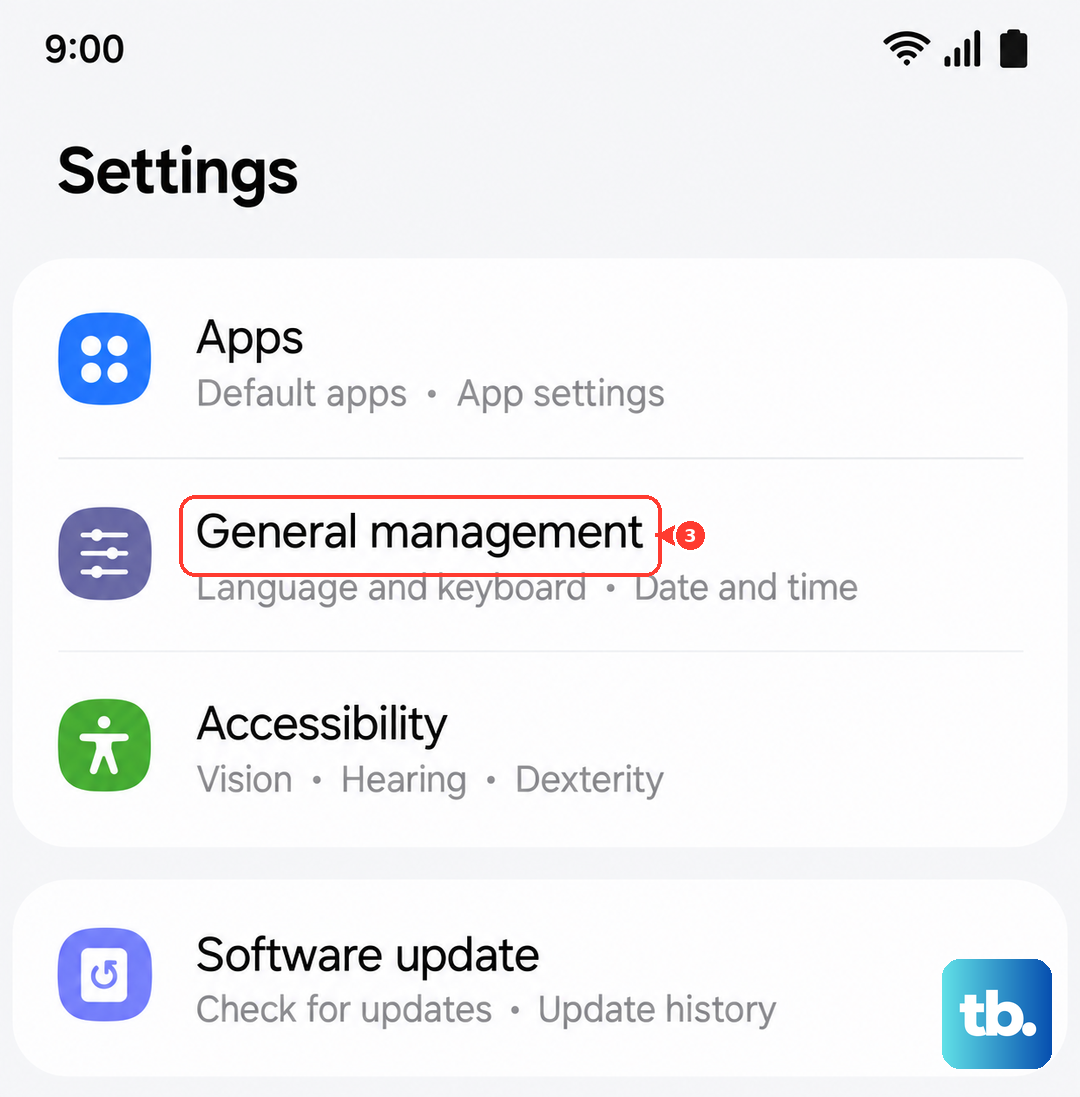
Go to Settings > General management > Reset > Reset all settings. Enter your PIN if prompted and confirm. After the phone reboots, you'll need to reconfigure your preferences, but it often resolves persistent audio routing issues.
Check for Water Damage or Physical Issues
The Galaxy A36 is water-resistant, but exposure can still affect the microphones. Check the small liquid damage indicator (usually a white sticker visible inside the SIM card tray slot). If it's pink or red, there's been moisture exposure.
Also, consider if the phone has had any recent drops. Impact damage can disconnect the internal microphone flex cable. If you suspect physical damage and your warranty is still active, contacting Samsung support would be the next logical step.