
If your Samsung Galaxy A36 is starting to feel sluggish, you're not alone. Even a new phone can bog down with too many apps, background processes, or a full storage drive. The good news is that Android 15 and One UI 7 give you plenty of tools to speed things back up.
I'd start with a simple restart. It's the quickest way to clear out temporary system glitches and stop any runaway processes. Just press and hold the Volume Down and Power button together for about ten seconds until you see the Samsung logo. This force restart works even if the screen is frozen.
Close Apps Running in the Background
Too many apps open in the background can eat up your phone's RAM, making everything feel slow. Swipe up from the bottom of the screen and hold to enter the recent apps view. You can swipe each app card away to close it individually, or tap the three-dot menu and select "Close all" for a clean slate.
For a more permanent fix, head into Settings > Apps. Select any app you don't use often and tap "Force stop." This prevents it from running until you open it again.
Free Up Storage Space
When your internal storage gets too full, the phone has less room to operate efficiently. Go to Settings > Device care > Storage. This section gives you a great breakdown of what's taking up space.
You'll see suggestions for clearing cache files, deleting duplicate files, and removing large, unused apps. The "Clean now" button is a good first step. For deeper cleaning, tap into categories like "Images" and "Videos" to review and delete files you no longer need.
Update Your Phone and Apps
Software updates often include performance optimizations and bug fixes. Since the A36 launched with One UI 7, there have been some initial bugs that updates address. Check for a system update by going to Settings > Software update > Download and install.
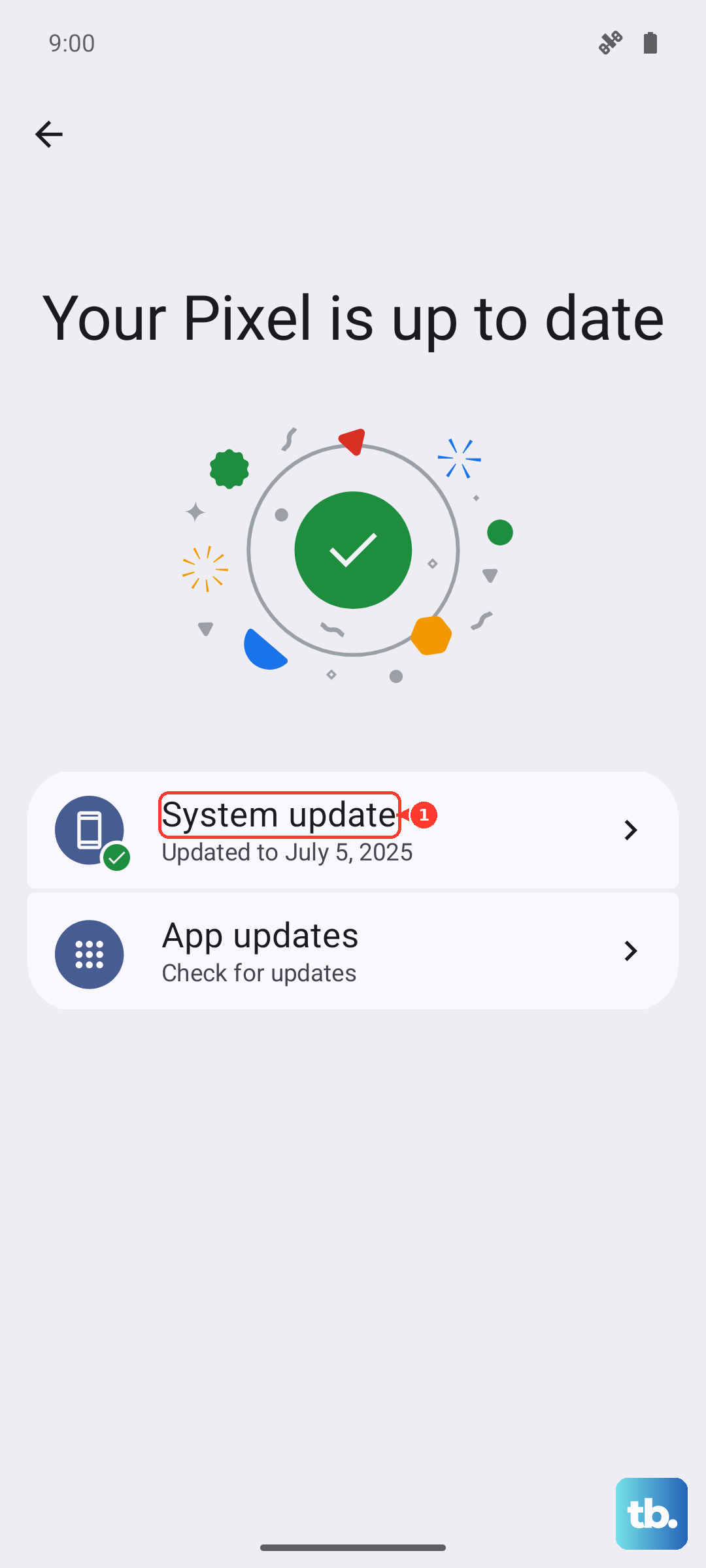
Don't forget about your apps. Open the Google Play Store, tap your profile icon, and select "Manage apps & device." Under "Updates available," you can update everything at once. Outdated apps can sometimes cause compatibility issues that slow things down.
Check Your Battery Health and Settings
While Android doesn't throttle performance like older iPhones, a poor battery can still cause issues. The A36 has a useful battery protection feature. Go to Settings > Battery > Battery protection.
Here, you can turn on "Battery protection" and choose the "Maximum" mode to cap charging (80% by default, adjustable up to 95%), which is great for long-term health. Also, tap "Battery usage" to see which apps are draining the most power in the background. If you see a social media or game app using a surprising amount, consider restricting its background activity.
Manage Background Processes and Refresh
One UI lets you control how aggressively apps run in the background. A great place to start is with Background App Refresh. Go to Settings > Apps, select an app, and tap "Battery." You can set it to "Restricted" to prevent it from using battery in the background.
Another tip is to disable unused 5G bands if you're in an area with spotty coverage. Constantly searching for a signal drains the battery and can make the phone feel warm and slow. You can find this in Settings > Connections > Mobile networks > Network mode. Try selecting "LTE/3G/2G" to see if it improves daily performance and battery life.
Clear App Caches
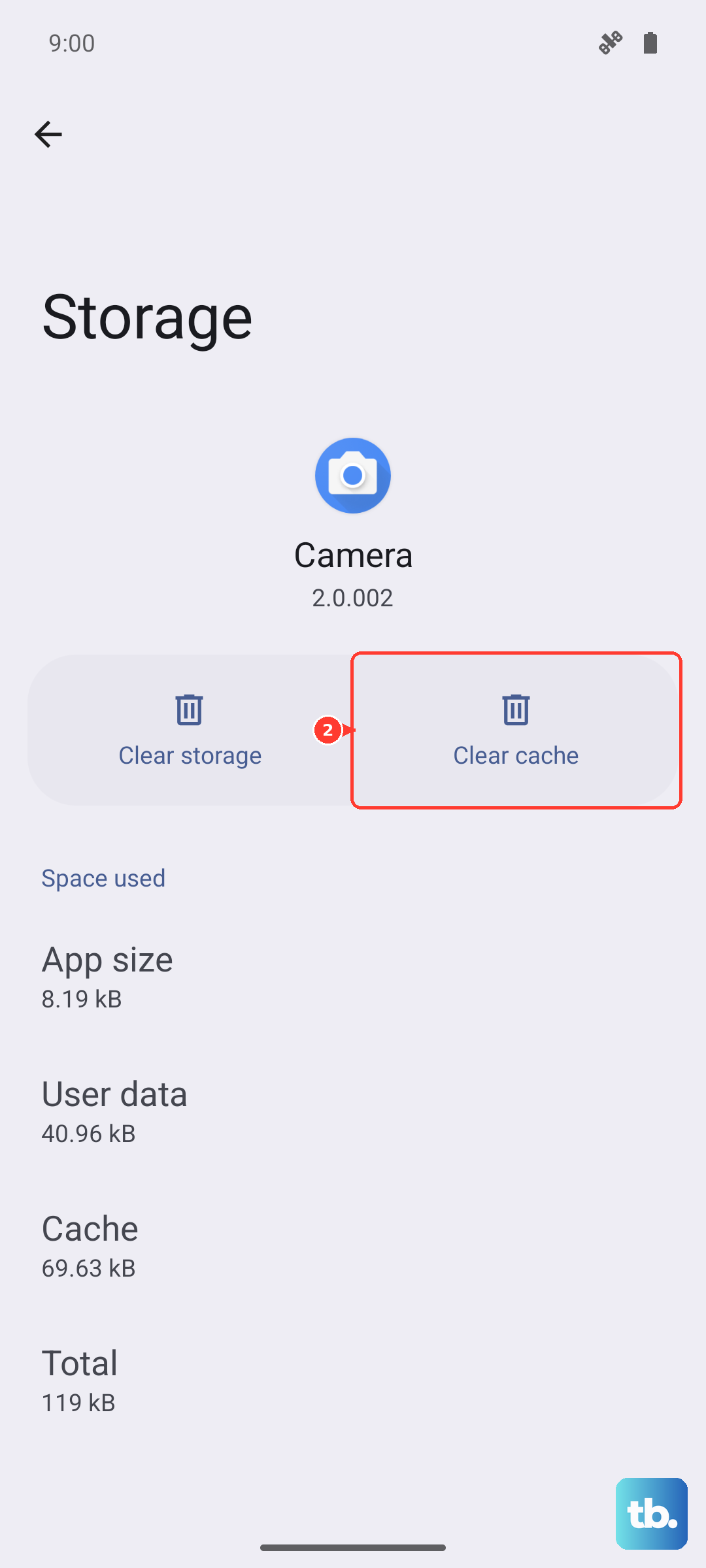
Over time, apps store temporary data (cache) that can become corrupted or bloated. Clearing it can free up space and fix odd behavior. Go to Settings > Apps, select the problematic app, and tap "Storage."
You'll see two options: "Clear cache" and "Clear data." Always try "Clear cache" first, as this won't delete your login info or saved files. "Clear data" resets the app completely, so you'd have to log back in.
Reduce Animations and Visual Effects
The smooth animations in One UI look great, but they use processing power. You can scale them back for a snappier feel. First, you need to enable Developer Options. Go to Settings > About phone > Software information and tap "Build number" seven times.
Now, go back to the main Settings menu and you'll find "Developer options" near the bottom. Scroll down to the "Drawing" section. Here, you can adjust the three animation scale settings (Window, Transition, Animator) from 1x to 0.5x or even turn them off. This makes menus and app transitions feel instant.
Perform a Network Settings Reset
If your slowdown seems tied to internet connectivity, Wi-Fi, or Bluetooth, resetting your network settings can help. This clears all saved Wi-Fi networks, Bluetooth pairings, and mobile data preferences. Go to Settings > General management > Reset > Reset network settings.
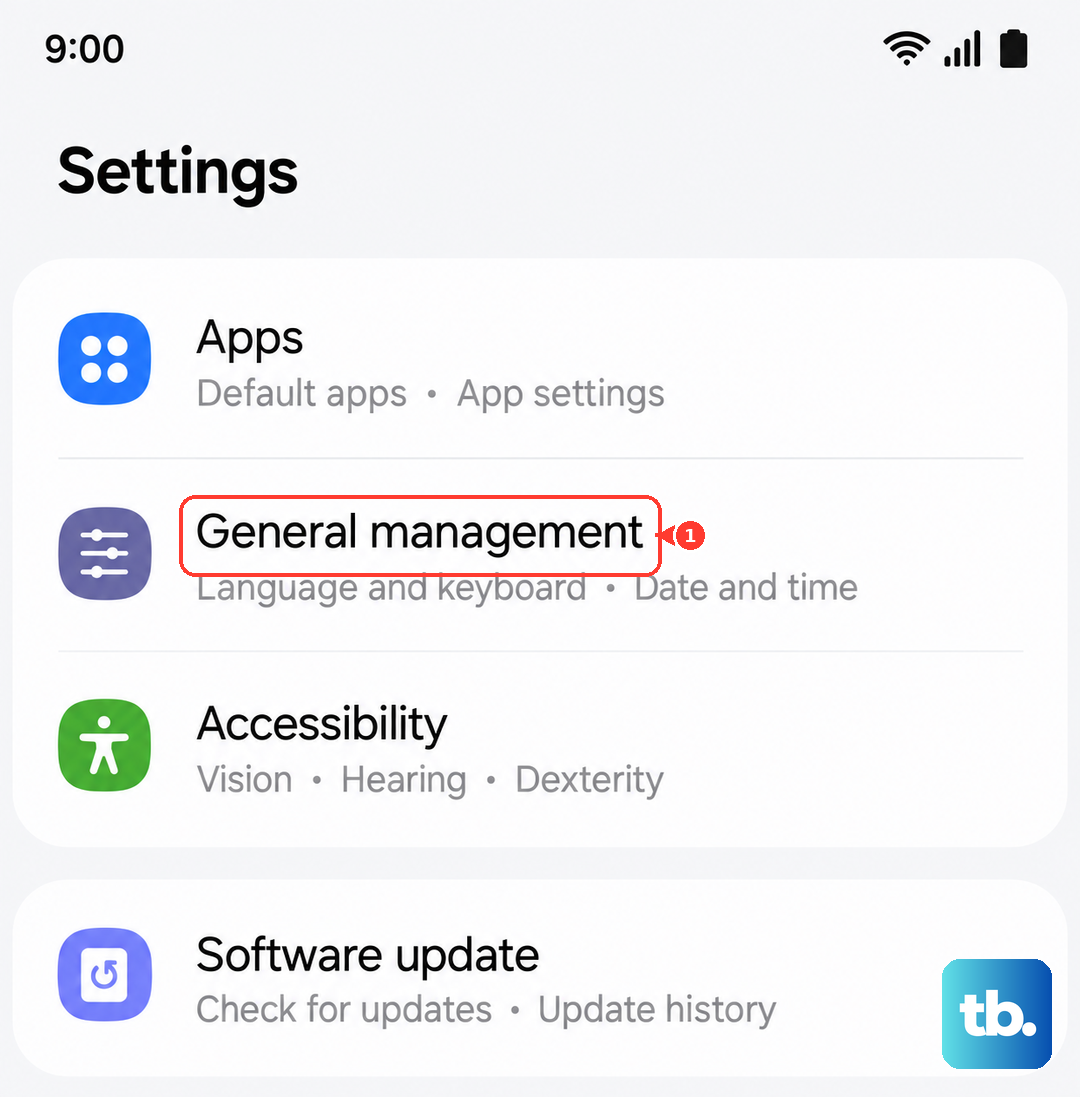
Tap "Reset settings" and enter your PIN if prompted. Your phone will reboot. Afterward, you'll need to reconnect to Wi-Fi and re-pair Bluetooth devices, but it can resolve persistent connection issues that make browsing or streaming feel laggy.
Reset All Settings as a Last Resort
If you've tried everything and the phone is still slow, you can reset all settings without losing your personal data. This reverts all your preferences, like wallpapers, sounds, and home screen layout, back to factory defaults. It's a good way to rule out a misconfigured setting.
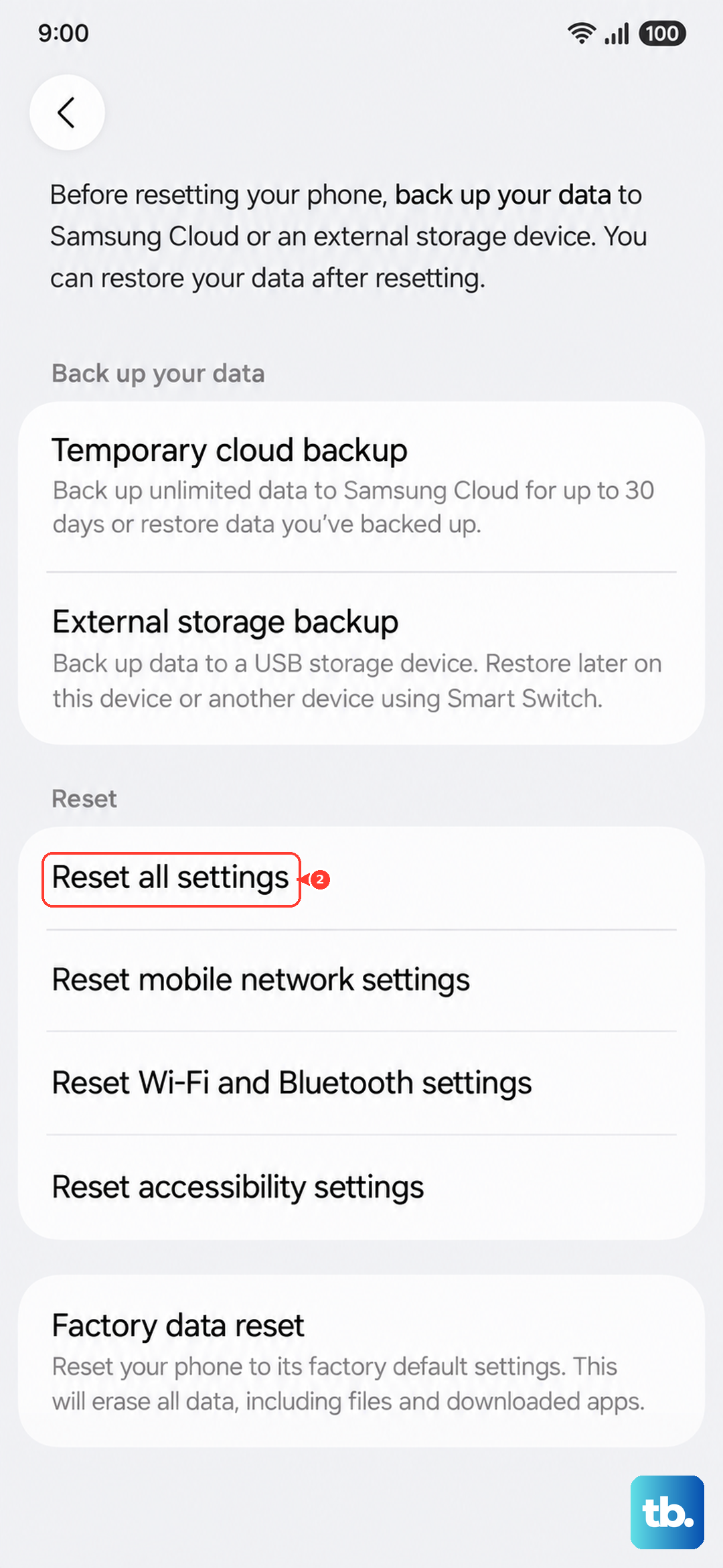
Navigate to Settings > General management > Reset > Reset all settings. Confirm your PIN, and the phone will restart. You'll have to set up your preferences again, but your photos, messages, and apps will remain untouched.