A blurry camera on your Samsung Galaxy A36 can turn a great shot into a frustrating mess. The blur might be constant, only happen in low light, or affect just one of the lenses. Before you worry about a hardware issue, there are several simple things you can check first.
Clean the Camera Lenses
This is the absolute first thing to try. Use a soft, clean microfiber cloth to gently wipe the entire camera module on the back of your phone. Fingerprints, dust, or pocket lint on the lens are the most common cause of a hazy, blurry photo. I'd avoid using your shirt or a tissue, as the Gorilla Glass Victus+ on the A36 can scratch more easily than you might expect.
Remove Your Phone Case
Take your case off and snap a test photo. Some cases, particularly thicker or poorly designed ones, can actually sit just a fraction too high and create a slight shadow or fog over the lens. Also, make sure you haven't accidentally left a plastic camera lens protector on from when you first unboxed the phone.
Tap to Focus Properly
Open the Camera app and tap directly on your subject on the screen. You'll see a yellow focus box appear. The camera's autofocus can sometimes get confused, especially with busy backgrounds. Tapping tells it exactly where to focus. For a steady shot, press and hold on the screen to lock both the focus and exposure (AE/AF Lock).
Switch Between Camera Lenses
Your Galaxy A36 has multiple lenses. In the Camera app, tap the tree icon to switch between them (like 0.5x for ultrawide, 1x for main, and others). If only one lens is consistently blurry while the others are sharp, the issue is isolated to that specific camera, which could mean it needs cleaning or has a hardware fault.
Force Close and Reopen the Camera App
Swipe up from the bottom of the screen and hold to enter the recent apps view. Find the Camera app and swipe it away to close it completely. Then, open it fresh from your app drawer. This clears any temporary glitch in the app that might be causing the autofocus or image processing to malfunction.
Restart Your Galaxy A36
A simple restart can fix a surprising number of software hiccups. Press and hold the Volume Down and Power buttons together for about 10 seconds until you feel a vibration and see the Samsung logo. This force restart is a clean reboot for the entire system, including the camera software.
Check for Software Updates
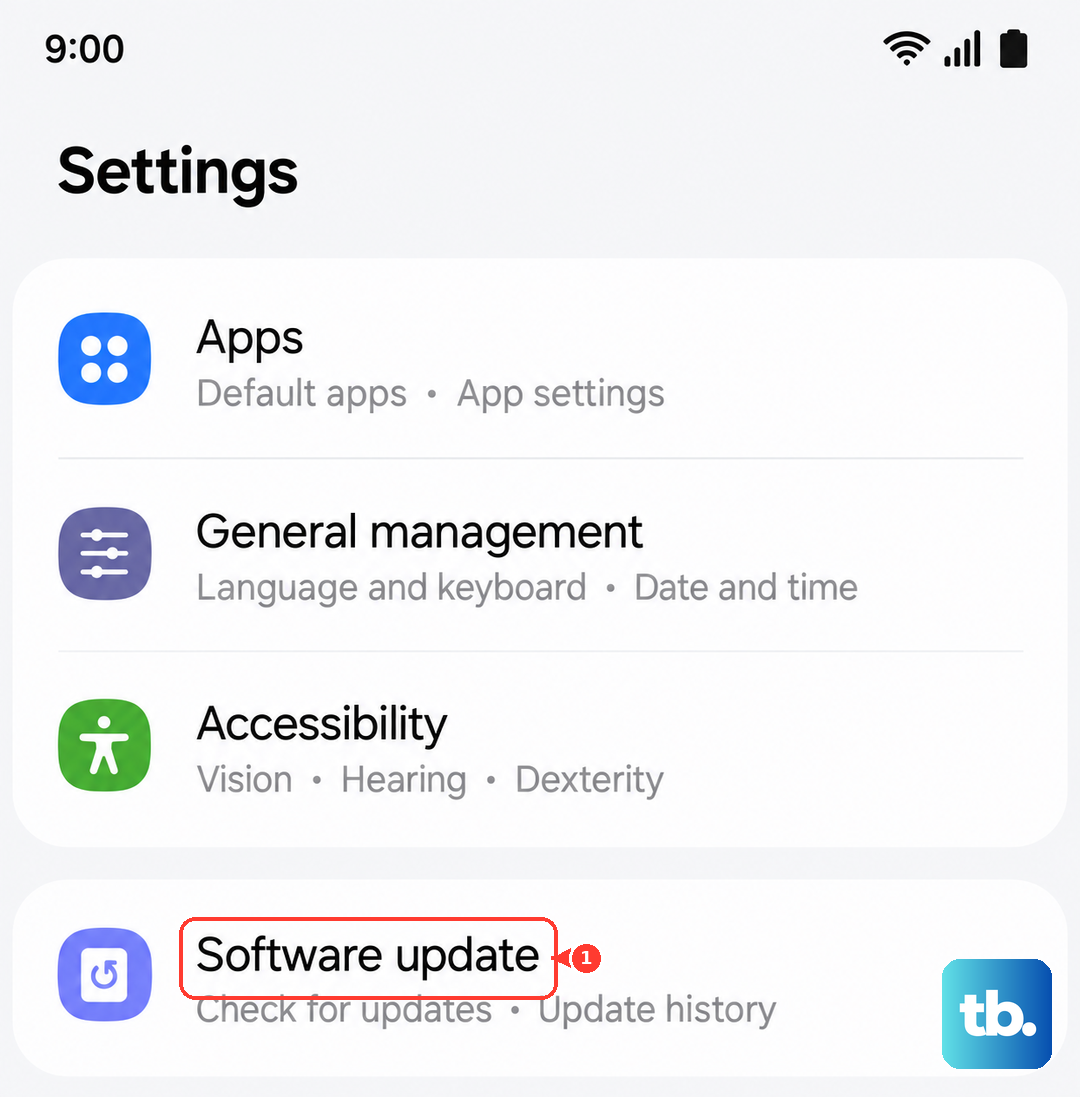
Go to Settings > Software Update > Download and install. Samsung frequently releases updates that fix camera performance and autofocus issues. Given the A36 runs One UI 7 on Android 15, there may already be an update addressing early launch bugs that could affect the camera.
Look for Moisture or Condensation
If you've moved from a cold environment to a warm one, or if you're in a humid area, condensation can form inside the camera lens. This creates a permanent foggy blur in your photos. Let the phone sit at room temperature for 15-20 minutes. Also, be aware that the fingerprint sensor can act up in humidity, which is a sign the environment might be affecting other components too.
Reset the Camera App Settings
If you've changed a lot of settings, one of them might be interfering. Open the Camera app, tap the settings gear icon, and scroll down to find Reset settings. This will revert all your camera preferences back to default without deleting any of your photos. It's a good way to rule out a misconfigured option.
Clear the Camera App's Cache
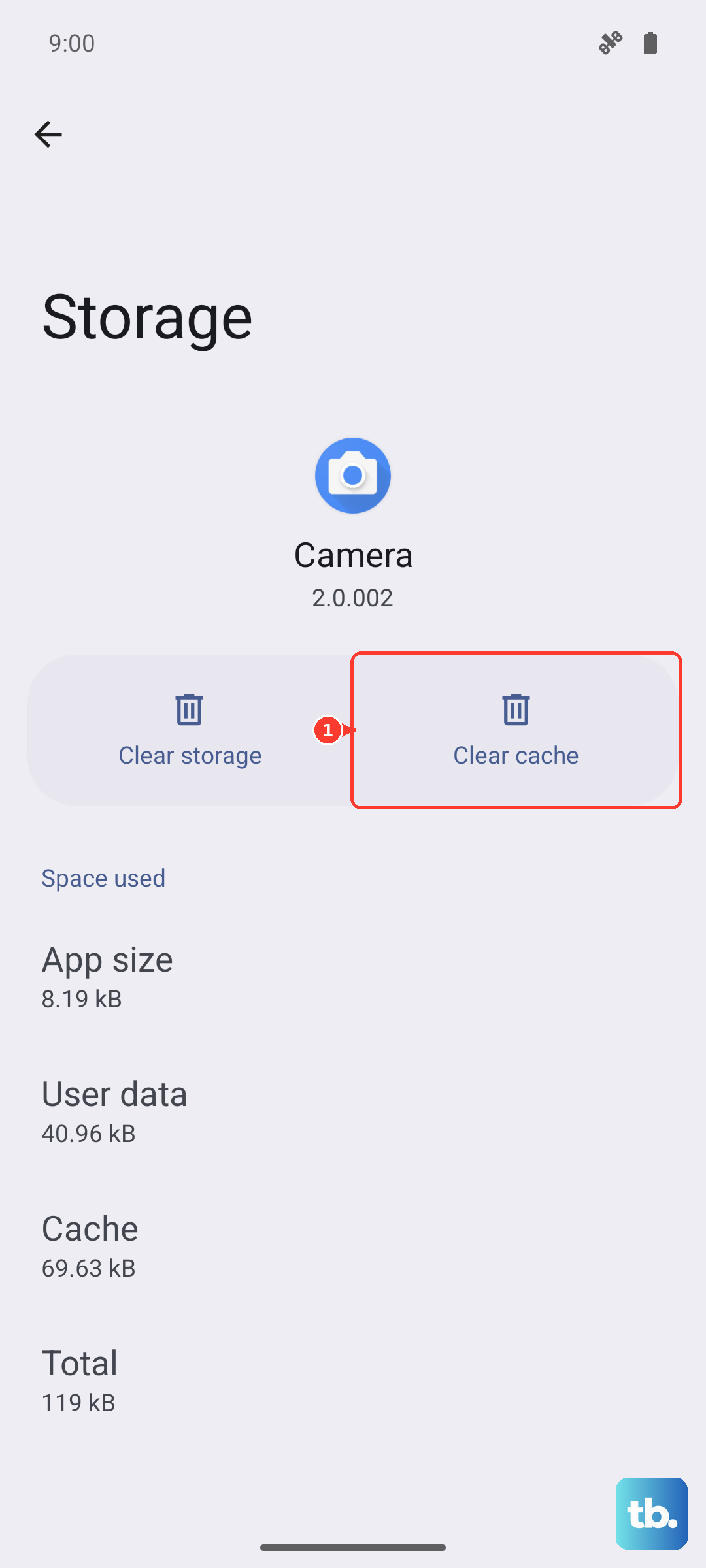
Go to Settings > Apps. Find and tap on Camera. Select Storage and then tap Clear cache. This deletes temporary data that might have become corrupted. Don't select "Clear data" unless you're prepared to lose any saved camera settings, as that's a more drastic reset.