
That "Call Failed" message on your Samsung Galaxy A36 is a real headache when you're trying to connect. It usually means your phone is having trouble talking to your carrier's network. Weak signal, a minor software hiccup, or a setting that's out of whack are the most likely culprits.
Let's start with the quickest fix you can try right now. If you're in the middle of something, this one often does the trick in about 30 seconds.
Toggle Airplane Mode On and Off
This instantly resets your phone's connection to the cellular network. Swipe down twice from the top of your screen to open the full Quick Settings panel. Tap the Airplane Mode icon to turn it on, wait about 10 seconds, then tap it again to turn it off. Watch for the signal bars to reappear and try your call again.
Check Your Signal Strength
Look at the signal bars in the top-right corner of your screen. If you have one bar or see an "X," you're in a weak coverage area. Move closer to a window or step outside. Buildings, terrain, and even weather can block the signal your A36 needs to make a call.
Perform a Force Restart
A simple reboot can clear out temporary glitches in One UI 7 that might be interfering. Press and hold the Volume Down button and the Side/Power button together for about 10 seconds. Let go when you see the Samsung logo appear, and your phone will restart normally.
Verify Do Not Disturb and Focus Modes
Check that a mode isn't silently blocking your calls. Swipe down to see your Quick Settings. If you see Do Not Disturb or a Focus mode (like Work or Sleep) is active, tap it to turn it off. You can also go to Settings > Sounds and vibration > Do Not Disturb to check the schedule and rules.
Ensure Automatic Date and Time is On
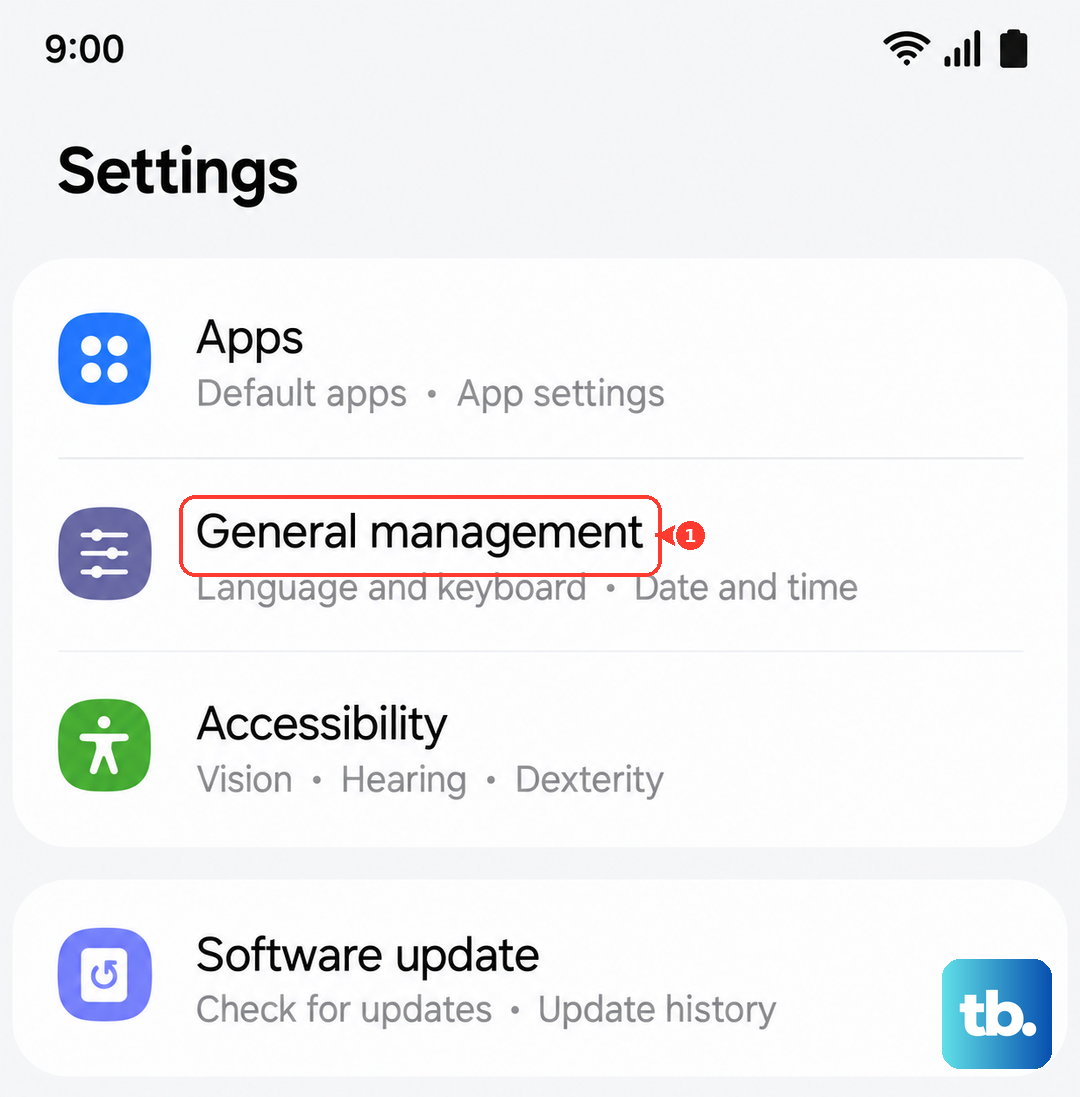
This sounds odd, but if your phone's clock is wrong, it can cause handshake problems with the cell towers. Open Settings > General management > Date and time. Make sure the switch for Automatic date and time is turned on. If it was off, turn it on and try your call again.
Check Your Blocked Numbers List
It's worth a quick look to make sure you haven't accidentally blocked the number you're trying to reach. Open your Phone app, tap the three-dot menu in the top right, and go to Settings > Block numbers. Review the list and remove any numbers that shouldn't be there.
Confirm Mobile Data and Network Mode
Head to Settings > Connections > Mobile networks. First, make sure Mobile data is enabled. Then, tap Network mode. If you're having consistent call issues, try switching from "5G/LTE/3G/2G (auto connect)" to just "LTE/3G/2G (auto connect)" temporarily. This disables 5G, which can sometimes be less stable for voice calls depending on your area.
If you're traveling, also check that Data roaming is enabled in this same menu, but be aware of potential charges from your carrier.
Update Your Software
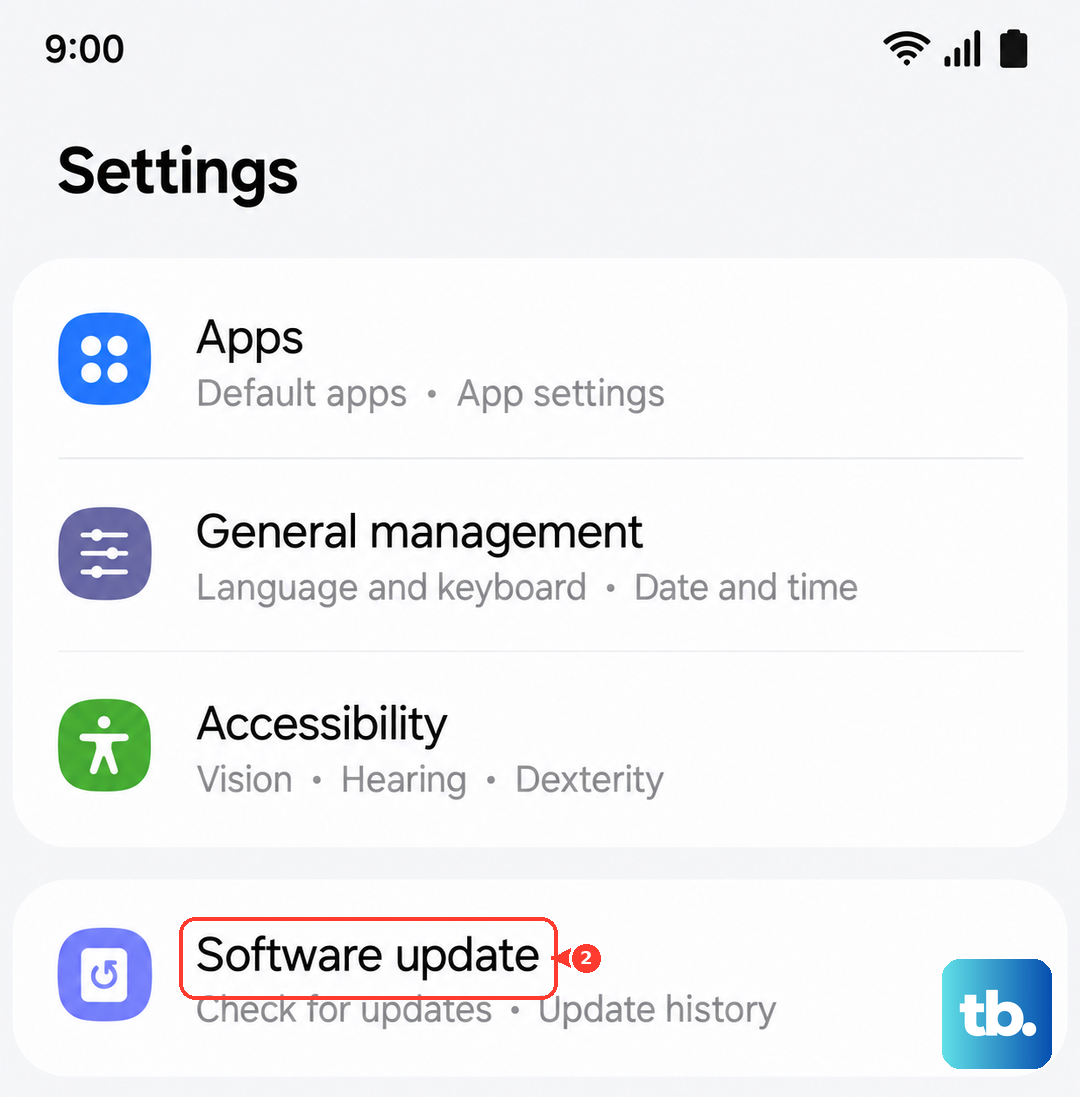
Samsung regularly releases updates that fix bugs, including network-related ones. Since the A36 launched with One UI 7, there have been updates to squash initial bugs. Connect to Wi-Fi, then go to Settings > Software update > Download and install. If an update is available, install it and see if it resolves the calling problem.
Reinsert Your SIM Card
A loose or dirty SIM card can cause intermittent connection failures. Use the SIM ejector tool that came with your A36 (or a small paperclip) to gently pop out the SIM tray. Remove the SIM card, blow any dust out of the tray, and carefully re-seat the card. Push the tray back in until it clicks.
If you have access to another phone, try your SIM card in it to see if the problem follows the card. If it does, you'll need a replacement from your carrier.
Reset Your Network Settings
This will erase all your saved Wi-Fi networks, Bluetooth pairings, and cellular network preferences. It's a deeper clean for connection issues. Go to Settings > General management > Reset > Reset network settings. Tap to confirm, enter your PIN if prompted, and your phone will reboot. Afterward, you'll need to reconnect to Wi-Fi and re-pair Bluetooth devices.
Contact Your Mobile Carrier
If you've tried everything here, the issue might be on their end. There could be a local network outage, a problem with your account, or your SIM card might be faulty. Give their customer service a call from a different phone. They can check for outages, reprovision your line, or send you a new SIM card if needed.