
If your Samsung Galaxy A36 is stuck in one orientation and won't flip when you turn it, you're dealing with a surprisingly common glitch. The auto-rotate feature relies on both software settings and physical sensors, and a hiccup in either can cause it to stop responding.
Let's start with the quickest fix, which solves the issue for most people. Pull down your notification panel from the top of the screen and look for the icon that says "Portrait" or has a circular arrow. Tap it once to toggle it on, it should turn blue. If it was already on, tap it off and then on again to refresh it.
Verify the Auto-Rotate Toggle
Sometimes the toggle in the quick settings panel can get stuck. A more thorough check is to go into the main settings. Open Settings and tap on Display.
Scroll down until you find the Auto rotate screen option. Make sure the switch next to it is in the on position. If it's off, that's your problem right there. Toggle it on and test your rotation in an app like YouTube or your photo gallery.
Enable Home Screen Rotation Separately
By default, the Galaxy A36's home screen and lock screen won't rotate to landscape, even with auto-rotate enabled. If you're testing rotation from your home screen and it's not working, that's likely why.
To change this, pull down the notification panel and tap the text label under the auto-rotate icon (where it says "Portrait" or "Auto rotate"). A small menu will pop up. Here, you'll see an option for Home screen and Voice call screen.
Toggle that switch on. Now, when you turn your phone sideways on the home screen, it should rotate to a landscape layout. This is a separate setting in One UI 7 that catches a lot of people out.
Restart Your Galaxy A36
A simple restart clears out temporary system glitches that can affect the accelerometer and gyroscope. Press and hold the side Power button until the power menu appears on screen.
Tap Restart and wait for the phone to cycle off and back on. This takes about a minute. Once it's back up, try rotating your phone again. I've found this resolves the issue more often than you'd think, especially after a recent app update.
Perform a Soft Reset (Force Restart)
If a standard restart didn't help, a soft reset is the next step. This forces the phone to reboot without you touching the screen, which can clear deeper system hangs.
On the Galaxy A36, press and hold the Volume Down button and the Power button simultaneously. Keep holding them both for about 10 to 12 seconds.
You'll see the screen go black and the Samsung logo will reappear. Once it does, you can let go. The phone will boot up normally. This doesn't delete any data, it just gives the system a firmer nudge to reset itself.
Check for App-Specific Rotation Locks
Some apps, like certain games or banking apps, are designed to stay in portrait mode and will override the system setting. If rotation fails in one specific app but works everywhere else, the app is the culprit.
Open a few different apps to test. Try your camera, internet browser, and the Gallery app. If rotation works fine in those, then the problem is isolated to the app that's stuck.
Check that app's own settings for a rotation lock. If there isn't one, you might need to check for an update to the app in the Google Play Store, as it could be a bug in that specific version.
Update Your Phone's Software
Since the A36 launched with One UI 7, there have been some initial bugs reported. Samsung often addresses sensor and rotation issues in subsequent software updates.
Go to Settings > Software update > Download and install. Your phone will check for any available updates. If one is found, follow the prompts to install it.
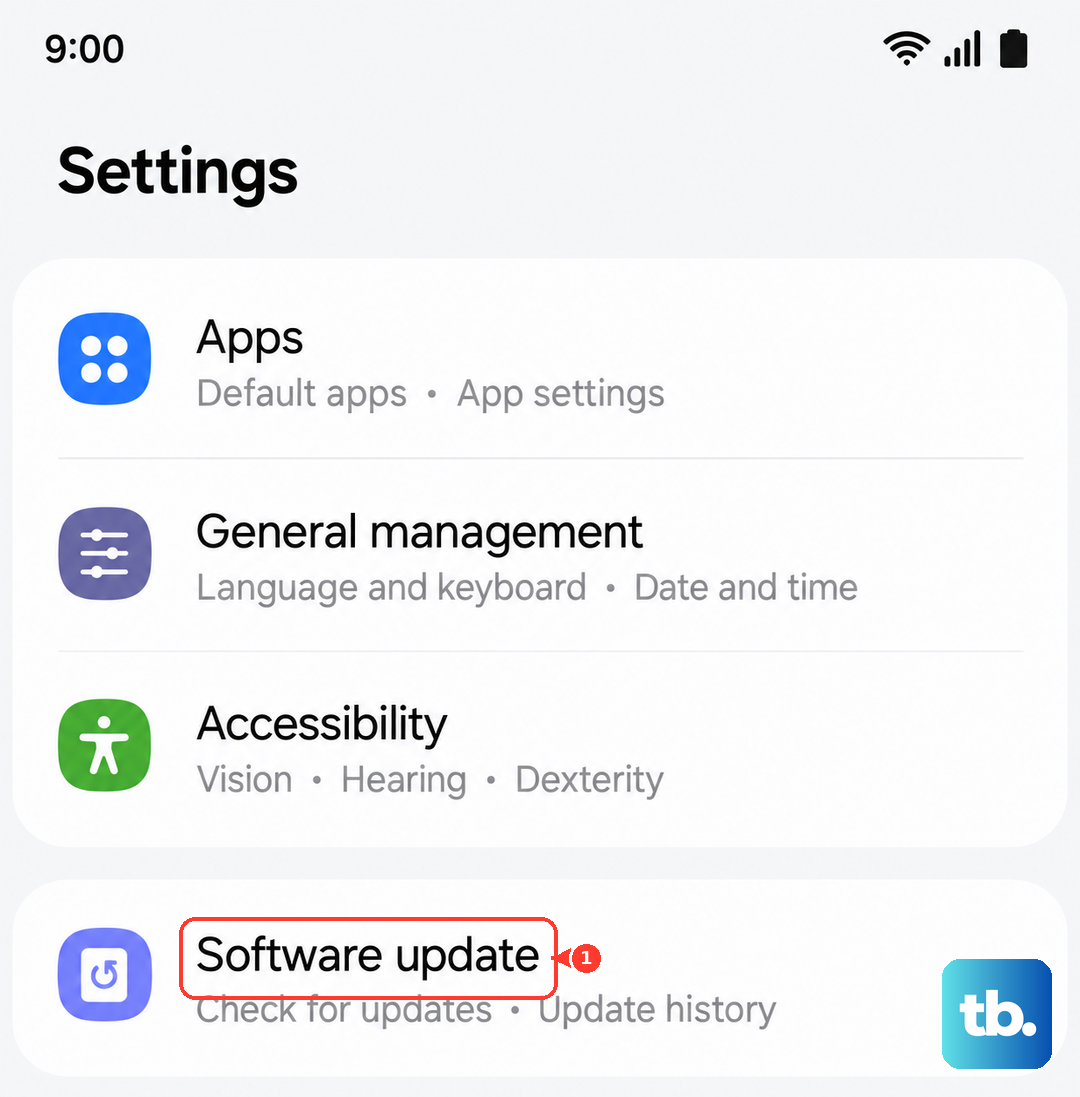
Make sure your phone is connected to Wi-Fi and has at least a 50% charge before starting the update. A software patch can often fix underlying system conflicts causing the rotation sensor to act up.
Test the Sensors with a Diagnostic Code
Your phone uses an accelerometer and gyroscope to detect movement. You can test these directly using Samsung's secret diagnostic menu. Open your Phone dialer and enter *#0*#.
This will bring up a service menu with colored tiles. Tap on the tile labeled Sensor. You'll see a screen with various readings. Without touching the screen, slowly tilt and rotate your phone.
Watch the values for the accelerometer and gyroscope. They should change in real-time as you move the device. If they don't change at all, or are stuck on zero, it could indicate a hardware fault with the sensors themselves.
Consider a Third-Party App Interference
While less common, an app you've installed might be interfering with system-level sensor permissions. Think about any apps you installed around the time the rotation problem started, especially screen dimmers, battery savers, or custom launchers.
You can boot your A36 into Safe Mode to test this. Press and hold the power button until the power menu appears; if that opens your voice assistant instead, press and hold the power button and Volume up together (power and Volume down on Samsung phones). Then, press and hold the Power off option on the screen until you see a prompt to reboot to Safe Mode.
Tap OK. In Safe Mode, all downloaded apps are temporarily disabled. If auto-rotate works perfectly here, you know a third-party app is causing the conflict. You'll need to restart normally and then uninstall apps one by one to find the offender.
Look for Physical Obstructions or Damage
The sensors are inside the phone, but a severely damaged case or a thick screen protector that applies pressure on the edges could theoretically cause issues. Remove your case and see if rotation behavior changes.
Also consider the phone's history. Has it been dropped recently or exposed to moisture? While the A36 has some water resistance, physical damage from a fall can disconnect or damage the tiny sensor components on the internal logic board.
If you've tried every software fix here, toggling settings, multiple reboots, updates, and Safe Mode, and the diagnostic test shows no sensor movement, the issue is likely hardware. At that point, contacting Samsung Support or visiting an authorized service center would be the next step to get the internal components checked.