
When the volume buttons on your Samsung Galaxy A26 5G stop responding, it's frustrating. You press them and nothing happens, no sound adjustment, no on‑screen indicator, nothing at all. The issue is usually a software glitch or debris blocking the buttons, and most cases can be fixed with basic troubleshooting before you consider a repair.
Here's what to try, starting with the simplest fixes.
Take Off the Case and Check for Debris
Start by removing any case or bumper. A tight or misaligned case can physically block the volume rocker. While you're at it, inspect the buttons closely. Dirt, pocket lint, or sticky residue can prevent the buttons from making proper contact.
Use a can of compressed air to blow around the seams of the volume rocker. If you see any visible gunk, gently clean with a cotton swab dipped in a tiny amount of isopropyl alcohol (90% or higher). Be careful not to push debris deeper into the phone. Let everything dry completely before testing the buttons again.
Force Restart the Galaxy A26 5G
A temporary software hang can make the volume buttons appear dead when they're actually fine. The A26 5G has a simple force restart that won't delete any of your data.
Press and hold the Volume Down and Power buttons together for about 10 15 seconds. Keep holding until you see the Samsung logo appear on screen, then release. This is different from a normal reboot, it cuts the power completely and forces the phone to restart fresh.
Once it boots up, test the volume buttons. If they work now, you're all set.
Check Your Volume Button Settings
One UI 7 lets you customize what the volume keys do. A setting might have been accidentally changed, making the rocker control something other than media or ringer volume.
Open Settings > Sounds and vibration > Volume. Make sure the sliders for media, ringtone, notifications, and system are all where you expect them. Then tap the three‑dot menu (upper right) and select Volume keys control. The default is usually "Media volume," but if it's set to "Ringtone volume," the buttons won't affect media playback in apps. Choose the option that matches how you use the phone.
Also check Settings > Advanced features > Side key. If you've customized the Power button to launch an app, it shouldn't interfere with the volume rocker, but it's worth verifying no conflicting shortcuts are assigned.
Use On‑Screen Volume Controls as a Workaround
While you're troubleshooting, you can still adjust volume using the touchscreen. Swipe down twice from the top of the screen to open the full Quick Settings panel. Drag the volume slider up or down. You can also press a physical volume button (if it registers anything) to show the on‑screen slider and adjust from there.
If the on‑screen controls work fine, it reinforces that the problem is with the physical buttons, not the phone's sound system.
Test the Buttons in Different Apps and Modes
Open a few apps like YouTube, Spotify, or even the Phone dialer and press the volume keys in each. If they work in some apps but not others, the issue is app‑specific. This is rare but can happen if an app has a bug or a custom volume override.
You can also test the buttons while the phone is ringing during an incoming call. If they silence the ringer but don't adjust media volume later, the rocker is physically fine, it's a setting or software issue.
Boot Into Safe Mode
A third‑party app you've installed can sometimes hijack the volume button functions. Safe mode temporarily disables all downloaded apps so you can test if the buttons work with only the stock system running.
To enter safe mode: Press and hold the Power button until the power menu appears. Tap and hold the Power off icon on the screen until the "Safe mode" prompt shows up, then tap it. The phone will restart in safe mode, and you'll see "Safe mode" at the bottom left corner.
Test the volume buttons. If they work perfectly in safe mode, a recently installed app is the culprit. Restart the phone normally (it will leave safe mode) and uninstall any apps you added around the time the issue started. If that doesn't help, try uninstalling apps one by one until the problem goes away.
Update One UI and System Software
Software bugs that affect button input are occasionally fixed in system updates. Make sure your Galaxy A26 is running the latest version.
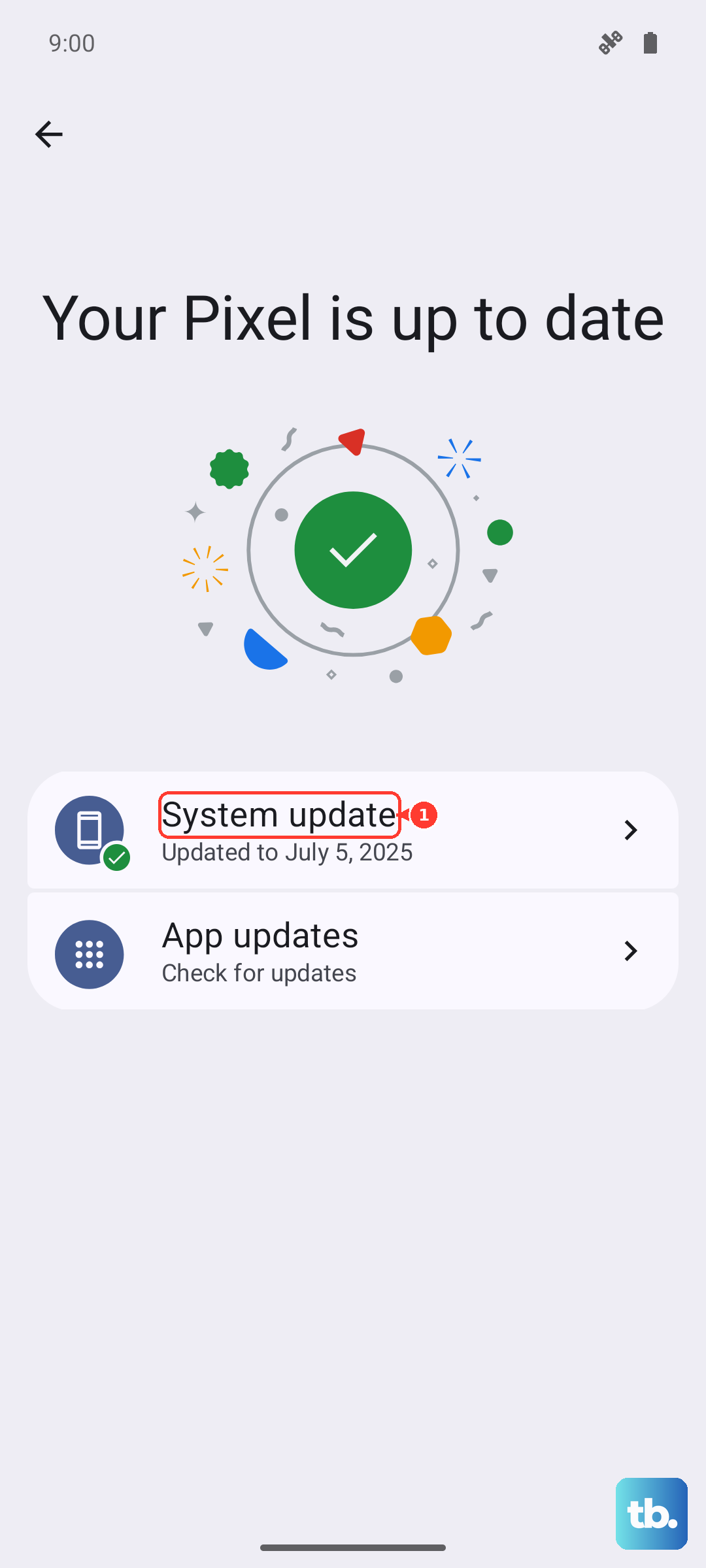
Go to Settings > Software update > Download and install. If an update is available, install it and restart your phone. Check your volume buttons again afterward.
Clear the Cache Partition
Corrupted system cache can cause odd behavior, including unresponsive buttons. Clearing the cache partition doesn't delete your personal data, it just removes temporary system files.
To do this:
- 1.Turn off the phone.
- 2.Press and hold the Volume Up and Power buttons together.
- 3.Release both buttons when the Android recovery menu appears.
- 4.Use the volume keys to navigate to Wipe cache partition.
- 5.Press the Power button to select it.
- 6.Confirm with Yes.
- 7.Once the wipe is done, select Reboot system now.
Your phone will take a little longer to start up, that's normal. Test the volume buttons once it's back on.
Enable the Assistant Menu (Virtual Buttons)
Samsung includes an accessibility tool similar to iPhone's AssistiveTouch. It puts a floating icon on your screen that gives you virtual volume controls. This is handy both as a workaround and as a way to "reset" the physical button's software state.
Go to Settings > Accessibility > Interaction and dexterity > Assistant menu and turn it on. A small floating icon will appear. Tap it, then tap Volume. Use the on‑screen up and down buttons a few times, then try your physical volume rocker again. Sometimes interacting with the virtual buttons can jostle the software layer that controls the hardware buttons.
You can turn the Assistant menu off afterward if you don't need it permanently.
Factory Reset (Last Resort)
If you've tried everything and the volume buttons still don't respond, a factory reset may resolve a deep software corruption. Back up all your data first, this erases everything on the phone.
Go to Settings > General management > Reset > Factory data reset. You'll need to re‑enter your Samsung account and set up the phone from scratch. After the reset, test the volume buttons before restoring any apps or settings to confirm the hardware is working.
Most volume button issues on the Galaxy A26 5G are software‑related and clear up with a force restart, a quick cleaning, or a settings check. Work through these steps in order, you'll likely find your fix somewhere along the way.