
When Bixby stops responding to your voice on the Samsung Galaxy A26 5G, it can grind your day to a halt. You tap the side button or say "Hey Bixby" and get nothing. Let's run through the most common fixes to get your voice assistant working again.
Check That Hey Bixby Is Actually On
This sounds obvious, but sometimes Bixby gets turned off after a system update or by accident. Open the Settings app and tap Advanced features then Bixby. Make sure Voice wake-up is toggled on and that "Hey Bixby" is enabled.
While you're there, tap Voice wake-up and then Wake with "Hi, Bixby" to confirm it's active. If it was off, just flip the switch and test again.
Retrain Bixby to Recognize Your Voice
Bixby can lose its grip on your voice pattern over time, especially if your surroundings have changed. Go back to Settings > Advanced features > Bixby > Voice wake-up.
Tap Reset voice wake-up and follow the on-screen prompts to repeat the wake phrase a few times. Make sure you're in a quiet room and speak at your normal volume. This retraining usually clears up recognition issues.
Check the Microphone and Case
The Galaxy A26 5G has a main mic at the bottom and a secondary mic near the top. If you're using a thick case, a screen protector that covers the earpiece, or a magnetic car mount, those can block the mics.
Pop the case off and test Bixby again. Also inspect the microphone holes for dust or pocket lint. Use a dry toothbrush or compressed air to gently clean them out. Don't stick anything metal or sharp in there.
Turn Off Do Not Disturb and Sound Recognition
Do Not Disturb mode can prevent Bixby from responding to voice commands. Swipe down twice to open the quick panel and check that Do not disturb is not highlighted blue.
One UI 7 also includes a Sound Recognition feature under Accessibility that can conflict with Bixby. Go to Settings > Accessibility > Advanced settings > Sound detectors and make sure Sound recognition is turned off.
Disconnect Bluetooth Accessories
Sometimes Bixby tries to route voice commands through a paired Bluetooth headset or car kit, even when you're not wearing it. Go to Settings > Connections > Bluetooth and either disconnect or forget any active devices.
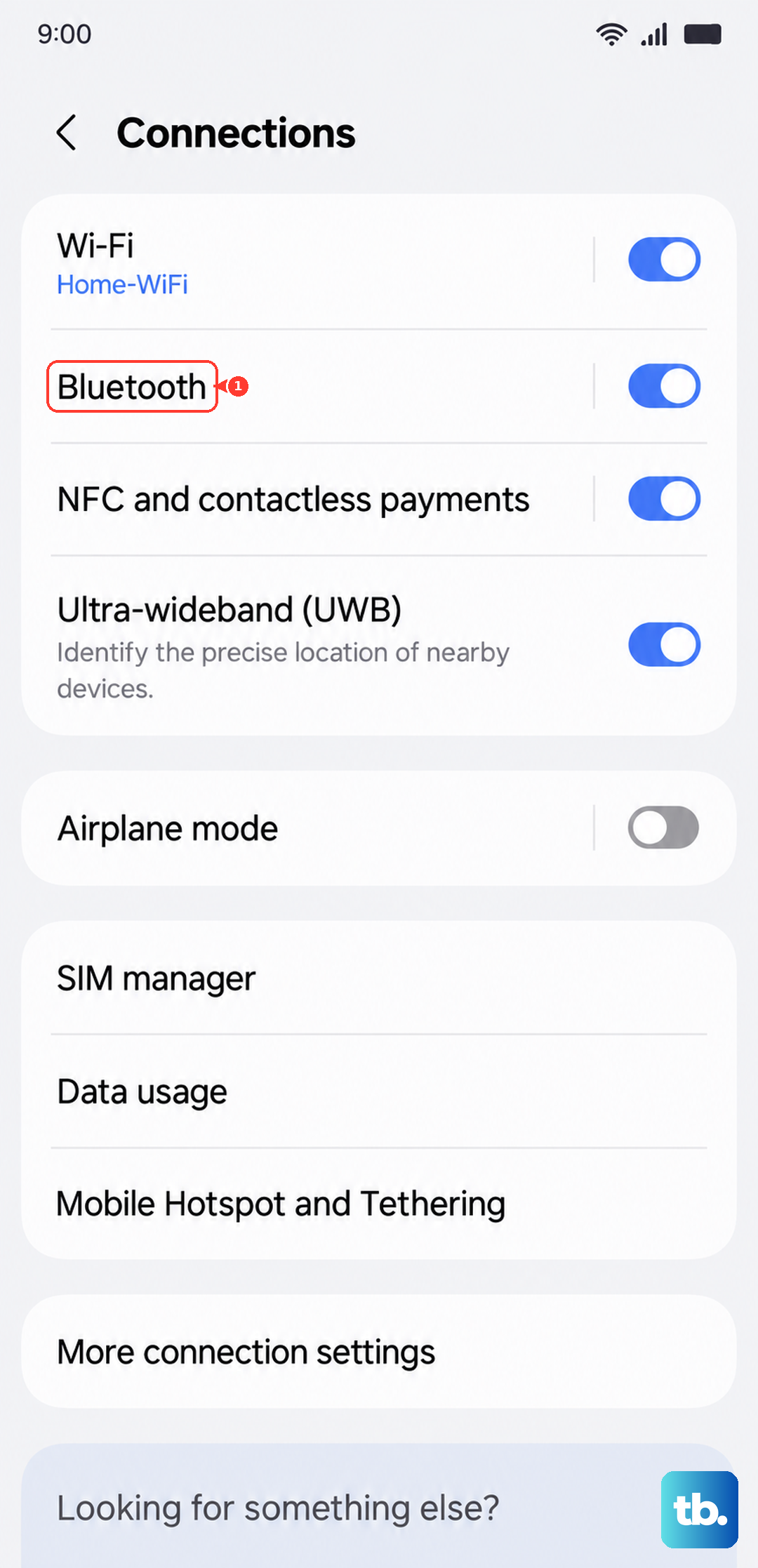
Then test Bixby with the phone's own microphones. If it works, the issue was the Bluetooth device. Reconnect one at a time to find the culprit.
Bixby Volume and Audio Settings
If Bixby can hear you but you can't hear its responses, check your media volume. Press the volume rocker while Bixby is talking and make sure the slider isn't all the way down. You can also go to Settings > Sounds and vibration > Volume and raise the media volume.
Another thing: Bixby responses can be set to only work when the device is unlocked. Head to Settings > Advanced features > Bixby > Using Bixby and make sure Bixby voice responses is set to Always or When using speaker.
Restart the Galaxy A26 5G
A quick restart clears out temporary software glitches that can keep Bixby from responding. Press and hold the Volume Down and Power buttons simultaneously for about 10 15 seconds until the Samsung logo appears. This force restart won't erase any data.
Once the phone boots back up, test Bixby again. This simple step fixes a surprising number of voice assistant issues.
Update One UI and Bixby
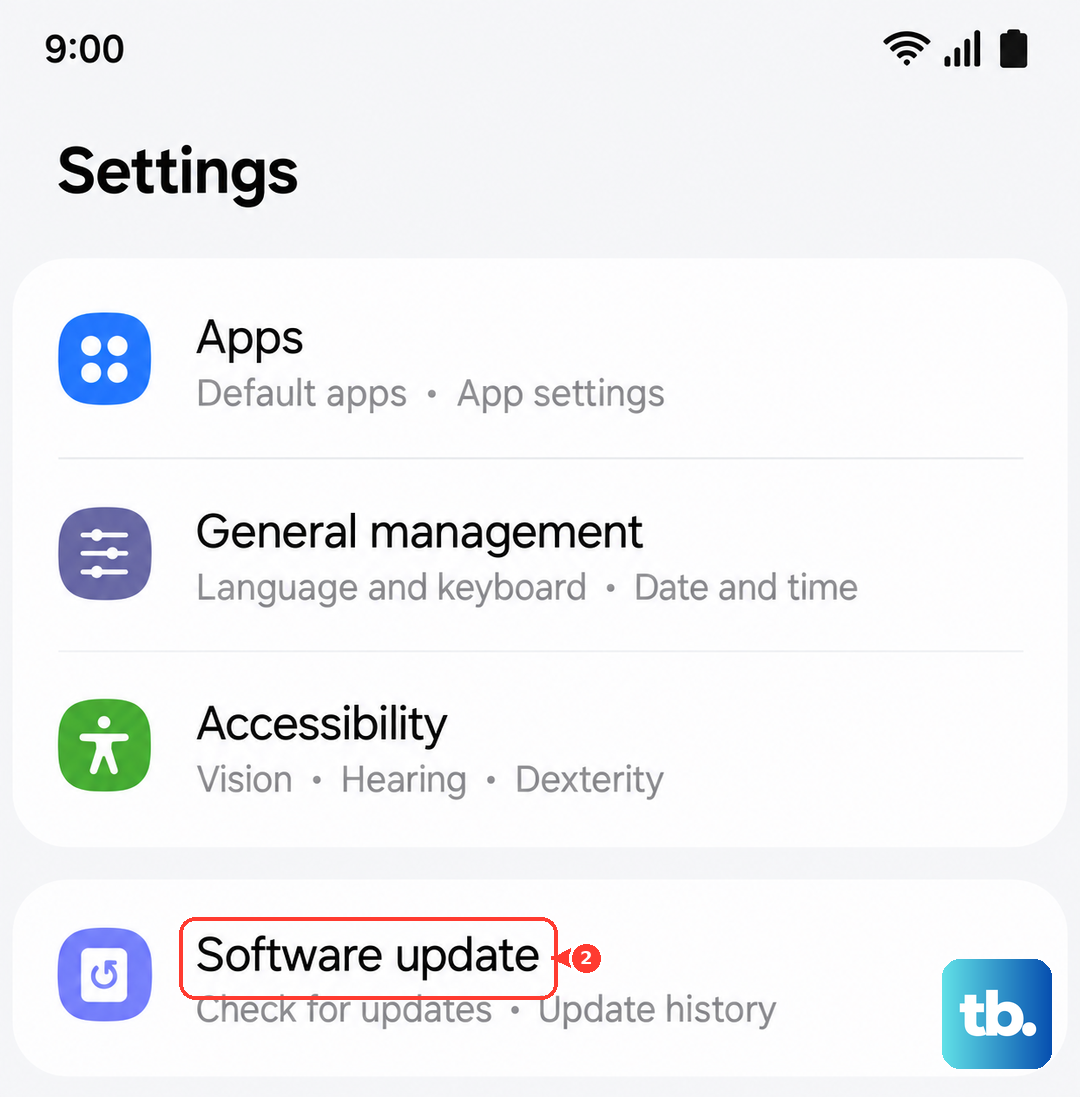
Samsung regularly pushes updates that improve Bixby's performance and fix bugs. Go to Settings > Software update and tap Download and install to see if there's a new version available. Bixby itself can also be updated through the Galaxy Store.
Open the Galaxy Store, tap the menu icon (three horizontal lines), then My apps > Update. If Bixby appears in the list, update it. Restart your phone after updating.
Clear the Cache Partition
Corrupted system cache can interfere with Bixby's voice recognition. Clearing the cache partition is safe and doesn't touch your personal data. Here's how on the Galaxy A26 5G:
Turn off the phone. Then press and hold the Volume Up and Power buttons together until the Samsung logo appears, then release both. Use the volume buttons to navigate to Wipe cache partition and press the Power button to select it. Confirm with Yes and then Reboot system now. This takes about a minute.
After the reboot, test Bixby. Many Samsung users report that this clears up voice assistant hiccups.
Activate Bixby via the Side Button
If voice wake-up still isn't working, you can still use Bixby by pressing the side button. Go to Settings > Advanced features > Side button and set Press and hold to Wake Bixby.
That way you can launch Bixby manually even if "Hey Bixby" is being stubborn. You can also set a double-press shortcut to launch your preferred app or camera.
Reset All Settings (Without Losing Data)
If none of the above fixes work, a settings reset can clear deeper configuration conflicts. Go to Settings > General management > Reset > Reset all settings. This won't delete your photos or apps, but it will reset network, display, and Bixby preferences to default.
You'll need to re-enable voice wake-up and retrain Bixby afterward, but this step often resolves persistent issues that nothing else touched.