
When your Samsung Galaxy A26 5G speaker stops working, it can be frustrating. Sound problems can range from occasional glitches during calls to complete audio failure while streaming music or watching videos. The good news is that most of these issues can be resolved without a trip to the repair shop.
If you are not sure whether it is the speakers or the software, run an online speaker test first. Working test tones rule out a hardware fault in seconds.
The Galaxy A26 5G runs One UI 7 on Android 15, which brings its own set of audio settings and quirks. Whether you're dealing with no sound during calls, quiet media playback, or distorted audio, these nine fixes can help get your phone's speaker back on track.
Start With a Simple Volume Check
It sounds obvious, but it's the most common culprit. Press the volume up button while playing music or during a call to make sure the volume isn't turned all the way down.
Open Settings > Sounds and Vibration > Volume and slide all the bars to a comfortable level. Check that your phone isn't set to vibrate only or silent mode by tapping the volume icon in the notification panel.
Turn Off Separate App Sound
One UI 7 has a feature called Separate App Sound that can route audio from specific apps to a Bluetooth device while other sounds play through the phone's speaker. If you've set it up and forgotten, it can make it seem like the speaker's broken.
Go to Settings > Sounds and Vibration > Advanced Sound Settings > Separate App Sound and toggle it off. This ensures all audio routes through the internal speaker unless you specify otherwise.
Clean the Speaker Grill Carefully
Dust and pocket lint love to collect in the small speaker grills on the bottom of the Galaxy A26 5G. Over time, this buildup can muffle or block sound completely.
Use a soft-bristled toothbrush or a dry cotton swab to gently brush across the speaker area. You can also try using a flashlight to spot any obvious blockages. Don't insert anything sharp like a paperclip or SIM eject tool into the grill, as that can puncture the speaker membrane and cause permanent damage.
Disconnect Bluetooth and Accessories
Your phone might be sending audio to a paired Bluetooth device without you realizing it. Swipe down from the top of the screen and tap the Bluetooth icon to turn it off temporarily.
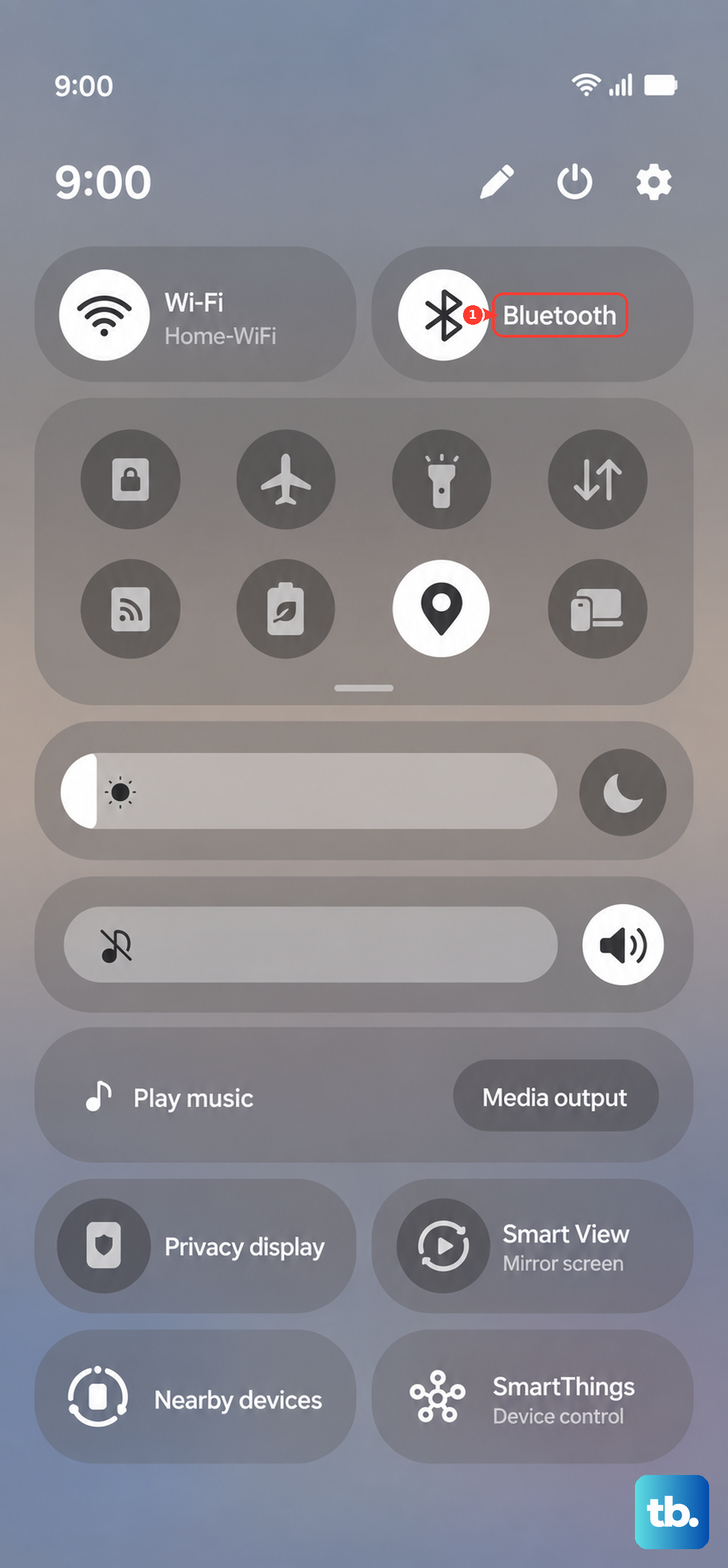
Also remove any phone case that might be covering the speaker grill. Some cases, especially rugged ones, can block the bottom-firing speaker on the A26 5G. If sound returns with the case off, you know the case is the issue.
Check Do Not Disturb and Accessibility Settings
Do Not Disturb mode can silence calls, notifications, and media without making it obvious. Go to Settings > Notifications > Do Not Disturb and make sure it's turned off.
Next, check Settings > Accessibility > Hearing Enhancements and confirm that Mute all Sounds is not enabled. This setting is easy to turn on by accident and will completely silence the phone.
Force Restart Your Galaxy A26 5G
A simple restart can clear temporary software glitches that affect the speaker. If the phone is unresponsive or the speaker cuts out completely, use the force restart method designed for this device.
Press and hold the Volume Down and Power buttons simultaneously for about 10-15 seconds. Keep holding until the device restarts. This is different from the older Power + Volume Up method, so make sure you use the correct combo for the A26 5G.
Clear the Cache Partition
Corrupted system cache files can cause audio problems, especially after a software update. Clearing the cache partition is safe and doesn't delete any personal data.
Power off your Galaxy A26 5G completely. Press and hold Volume Up and Power buttons together until the Samsung logo appears, then release. Use the volume buttons to navigate to Wipe cache partition and press the power button to select it. Once done, choose Reboot system now.
Update One UI and Apps
Software updates often include bug fixes for audio drivers and system sounds. Go to Settings > Software Update > Download and install to check for the latest version of One UI 7.
Also update your apps, especially media players and streaming services. Open the Galaxy Store and Google Play Store to see if any updates are pending. I've seen a single app update fix speaker issues that seemed like a hardware problem.
Boot Into Safe Mode to Isolate the Problem
If the speaker works fine sometimes but not others, a third-party app might be causing the conflict. Safe mode starts the phone with only pre-installed apps running.
Press and hold the Power button until the power menu appears. Tap and hold Power Off until the Safe Mode prompt appears, then tap Safe Mode. If sound works normally in safe mode, a downloaded app is the culprit. Uninstall recently installed apps until you find the one causing the issue.
To exit safe mode, simply restart the phone normally by pressing and holding the Power button and tapping Restart.
When to Consider a Factory Reset
If you've tried everything above and the speaker still isn't working, a factory reset can eliminate any deep software corruption. This is a last resort because it erases all your data, so back up your photos, contacts, and files before proceeding.
Go to Settings > General Management > Reset > Factory data reset. Follow the prompts and set up your phone as new afterward. If the speaker still doesn't work after a factory reset, the issue is likely hardware-related and will need professional attention.











