
When you tap the Settings icon on your Samsung Galaxy A26 5G and get the "Settings has stopped working" error, it usually means a temporary glitch or corrupted data is getting in the way. The good news is this is almost always fixable without wiping your phone. Here are seven solutions that actually work on the Galaxy A26 5G running One UI 7.
Force Restart the Phone First
Before diving into menus you can't even open, try a force restart. This clears out any temporary software hiccups that might be crashing the Settings app.
Press and hold the Volume Down and Power buttons simultaneously for about 10-15 seconds until the device restarts. That's the official force restart method for the Galaxy A26 5G, and it bypasses the normal power menu completely. Once it boots back up, try opening Settings again.
Clear the Settings App Cache via Recovery Mode
Since the Settings app itself is crashing, you might not be able to navigate to its storage options normally. On the Galaxy A26 5G, you can clear the system cache partition instead, which often resolves app crashes.
Power off the phone completely. Then press and hold the Volume Up and Power buttons together until the Samsung logo appears, then release. You'll boot into recovery mode. Use the volume buttons to navigate to "Wipe cache partition" and press the Power button to select it. Confirm on the next screen. Once it's done, select "Reboot system now."
This doesn't delete any of your personal data, just the temporary system cache that can cause conflicts with apps like Settings.
Force Stop Settings from the App Info Screen
If the Settings app is still responsive enough to crash repeatedly, you can force stop it even if you can't open it normally. On One UI 7, there's a quick way to reach app info.
Open the Recent Apps view (swipe up and hold or tap the recent apps button). Find the Settings app card and tap the app icon at the top to open its app info page. From there, tap "Force stop" and confirm. Then go back and try opening Settings again from the home screen or app drawer.
Check Google Play Services
One UI 7 relies heavily on Google Play Services for system functions, including the Settings app. If Play Services has corrupted data, Settings can crash.
Since you might not be able to open the Settings menu normally, pull down the notification shade, tap the gear icon if it appears, or use a workaround. If you can get to Settings briefly, go to Apps and find "Google Play Services." Tap "Force stop" first, then go to Storage and tap "Clear cache." After that, tap "Manage storage" and then "Clear all data."
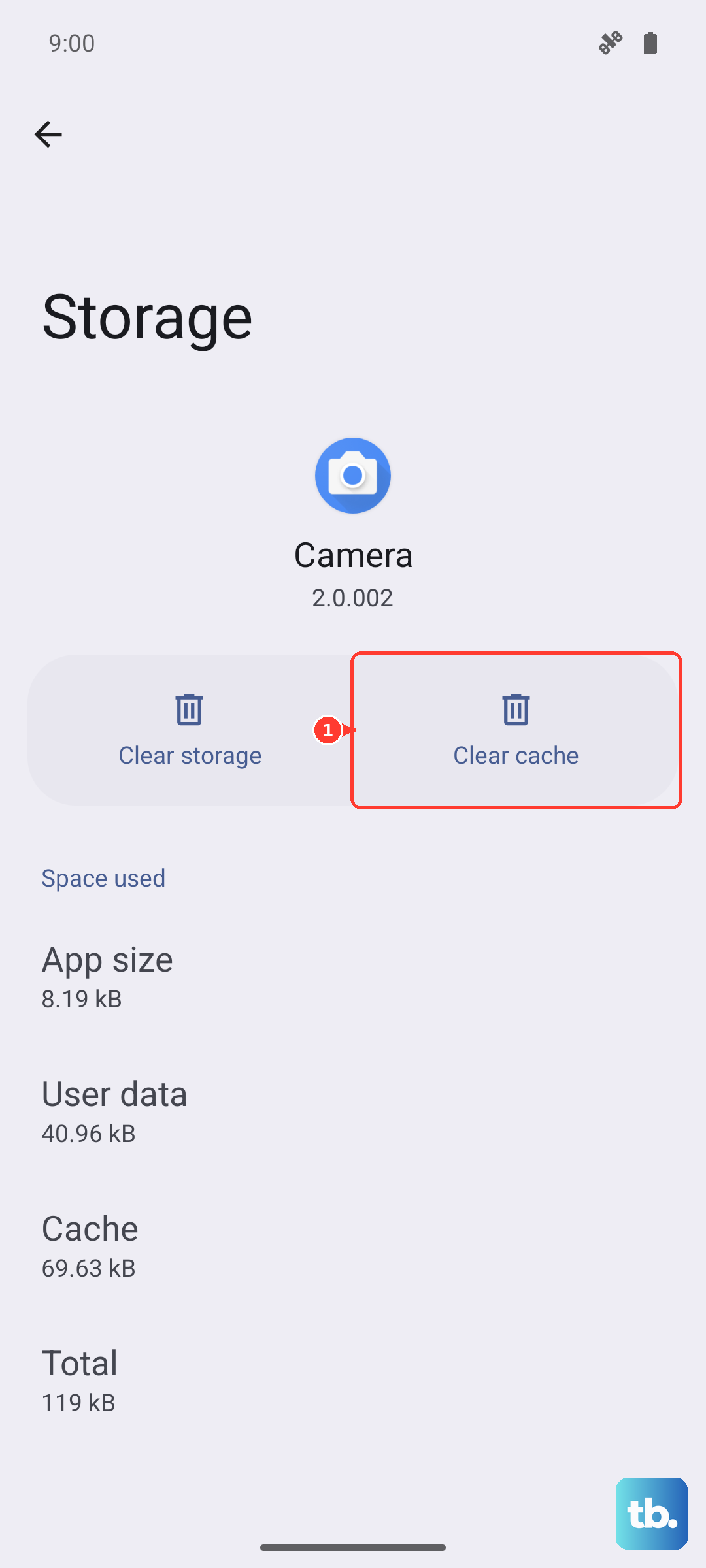
Restart the phone after clearing that data. The Settings app should start behaving normally again.
Uninstall Google Play Store Updates
Occasionally a Play Store update conflicts with system apps on Samsung phones. Rolling it back can stop the Settings crash immediately.
Open the app drawer and find the Google Play Store icon. Tap and hold it, then select "App info." If you can't do that, try the Recent Apps trick again to reach app info. Tap the three-dot menu in the top right and choose "Uninstall updates." Confirm and restart your device. The Play Store will re-update itself on its own later.
Update One UI 7 and System Apps
Samsung regularly pushes software updates that patch bugs exactly like this one. If the Settings crash started after a recent change, an update might have a fix ready.
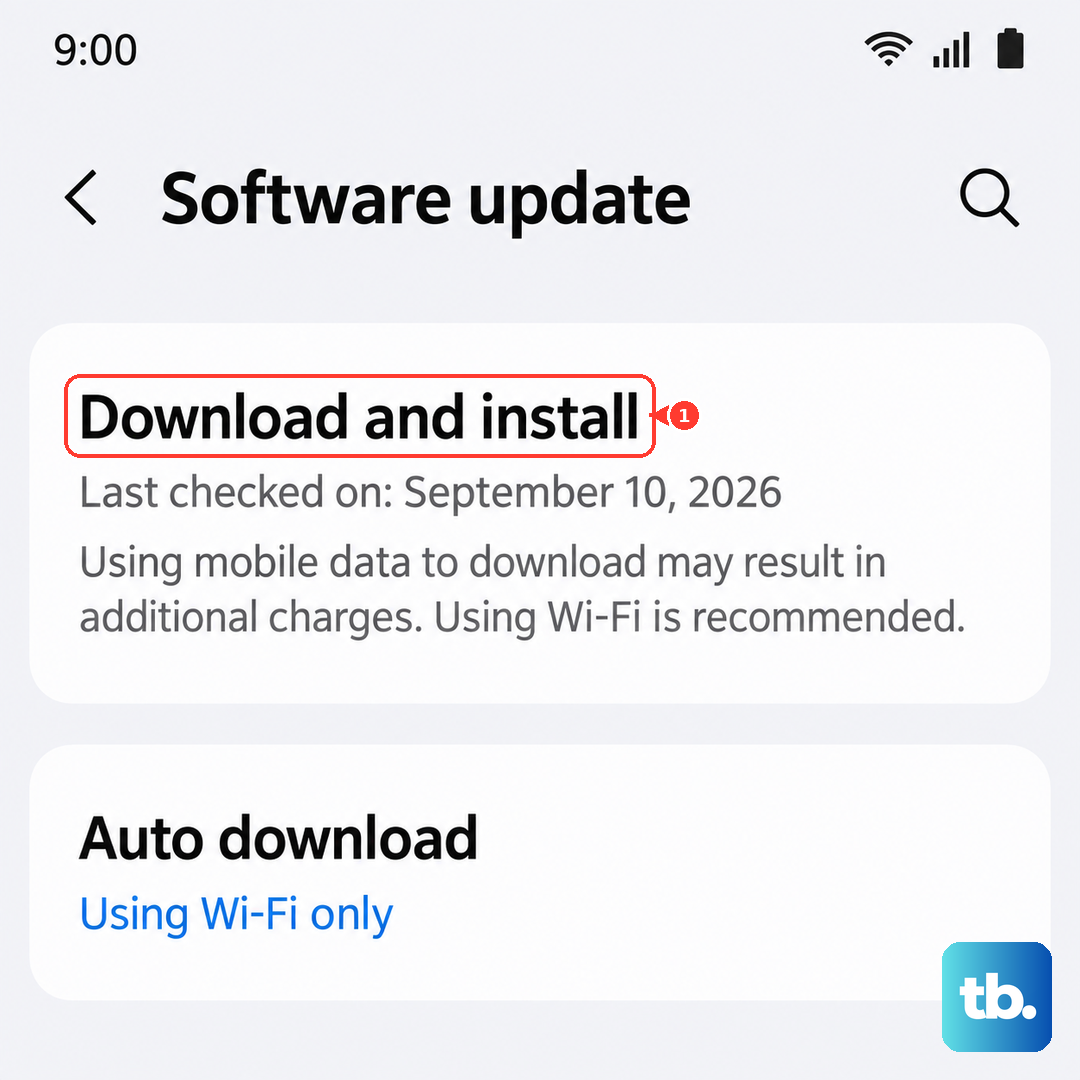
If you can get into Settings at all, go to the very bottom and tap "Software update" then "Download and install." If Settings won't open, check for updates through the notification shade shortcuts or by connecting your phone to a computer with the Samsung Smart Switch app. Even if you have to wait for an over-the-air notification, installing the latest One UI 7 update often resolves stubborn app crashes.
Factory Reset as a Last Resort
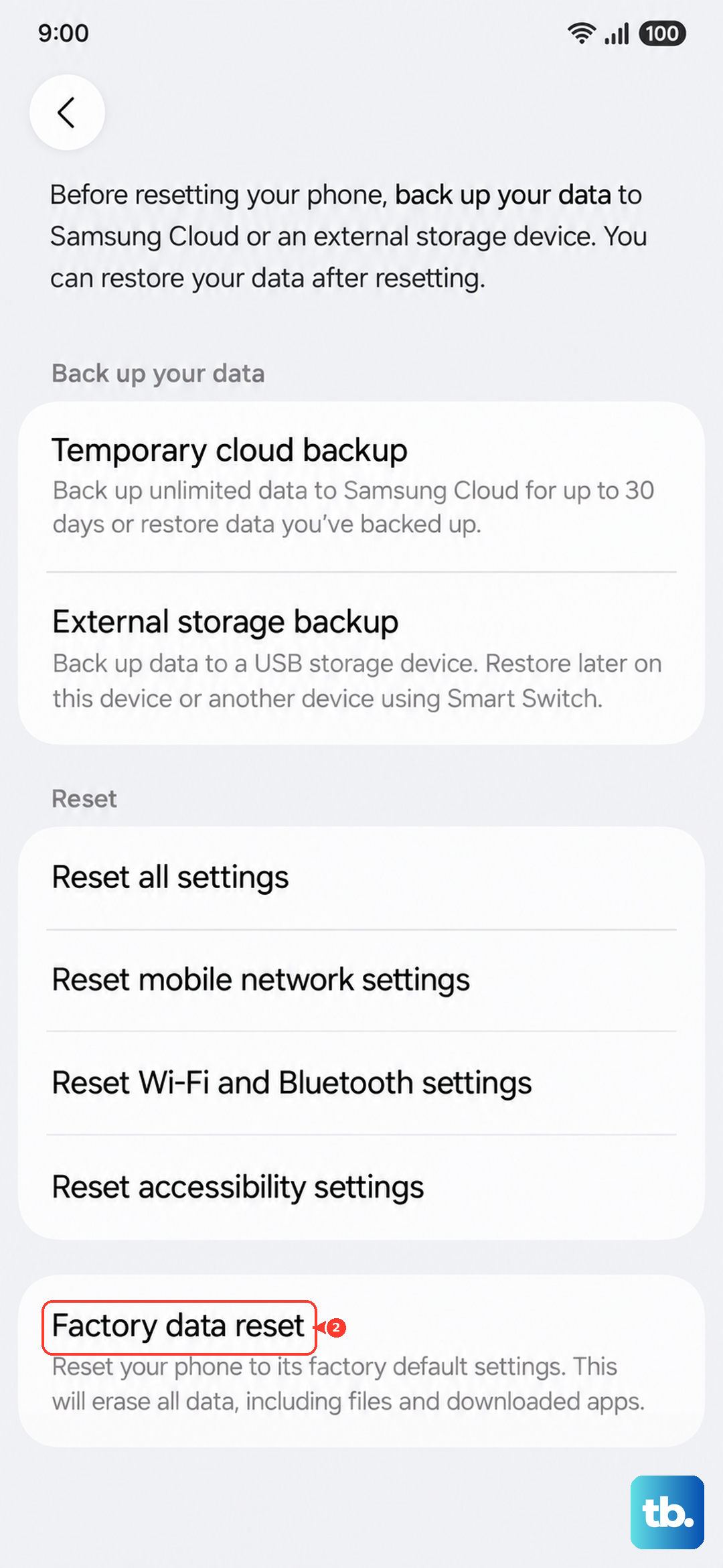
If you've tried everything above and the Settings app still crashes every time you open it, a factory reset will clear whatever corrupted system data is causing the problem. This wipes everything on the phone, so back up your photos, contacts, and files first.
If you can access Settings, go to General Management > Reset > Factory data reset and follow the prompts. If you can't open Settings at all, you can factory reset from recovery mode: power off, then press and hold Volume Up and Power. In recovery mode, select "Wipe data/factory reset" and confirm. Once it finishes, reboot the phone.
After the reset, set up your Galaxy A26 5G as new and install your apps one at a time. The Settings app will work like it did on day one.