
When your Samsung Galaxy A26 5G won't send text messages, it's frustrating. Messages might show "Not sent," get stuck with a clock icon, or just vanish into thin air. Let's walk through the fixes that actually work on this phone.
Check Your Signal and Data Connection
Text messages need a cellular signal (SMS/MMS) or a mobile data or Wi-Fi connection (RCS). Look at the signal bars and the data icon in the status bar. If you have no bars, move to an area with better reception. If you're on Wi-Fi, try toggling Mobile Data off and on in Settings > Connections to refresh the connection.
You can also swipe down from the top of the screen to open the quick settings panel and toggle Airplane Mode on, wait 10 seconds, then toggle it off. This forces your Galaxy A26 to reconnect to the network and often clears temporary glitches.
Restart Your Galaxy A26 5G
A simple restart clears minor software hiccups that stop messages from sending. Press and hold the Volume Down and Power buttons together for about 10 15 seconds until the phone vibrates and reboots. That's the force restart method for this device, and it works even if the screen is frozen.
Alternatively, you can hold the Power button until the power menu appears, then tap Restart. Wait for the phone to fully boot up, then try sending a text again.
Check Your SMS and MMS Settings
If you can send RCS messages (Chat features) but not regular SMS, or if pictures won't go through, check your messaging app settings. Open the Samsung Messages app (or your default SMS app), tap the three‑dot menu, and go to Settings. Make sure SMS is enabled and that MMS settings are correct.
For MMS, you need the right APN settings. Go to Settings > Connections > Mobile Networks > Access Point Names. Tap the APN your carrier uses (usually it's already selected). Scroll down and confirm the fields like MMSC, MMS proxy, and MMS port match what your carrier provides. If they're empty, contact your carrier or look up the correct values online for your carrier and the Galaxy A26.
Turn Off Chat Features (RCS) Temporarily
RCS is great when it works, but it can also cause sending failures if the server handshake gets stuck. In the Messages app, tap the three‑dot menu, go to Settings > Chat features, and toggle Chat features off. Wait a minute, then turn it back on. If messages start sending as SMS immediately, the problem was with RCS registration.
Some Samsung users have reported that turning off RCS and then sending a test text to yourself forces the phone to re‑register with the carrier's messaging server.
Check Your Blocked Numbers List
If texts fail only to a specific person, you may have accidentally blocked them. Open the Phone app, tap the three‑dot menu, and go to Settings > Block numbers. Scroll through the blocked‑numbers list. If the recipient is there, tap the Delete or Remove icon next to their entry.
You can also check within the Messages app: tap the three‑dot menu, go to Settings > Block numbers and spam protection (or similar), and review the block list there.
Reset Your Network Settings
This is a bigger step because it clears all saved Wi‑Fi passwords and Bluetooth pairings, but it often fixes persistent messaging issues. Go to Settings > General management > Reset > Reset network settings. Tap Reset settings and confirm. The phone will restart and rebuild your network configurations from scratch.
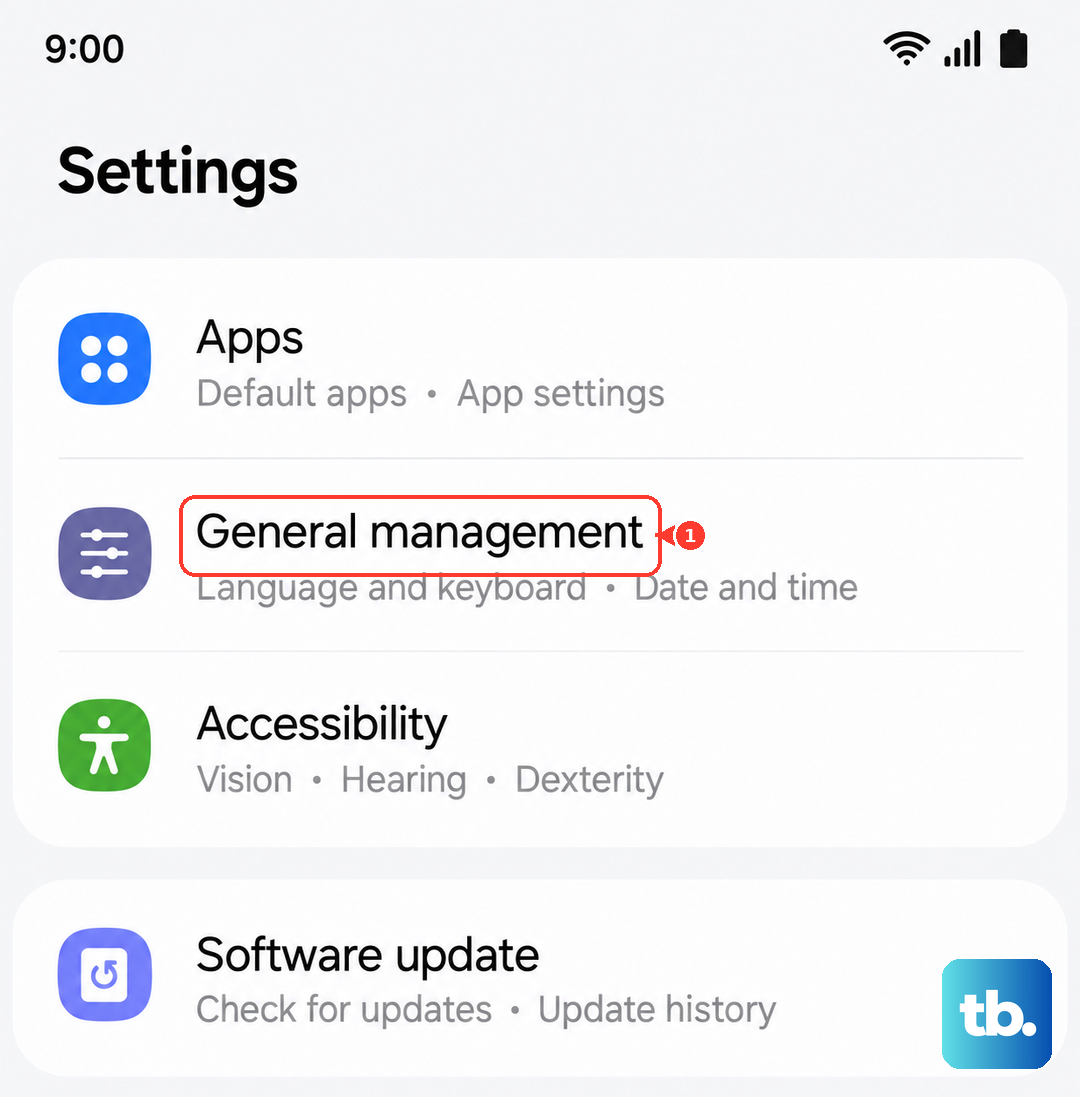
After the reset, reconnect to Wi‑Fi and try sending a text. This clears any corrupted network data that might be interfering with SMS/MMS.
Remove and Reinsert Your SIM Card
A loose or misaligned SIM can prevent your Galaxy A26 from properly registering with the carrier's messaging system. Power off the phone completely. Locate the SIM tray on the left edge (just above the volume buttons). Use the ejector tool (or a paperclip) to pop the tray out. Remove the SIM, wait about 30 seconds, reseat it firmly, and push the tray back in. Power on and test.
Check for Carrier Settings Updates
Carriers push out small updates that fix specific messaging issues. Go to Settings > About phone > Software information and tap Check for updates. If a carrier settings update is available, install it. You can also open the Phone app and dial *#87367# to force a carrier update check on some networks.
These updates are usually invisible but can resolve issues like MMS not downloading or SMS failing to send on the Galaxy A26.
Contact Your Carrier
If you've tried everything and messages still won't send, the problem might be on your carrier's side. They could have a service outage in your area, or your account might have SMS/MMS blocked or suspended. Give them a call and ask them to verify that messaging is provisioned correctly on your line. They may also need to reprovision your SIM or refresh your network profile on the tower.