
Missing calls because your Samsung Galaxy A26 5G isn't ringing is really annoying. You see the missed call notification, but you never heard it ring. Let's get your phone ringing again.
Check the Sound Mode First
The Galaxy A26 5G doesn't have a physical mute switch, so the sound mode is controlled through software. Open the quick settings panel by swiping down from the top of the screen and look for the sound icon. Tap it until you see "Sound" mode instead of "Vibrate" or "Silent".
You can also go to Settings > Sounds and vibration and make sure "Sound mode" is set to Sound. While you're there, slide the ringtone volume slider all the way up.
Turn Off Do Not Disturb
Do Not Disturb on One UI 7 silences incoming calls and notifications. Swipe down twice to open the full quick panel and look for the Do Not Disturb icon (a circle with a line through it). If it's highlighted, tap it to turn it off.
You can also check Settings > Notifications > Do Not Disturb and make sure it's set to Off. Check if any schedules or routines are turning it on automatically.
One UI 7 also has Modes and Routines that can silence your phone. Go to Settings > Modes and Routines and review each mode (Sleep, Driving, etc.) to see if any have ringing silenced.
Disconnect Bluetooth Devices
If the Galaxy A26 is connected to a Bluetooth headset, speaker, or even your car, calls might route through that device instead of the phone speaker. Swipe down and tap the Bluetooth icon to turn it off temporarily. Test with a call.
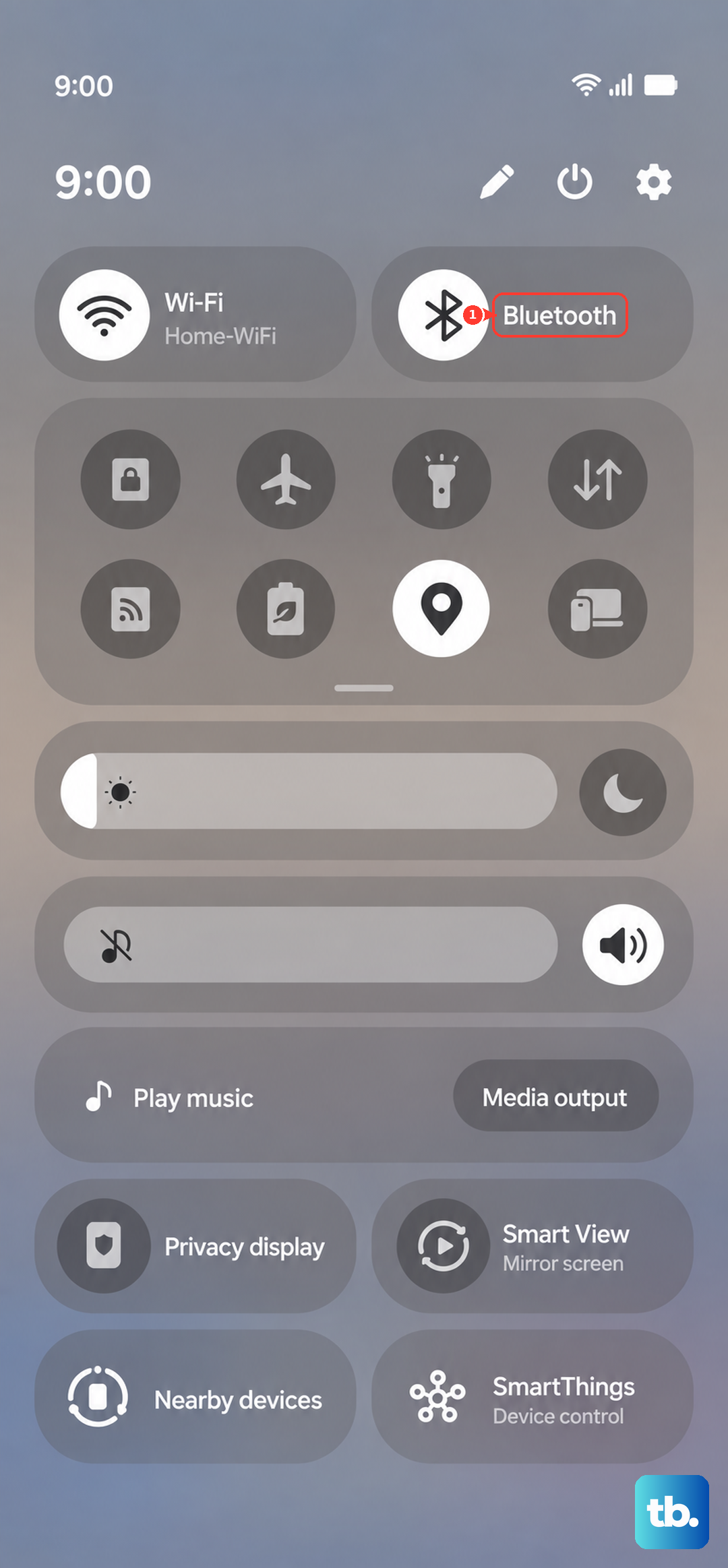
If that works, go to Settings > Connections > Bluetooth and check which devices are paired. You can unpair any you don't need.
Check Blocked Contacts and Call Forwarding
Open the Phone app, tap the three dots in the top right, and select Settings. Tap Block numbers to see if the person calling you is on your block list. If they are, remove them.
In the same Phone settings menu, tap Supplementary services (or Call forwarding depending on your carrier) and make sure call forwarding is turned off. If it's forwarding calls to another number, your phone won't ring.
Turn Off Silence Unknown Callers
Your Galaxy A26 has a feature that sends unknown numbers straight to voicemail without ringing. In the Phone app settings, look for Silence Unknown Callers or Unknown numbers. Turn it off if it's enabled.
You'll find it under Phone > Settings > Block numbers or directly in the Phone settings list depending on your carrier variant.
Restart Your Galaxy A26 5G
A quick restart clears up temporary software glitches that can cause ringing issues. Press and hold the Volume Down and Power buttons together for about 10 to 15 seconds. The phone will restart automatically.
This is the force restart method and works even if the phone is unresponsive. It's safe to do and won't erase any data.
Update One UI and Your Apps
Software updates often include fixes for audio and call-related bugs. Go to Settings > Software update and tap Download and install if an update is available.
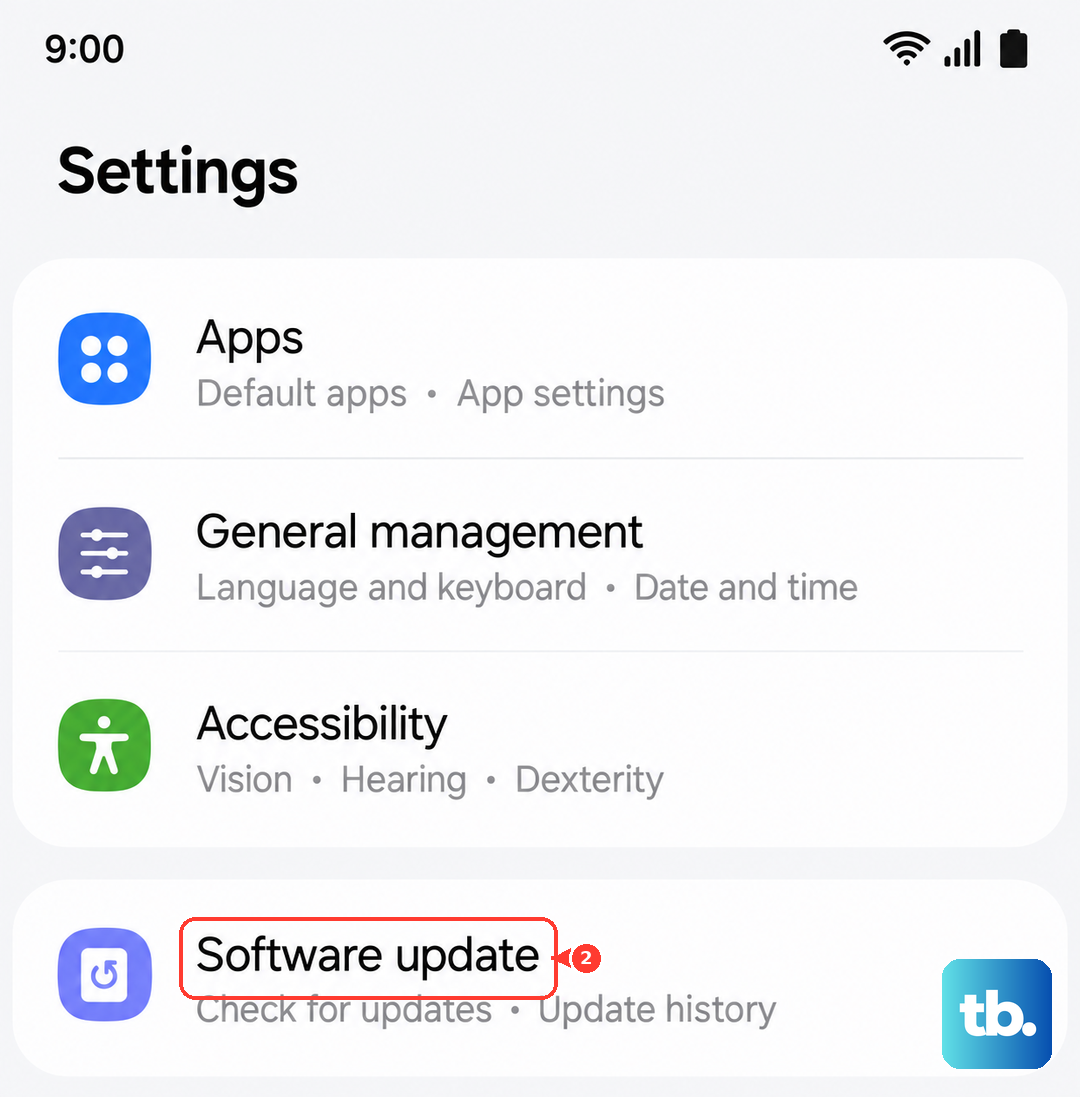
Also open the Galaxy Store and Google Play Store to update all your apps. Outdated apps can sometimes interfere with call handling.
Clear the Cache Partition
If the issue started after an update, clearing the system cache can help. Turn off the phone, then press and hold the Volume Up and Power buttons together until you see the Samsung logo. Release the Power button but keep holding Volume Up until the recovery menu appears.
Use the volume buttons to scroll to Wipe cache partition and press the Power button to select it. Confirm with Yes, then after it finishes, select Reboot system now. This doesn't delete your personal data.
Reset All Settings
If nothing else has worked, resetting all settings can fix deeper software conflicts. Go to Settings > General management > Reset > Reset all settings. Enter your PIN or password, then tap Reset.
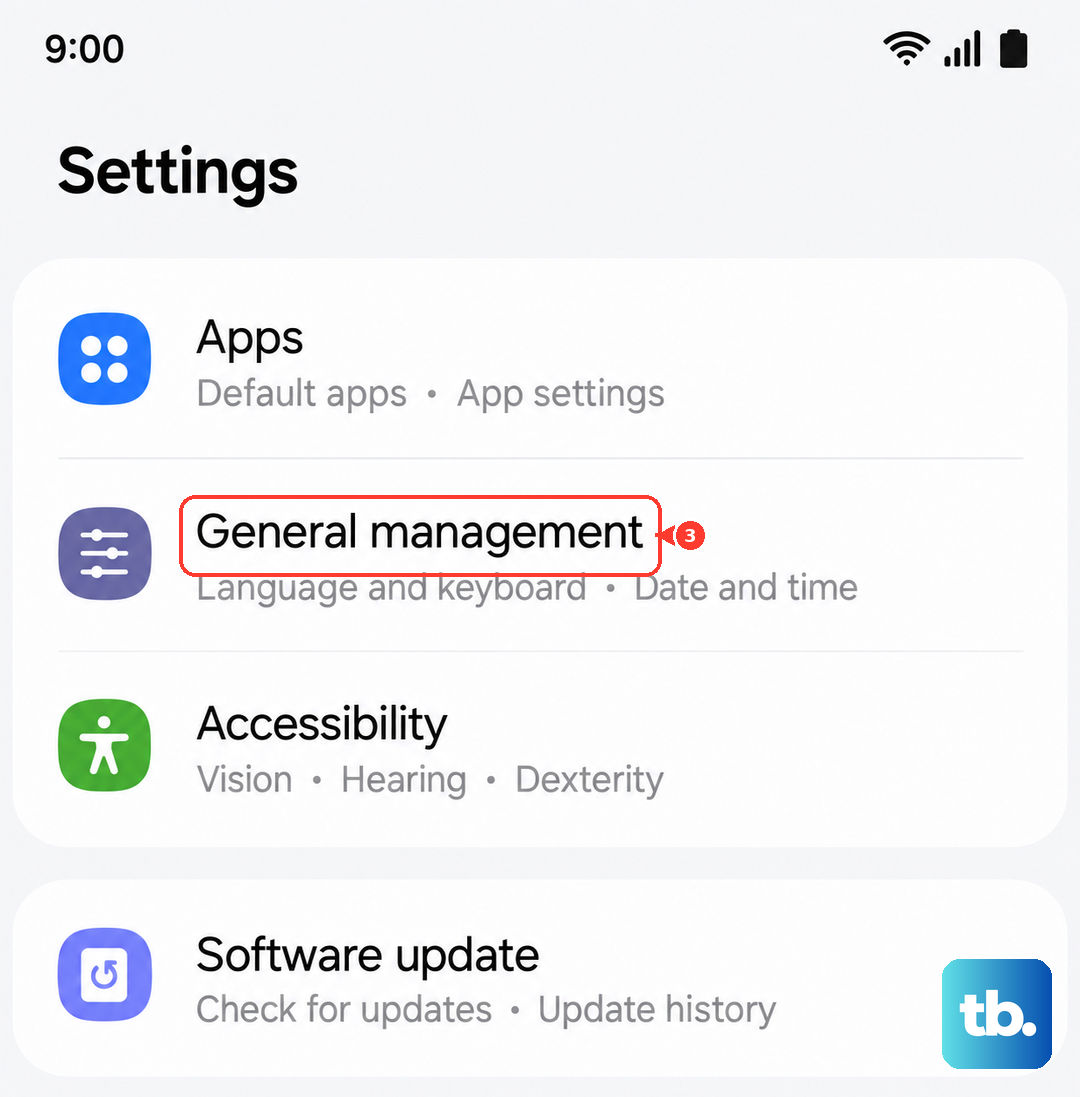
This resets Wi-Fi networks, Bluetooth pairings, and notification settings but doesn't erase your photos, contacts, or apps. You'll need to reconnect to Wi-Fi and set your ringtone again after.