
Your Samsung Galaxy A26 5G isn’t charging. You’ve plugged it in, maybe swapped cables, and still nothing. It’s a common issue with this model, but almost always fixable at home without a trip to the shop.
Whether you’re dealing with a dead battery that won’t wake up, a phone that charges only when fast charging is off, or random overheating warnings, we’ll walk through the fixes from quickest to most involved.
Why Your Galaxy A26 5G Might Not Be Charging
The Galaxy A26 5G uses a standard USB-C port and supports up to 25W wired charging with a USB PD 3.0 charger that has PPS support. It does not support wireless charging, so all fixes here are for the physical port and cable.
Dirty charging port – Pocket lint and dust pack into the USB-C port over time, preventing a solid connection.
Faulty cable or adapter – Frayed cables, bent connectors, or a charger that can’t deliver enough power.
Overheating protection – The phone will stop charging if it gets too hot, especially if you’re using it while plugged in.
Fast charging conflicts – Some users report the A26 5G won’t charge at all unless fast charging is turned off.
Software glitches – One UI 7 bugs or a corrupted cache can mess with charging detection.
Battery health issues – If the battery has degraded significantly, it may refuse to charge or charge very slowly.
Force Restart Your Galaxy A26 5G
This is always the first thing to try. A force restart clears out temporary software problems that might be blocking the charging circuit. It takes about 15 seconds and works more often than you’d think.
Press and hold the Volume Down and Power buttons simultaneously for 10–15 seconds. Keep holding until you see the Samsung logo appear and the device restarts.
Once it boots back up, plug it in and check if the charging indicator shows up.
Clean the USB-C Charging Port
This fix solves the problem for a surprising number of Galaxy A26 owners. Pocket lint and debris compact into the USB-C port over time, especially if you carry your phone in a pocket or bag without a case.
Shine a flashlight into the port. If you see anything that looks like gray fuzz or dirt, turn off your phone first.
Use a wooden or plastic toothpick to gently scrape out the debris.
Never use metal tools – they can short out the pins.
Try a quick blast of compressed air from a safe distance.
Tap the phone gently with the port facing down to shake out loose particles.
If the port looks damaged or the cable still feels loose after cleaning, it might need professional repair.
Try a Different Cable, Adapter, and Outlet
You need to rule out your charging accessories. The Galaxy A26 5G works best with a USB PD 3.0 charger that supports PPS (Programmable Power Supply) for its full 25W speed, but any decent USB-C cable and adapter should at least trickle charge.
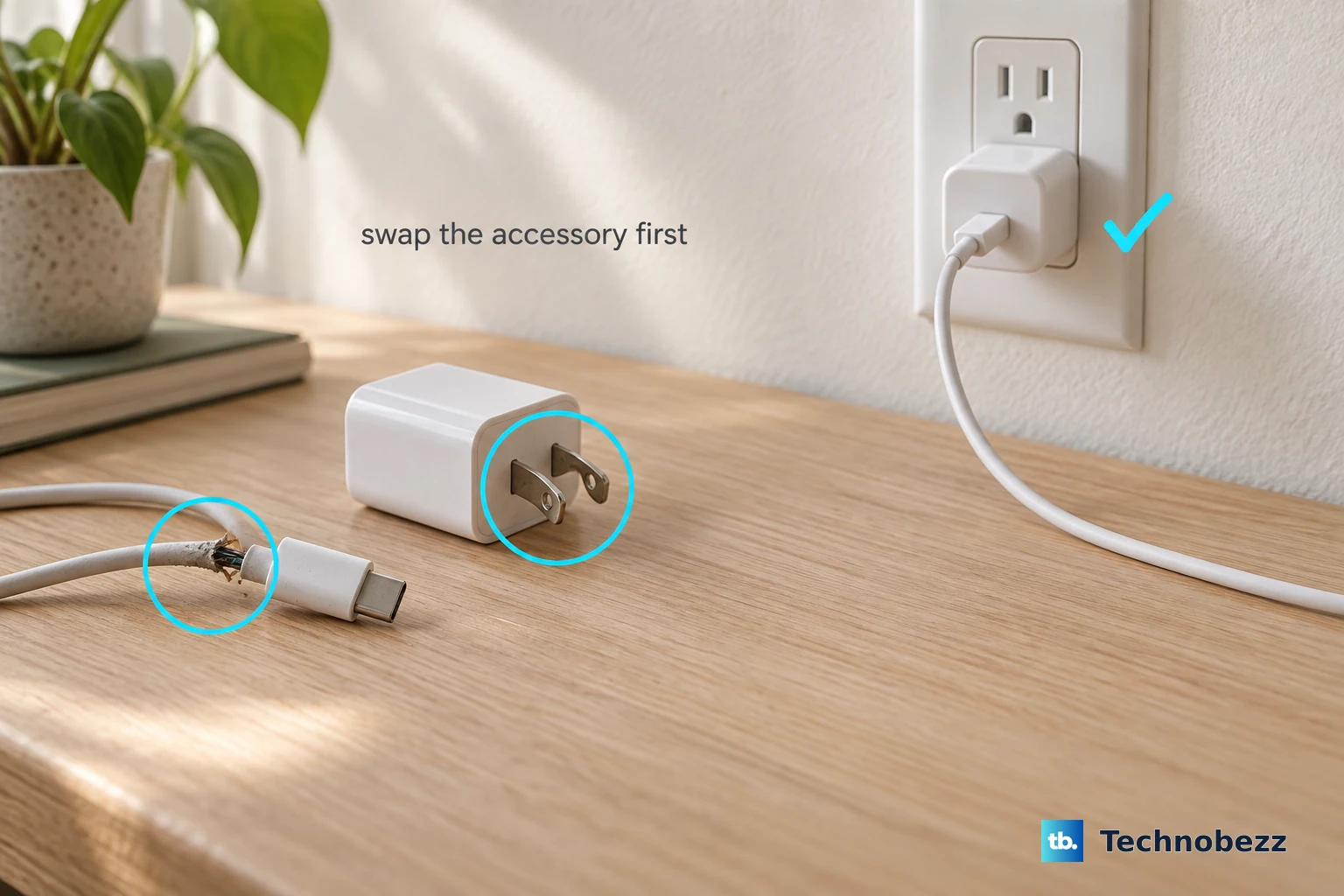
Swap the USB-C cable for a known good one.
Try a different wall adapter (ideally one that supports PD 3.0).
Plug into a different wall outlet, or into a computer’s USB port.
Remove your phone case – thick cases can sometimes block the port connection.
If your phone charges fine with a different cable or adapter, you’ve found the culprit. Replace the faulty accessory.
Check the Overheating Warning
The Galaxy A26 5G has built-in temperature protection. If the phone gets too hot while charging, it will slow down or stop completely and show a warning on the screen. This happens a lot if you’re using the phone for gaming or video while it’s plugged in.
If you see an overheating warning, unplug the phone and move it to a cooler, shaded spot.
Stop using it for a few minutes.
Remove any thick case that might trap heat.
Let it cool down fully before plugging in again.
Avoid using the phone while it’s charging to keep temperatures in check.
Turn Off Fast Charging
One of the known quirks of the Galaxy A26 5G is that some units refuse to charge at all when fast charging is enabled. If you’re getting no charge or intermittent charging, try disabling fast charging.
Go to Settings > Battery > Charging and toggle off Fast Charging. Then plug your phone back in. If it starts charging normally, leave fast charging off for now.
You can turn it back on later after a software update might fix the issue.
This has been reported by multiple A26 5G users as the fix for “charges only when fast charging is off.”
Clear the Cache Partition via Recovery Mode
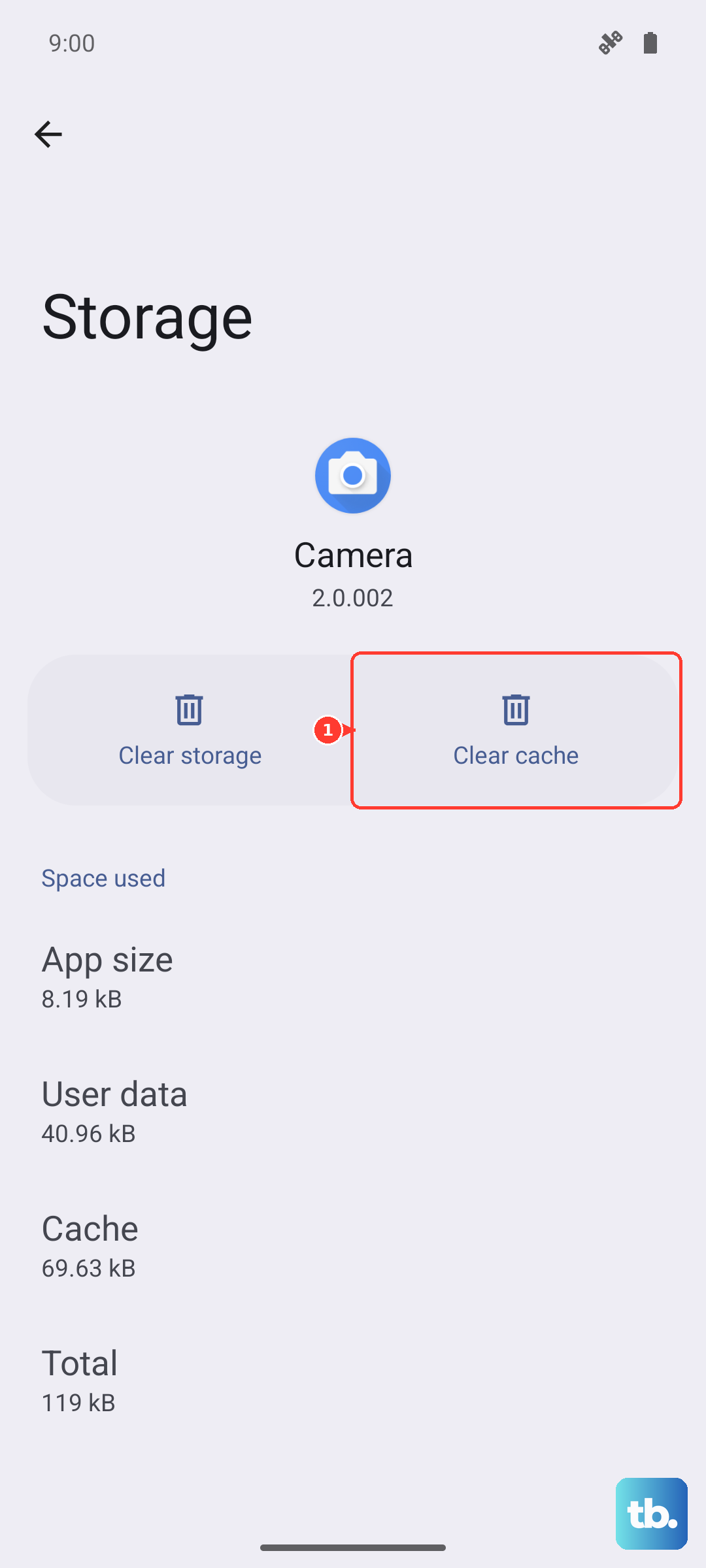
A corrupted system cache can cause all sorts of weird behavior, including charging problems. The Galaxy A26 5G has a recovery mode that lets you clear the cache partition without erasing your personal data.
Turn off your phone completely.
Press and hold Volume Up and Power buttons together.
Release both buttons when the Samsung logo appears.
Use the volume buttons to navigate to Wipe cache partition.
Press the Power button to select it.
Select Yes and wait for the process to finish.
Select Reboot system now.
This takes less than a minute and won’t affect your apps or settings. Test charging after the phone boots back up.
Update One UI and Android
Samsung regularly pushes software updates that fix charging bugs. If you’re running an older version of One UI 7, an update might resolve the issue.
Go to Settings > Software Update > Download and Install. If an update is available, install it and then test charging.
If your phone won’t turn on at all, you can update using a computer. Connect it to a PC with Smart Switch (Samsung’s desktop software) and check for updates there.
Charge with the Phone Turned Off
Sometimes a background process or a misbehaving app interferes with charging. Turn your Galaxy A26 5G completely off, then plug it in. If it starts charging normally, you know it’s a software issue.
Charging while powered off is also faster because the phone isn’t using any power. It’s a good emergency fix when you need a quick battery boost.
Restore Your Phone (Last Resort)
If nothing else has worked, a factory reset can wipe out deep software problems. This will erase all your data, so back up anything important first (Samsung Cloud, Google Drive, or a computer backup).
To factory reset from recovery mode, turn off your phone.
Press and hold Volume Up and Power to enter recovery.
Select Wipe data/factory reset.
Confirm and wait for the reset to finish.
Reboot and set up your phone.
After the reset, test charging with the phone in its out-of-box state. If it still won’t charge, the issue is almost certainly hardware-related. You’ll need to contact Samsung support or a repair shop to check the charging port, battery, or mainboard.