
Watching your Samsung Galaxy A26 5G loop through the Samsung logo over and over is frustrating. A reboot loop usually means something software-level is stuck or a hardware hiccup is getting in the way. The good news is most causes are fixable from home, and I'll walk you through the ones that work most often.
Before you do anything that wipes data, take a minute to back up your files if the phone stays on long enough. Use Google Drive or Samsung Cloud if you can get into the settings. That small step saves a lot of headache later.
Force Restart the Phone (Try This First)
The quickest fix for a one-time glitch is a force restart. It won't delete anything, just cuts power and clears the system's temporary state.
Press and hold the Volume Down and Power buttons together for about 10 15 seconds. Keep holding until you see the Samsung logo show up again, then let go. This works on every Galaxy A26 5G model and usually stops a minor boot loop in its tracks.
Boot Into Safe Mode to Check Apps
A third-party app that crashes at startup can trigger a reboot loop. Safe mode loads only the preinstalled apps so you can test whether a download is the culprit.
To get into safe mode, press and hold the Power button until the power menu appears. Tap and hold the Power off icon until you see the safe mode prompt, then tap Safe mode. If the phone stays on without restarting, an app is the problem. Restart to leave safe mode, then uninstall recently added apps one at a time until the loop stops.
Update One UI and System Apps
An outdated system can have known bugs that cause boot loops. Samsung pushes fixes regularly.
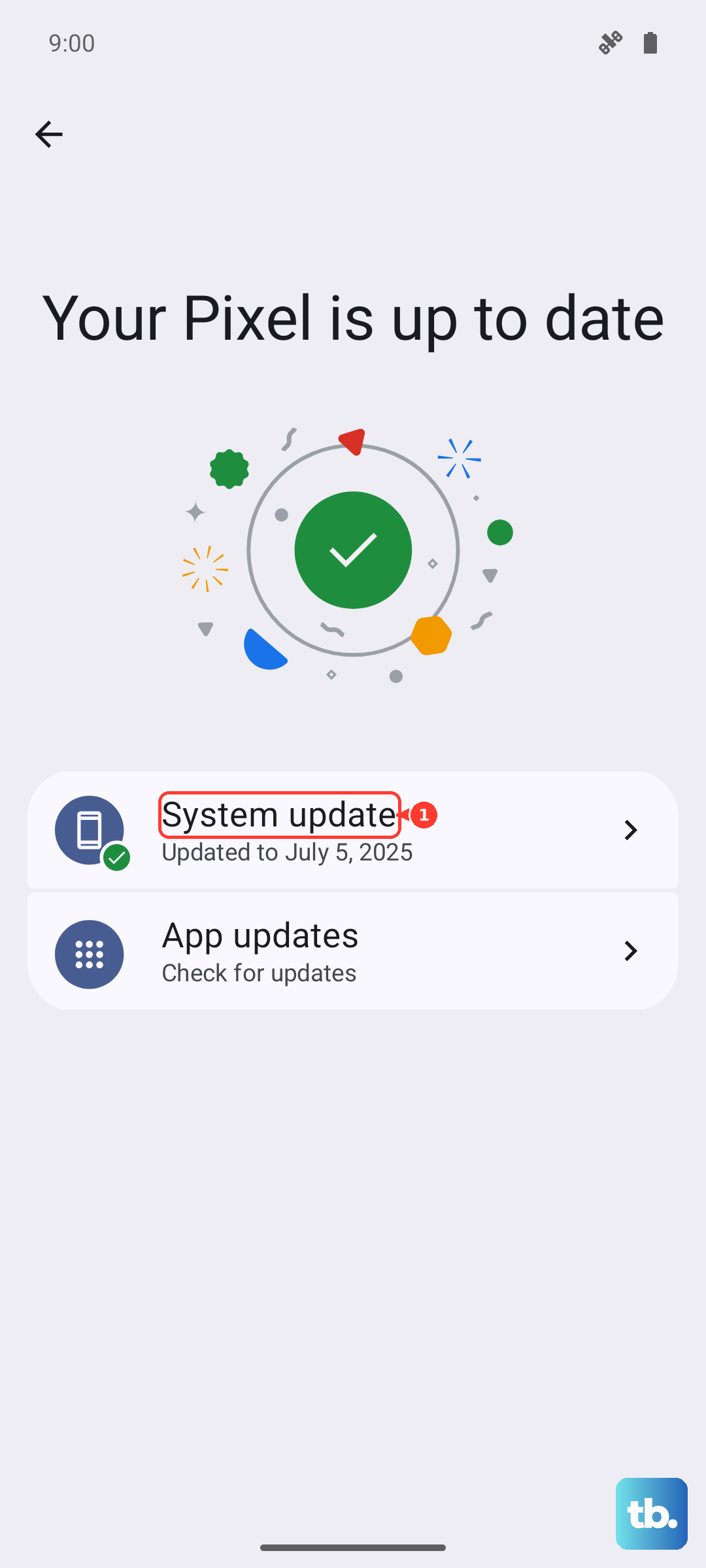
Go to Settings > Software update and tap Download and install. If a system update is available, install it while the phone is stable. Also update your apps from the Galaxy Store and Google Play Store while you're at it.
Clear the Cache Partition
The system cache can get corrupted and cause issues during boot. Clearing it through recovery mode is safe and doesn't touch your personal data.
Power off the phone completely. Then press and hold Volume Up and Power together until the recovery menu appears. Use the volume keys to highlight Wipe cache partition, then press the Power button to select it. Confirm when prompted. After it finishes, select Reboot system now.
Free Up Storage Space
A nearly full phone can become unstable and lead to boot loops. Android needs breathing room for system processes.
Go to Settings > Battery and device care > Storage. If you're below 1 2 GB free, delete old downloads, unused apps, or move photos to the cloud. Aim for at least 5 GB free to be safe.
Reset All Settings
If the loop keeps coming back, resetting settings can fix a misconfigured option without wiping your apps and data.
Head to Settings > General management > Reset > Reset all settings. Enter your PIN or password, then confirm. The phone will restart with default system settings but your files and accounts stay intact.
Check the Charging Setup (Reboot Loop May Be Power-Related)
Some Galaxy A26 5G units have a known issue where a bad charger or cable can cause the phone to reboot. The phone might be stuck in a cycle where it tries to charge but fails.
First, inspect the USB-C port for lint or debris. Use a wooden toothpick or a can of compressed air to clean it gently. Next, try a different cable and wall adapter. For optimal charging and stability, use a USB PD 3.0 charger with PPS support. If the phone only charges when fast charging is turned off, go to Settings > Battery > Charging and disable fast charging temporarily. Avoid using the phone while it's plugged in to reduce heat.
Factory Reset (Last Resort Before Service)
A factory reset clears everything and gives you a fresh system. It's the most effective way to fix persistent software-related reboot loops.
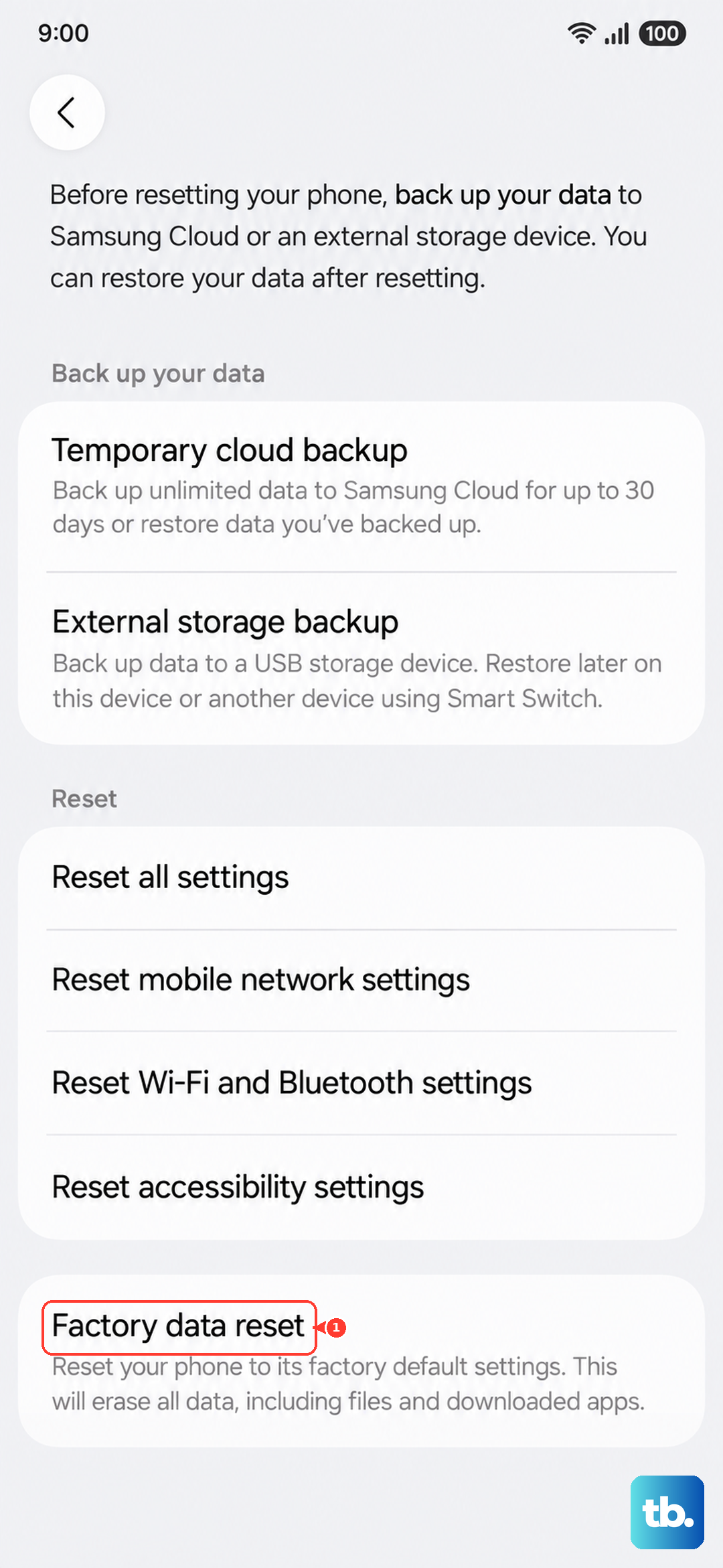
Go to Settings > General management > Reset > Factory data reset. Read the list of what will be erased, then tap Reset and follow the prompts. If the phone can't stay on long enough to reach settings, boot into recovery mode (Volume Up + Power) and select Wipe data/factory reset instead.
Flash Firmware With a Computer
If a factory reset doesn't help, the system firmware itself may be damaged. You can reinstall it using Samsung's Smart Switch app on a PC or Mac.
Download and install Smart Switch, then connect your phone with a USB cable. If the phone is detected, select Emergency software recovery and initialization. The tool will download the correct firmware and flash it. This preserves your data if possible, but have a backup ready just in case.











